Data Binding
TTMSFNCDataBinder binds UI components to datasets at design time or runtime. It supports single-value bindings, list bindings (TStringList, TCollection, TList), column/list bindings, and grid bindings. It also auto-updates when dataset records change.
Key class: TTMSFNCDataBinder
Drop a TTMSFNCDataBinder component on the form and set it Active := True after configuring bindings.
Binding a Single Value
Show the value of a dataset field in a component property.
// Programmatic
TMSFNCDataBinder1.ConnectSingle(TMSFNCHTMLText1, DataSource1, 'Text', 'Common_Name');
TMSFNCDataBinder1.Active := True;
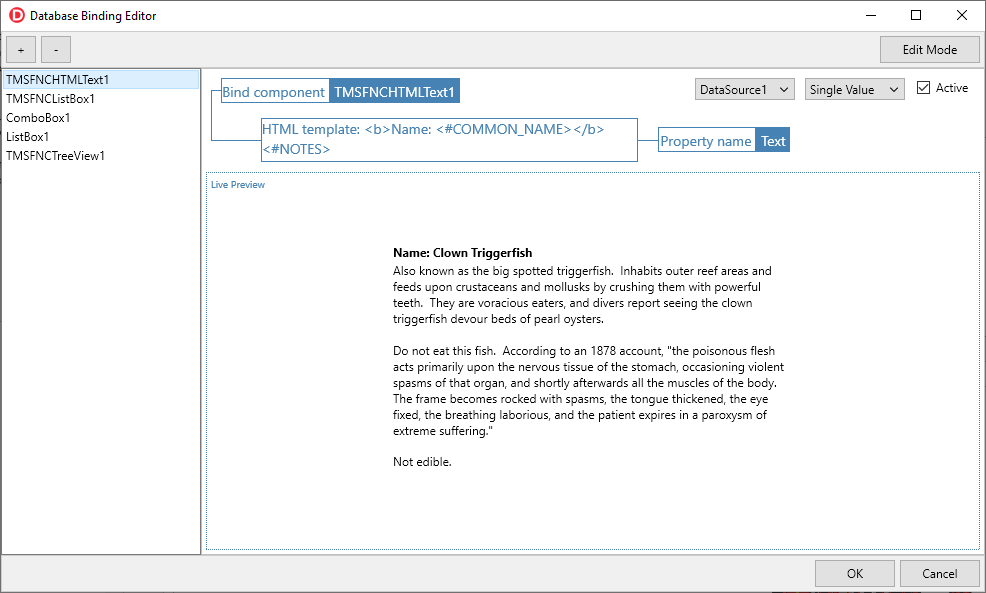
Or use an HTML template for richer formatting:
TMSFNCDataBinder1.ConnectSingleHTMLTemplate(
  TMSFNCHTMLText1, DataSource1, 'Text', '<b>Name: <#COMMON_NAME></b><br/><#NOTES>');
TMSFNCDataBinder1.Active := True;
The <#FIELDNAME> placeholder is replaced with the field value. HTML is based on the TMS Mini HTML reference.

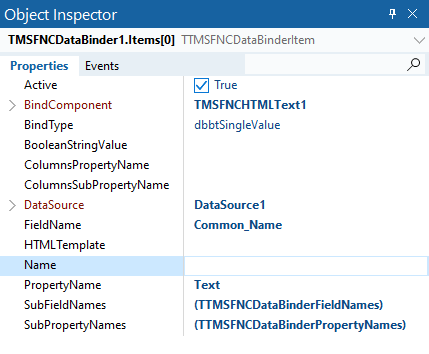
At design time, add items to the Items collection in the Object Inspector and set Object, BindType, DataSource, FieldName, and PropertyName directly.
Binding a List
Show all dataset records in a list component.
TStringList-based list:
TMSFNCDataBinder1.ConnectList(ListBox1, DataSource1, 'Items', 'Common_Name');
TMSFNCDataBinder1.Active := True;
TCollection-based list (use SubPropertyNames / SubFieldNames to bind collection item properties):
TMSFNCDataBinder1.ConnectList(
  TMSFNCListBox1, DataSource1, 'Items',
  ['Text', 'Bitmap'], ['Common_Name', 'Graphic']);
TMSFNCDataBinder1.Active := True;
TTMSFNCDataBinderStringArray Properties, Fields;
Properties.Length = 2;
Properties[0] = "Text";
Properties[1] = "Bitmap";
Fields.Length = 2;
Fields[0] = "Common_Name";
Fields[1] = "Graphic";
TMSFNCDataBinder1->ConnectList(TMSFNCListBox1, DataSource1, "Items", Properties, Fields);
TMSFNCDataBinder1->Active = true;

Binding a Column/List
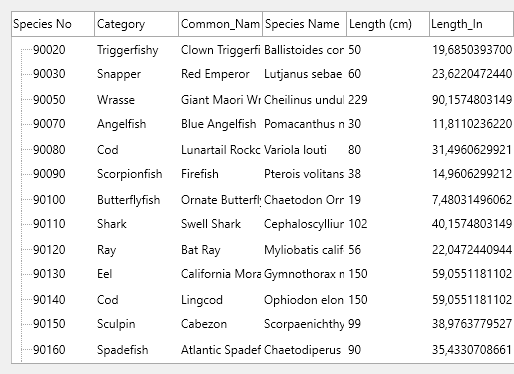
Show all fields and records in a component with separate columns and list collections:
TMSFNCDataBinder1.ConnectColumnList(
  TMSFNCTreeView1, DataSource1, 'Nodes', 'Columns', 'Text', 'Values.Text');
TMSFNCDataBinder1.Active := True;
The sub-property path Values.Text traverses a nested collection: for each node, a TTMSFNCTreeViewNodeValue is added to Values, and its Text property is set to the field value.
Binding a Grid
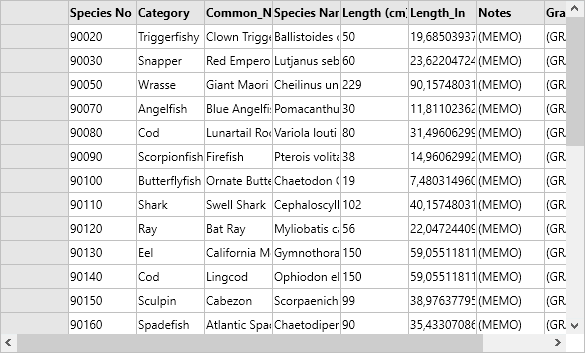
Bind to any component implementing ITMSFNCDataBinderGrid:
TMSFNCDataBinder1.ConnectGrid(TMSFNCGrid1, DataSource1);
TMSFNCDataBinder1.Active := True;
To support grid binding in a custom component, implement ITMSFNCDataBinderGrid:
ITMSFNCDataBinderGrid = interface(ITMSFNCDataBinderBase)
['{D23BDEAA-49B1-451A-9401-0D0D11A9957A}']
  procedure SetDataColumnCount(AValue: Integer);
  procedure SetDataRowCount(AValue: Integer);
  procedure ClearData;
  function GetDataRowCount: Integer;
  procedure SetDataValue(AColumn, ARow: Integer; AValue: string);
  procedure SetDataHeader(AColumn: Integer; AValue: string);
end;
__interface INTERFACE_UUID("{D23BDEAA-49B1-451A-9401-0D0D11A9957A}") ITMSFNCDataBinderGrid : public ITMSFNCDataBinderBase
{
  virtual void __fastcall SetDataColumnCount(int AValue) = 0;
  virtual void __fastcall SetDataRowCount(int AValue) = 0;
  virtual void __fastcall ClearData() = 0;
  virtual int __fastcall GetDataRowCount() = 0;
  virtual void __fastcall SetDataValue(int AColumn, int ARow, String AValue) = 0;
  virtual void __fastcall SetDataHeader(int AColumn, String AValue) = 0;
};
Binding TList / TObjectList
TMSFNCDataBinder1.ConnectList(o, DataSource1, 'L', [], ['Price']);
TMSFNCDataBinder1.ConnectList(o, DataSource1, 'S', [], ['Brand']);
Supports TList<Integer>, TList<string>, and TObjectList<T>.
Runtime Editor
Open the visual binding editor at runtime:
TMSFNCDataBinder1.StartEditor;
At design time, right-click the component and choose Edit….
Notification System
Use notifications to synchronize control changes back to the dataset.
Notification Types
| Type | Description |
|---|---|
dbntUpdate |
General update |
dbntEdit |
Put dataset in edit mode |
dbntPost |
Post changes to dataset |
dbntValueChanged |
Write control value to dataset |
dbntSetActiveRecord |
Sync active record from control selection |
Convenience Methods on TTMSFNCDataBinderItem
DataBinderItem.NotifyEdit;          // put dataset in edit mode
DataBinderItem.NotifyValueChanged;  // write the value
DataBinderItem.NotifyPost;          // post changes
DataBinderItem.NotifyUpdate;        // force general update
DataBinderItem.NotifySetActiveRecord; // sync active record
DataBinderItem->NotifyEdit();          // put dataset in edit mode
DataBinderItem->NotifyValueChanged();  // write the value
DataBinderItem->NotifyPost();          // post changes
DataBinderItem->NotifyUpdate();        // force general update
DataBinderItem->NotifySetActiveRecord(); // sync active record
Global Notifications on TTMSFNCDataBinder
MyDataBinder.NotifyValueChanged;
MyDataBinder.NotifyEdit;
MyDataBinder.NotifyPost;
MyDataBinder.NotifyUpdate;
MyDataBinder.NotifySetActiveRecord;
MyDataBinder->NotifyValueChanged();
MyDataBinder->NotifyEdit();
MyDataBinder->NotifyPost();
MyDataBinder->NotifyUpdate();
MyDataBinder->NotifySetActiveRecord();
Custom Control Integration
Implement ITMSFNCDataBinderNotification on a custom control to participate in the notification system. For automatic monitoring, the databinder supports IControlValueObserver and IEditLinkObserver.
Best Practices
- Prefer automatic monitoring for standard controls.
- Always ensure the dataset is in edit mode before writing values: check
DataBinderItem.DataSetCanModify. - Batch notifications with global methods when updating multiple controls.
Dataset change tracking with DataLink
Every binding item owns a TTMSFNCDataBinderDataLink that subscribes to the dataset behind its DataSource and pushes updates into the bound property as the dataset opens, scrolls, posts, or refreshes. You normally never touch it — reach for it when the dataset changed without raising its own notifications (a direct SQL update, a batch import, or a provider that suppresses events), because in that case nothing has told the binder to re-read.
DataLink is read-only: the item creates and destroys it, and you cannot assign your own. To force a refresh, call UpdateDataLink with the mode that matches the change:
TTMSFNCDataBinderDataLinkMode |
Push it when |
|---|---|
dlmActiveChanged |
The dataset was opened or closed behind the binder's back. |
dlmDataSetChanged |
Records were added, deleted, or refreshed wholesale. |
dlmDataSetScrolled |
The cursor moved; pass the record distance as ADistance. |
dlmRecordChanged |
One field of the current record changed; pass it as AField. |
dlmUpdateData |
Bound controls should post their pending values into the dataset. |
procedure TForm1.RefreshBoundItem;
var
  Item: TTMSFNCDataBinderItem;
begin
  Item := TMSFNCDataBinder1.ItemByObject[TMSFNCHTMLText1, 'Text'];
  if not Assigned(Item) then
    Exit;

  { The item only tracks a dataset once it actually resolved one. }
  if not Item.CheckDataSet then
    Exit;

  { Re-read the current record into the bound property. Use dlmDataSetChanged
    for a wholesale refresh, dlmRecordChanged to refresh one field only. }
  Item.UpdateDataLink(dlmDataSetChanged);

  { DataLink is read-only: it is created and owned by the item, never assigned. }
  if Assigned(Item.DataLink) then
    Caption := Format('%d record(s), pending edits: %s',
      [Item.GetRecordCount, BoolToStr(Item.HasDirty, True)]);
end;
void __fastcall TForm1::RefreshBoundItem()
{
  TTMSFNCDataBinderItem *Item = TMSFNCDataBinder1->ItemByObject[TMSFNCHTMLText1]["Text"];
  if (Item == nullptr)
    return;

  // The item only tracks a dataset once it actually resolved one.
  if (!Item->CheckDataSet())
    return;

  // Re-read the current record into the bound property. Use dlmDataSetChanged
  // for a wholesale refresh, dlmRecordChanged to refresh one field only.
  Item->UpdateDataLink(TTMSFNCDataBinderDataLinkMode::dlmDataSetChanged);

  // DataLink is read-only: it is created and owned by the item, never assigned.
  if (Item->DataLink != nullptr)
    Caption = Format("%d record(s), pending edits: %s",
      ARRAYOFCONST((Item->GetRecordCount(), BoolToStr(Item->HasDirty(), true))));
}
Two things the source makes explicit and that are easy to get wrong:
- Check
CheckDataSetfirst. An item that never resolved a dataset (inactive binder, unassignedDataSource, closed dataset) has no live link, andUpdateDataLinkhas nothing to read from. dlmUpdateDatamoves data the other way. It is the only mode that writes from the controls into the dataset, so it belongs to a save flow, not to a refresh flow. For a refresh, usedlmDataSetChanged.
Field write events
The four field events fire around each individual property write, so they are the place to filter, transform, or veto a value without subclassing anything. Reach for them instead of the notification methods when the decision depends on this field and this property — a NULL that should leave the control alone, a value that needs reformatting, a write-back that must be blocked while the dataset is read-only.
Each direction has a Before and an After event:
OnBeforeWriteFieldToProperty/OnAfterWriteFieldToProperty— dataset field into component property.OnBeforeWritePropertyToField/OnAfterWritePropertyToField— component property back into the dataset field.
procedure TForm1.FormCreate(Sender: TObject);
begin
  TMSFNCDataBinder1.OnBeforeWriteFieldToProperty := DoBeforeWriteFieldToProperty;
  TMSFNCDataBinder1.OnAfterWriteFieldToProperty := DoAfterWriteFieldToProperty;
  TMSFNCDataBinder1.OnBeforeWritePropertyToField := DoBeforeWritePropertyToField;
  TMSFNCDataBinder1.Active := True;
end;

procedure TForm1.DoBeforeWriteFieldToProperty(Sender: TObject; AObject: TObject;
  AItem: TTMSFNCDataBinderItem; APropertyInfo: TTMSFNCPropertyInfo;
  APropertyName: string; APropertyKind: TTypeKind; AField: TField;
  var AAllow: Boolean);
begin
  { Leave the property at its designed value instead of writing an empty string. }
  AAllow := Assigned(AField) and not AField.IsNull;
end;

procedure TForm1.DoAfterWriteFieldToProperty(Sender: TObject; AObject: TObject;
  AItem: TTMSFNCDataBinderItem; APropertyInfo: TTMSFNCPropertyInfo;
  APropertyName: string; APropertyKind: TTypeKind; AField: TField);
begin
  { The property already holds the field value here - decorate, do not re-read. }
  if (APropertyKind = tkUString) and (AObject is TLabel) then
    TLabel(AObject).Text := UpperCase(TLabel(AObject).Text);
end;

procedure TForm1.DoBeforeWritePropertyToField(Sender: TObject; AObject: TObject;
  AItem: TTMSFNCDataBinderItem; APropertyInfo: TTMSFNCPropertyInfo;
  APropertyName: string; APropertyKind: TTypeKind; AField: TField;
  var AAllow: Boolean);
begin
  { Never write back unless the dataset accepts an edit right now. }
  AAllow := AItem.DataSetCanModify;
end;
void __fastcall TForm1::FormCreate(TObject *Sender)
{
  TMSFNCDataBinder1->OnBeforeWriteFieldToProperty = DoBeforeWriteFieldToProperty;
  TMSFNCDataBinder1->OnAfterWriteFieldToProperty = DoAfterWriteFieldToProperty;
  TMSFNCDataBinder1->OnBeforeWritePropertyToField = DoBeforeWritePropertyToField;
  TMSFNCDataBinder1->Active = true;
}

void __fastcall TForm1::DoBeforeWriteFieldToProperty(TObject *Sender, TObject *AObject,
  TTMSFNCDataBinderItem *AItem, TTMSFNCPropertyInfo APropertyInfo,
  String APropertyName, TTypeKind APropertyKind, TField *AField,
  bool &AAllow)
{
  // Leave the property at its designed value instead of writing an empty string.
  AAllow = (AField != nullptr) && !AField->IsNull;
}

void __fastcall TForm1::DoAfterWriteFieldToProperty(TObject *Sender, TObject *AObject,
  TTMSFNCDataBinderItem *AItem, TTMSFNCPropertyInfo APropertyInfo,
  String APropertyName, TTypeKind APropertyKind, TField *AField)
{
  // The property already holds the field value here - decorate, do not re-read.
  TLabel *Lbl = dynamic_cast<TLabel *>(AObject);
  if ((APropertyKind == tkUString) && (Lbl != nullptr))
    Lbl->Text = UpperCase(Lbl->Text);
}

void __fastcall TForm1::DoBeforeWritePropertyToField(TObject *Sender, TObject *AObject,
  TTMSFNCDataBinderItem *AItem, TTMSFNCPropertyInfo APropertyInfo,
  String APropertyName, TTypeKind APropertyKind, TField *AField,
  bool &AAllow)
{
  // Never write back unless the dataset accepts an edit right now.
  AAllow = AItem->DataSetCanModify();
}
The Before handlers receive var AAllow: Boolean, pre-set to True. Setting it to False cancels the write and suppresses the matching After event — the binder treats the pair as one guarded operation, so After is not a reliable "the write was attempted" hook. APropertyKind tells you the RTTI kind the binder resolved (tkUString, tkInteger, tkEnumeration, …), which is what decides how the field value is converted; check it before casting AObject.
The same handlers are also available as protected DoBeforeWrite… / DoAfterWrite… methods on both TTMSFNCDataBinder and TTMSFNCDataBinderItem, so a descendant can enforce a rule that must not be overridden by a form-level handler.
HTML template events
An HTML-template binding formats a whole record into one string property, which means a single template has to cover every record. The two HTML events lift that restriction: they let you swap the template per record before it is expanded, and observe which template was used afterwards. Use them for record-dependent presentation — a highlight for overdue rows, a different layout for a summary record — and keep HTMLTemplate itself for the common case.
procedure TForm1.FormCreate(Sender: TObject);
begin
  { HTMLText1 is any control with an HTML-aware string property. }
  TMSFNCDataBinder1.ConnectSingleHTMLTemplate(HTMLText1, DataSource1, 'Text',
    '<b><#COMMON_NAME></b><br/><#NOTES>');

  TMSFNCDataBinder1.OnBeforeWriteHTMLTemplateToProperty := DoBeforeWriteHTMLTemplate;
  TMSFNCDataBinder1.OnAfterWriteHTMLTemplateToProperty := DoAfterWriteHTMLTemplate;
  TMSFNCDataBinder1.Active := True;
end;

procedure TForm1.DoBeforeWriteHTMLTemplate(Sender: TObject; AObject: TObject;
  AItem: TTMSFNCDataBinderItem; APropertyInfo: TTMSFNCPropertyInfo;
  APropertyName: string; APropertyKind: TTypeKind; var AHTMLTemplate: string;
  var AAllow: Boolean);
var
  DataSet: TDataSet;
begin
  { AHTMLTemplate still contains the <#FIELDNAME> placeholders - substitution
    happens after this event, so a template swapped in here is expanded too. }
  DataSet := nil;
  if Assigned(AItem.DataSource) then
    DataSet := AItem.DataSource.DataSet;

  if Assigned(DataSet) and (DataSet.FieldByName('CATEGORY').AsString = 'Rare') then
    AHTMLTemplate := '<b><font color="#B00020"><#COMMON_NAME></font></b><br/><#NOTES>';

  AAllow := True;
end;

procedure TForm1.DoAfterWriteHTMLTemplate(Sender: TObject; AObject: TObject;
  AItem: TTMSFNCDataBinderItem; APropertyInfo: TTMSFNCPropertyInfo;
  APropertyName: string; APropertyKind: TTypeKind; AHTMLTemplate: string);
begin
  { AHTMLTemplate is the template that was used, not the expanded result. }
  Memo1.Lines.Add(APropertyName + ' <- ' + AHTMLTemplate);
end;
void __fastcall TForm1::FormCreate(TObject *Sender)
{
  // HTMLText1 is any control with an HTML-aware string property.
  TMSFNCDataBinder1->ConnectSingleHTMLTemplate(HTMLText1, DataSource1, "Text",
    "<b><#COMMON_NAME></b><br/><#NOTES>");

  TMSFNCDataBinder1->OnBeforeWriteHTMLTemplateToProperty = DoBeforeWriteHTMLTemplate;
  TMSFNCDataBinder1->OnAfterWriteHTMLTemplateToProperty = DoAfterWriteHTMLTemplate;
  TMSFNCDataBinder1->Active = true;
}

void __fastcall TForm1::DoBeforeWriteHTMLTemplate(TObject *Sender, TObject *AObject,
  TTMSFNCDataBinderItem *AItem, TTMSFNCPropertyInfo APropertyInfo,
  String APropertyName, TTypeKind APropertyKind, String &AHTMLTemplate,
  bool &AAllow)
{
  // AHTMLTemplate still contains the <#FIELDNAME> placeholders - substitution
  // happens after this event, so a template swapped in here is expanded too.
  TDataSet *DataSet = nullptr;
  if (AItem->DataSource != nullptr)
    DataSet = AItem->DataSource->DataSet;

  if ((DataSet != nullptr) && (DataSet->FieldByName("CATEGORY")->AsString == "Rare"))
    AHTMLTemplate = "<b><font color=\"#B00020\"><#COMMON_NAME></font></b><br/><#NOTES>";

  AAllow = true;
}

void __fastcall TForm1::DoAfterWriteHTMLTemplate(TObject *Sender, TObject *AObject,
  TTMSFNCDataBinderItem *AItem, TTMSFNCPropertyInfo APropertyInfo,
  String APropertyName, TTypeKind APropertyKind, String AHTMLTemplate)
{
  // AHTMLTemplate is the template that was used, not the expanded result.
  Memo1->Lines->Add(APropertyName + " <- " + AHTMLTemplate);
}
Ordering matters here, and the source is unambiguous about it:
OnBeforeWriteHTMLTemplateToPropertyreceives the template with its<#FIELDNAME>placeholders still unexpanded, asvar AHTMLTemplate: string. A template assigned in the handler is substituted like the original, so you can rewrite the layout freely.OnAfterWriteHTMLTemplateToPropertyreceives that same template, not the expanded HTML. Read the bound property if you need the final markup.- Setting
AAllow := Falseskips both the write and theAfterevent. - An empty
HTMLTemplateshort-circuits the whole path — neither event fires. And only string-kind properties are written, so pointing an HTML template at an integer property silently does nothing.