Responsive Layout
TTMSFNCResponsiveManager enables responsive form design. Define multiple layout states for a form or control, and the manager loads the matching state automatically when the form is resized at runtime.
Key class: TTMSFNCResponsiveManager
Getting Started
Drop a TTMSFNCResponsiveManager on the form (it is non-visual). Right-click the component to access its design-time options:
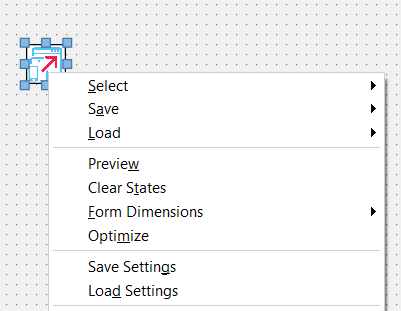
Select
Choose which form or control the responsive manager manages. The default is the parent form. Switching controls clears existing states.
TMSFNCResponsiveManager1.Control := Panel1;
Save
Save the current layout as a new state or overwrite an existing one.
TMSFNCResponsiveManager1.SaveToNewState;
TMSFNCResponsiveManager1.SaveToState('Medium');
At design time, right-click and choose Save → Save To New State. Rename the state in the structure pane.
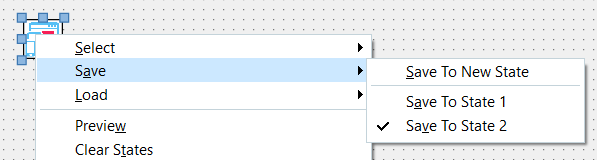
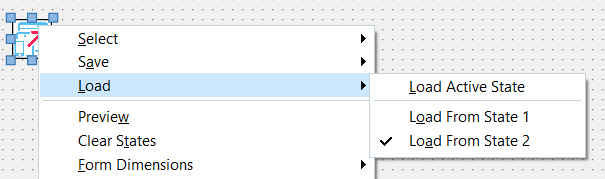
Load
Load the matching state based on the current control size, or load a specific state by name:
TMSFNCResponsiveManager1.LoadState;             // auto-detect by width/height
TMSFNCResponsiveManager1.LoadStateByName('Large');
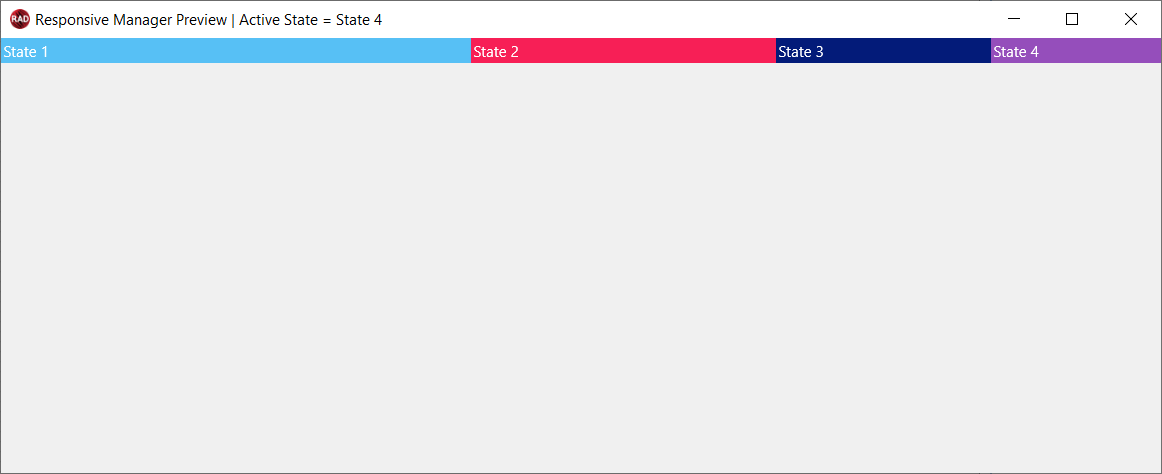
Preview
Open a live design-time preview of the form. Resizing the preview window switches between defined states. A banner shows the active state boundaries.
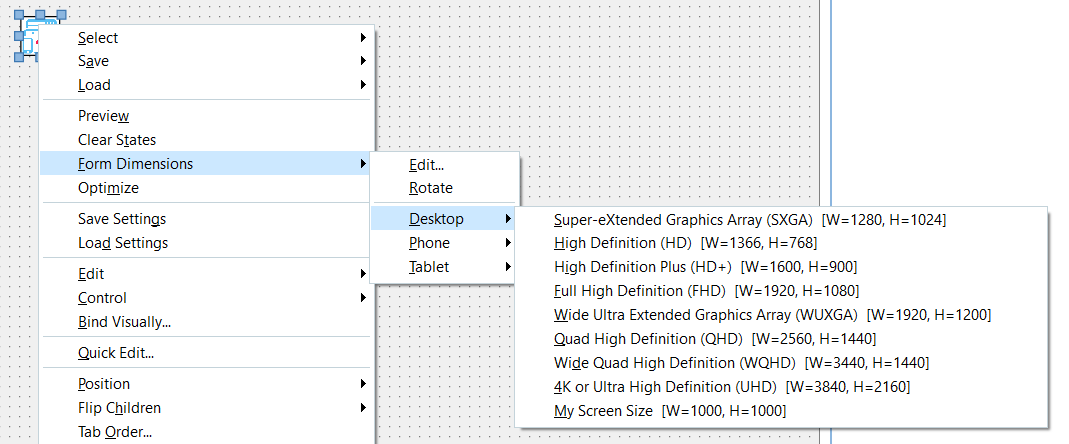
Form Dimensions
Set the design canvas to a predefined device size (phone, tablet, HD, 4K) or define custom sizes:
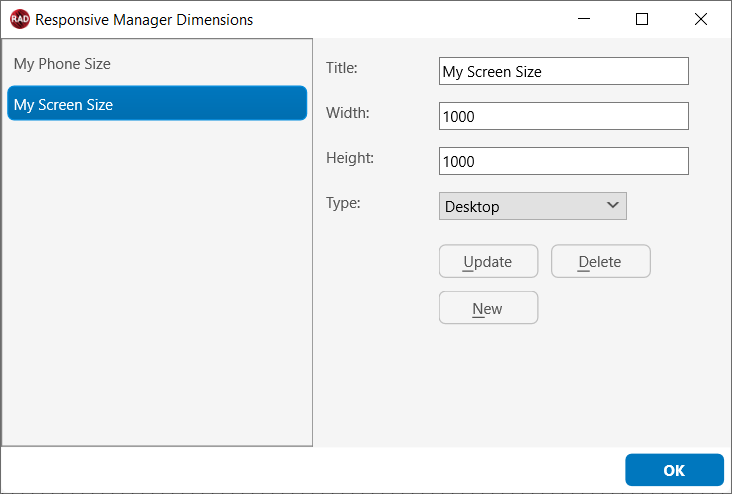
Optimize
Remove redundant properties from states (only differences between states are retained). Optimization at design time is irreversible — save settings before optimizing. At runtime, optimization happens automatically.
Save/Load Settings
Persist all states to a JSON file for backup before optimizing:
Right-click → Save/Load Settings.
Constraints
States match by width and height by default. The Mode property controls the matching strategy:
| Value | Description |
|---|---|
mrmWidthOnly |
Match by width only (default) |
mrmHeightOnly |
Match by height only |
mrmWidthFirst |
Match by width first, then height if multiple states match |
mrmHeightFirst |
Match by height first, then width |
When AutoLoadOnResize is True, the manager automatically detects the OnResize event and calls LoadState.
Custom Constraints
Replace width/height matching with string, boolean, or number constraints:
// String constraint
TMSFNCResponsiveManager1.LoadState('Admin');

// Boolean constraint
TMSFNCResponsiveManager1.LoadState(True);

// Number constraint
TMSFNCResponsiveManager1.LoadState(1024.0);

// Custom callback
TMSFNCResponsiveManager1.LoadStateCustom(
  procedure(AState: TTMSFNCStateManagerItem; var ALoad: Boolean)
  begin
    ALoad := AState.DataString = 'MyValue';
  end);
// String constraint
TMSFNCResponsiveManager1->LoadState(String("Admin"));

// Boolean constraint
TMSFNCResponsiveManager1->LoadState(true);

// Number constraint
TMSFNCResponsiveManager1->LoadState((Extended)1024.0);

// Custom callback
TMSFNCResponsiveManager1->LoadStateCustom(
  [](TTMSFNCStateManagerItem *AState, bool &ALoad)
  {
    ALoad = AState->DataString == "MyValue";
  });
Each state can hold custom data in DataPointer, DataBoolean, DataObject, DataString, and DataInteger properties.
High DPI
The responsive manager detects DPI at design time and runtime and scales controls accordingly when switching states. Forms designed at a specific DPI should not be reopened in a different DPI environment; recreate states if DPI changes.
Properties
| Property | Description |
|---|---|
ActiveState |
Current state index. Setting it at runtime loads the state without saving. |
AutoLoadOnResize |
Auto-detect OnResize and call LoadState (default: True) |
AutoSave |
Auto-save state when switching at design time |
Mode |
Constraint matching mode |
States |
Collection of state items |
States[i].Name |
State name |
States[i].Default |
Marks the default state (loaded when no other state matches) |
States[i].Constraint |
Width/height or custom constraint |
States[i].Content |
JSON representation of the state (persisted in the form file) |
Events
| Event | Description |
|---|---|
OnBeforeLoadState / OnAfterLoadState |
Before/after loading a state |
OnBeforeLoadControlState / OnAfterLoadControlState |
Before/after loading a specific control's state; can block or modify it |
OnLoadStateCustom |
Custom constraint evaluation callback |
Example: Width-Based Responsive Login Form
This example creates three states — Small, Medium, Large — driven by form width.
Arrange controls on a small form. Drop
TTMSFNCResponsiveManageron the form.Right-click → Save → Save To New State. Rename to Small.
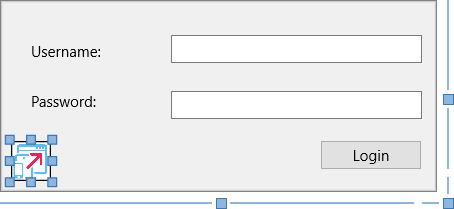
Resize the form to medium width. Rearrange controls. Save to a new state and rename to Medium.
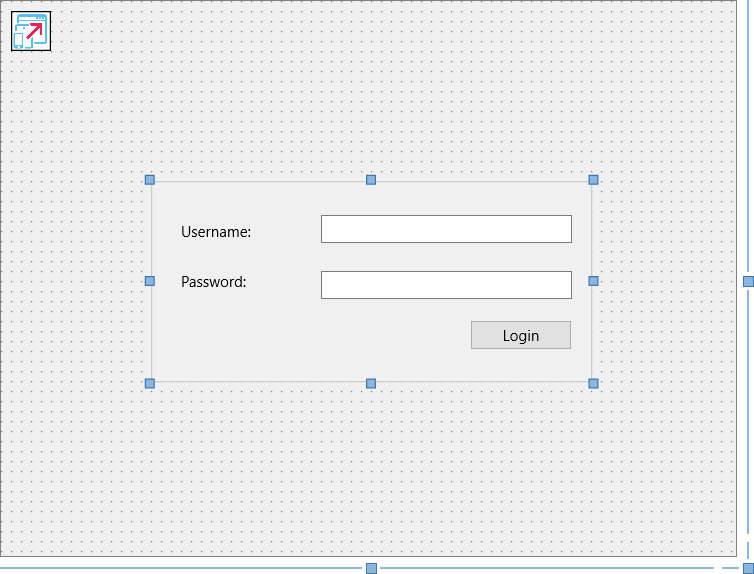
Resize to large. Rearrange. Save and rename to Large.
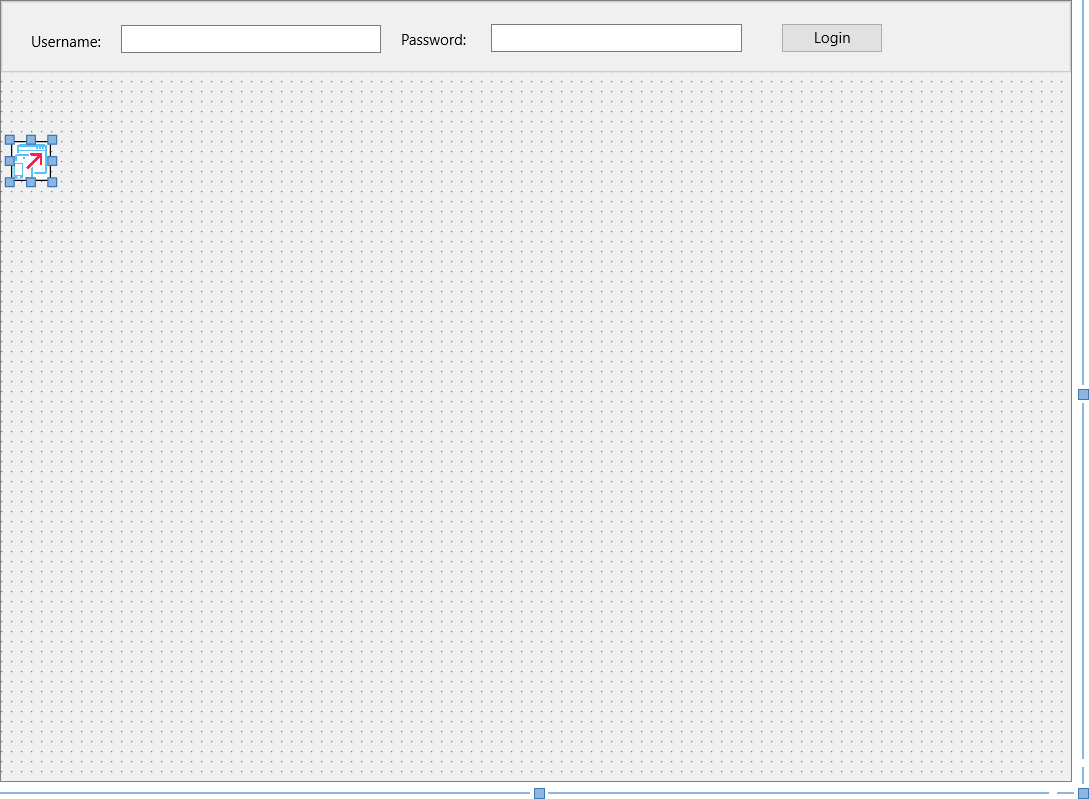
The structure pane now shows three states:
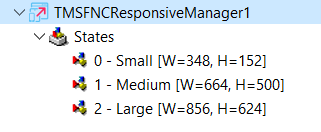
Run the application and resize the form — the three states are detected and loaded automatically.
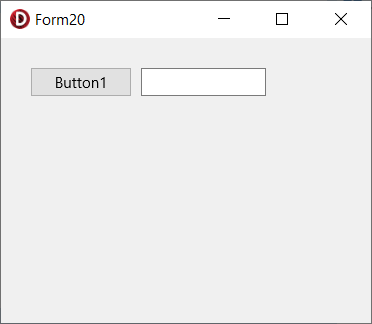
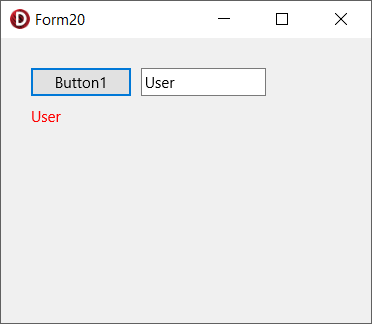
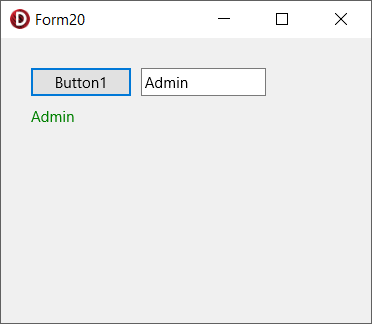
Example: String-Constraint Role-Based UI
Load states based on user role rather than form size.
Set
AutoLoadOnResize := False.Create three states with
StringValueconstraints: Default, User, Admin.On form create, load the default state:
Example: String-Constraint Role-Based UIPascalC++ procedure TForm1.FormCreate(Sender: TObject); begin TMSFNCResponsiveManager1.LoadState('Default'); end;void __fastcall TForm1::FormCreate(TObject *Sender) { TMSFNCResponsiveManager1->LoadState(String("Default")); }On a button click, load a state by role:
Example: String-Constraint Role-Based UIPascalC++ procedure TForm1.Button1Click(Sender: TObject); begin TMSFNCResponsiveManager1.LoadState(Edit1.Text); end;void __fastcall TForm1::Button1Click(TObject *Sender) { TMSFNCResponsiveManager1->LoadState(Edit1->Text); }If no matching state is found, the default state loads.