Styling
TMS FNC Core provides a built-in styling system for FNC components. Styles are JSON files that capture the appearance properties of each component. Apply built-in styles or create your own at design time or runtime using TTMSFNCStylesManager.
Key class: TTMSFNCStylesManager
Built-in styles: Dark, Light, Office 2019 Gray, Office 2019 White, Office 2019 Black.
Design Time
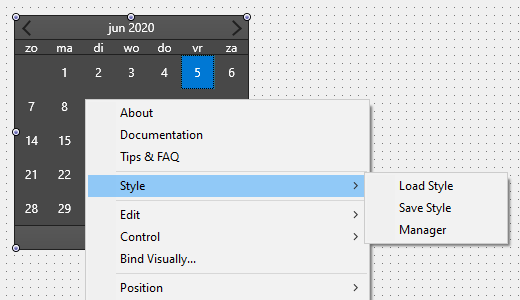
Right-click any FNC component on the form and choose Style → Manager to open the style manager dialog.
The dialog shows all available built-in styles. Click a style to select it, then click Apply to apply it to all FNC components on the form.
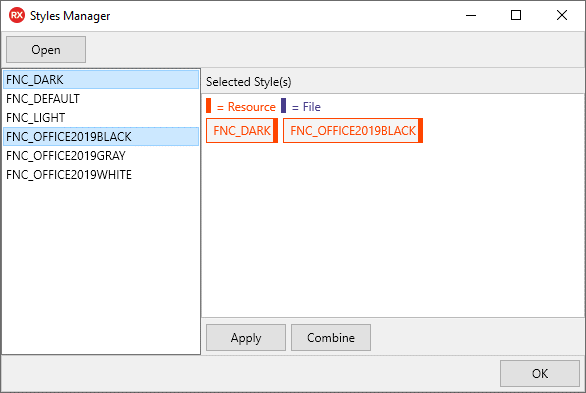
- Click Open to load a custom style file.
- Right-click a component to Save its current appearance as a style file.
- Built-in styles are combined files covering multiple components. Individual component style files can be loaded and merged into combined files.
Runtime
Loading Built-In Styles
Add the resource file to your project first:
{$R 'TMSFNCStylesResources.res'}
Then load a built-in style by resource name:
TMSFNCStylesManager1.LoadStyleFromResource('TTMSFNCStyle_FNC_Dark');
// or
TMSFNCStylesManager.StyleResource := 'FNC_Dark';
Built-in style resource names follow the pattern TTMSFNCStyle_[StyleName].style.
Loading from File or Stream
TMSFNCStylesManager1.LoadStyleFromFile('MyTheme.style');
TMSFNCStylesManager1.LoadStyleFromStream(MyStream);
TMSFNCStylesManager1.LoadStyleFromText(MyStyleJSON);
Loading a Single Component's Style
MyComponent.LoadSettingsFromFile('MyComponentTheme.style');
JSON Format
Styles use the FNC JSON persistence format. Only appearance properties are captured. Custom components inheriting from TTMSFNCCustomControl and implementing ITMSFNCPersistence are automatically styleable. Override IsAppearanceProperty to fine-tune which properties are captured.
{
  "$type": "TTMSFNCCalendar",
  "Color": "#484848",
  "DateAppearance": {
    "$type": "TTMSFNCCalendarDateAppearance",
    "BadgeFill": { ... },
    "BadgeFont": { ... }
  }
}
WEB Core
Styles are fully supported in WEB Core at design time using the same methods as VCL and FMX. At runtime, use LoadStyleFromURL instead of LoadStyleFromResource (resources are not available in WEB Core):
TMSFNCStylesManager1.LoadStyleFromURL(
  'http://localhost:8888/Project1/TTMSFNCStyle_FNC_Dark.style');
To let the user pick a style file, use WebFilePicker and pass the text content to LoadStyleFromText:
procedure TForm1.WebFilePicker1GetFileAsText(Sender: TObject;
  AFileIndex: Integer; AText: string);
begin
  TMSFNCStylesManager1.LoadStyleFromText(AText);
end;
void __fastcall TForm1::WebFilePicker1GetFileAsText(TObject *Sender,
  int AFileIndex, String AText)
{
  TMSFNCStylesManager1->LoadStyleFromText(AText);
}
Copy style files from the Styles subfolder of the TMS FNC Core source directory to your web server.