Task states
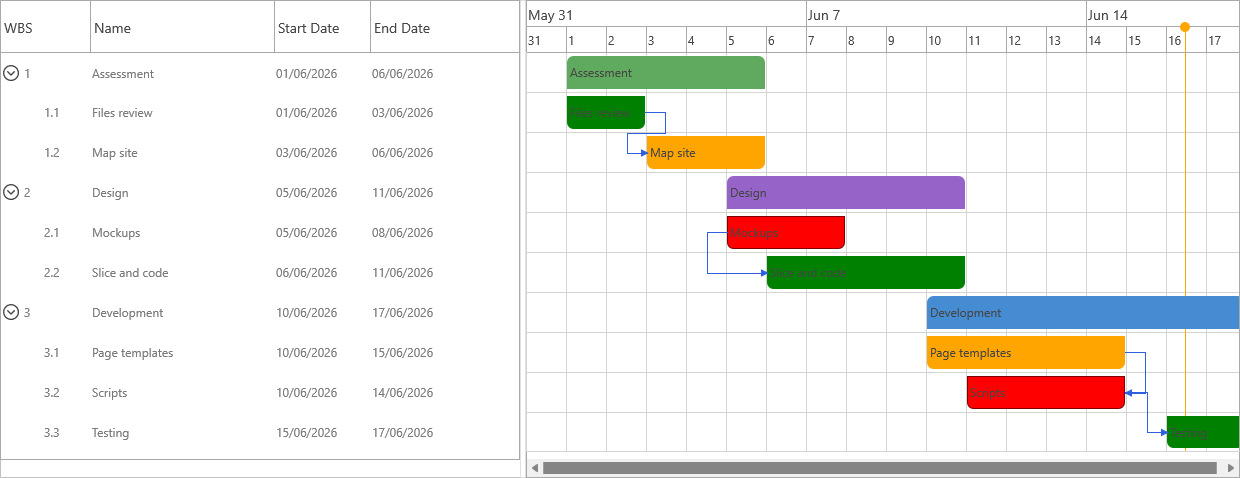
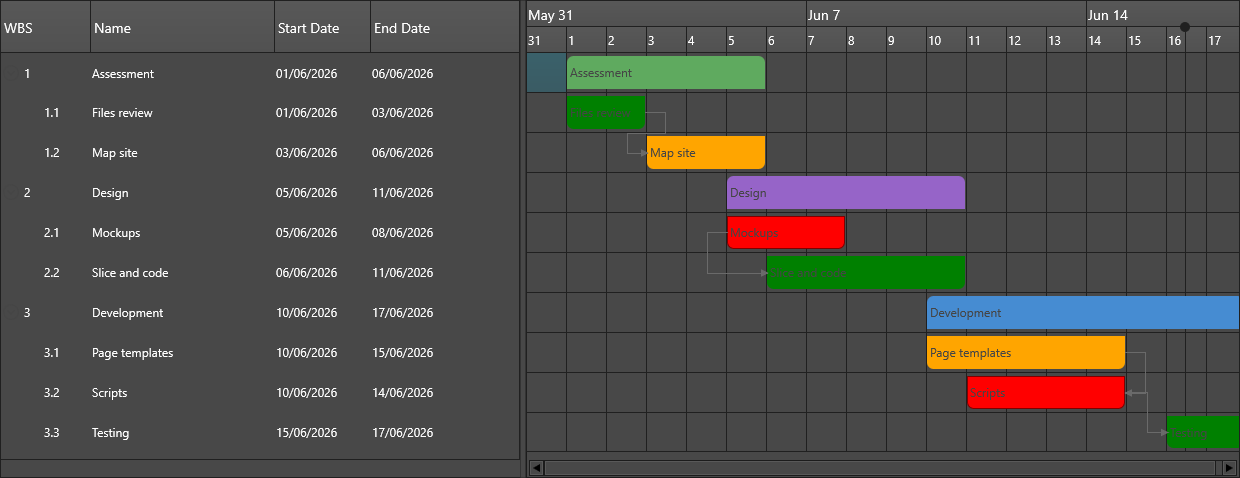
States turn the timeline into a status board: instead of every bar looking the
same, you color tasks by where they stand. Register the states you need once on
the project, then assign them to tasks either by reference or by name. The
priority level matters for summary tasks — a parent adopts the highest-priority
state among its children. To make the bars actually use the state color, enable
Appearance.Options.DrawTasksByState.
procedure TForm1.ConfigureStates;
var
  LDone, LActive: TTMSFNCGanttTaskState;
  LTask: TTMSFNCGanttTask;
begin
  TMSFNCGanttChart1.BeginUpdate;
  try
    { Higher priority levels win when a parent aggregates its subtasks' states. }
    LActive := TMSFNCGanttChart1.Project.States.AddState('In progress', gcOrange, 2);
    LDone := TMSFNCGanttChart1.Project.States.AddState('Done', gcGreen, 3);

    { Color only the progress portion differently with the stroke overload. }
    TMSFNCGanttChart1.Project.States.AddStateWithStrokeColor('Blocked', gcRed, gcMaroon, 1);

    { Assign a state to a task either by reference or by its registered name. }
    LTask := TMSFNCGanttChart1.Project.AddTask('Implementation', 'Build the feature',
      Trunc(Now), 5, gdtWorkDays, whWorkTimeAndDays, 40, LActive);
    LTask.TaskState := LDone;
    LTask.TaskStateName := 'Done';
  finally
    TMSFNCGanttChart1.EndUpdate;
  end;
end;
void __fastcall TForm1::ConfigureStates()
{
  TTMSFNCGanttTaskState *LDone, *LActive;
  TTMSFNCGanttTask *LTask;

  TMSFNCGanttChart1->BeginUpdate();
  try
  {
    // Higher priority levels win when a parent aggregates its subtasks' states.
    LActive = TMSFNCGanttChart1->Project->States->AddState("In progress", gcOrange, 2);
    LDone = TMSFNCGanttChart1->Project->States->AddState("Done", gcGreen, 3);

    // Color only the progress portion differently with the stroke overload.
    TMSFNCGanttChart1->Project->States->AddStateWithStrokeColor("Blocked", gcRed, gcMaroon, 1);

    // Assign a state to a task either by reference or by its registered name.
    LTask = TMSFNCGanttChart1->Project->AddTask("Implementation", "Build the feature",
      Date(), 5, gdtWorkDays, whWorkTimeAndDays, 40, LActive);
    LTask->TaskState = LDone;
    LTask->TaskStateName = "Done";
  }
  __finally
  {
    TMSFNCGanttChart1->EndUpdate();
  }
}
Registering states
States live in Project.States. Two helpers cover the common cases:
AddState(AName, AColor, APriorityLevel, AProgressColor, AFont)— a fill color with an optional distinct color for the progress portion.AddStateWithStrokeColor(AName, AFillColor, AStrokeColor, APriorityLevel, …)— when you also want to control the bar's border color.
Each TTMSFNCGanttTaskState exposes Fill, Stroke, ProgressFill,
ProgressStroke, Font, Name, and PriorityLevel for fine-tuning after
creation. A newly dropped chart already ships with a set of sample states, which
is why Project.States[0] resolves before you add any of your own.
Assigning a state to a task
You can attach a state when creating the task (the trailing AState parameter of
AddTask/AddSubTask/AddDependentTask) or afterwards:
Task.TaskState := AState;— assign by object reference.Task.TaskStateName := 'Done';— assign by the registered state name, handy when the state comes from loaded data.
Priority and summary tasks
PriorityLevel decides which state a summary task shows: it adopts the
highest-priority state among its visible subtasks. Give "blocked" or "at risk"
states a higher priority than "in progress" so problems surface at the summary
level.
Putting it together
Register states, assign them by reference and by name, and color the bars by state — end to end:
procedure TForm1.StatesEndToEnd;
var
  LActive, LDone: TTMSFNCGanttTaskState;
  LPhase: TTMSFNCGanttTask;
begin
  TMSFNCGanttChart1.BeginUpdate;
  try
    { Registering states with priority levels (higher wins on a summary task). }
    LActive := TMSFNCGanttChart1.Project.States.AddState('In progress', gcOrange, 2);
    LDone := TMSFNCGanttChart1.Project.States.AddState('Done', gcGreen, 3);

    { Assigning a state: by reference at creation, and by name afterwards. }
    LPhase := TMSFNCGanttChart1.Project.AddTask('Build', 'Implementation',
      Trunc(Now), 5, gdtWorkDays, whWorkTimeAndDays, 40, LActive);
    LPhase.AddSubTask('Front end', '', Trunc(Now), 3, gdtWorkDays,
      whWorkTimeAndDays, 100, LDone).TaskStateName := 'Done';

    { Priority and summary tasks: color the bars by their state. }
    TMSFNCGanttChart1.Appearance.Options.DrawTasksByState := True;
  finally
    TMSFNCGanttChart1.EndUpdate;
  end;
end;
void __fastcall TForm1::StatesEndToEnd()
{
  TTMSFNCGanttTaskState *LActive, *LDone;
  TTMSFNCGanttTask *LPhase;

  TMSFNCGanttChart1->BeginUpdate();
  try
  {
    // Registering states with priority levels (higher wins on a summary task).
    LActive = TMSFNCGanttChart1->Project->States->AddState("In progress", gcOrange, 2);
    LDone = TMSFNCGanttChart1->Project->States->AddState("Done", gcGreen, 3);

    // Assigning a state: by reference at creation, and by name afterwards.
    LPhase = TMSFNCGanttChart1->Project->AddTask("Build", "Implementation",
      Date(), 5, gdtWorkDays, whWorkTimeAndDays, 40, LActive);
    LPhase->AddSubTask("Front end", "", Date(), 3, gdtWorkDays,
      whWorkTimeAndDays, 100, LDone)->TaskStateName = "Done";

    // Priority and summary tasks: color the bars by their state.
    TMSFNCGanttChart1->Appearance->Options->DrawTasksByState = true;
  }
  __finally
  {
    TMSFNCGanttChart1->EndUpdate();
  }
}
See also
- Building a project — create the tasks states apply to.
- Appearance and styling —
DrawTasksByStateand other options. TTMSFNCGanttProjectAPI