TMS FNC Google Maps Guides
Use TTMSFNCGoogleMaps when the application needs Google Maps JavaScript API features from the TMS FNC Maps component model. The component supports the shared map workflows, including markers, labels, shapes, popups, and events, while exposing Google-specific features such as KML layers, Street View, marker clustering, heat maps, overlay views, map styling, and keyboard shortcut control. The examples below assume a TTMSFNCGoogleMaps named TMSFNCGoogleMaps1 is already on the form and has a valid APIKey.
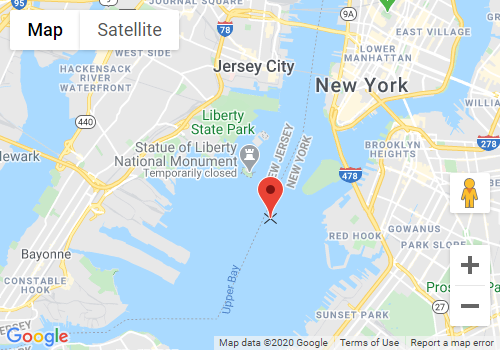
Labels And Keyboard Shortcuts
The Labels collection is accessible on Google Maps the same way it is on the shared map control. Use labels for persistent text that should remain anchored to a coordinate without becoming a marker popup. Options.ShowKeyboardShortcuts controls whether Google Maps keyboard shortcuts remain active, which is useful when the map shares focus with editors, grids, or shortcut-heavy application screens.
procedure TForm1.ConfigureGoogleMapsLabels;
var
  LLabel: TTMSFNCMapsLabel;
begin
  TMSFNCGoogleMaps1.Options.ShowKeyboardShortcuts := False;
  TMSFNCGoogleMaps1.Labels.Clear;

  LLabel := TMSFNCGoogleMaps1.Labels.Add;
  LLabel.Coordinate.Latitude := 51.5074;
  LLabel.Coordinate.Longitude := -0.1278;
  LLabel.Text := 'Operations hub';
  LLabel.BackgroundColor := gcWhite;
  LLabel.BorderColor := gcDodgerblue;
end;
void __fastcall TForm1::ConfigureGoogleMapsLabels()
{
  TMSFNCGoogleMaps1->Options->ShowKeyboardShortcuts = false;
  TMSFNCGoogleMaps1->Labels->Clear();

  TTMSFNCMapsLabel *LLabel = TMSFNCGoogleMaps1->Labels->Add();
  LLabel->Coordinate->Latitude = 51.5074;
  LLabel->Coordinate->Longitude = -0.1278;
  LLabel->Text = "Operations hub";
  LLabel->BackgroundColor = gcWhite;
  LLabel->BorderColor = gcDodgerblue;
}
Use visible labels sparingly on dense maps. For many points, prefer marker titles, clustering, or an overlay view that appears only for selected data.
KML Layers And Click Events
KML layers are useful when external systems publish route, region, or asset overlays as KML files. Use AddKMLLayer for runtime setup and pass ASuppressInfoWindows when the application owns the click response instead of using Google Maps' default KML info windows. OnKMLLayerClick receives the map event data for application-level inspection or context actions.
procedure TForm1.ConfigureGoogleMapsKMLLayer;
begin
  TMSFNCGoogleMaps1.ClearKMLLayers;
  TMSFNCGoogleMaps1.AddKMLLayer(
    'https://developers.google.com/maps/documentation/javascript/examples/kml/westcampus.kml',
    True,
    True);
  TMSFNCGoogleMaps1.OnKMLLayerClick := TMSFNCGoogleMaps1KMLLayerClick;
end;

procedure TForm1.TMSFNCGoogleMaps1KMLLayerClick(Sender: TObject;
  AEventData: TTMSFNCMapsEventData);
begin
  { Inspect AEventData.ID or AEventData.Coordinate and show your own detail UI. }
end;
void __fastcall TForm1::ConfigureGoogleMapsKMLLayer()
{
  TMSFNCGoogleMaps1->ClearKMLLayers();
  TMSFNCGoogleMaps1->AddKMLLayer(
    "https://developers.google.com/maps/documentation/javascript/examples/kml/westcampus.kml",
    true,
    true);
  TMSFNCGoogleMaps1->OnKMLLayerClick = TMSFNCGoogleMaps1KMLLayerClick;
}

void __fastcall TForm1::TMSFNCGoogleMaps1KMLLayerClick(TObject *Sender,
  TTMSFNCMapsEventData *AEventData)
{
  // Inspect AEventData->ID or AEventData->Coordinate and show your own detail UI.
}
The KML URL must be reachable by the embedded browser and accepted by Google Maps. If a KML layer is private or generated on demand, expose it through a URL that the map runtime can fetch.
Street View Coordinate And State Events
Options.StreetView controls whether the Google Street View panorama is shown and how its location is chosen. Set Location to slCoordinate when the panorama must open at a known coordinate, then assign Coordinate, Heading, Pitch, and Zoom. Use OnStreetViewEnabledChange when UI outside the map needs to react to the user entering or leaving Street View.
procedure TForm1.ConfigureGoogleMapsStreetView;
begin
  TMSFNCGoogleMaps1.Options.ShowStreetViewControl := True;
  TMSFNCGoogleMaps1.Options.StreetView.Location := slCoordinate;
  TMSFNCGoogleMaps1.Options.StreetView.Coordinate.Latitude := 40.6892;
  TMSFNCGoogleMaps1.Options.StreetView.Coordinate.Longitude := -74.0445;
  TMSFNCGoogleMaps1.Options.StreetView.Heading := 120;
  TMSFNCGoogleMaps1.Options.StreetView.Pitch := 0;
  TMSFNCGoogleMaps1.Options.StreetView.Zoom := 1;
  TMSFNCGoogleMaps1.Options.StreetView.Enabled := True;
  TMSFNCGoogleMaps1.OnStreetViewEnabledChange :=
    TMSFNCGoogleMaps1StreetViewEnabledChange;
end;

procedure TForm1.TMSFNCGoogleMaps1StreetViewEnabledChange(Sender: TObject;
  AEventData: TTMSFNCMapsEventData;
  AStreetViewData: TTMSFNCGoogleMapsStreetViewData);
begin
  { Use AStreetViewData.Enabled to synchronize external UI state. }
end;
void __fastcall TForm1::ConfigureGoogleMapsStreetView()
{
  TMSFNCGoogleMaps1->Options->ShowStreetViewControl = true;
  TMSFNCGoogleMaps1->Options->StreetView->Location = slCoordinate;
  TMSFNCGoogleMaps1->Options->StreetView->Coordinate->Latitude = 40.6892;
  TMSFNCGoogleMaps1->Options->StreetView->Coordinate->Longitude = -74.0445;
  TMSFNCGoogleMaps1->Options->StreetView->Heading = 120;
  TMSFNCGoogleMaps1->Options->StreetView->Pitch = 0;
  TMSFNCGoogleMaps1->Options->StreetView->Zoom = 1;
  TMSFNCGoogleMaps1->Options->StreetView->Enabled = true;
  TMSFNCGoogleMaps1->OnStreetViewEnabledChange =
    TMSFNCGoogleMaps1StreetViewEnabledChange;
}

void __fastcall TForm1::TMSFNCGoogleMaps1StreetViewEnabledChange(TObject *Sender,
  TTMSFNCMapsEventData *AEventData,
  TTMSFNCGoogleMapsStreetViewData AStreetViewData)
{
  // Use AStreetViewData.Enabled to synchronize external UI state.
}
Street View availability depends on Google coverage at the requested coordinate. Keep a normal map fallback available when Google cannot return a panorama for the selected location.
Heat Maps And Overlay Views
Heat maps show density while preserving the underlying Google basemap. Populate HeatMaps with weighted coordinates and use opacity or gradient colors to keep the overlay readable. Overlay views are different: they place custom HTML over a coordinate or bounds region, which is useful for rich callouts, badges, images, or status panels that need more layout control than a marker title.
procedure TForm1.ConfigureGoogleMapsHeatMapAndOverlayView;
var
  LHeatMap: TTMSFNCGoogleMapsHeatMap;
  LWeightedCoordinate: TTMSFNCMapsWeightedCoordinate;
  LOverlayView: TTMSFNCGoogleMapsOverlayView;
begin
  TMSFNCGoogleMaps1.ClearHeatMaps;
  TMSFNCGoogleMaps1.ClearOverlayViews;

  LHeatMap := TMSFNCGoogleMaps1.HeatMaps.Add;
  LHeatMap.Opacity := 0.55;
  LHeatMap.GradientStartColor := gcGreen;
  LHeatMap.GradientMidColor := gcYellow;
  LHeatMap.GradientEndColor := gcRed;

  LWeightedCoordinate := LHeatMap.WeightedCoordinates.Add;
  LWeightedCoordinate.Coordinate.Latitude := 34.0522;
  LWeightedCoordinate.Coordinate.Longitude := -118.2437;
  LWeightedCoordinate.Weight := 0.85;

  LOverlayView := TMSFNCGoogleMaps1.AddOverlayView;
  LOverlayView.Mode := omCoordinate;
  LOverlayView.Coordinate.Latitude := 34.0522;
  LOverlayView.Coordinate.Longitude := -118.2437;
  LOverlayView.CoordinatePosition := cpBottomCenter;
  LOverlayView.Text := '<strong>High activity</strong>';
  LOverlayView.Width := 160;
  LOverlayView.Clickable := True;
end;
void __fastcall TForm1::ConfigureGoogleMapsHeatMapAndOverlayView()
{
  TMSFNCGoogleMaps1->ClearHeatMaps();
  TMSFNCGoogleMaps1->ClearOverlayViews();

  TTMSFNCGoogleMapsHeatMap *LHeatMap = TMSFNCGoogleMaps1->HeatMaps->Add();
  LHeatMap->Opacity = 0.55;
  LHeatMap->GradientStartColor = gcGreen;
  LHeatMap->GradientMidColor = gcYellow;
  LHeatMap->GradientEndColor = gcRed;

  TTMSFNCMapsWeightedCoordinate *LWeightedCoordinate = LHeatMap->WeightedCoordinates->Add();
  LWeightedCoordinate->Coordinate->Latitude = 34.0522;
  LWeightedCoordinate->Coordinate->Longitude = -118.2437;
  LWeightedCoordinate->Weight = 0.85;

  TTMSFNCGoogleMapsOverlayView *LOverlayView = TMSFNCGoogleMaps1->AddOverlayView();
  LOverlayView->Mode = omCoordinate;
  LOverlayView->Coordinate->Latitude = 34.0522;
  LOverlayView->Coordinate->Longitude = -118.2437;
  LOverlayView->CoordinatePosition = Fmx::Tmsfncgooglemaps::TTMSFNCGoogleMapsCoordinatePosition::cpBottomCenter;
  LOverlayView->Text = "<strong>High activity</strong>";
  LOverlayView->Width = 160;
  LOverlayView->Clickable = true;
}
Use heat maps for aggregate intensity and overlay views for selected, explainable content. Overlay views can consume pointer events, so keep Clickable aligned with the interaction you want users to have.
Marker Clustering
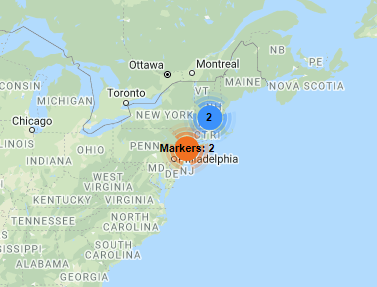
Marker clustering keeps dense point sets readable by grouping nearby markers through Google Maps' MarkerClusterer-backed rendering. Add a TTMSFNCGoogleMapsCluster, tune MinimumNumberOfMarkers, MaxZoom, and ZoomOnClick, then assign markers to the cluster and the cluster marker list.
procedure TForm1.ConfigureGoogleMapsClusters;
var
  LCluster: TTMSFNCGoogleMapsCluster;
  LMarker: TTMSFNCGoogleMapsMarker;
begin
  TMSFNCGoogleMaps1.Markers.Clear;
  TMSFNCGoogleMaps1.Clusters.Clear;

  LCluster := TMSFNCGoogleMaps1.Clusters.Add;
  LCluster.Title := 'Regional offices';
  LCluster.MinimumNumberOfMarkers := 2;
  LCluster.MaxZoom := 12;
  LCluster.ZoomOnClick := True;
  LCluster.ImagePath := 'images/google-cluster.png';

  LMarker := TMSFNCGoogleMaps1.Markers.Add;
  LMarker.Coordinate.Latitude := 48.8566;
  LMarker.Coordinate.Longitude := 2.3522;
  LMarker.Title := 'Paris office';
  LMarker.Cluster := LCluster;
  LCluster.Markers.Add(LMarker);

  LMarker := TMSFNCGoogleMaps1.Markers.Add;
  LMarker.Coordinate.Latitude := 50.8503;
  LMarker.Coordinate.Longitude := 4.3517;
  LMarker.Title := 'Brussels office';
  LMarker.Cluster := LCluster;
  LCluster.Markers.Add(LMarker);
end;
void __fastcall TForm1::ConfigureGoogleMapsClusters()
{
  TMSFNCGoogleMaps1->Markers->Clear();
  TMSFNCGoogleMaps1->Clusters->Clear();

  TTMSFNCGoogleMapsCluster *LCluster = TMSFNCGoogleMaps1->Clusters->Add();
  LCluster->Title = "Regional offices";
  LCluster->MinimumNumberOfMarkers = 2;
  LCluster->MaxZoom = 12;
  LCluster->ZoomOnClick = true;
  LCluster->ImagePath = "images/google-cluster.png";

  TTMSFNCGoogleMapsMarker *LMarker = TMSFNCGoogleMaps1->Markers->Add();
  LMarker->Coordinate->Latitude = 48.8566;
  LMarker->Coordinate->Longitude = 2.3522;
  LMarker->Title = "Paris office";
  LMarker->Cluster = LCluster;
  LCluster->Markers->Add(LMarker);

  LMarker = TMSFNCGoogleMaps1->Markers->Add();
  LMarker->Coordinate->Latitude = 50.8503;
  LMarker->Coordinate->Longitude = 4.3517;
  LMarker->Title = "Brussels office";
  LMarker->Cluster = LCluster;
  LCluster->Markers->Add(LMarker);
}
Clusters should be rebuilt when you change the marker set or cluster styling after the map has already rendered. Use Clusters.Recreate when the current cluster instances need to be regenerated.
Complex Polygons
Complex polygons use polygon holes to represent areas such as service territories with excluded islands, building footprints with courtyards, or administrative regions that omit protected zones. Add the outer polygon with AddPolygon, then add each inner ring with AddHole.
procedure TForm1.AddGoogleMapsComplexPolygon;
var
  LOuter: TTMSFNCMapsCoordinateRecArray;
  LInner: TTMSFNCMapsCoordinateRecArray;
  LPolygon: TTMSFNCGoogleMapsPolygon;
begin
  SetLength(LOuter, 4);
  LOuter[0].Latitude := 37.782;
  LOuter[0].Longitude := -122.447;
  LOuter[1].Latitude := 37.782;
  LOuter[1].Longitude := -122.425;
  LOuter[2].Latitude := 37.768;
  LOuter[2].Longitude := -122.425;
  LOuter[3].Latitude := 37.768;
  LOuter[3].Longitude := -122.447;

  SetLength(LInner, 4);
  LInner[0].Latitude := 37.778;
  LInner[0].Longitude := -122.441;
  LInner[1].Latitude := 37.778;
  LInner[1].Longitude := -122.431;
  LInner[2].Latitude := 37.772;
  LInner[2].Longitude := -122.431;
  LInner[3].Latitude := 37.772;
  LInner[3].Longitude := -122.441;

  LPolygon := TMSFNCGoogleMaps1.AddPolygon(LOuter, True);
  LPolygon.FillColor := gcDodgerblue;
  LPolygon.FillOpacity := 0.35;
  LPolygon.StrokeColor := gcNavy;
  LPolygon.AddHole(LInner);
end;
void __fastcall TForm1::AddGoogleMapsComplexPolygon()
{
  TTMSFNCMapsCoordinateRecArray LOuter;
  TTMSFNCMapsCoordinateRecArray LInner;

  LOuter.Length = 4;
  LOuter[0].Latitude = 37.782;
  LOuter[0].Longitude = -122.447;
  LOuter[1].Latitude = 37.782;
  LOuter[1].Longitude = -122.425;
  LOuter[2].Latitude = 37.768;
  LOuter[2].Longitude = -122.425;
  LOuter[3].Latitude = 37.768;
  LOuter[3].Longitude = -122.447;

  LInner.Length = 4;
  LInner[0].Latitude = 37.778;
  LInner[0].Longitude = -122.441;
  LInner[1].Latitude = 37.778;
  LInner[1].Longitude = -122.431;
  LInner[2].Latitude = 37.772;
  LInner[2].Longitude = -122.431;
  LInner[3].Latitude = 37.772;
  LInner[3].Longitude = -122.441;

  TTMSFNCGoogleMapsPolygon *LPolygon = TMSFNCGoogleMaps1->AddPolygon(LOuter, true);
  LPolygon->FillColor = gcDodgerblue;
  LPolygon->FillOpacity = 0.35;
  LPolygon->StrokeColor = gcNavy;
  LPolygon->AddHole(LInner);
}
Keep outer and inner rings in a consistent coordinate order. When importing polygon data from GeoJSON or another source, verify that the hole coordinates describe only the excluded area and do not cross the outer boundary.
Dragging Markers And Shapes
Dragging turns a read-only map into a light editing surface: correcting a geocoded address by eye, moving a depot pin, or shifting a coverage circle onto the right block. Every Google Maps overlay item declares Draggable, and it is False by default, so nothing moves until you opt a specific item in — which is what you want on a map that also carries reference geometry the user must not disturb.
procedure TForm1.ConfigureGoogleMapsDragging;
var
  LMarker: TTMSFNCGoogleMapsMarker;
  LPolygon: TTMSFNCGoogleMapsPolygon;
  LCircle: TTMSFNCGoogleMapsCircle;
  LArea: TTMSFNCMapsCoordinateRecArray;
begin
  TMSFNCGoogleMaps1.BeginUpdate;
  try
    LMarker := TMSFNCGoogleMaps1.AddMarker(51.5074, -0.1278, 'Depot');
    LMarker.Draggable := True;
    LMarker.Animation := True;   { bounce, so the draggable pin stands out }

    SetLength(LArea, 4);
    LArea[0] := CreateCoordinate(51.53, -0.16);
    LArea[1] := CreateCoordinate(51.53, -0.09);
    LArea[2] := CreateCoordinate(51.49, -0.09);
    LArea[3] := CreateCoordinate(51.49, -0.16);
    LPolygon := TMSFNCGoogleMaps1.AddPolygon(LArea, True);
    LPolygon.Draggable := True;

    LCircle := TMSFNCGoogleMaps1.AddCircle(
      CreateCoordinate(51.5033, -0.1196), 800);
    LCircle.Draggable := True;
  finally
    TMSFNCGoogleMaps1.EndUpdate;
  end;

  TMSFNCGoogleMaps1.OnMarkerDragEnd := TMSFNCGoogleMaps1MarkerDragEnd;
  TMSFNCGoogleMaps1.OnPolyElementDragEnd := TMSFNCGoogleMaps1PolyElementDragEnd;
end;

procedure TForm1.TMSFNCGoogleMaps1MarkerDragEnd(Sender: TObject;
  AEventData: TTMSFNCMapsEventData);
begin
  if not Assigned(AEventData.Marker) then
    Exit;

  { The marker item still holds its pre-drag position: only the event
    coordinate reflects the drop, so write it back explicitly. }
  AEventData.Marker.Coordinate.Latitude := AEventData.Coordinate.Latitude;
  AEventData.Marker.Coordinate.Longitude := AEventData.Coordinate.Longitude;
end;

procedure TForm1.TMSFNCGoogleMaps1PolyElementDragEnd(Sender: TObject;
  AEventData: TTMSFNCMapsEventData);
begin
  if not Assigned(AEventData.PolyElement) then
    Exit;

  { Shapes report their new geometry as JSON in CustomData rather than
    through Coordinate - see ApplyGoogleMapsGeometry. }
  ApplyGoogleMapsGeometry(AEventData.PolyElement, AEventData.CustomData);
end;
void __fastcall TForm1::ConfigureGoogleMapsDragging()
{
  TMSFNCGoogleMaps1->BeginUpdate();
  __try
  {
    TTMSFNCGoogleMapsMarker *LMarker = TMSFNCGoogleMaps1->AddMarker(51.5074, -0.1278, "Depot");
    LMarker->Draggable = true;
    LMarker->Animation = true;   // bounce, so the draggable pin stands out

    TTMSFNCMapsCoordinateRecArray LArea;
    LArea.Length = 4;
    LArea[0] = CreateCoordinate(51.53, -0.16);
    LArea[1] = CreateCoordinate(51.53, -0.09);
    LArea[2] = CreateCoordinate(51.49, -0.09);
    LArea[3] = CreateCoordinate(51.49, -0.16);
    TTMSFNCGoogleMapsPolygon *LPolygon = TMSFNCGoogleMaps1->AddPolygon(LArea, true);
    LPolygon->Draggable = true;

    TTMSFNCGoogleMapsCircle *LCircle = TMSFNCGoogleMaps1->AddCircle(
      CreateCoordinate(51.5033, -0.1196), 800);
    LCircle->Draggable = true;
  }
  __finally
  {
    TMSFNCGoogleMaps1->EndUpdate();
  }

  TMSFNCGoogleMaps1->OnMarkerDragEnd = TMSFNCGoogleMaps1MarkerDragEnd;
  TMSFNCGoogleMaps1->OnPolyElementDragEnd = TMSFNCGoogleMaps1PolyElementDragEnd;
}

void __fastcall TForm1::TMSFNCGoogleMaps1MarkerDragEnd(TObject *Sender,
  TTMSFNCMapsEventData *AEventData)
{
  if (AEventData->Marker == nullptr)
    return;

  // The marker item still holds its pre-drag position: only the event
  // coordinate reflects the drop, so write it back explicitly.
  AEventData->Marker->Coordinate->Latitude = AEventData->Coordinate->Latitude;
  AEventData->Marker->Coordinate->Longitude = AEventData->Coordinate->Longitude;
}

void __fastcall TForm1::TMSFNCGoogleMaps1PolyElementDragEnd(TObject *Sender,
  TTMSFNCMapsEventData *AEventData)
{
  if (AEventData->PolyElement == nullptr)
    return;

  // Shapes report their new geometry as JSON in CustomData rather than
  // through Coordinate - see ApplyGoogleMapsGeometry.
  ApplyGoogleMapsGeometry(AEventData->PolyElement, AEventData->CustomData);
}
Two events report the result, and they report it differently. OnMarkerDragEnd delivers the drop position in AEventData.Coordinate, while OnPolyElementDragEnd delivers the shape's whole new geometry as a JSON payload in AEventData.CustomData — a coordinate array for polygons and polylines, a north-east/south-west pair for rectangles, and a centre plus radius for circles.
Neither event writes the new position back into the item. AEventData.Marker and AEventData.PolyElement are looked up by map ID only; their Coordinate, Coordinates, Bounds, and Center still hold the pre-drag values. Any code that later reads the object model — a save routine, a distance calculation, a JSON export — will use stale geometry unless the handler assigns it, so treat the write-back shown above as part of enabling dragging rather than an optional extra.
Editing Shapes On The Map
Editable is the counterpart to Draggable: instead of moving a shape as a whole, it puts vertex handles on it so the user can reshape a service area, insert a waypoint into a route, or resize a coverage circle by dragging its edge. It is available on polygons, polylines, rectangles, and circles (markers have no shape to edit), and it defaults to False.
procedure TForm1.ConfigureGoogleMapsEditing;
var
  LPolygon: TTMSFNCGoogleMapsPolygon;
  LRoute: TTMSFNCGoogleMapsPolyline;
  LZone: TTMSFNCGoogleMapsCircle;
  LArea: TTMSFNCMapsCoordinateRecArray;
begin
  TMSFNCGoogleMaps1.BeginUpdate;
  try
    SetLength(LArea, 4);
    LArea[0] := CreateCoordinate(51.53, -0.16);
    LArea[1] := CreateCoordinate(51.53, -0.09);
    LArea[2] := CreateCoordinate(51.49, -0.09);
    LArea[3] := CreateCoordinate(51.49, -0.16);

    LPolygon := TMSFNCGoogleMaps1.AddPolygon(LArea, True);
    LPolygon.Editable := True;
    LPolygon.DataString := 'service-area';

    LRoute := TMSFNCGoogleMaps1.AddPolyline(LArea, False);
    LRoute.Editable := True;
    LRoute.DataString := 'inspection-route';

    LZone := TMSFNCGoogleMaps1.AddCircle(
      CreateCoordinate(51.5033, -0.1196), 800);
    LZone.Editable := True;
    LZone.DataString := 'coverage';
  finally
    TMSFNCGoogleMaps1.EndUpdate;
  end;

  TMSFNCGoogleMaps1.OnPolyElementEditEnd := TMSFNCGoogleMaps1PolyElementEditEnd;
end;

procedure TForm1.TMSFNCGoogleMaps1PolyElementEditEnd(Sender: TObject;
  AEventData: TTMSFNCMapsEventData);
begin
  if Assigned(AEventData.PolyElement) then
    ApplyGoogleMapsGeometry(AEventData.PolyElement, AEventData.CustomData);
end;

(* CustomData shape depends on the element:
    polygon / polyline -> [ { "Latitude": .., "Longitude": .. }, ... ]
    rectangle          -> { "NorthEast": {..}, "SouthWest": {..} }
    circle             -> { "Radius": .., "Center": { .. } }
  Nothing writes it back into the item, so do it here. Note that only
  TTMSFNCMapsPolygon and TTMSFNCMapsPolyline publish Coordinates - on
  TTMSFNCMapsPolyElement itself it is protected, so branch and cast. *)
procedure TForm1.ApplyGoogleMapsGeometry(
  APolyElement: TTMSFNCMapsPolyElement; const AJSON: string);
var
  LValue: TJSONValue;
begin
  if AJSON = '' then
    Exit;

  LValue := TTMSFNCUtils.ParseJSON(AJSON);
  if not Assigned(LValue) then
    Exit;
  try
    if APolyElement is TTMSFNCMapsCircle then
      ApplyCircleGeometry(TTMSFNCMapsCircle(APolyElement), LValue)
    else if APolyElement is TTMSFNCMapsRectangle then
      ApplyBoundsGeometry(TTMSFNCMapsRectangle(APolyElement), LValue)
    else if APolyElement is TTMSFNCMapsPolygon then
      ApplyPathGeometry(TTMSFNCMapsPolygon(APolyElement).Coordinates, LValue)
    else if APolyElement is TTMSFNCMapsPolyline then
      ApplyPathGeometry(TTMSFNCMapsPolyline(APolyElement).Coordinates, LValue);
  finally
    LValue.Free;
  end;
end;

procedure TForm1.ApplyCircleGeometry(ACircle: TTMSFNCMapsCircle;
  AValue: TJSONValue);
var
  LCenter: TJSONValue;
begin
  ACircle.Radius := TTMSFNCUtils.GetJSONDoubleValue(AValue, 'Radius');
  LCenter := TTMSFNCUtils.GetJSONValue(AValue, 'Center');
  if Assigned(LCenter) then
  begin
    ACircle.Center.Latitude :=
      TTMSFNCUtils.GetJSONDoubleValue(LCenter, 'Latitude');
    ACircle.Center.Longitude :=
      TTMSFNCUtils.GetJSONDoubleValue(LCenter, 'Longitude');
  end;
end;

procedure TForm1.ApplyBoundsGeometry(ARectangle: TTMSFNCMapsRectangle;
  AValue: TJSONValue);
var
  LNorthEast: TJSONValue;
  LSouthWest: TJSONValue;
begin
  LNorthEast := TTMSFNCUtils.GetJSONValue(AValue, 'NorthEast');
  LSouthWest := TTMSFNCUtils.GetJSONValue(AValue, 'SouthWest');
  if not (Assigned(LNorthEast) and Assigned(LSouthWest)) then
    Exit;

  ARectangle.Bounds.NorthEast.Latitude :=
    TTMSFNCUtils.GetJSONDoubleValue(LNorthEast, 'Latitude');
  ARectangle.Bounds.NorthEast.Longitude :=
    TTMSFNCUtils.GetJSONDoubleValue(LNorthEast, 'Longitude');
  ARectangle.Bounds.SouthWest.Latitude :=
    TTMSFNCUtils.GetJSONDoubleValue(LSouthWest, 'Latitude');
  ARectangle.Bounds.SouthWest.Longitude :=
    TTMSFNCUtils.GetJSONDoubleValue(LSouthWest, 'Longitude');
end;

procedure TForm1.ApplyPathGeometry(ACoordinates: TTMSFNCMapsCoordinates;
  AValue: TJSONValue);
var
  LArray: TJSONArray;
  LPoint: TJSONValue;
  LItem: TTMSFNCMapsCoordinateItem;
  I: Integer;
begin
  if not (AValue is TJSONArray) then
    Exit;

  LArray := TJSONArray(AValue);
  ACoordinates.BeginUpdate;
  try
    ACoordinates.Clear;
    for I := 0 to TTMSFNCUtils.GetJSONArraySize(LArray) - 1 do
    begin
      LPoint := TTMSFNCUtils.GetJSONArrayItem(LArray, I);
      LItem := ACoordinates.Add;
      LItem.Latitude := TTMSFNCUtils.GetJSONDoubleValue(LPoint, 'Latitude');
      LItem.Longitude := TTMSFNCUtils.GetJSONDoubleValue(LPoint, 'Longitude');
    end;
  finally
    ACoordinates.EndUpdate;
  end;
end;
void __fastcall TForm1::ConfigureGoogleMapsEditing()
{
  TMSFNCGoogleMaps1->BeginUpdate();
  __try
  {
    TTMSFNCMapsCoordinateRecArray LArea;
    LArea.Length = 4;
    LArea[0] = CreateCoordinate(51.53, -0.16);
    LArea[1] = CreateCoordinate(51.53, -0.09);
    LArea[2] = CreateCoordinate(51.49, -0.09);
    LArea[3] = CreateCoordinate(51.49, -0.16);

    TTMSFNCGoogleMapsPolygon *LPolygon = TMSFNCGoogleMaps1->AddPolygon(LArea, true);
    LPolygon->Editable = true;
    LPolygon->DataString = "service-area";

    TTMSFNCGoogleMapsPolyline *LRoute = TMSFNCGoogleMaps1->AddPolyline(LArea, false);
    LRoute->Editable = true;
    LRoute->DataString = "inspection-route";

    TTMSFNCGoogleMapsCircle *LZone = TMSFNCGoogleMaps1->AddCircle(
      CreateCoordinate(51.5033, -0.1196), 800);
    LZone->Editable = true;
    LZone->DataString = "coverage";
  }
  __finally
  {
    TMSFNCGoogleMaps1->EndUpdate();
  }

  TMSFNCGoogleMaps1->OnPolyElementEditEnd = TMSFNCGoogleMaps1PolyElementEditEnd;
}

void __fastcall TForm1::TMSFNCGoogleMaps1PolyElementEditEnd(TObject *Sender,
  TTMSFNCMapsEventData *AEventData)
{
  if (AEventData->PolyElement != nullptr)
    ApplyGoogleMapsGeometry(AEventData->PolyElement, AEventData->CustomData);
}

// CustomData shape depends on the element:
//   polygon / polyline -> [ { "Latitude": .., "Longitude": .. }, ... ]
//   rectangle          -> { "NorthEast": {..}, "SouthWest": {..} }
//   circle             -> { "Radius": .., "Center": { .. } }
// Nothing writes it back into the item, so do it here. Note that only
// TTMSFNCMapsPolygon and TTMSFNCMapsPolyline publish Coordinates - on
// TTMSFNCMapsPolyElement itself it is protected, so branch and cast.
void __fastcall TForm1::ApplyGoogleMapsGeometry(
  TTMSFNCMapsPolyElement *APolyElement, const System::UnicodeString AJSON)
{
  if (AJSON == "")
    return;

  TJSONValue *LValue = TTMSFNCUtils::ParseJSON(AJSON);
  if (LValue == nullptr)
    return;
  __try
  {
    if (dynamic_cast<TTMSFNCMapsCircle *>(APolyElement) != nullptr)
      ApplyCircleGeometry(static_cast<TTMSFNCMapsCircle *>(APolyElement), LValue);
    else if (dynamic_cast<TTMSFNCMapsRectangle *>(APolyElement) != nullptr)
      ApplyBoundsGeometry(static_cast<TTMSFNCMapsRectangle *>(APolyElement), LValue);
    else if (dynamic_cast<TTMSFNCMapsPolygon *>(APolyElement) != nullptr)
      ApplyPathGeometry(static_cast<TTMSFNCMapsPolygon *>(APolyElement)->Coordinates, LValue);
    else if (dynamic_cast<TTMSFNCMapsPolyline *>(APolyElement) != nullptr)
      ApplyPathGeometry(static_cast<TTMSFNCMapsPolyline *>(APolyElement)->Coordinates, LValue);
  }
  __finally
  {
    delete LValue;
  }
}

void __fastcall TForm1::ApplyCircleGeometry(TTMSFNCMapsCircle *ACircle,
  TJSONValue *AValue)
{
  ACircle->Radius = TTMSFNCUtils::GetJSONDoubleValue(AValue, "Radius");
  TJSONValue *LCenter = TTMSFNCUtils::GetJSONValue(AValue, "Center");
  if (LCenter != nullptr)
  {
    ACircle->Center->Latitude =
      TTMSFNCUtils::GetJSONDoubleValue(LCenter, "Latitude");
    ACircle->Center->Longitude =
      TTMSFNCUtils::GetJSONDoubleValue(LCenter, "Longitude");
  }
}

void __fastcall TForm1::ApplyBoundsGeometry(TTMSFNCMapsRectangle *ARectangle,
  TJSONValue *AValue)
{
  TJSONValue *LNorthEast = TTMSFNCUtils::GetJSONValue(AValue, "NorthEast");
  TJSONValue *LSouthWest = TTMSFNCUtils::GetJSONValue(AValue, "SouthWest");
  if (!((LNorthEast != nullptr) && (LSouthWest != nullptr)))
    return;

  ARectangle->Bounds->NorthEast->Latitude =
    TTMSFNCUtils::GetJSONDoubleValue(LNorthEast, "Latitude");
  ARectangle->Bounds->NorthEast->Longitude =
    TTMSFNCUtils::GetJSONDoubleValue(LNorthEast, "Longitude");
  ARectangle->Bounds->SouthWest->Latitude =
    TTMSFNCUtils::GetJSONDoubleValue(LSouthWest, "Latitude");
  ARectangle->Bounds->SouthWest->Longitude =
    TTMSFNCUtils::GetJSONDoubleValue(LSouthWest, "Longitude");
}

void __fastcall TForm1::ApplyPathGeometry(TTMSFNCMapsCoordinates *ACoordinates,
  TJSONValue *AValue)
{
  if (dynamic_cast<TJSONArray *>(AValue) == nullptr)
    return;

  TJSONArray *LArray = static_cast<TJSONArray *>(AValue);
  ACoordinates->BeginUpdate();
  __try
  {
    ACoordinates->Clear();
    for (int I = 0; I < TTMSFNCUtils::GetJSONArraySize(LArray); I++)
    {
      TJSONValue *LPoint = TTMSFNCUtils::GetJSONArrayItem(LArray, I);
      TTMSFNCMapsCoordinateItem *LItem = ACoordinates->Add();
      LItem->Latitude = TTMSFNCUtils::GetJSONDoubleValue(LPoint, "Latitude");
      LItem->Longitude = TTMSFNCUtils::GetJSONDoubleValue(LPoint, "Longitude");
    }
  }
  __finally
  {
    ACoordinates->EndUpdate();
  }
}
OnPolyElementEditEnd reports the reshaped geometry in AEventData.CustomData using the same three JSON shapes as the drag-end event, so one write-back helper serves both. The helper has to branch on the element class, because Coordinates is published on TTMSFNCMapsPolygon and TTMSFNCMapsPolyline but is protected on the shared TTMSFNCMapsPolyElement base — a handler typed against the base class cannot reach it without a cast.
Its name is the one real trap: OnPolyElementEditEnd does not fire once at the end of an editing session. For polygons and polylines it is raised on every individual vertex change — each move, insert, and delete — so a user dragging a boundary around produces a stream of events. For circles it is raised on radius and centre changes, so a single drag of the edge can raise it twice. Keep the handler cheap: update the item and set a dirty flag, and do the expensive work (persisting, recalculating a route, re-querying a service) on an explicit save or a short debounce timer rather than inside the event.
If you need a shape to be reshapeable but not movable, set Editable := True and leave Draggable := False; the two are independent, and enabling both on the same shape gives the user handles and a drag target, which is easy to trigger by accident on a touch screen.
Combined Google Maps Setup
Most production screens combine several Google-specific features: API options, labels, clusters, KML, heat maps, and event wiring. Group setup in an update block so the component can apply the final state without repainting after every individual property assignment.
procedure TForm1.BuildGoogleMapsOperationsScene;
var
  LCluster: TTMSFNCGoogleMapsCluster;
  LMarker: TTMSFNCGoogleMapsMarker;
  LHeatMap: TTMSFNCGoogleMapsHeatMap;
  LWeightedCoordinate: TTMSFNCMapsWeightedCoordinate;
begin
  TMSFNCGoogleMaps1.BeginUpdate;
  try
    TMSFNCGoogleMaps1.APIKey := '<your Google Maps JavaScript API key>';
    TMSFNCGoogleMaps1.Options.ShowKeyboardShortcuts := False;
    TMSFNCGoogleMaps1.Options.StreetView.Location := slCoordinate;
    TMSFNCGoogleMaps1.Options.StreetView.Coordinate.Latitude := 52.52;
    TMSFNCGoogleMaps1.Options.StreetView.Coordinate.Longitude := 13.405;

    TMSFNCGoogleMaps1.AddKMLLayer(
      'https://developers.google.com/maps/documentation/javascript/examples/kml/westcampus.kml',
      True,
      True);

    LCluster := TMSFNCGoogleMaps1.Clusters.Add;
    LCluster.Title := 'Operations markers';
    LCluster.MinimumNumberOfMarkers := 2;
    LCluster.ZoomOnClick := True;

    LMarker := TMSFNCGoogleMaps1.Markers.Add;
    LMarker.Coordinate.Latitude := 52.52;
    LMarker.Coordinate.Longitude := 13.405;
    LMarker.Title := 'Berlin depot';
    LMarker.Cluster := LCluster;
    LCluster.Markers.Add(LMarker);

    TMSFNCGoogleMaps1.AddLabel(52.52, 13.405, 'Berlin depot', gcWhite, gcDarkgreen);

    LHeatMap := TMSFNCGoogleMaps1.HeatMaps.Add;
    LHeatMap.Opacity := 0.45;
    LWeightedCoordinate := LHeatMap.WeightedCoordinates.Add;
    LWeightedCoordinate.Coordinate.Latitude := 52.52;
    LWeightedCoordinate.Coordinate.Longitude := 13.405;
    LWeightedCoordinate.Weight := 0.8;

    TMSFNCGoogleMaps1.OnKMLLayerClick := TMSFNCGoogleMaps1KMLLayerClick;
    TMSFNCGoogleMaps1.OnStreetViewEnabledChange :=
      TMSFNCGoogleMaps1StreetViewEnabledChange;
  finally
    TMSFNCGoogleMaps1.EndUpdate;
  end;
end;
void __fastcall TForm1::BuildGoogleMapsOperationsScene()
{
  TMSFNCGoogleMaps1->BeginUpdate();
  __try
  {
    TMSFNCGoogleMaps1->APIKey = "<your Google Maps JavaScript API key>";
    TMSFNCGoogleMaps1->Options->ShowKeyboardShortcuts = false;
    TMSFNCGoogleMaps1->Options->StreetView->Location = slCoordinate;
    TMSFNCGoogleMaps1->Options->StreetView->Coordinate->Latitude = 52.52;
    TMSFNCGoogleMaps1->Options->StreetView->Coordinate->Longitude = 13.405;

    TMSFNCGoogleMaps1->AddKMLLayer(
      "https://developers.google.com/maps/documentation/javascript/examples/kml/westcampus.kml",
      true,
      true);

    TTMSFNCGoogleMapsCluster *LCluster = TMSFNCGoogleMaps1->Clusters->Add();
    LCluster->Title = "Operations markers";
    LCluster->MinimumNumberOfMarkers = 2;
    LCluster->ZoomOnClick = true;

    TTMSFNCGoogleMapsMarker *LMarker = TMSFNCGoogleMaps1->Markers->Add();
    LMarker->Coordinate->Latitude = 52.52;
    LMarker->Coordinate->Longitude = 13.405;
    LMarker->Title = "Berlin depot";
    LMarker->Cluster = LCluster;
    LCluster->Markers->Add(LMarker);

    TMSFNCGoogleMaps1->AddLabel(52.52, 13.405, "Berlin depot", gcWhite, gcDarkgreen);

    TTMSFNCGoogleMapsHeatMap *LHeatMap = TMSFNCGoogleMaps1->HeatMaps->Add();
    LHeatMap->Opacity = 0.45;
    TTMSFNCMapsWeightedCoordinate *LWeightedCoordinate = LHeatMap->WeightedCoordinates->Add();
    LWeightedCoordinate->Coordinate->Latitude = 52.52;
    LWeightedCoordinate->Coordinate->Longitude = 13.405;
    LWeightedCoordinate->Weight = 0.8;

    TMSFNCGoogleMaps1->OnKMLLayerClick = TMSFNCGoogleMaps1KMLLayerClick;
    TMSFNCGoogleMaps1->OnStreetViewEnabledChange =
      TMSFNCGoogleMaps1StreetViewEnabledChange;
  }
  __finally
  {
    TMSFNCGoogleMaps1->EndUpdate();
  }
}
Split this combined pattern when users can toggle overlays at runtime, but keep API key assignment and option setup close to the map initialization path.
Common Pitfalls
- Assign
APIKeybefore adding Google-specific overlays or Street View options. - Use
AddKMLLayerwhen you needSuppressInfoWindows; the KML item exposes those values through the overload rather than writable published properties. - Disable
Options.ShowKeyboardShortcutswhen the map sits inside a shortcut-heavy application screen. - Check Street View availability for the requested coordinate and keep a map fallback.
- Recreate clusters after substantial marker or cluster styling changes.
- Keep heat map weights consistent across refreshes so colors remain meaningful.
- Write drag and edit results back into the item yourself; the drag-end and edit-end events never update the overlay's own coordinates.
- Treat
OnPolyElementEditEndas a per-vertex notification, not an end-of-session one, and debounce any expensive work it triggers.