TMS FNC HERE Maps Guides
Use TTMSFNCHere when an application needs HERE Maps rendering through the shared TMS FNC Maps component model. The component supports the common marker, label, shape, heat-map, and event workflows, while adding HERE-specific style and camera options. The examples below assume a TTMSFNCHere named TMSFNCHere1 is already on the form and has a valid HERE platform key.
Map Style And 3D Camera
HERE Maps exposes provider styles through Options.MapStyle. Use daytime, night, topographic, logistics, hybrid, satellite, or lite styles depending on the data users need to read. The HERE v3.2 integration also supports camera controls through Options.Tilt and Options.Heading, so operational maps can use a 3D perspective or rotate toward the direction of travel.
procedure TForm1.ConfigureHereStyleAndCamera;
var
  LComponentVersion: string;
begin
  LComponentVersion := TMSFNCHere1.Version;

  TMSFNCHere1.Options.MapStyle := hmsHybrid;
  TMSFNCHere1.Options.Tilt := 65;
  TMSFNCHere1.Options.Heading := 120;
  TMSFNCHere1.Options.DefaultZoomLevel := 16;
end;
void __fastcall TForm1::ConfigureHereStyleAndCamera()
{
  System::UnicodeString LComponentVersion = TMSFNCHere1->Version;

  TMSFNCHere1->Options->MapStyle = hmsHybrid;
  TMSFNCHere1->Options->Tilt = 65;
  TMSFNCHere1->Options->Heading = 120;
  TMSFNCHere1->Options->DefaultZoomLevel = 16;
}
Tilt is clamped by the component to the supported range, and Heading is kept between 0 and 360 degrees. Keep strong camera angles for workflows where orientation matters; for dense labels or table-linked maps, a flat top-down view is usually easier to scan.
Labels And Heat Maps
The Labels collection is accessible on HERE Maps, so labels can annotate coordinates without becoming marker popups. Heat maps are useful when the important information is density or intensity rather than individual point identity. Add a TTMSFNCHereHeatMap, populate WeightedCoordinates, then tune opacity and gradient colors to preserve map readability.
procedure TForm1.ConfigureHereHeatMapAndLabels;
var
  LHeatMap: TTMSFNCHereHeatMap;
  LWeightedCoordinate: TTMSFNCMapsWeightedCoordinate;
  LLabel: TTMSFNCMapsLabel;
begin
  TMSFNCHere1.ClearHeatMaps;
  TMSFNCHere1.ClearLabels;

  LHeatMap := TMSFNCHere1.HeatMaps.Add;
  LHeatMap.Opacity := 0.55;
  LHeatMap.GradientStartColor := gcGreen;
  LHeatMap.GradientMidColor := gcYellow;
  LHeatMap.GradientEndColor := gcRed;

  LWeightedCoordinate := LHeatMap.WeightedCoordinates.Add;
  LWeightedCoordinate.Coordinate.Latitude := 50.8503;
  LWeightedCoordinate.Coordinate.Longitude := 4.3517;
  LWeightedCoordinate.Weight := 0.7;

  LWeightedCoordinate := LHeatMap.WeightedCoordinates.Add;
  LWeightedCoordinate.Coordinate.Latitude := 52.52;
  LWeightedCoordinate.Coordinate.Longitude := 13.405;
  LWeightedCoordinate.Weight := 0.9;

  LLabel := TMSFNCHere1.Labels.Add;
  LLabel.Coordinate.Latitude := 52.52;
  LLabel.Coordinate.Longitude := 13.405;
  LLabel.Text := 'High activity';
  LLabel.BackgroundColor := gcWhite;
  LLabel.BorderColor := gcDarkgreen;
end;
void __fastcall TForm1::ConfigureHereHeatMapAndLabels()
{
  TMSFNCHere1->ClearHeatMaps();
  TMSFNCHere1->ClearLabels();

  TTMSFNCHereHeatMap *LHeatMap = TMSFNCHere1->HeatMaps->Add();
  LHeatMap->Opacity = 0.55;
  LHeatMap->GradientStartColor = gcGreen;
  LHeatMap->GradientMidColor = gcYellow;
  LHeatMap->GradientEndColor = gcRed;

  TTMSFNCMapsWeightedCoordinate *LWeightedCoordinate = LHeatMap->WeightedCoordinates->Add();
  LWeightedCoordinate->Coordinate->Latitude = 50.8503;
  LWeightedCoordinate->Coordinate->Longitude = 4.3517;
  LWeightedCoordinate->Weight = 0.7;

  LWeightedCoordinate = LHeatMap->WeightedCoordinates->Add();
  LWeightedCoordinate->Coordinate->Latitude = 52.52;
  LWeightedCoordinate->Coordinate->Longitude = 13.405;
  LWeightedCoordinate->Weight = 0.9;

  TTMSFNCMapsLabel *LLabel = TMSFNCHere1->Labels->Add();
  LLabel->Coordinate->Latitude = 52.52;
  LLabel->Coordinate->Longitude = 13.405;
  LLabel->Text = "High activity";
  LLabel->BackgroundColor = gcWhite;
  LLabel->BorderColor = gcDarkgreen;
}
Prefer labels for a small number of named places and heat maps for aggregate activity. Combining both works well when the heat map provides context and labels identify only the highest-priority locations.
Polygons
HERE polygons use the shared polygon workflow with the HERE-specific TTMSFNCHerePolygon return type. Use polygons for service areas, restricted zones, campus boundaries, and regions that need fill and stroke styling. When the source geometry contains excluded areas, add polygon holes through AddHole.
procedure TForm1.AddHereServiceArea;
var
  LCoordinates: TTMSFNCMapsCoordinateRecArray;
  LPolygon: TTMSFNCHerePolygon;
begin
  SetLength(LCoordinates, 4);
  LCoordinates[0].Latitude := 48.143;
  LCoordinates[0].Longitude := 11.555;
  LCoordinates[1].Latitude := 48.143;
  LCoordinates[1].Longitude := 11.615;
  LCoordinates[2].Latitude := 48.112;
  LCoordinates[2].Longitude := 11.615;
  LCoordinates[3].Latitude := 48.112;
  LCoordinates[3].Longitude := 11.555;

  LPolygon := TMSFNCHere1.AddPolygon(LCoordinates, True);
  LPolygon.FillColor := gcDodgerblue;
  LPolygon.FillOpacity := 0.25;
  LPolygon.StrokeColor := gcNavy;
  LPolygon.StrokeWidth := 2;
end;
void __fastcall TForm1::AddHereServiceArea()
{
  TTMSFNCMapsCoordinateRecArray LCoordinates;
  LCoordinates.Length = 4;
  LCoordinates[0].Latitude = 48.143;
  LCoordinates[0].Longitude = 11.555;
  LCoordinates[1].Latitude = 48.143;
  LCoordinates[1].Longitude = 11.615;
  LCoordinates[2].Latitude = 48.112;
  LCoordinates[2].Longitude = 11.615;
  LCoordinates[3].Latitude = 48.112;
  LCoordinates[3].Longitude = 11.555;

  TTMSFNCHerePolygon *LPolygon = TMSFNCHere1->AddPolygon(LCoordinates, true);
  LPolygon->FillColor = gcDodgerblue;
  LPolygon->FillOpacity = 0.25;
  LPolygon->StrokeColor = gcNavy;
  LPolygon->StrokeWidth = 2;
}
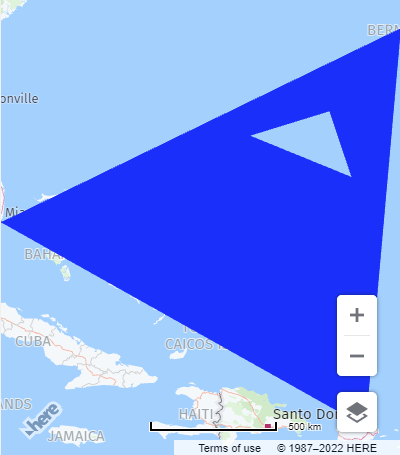
Keep polygon coordinates ordered consistently and close the polygon when the source data does not already include the first point as the last point. Use low fill opacity when users still need to read roads or labels under the shape.
Right-Click Events
HERE Maps exposes shared right-click events for the map, markers, and poly elements. Wire OnMapRightClick, OnMarkerRightClick, and OnPolyElementRightClick when the application needs context menus, edit actions, or inspection panels without taking over standard left-click behavior.
procedure TForm1.ConfigureHereContextEvents;
begin
  TMSFNCHere1.OnMapRightClick := TMSFNCHere1MapRightClick;
  TMSFNCHere1.OnMarkerRightClick := TMSFNCHere1MarkerRightClick;
  TMSFNCHere1.OnPolyElementRightClick := TMSFNCHere1PolyElementRightClick;
end;

procedure TForm1.TMSFNCHere1MapRightClick(Sender: TObject;
  AEventData: TTMSFNCMapsEventData);
begin
  { Show a map-level context menu at AEventData.Coordinate. }
end;

procedure TForm1.TMSFNCHere1MarkerRightClick(Sender: TObject;
  AEventData: TTMSFNCMapsEventData);
begin
  if Assigned(AEventData.Marker) then
    AEventData.Marker.Title := 'Selected marker';
end;

procedure TForm1.TMSFNCHere1PolyElementRightClick(Sender: TObject;
  AEventData: TTMSFNCMapsEventData);
begin
  if Assigned(AEventData.PolyElement) then
    AEventData.PolyElement.DataString := 'Selected poly element';
end;
void __fastcall TForm1::ConfigureHereContextEvents()
{
  TMSFNCHere1->OnMapRightClick = TMSFNCHere1MapRightClick;
  TMSFNCHere1->OnMarkerRightClick = TMSFNCHere1MarkerRightClick;
  TMSFNCHere1->OnPolyElementRightClick = TMSFNCHere1PolyElementRightClick;
}

void __fastcall TForm1::TMSFNCHere1MapRightClick(TObject *Sender,
  TTMSFNCMapsEventData *AEventData)
{
  // Show a map-level context menu at AEventData->Coordinate.
}

void __fastcall TForm1::TMSFNCHere1MarkerRightClick(TObject *Sender,
  TTMSFNCMapsEventData *AEventData)
{
  if (AEventData->Marker != nullptr)
    AEventData->Marker->Title = "Selected marker";
}

void __fastcall TForm1::TMSFNCHere1PolyElementRightClick(TObject *Sender,
  TTMSFNCMapsEventData *AEventData)
{
  if (AEventData->PolyElement != nullptr)
    AEventData->PolyElement->DataString = "Selected poly element";
}
Event handlers receive TTMSFNCMapsEventData, so the same pattern can inspect the clicked coordinate, marker, or poly element. Keep handlers short and defer long-running work so the embedded browser remains responsive.
Combined HERE Setup
Production screens often combine HERE map style, camera perspective, labels, heat maps, markers, and context events. Group these assignments in an update block so the map applies the final scene instead of refreshing after each individual property change.
procedure TForm1.BuildHereOperationsScene;
var
  LMarker: TTMSFNCMapsMarker;
  LHeatMap: TTMSFNCHereHeatMap;
  LWeightedCoordinate: TTMSFNCMapsWeightedCoordinate;
begin
  TMSFNCHere1.BeginUpdate;
  try
    TMSFNCHere1.APIKey := '<your HERE platform API key>';
    TMSFNCHere1.Options.MapStyle := hmsLogistics;
    TMSFNCHere1.Options.Tilt := 55;
    TMSFNCHere1.Options.Heading := 90;

    LMarker := TMSFNCHere1.Markers.Add;
    LMarker.Coordinate.Latitude := 52.52;
    LMarker.Coordinate.Longitude := 13.405;
    LMarker.Title := 'Berlin depot';

    TMSFNCHere1.AddLabel(52.52, 13.405, 'Berlin depot', gcWhite, gcDarkgreen);

    LHeatMap := TMSFNCHere1.HeatMaps.Add;
    LHeatMap.Opacity := 0.45;
    LWeightedCoordinate := LHeatMap.WeightedCoordinates.Add;
    LWeightedCoordinate.Coordinate.Latitude := 52.52;
    LWeightedCoordinate.Coordinate.Longitude := 13.405;
    LWeightedCoordinate.Weight := 0.8;

    TMSFNCHere1.OnMapRightClick := TMSFNCHere1MapRightClick;
    TMSFNCHere1.OnMarkerRightClick := TMSFNCHere1MarkerRightClick;
    TMSFNCHere1.OnPolyElementRightClick := TMSFNCHere1PolyElementRightClick;
  finally
    TMSFNCHere1.EndUpdate;
  end;
end;
void __fastcall TForm1::BuildHereOperationsScene()
{
  TMSFNCHere1->BeginUpdate();
  __try
  {
    TMSFNCHere1->APIKey = "<your HERE platform API key>";
    TMSFNCHere1->Options->MapStyle = hmsLogistics;
    TMSFNCHere1->Options->Tilt = 55;
    TMSFNCHere1->Options->Heading = 90;

    TTMSFNCMapsMarker *LMarker = TMSFNCHere1->Markers->Add();
    LMarker->Coordinate->Latitude = 52.52;
    LMarker->Coordinate->Longitude = 13.405;
    LMarker->Title = "Berlin depot";

    TMSFNCHere1->AddLabel(52.52, 13.405, "Berlin depot", gcWhite, gcDarkgreen);

    TTMSFNCHereHeatMap *LHeatMap = TMSFNCHere1->HeatMaps->Add();
    LHeatMap->Opacity = 0.45;
    TTMSFNCMapsWeightedCoordinate *LWeightedCoordinate = LHeatMap->WeightedCoordinates->Add();
    LWeightedCoordinate->Coordinate->Latitude = 52.52;
    LWeightedCoordinate->Coordinate->Longitude = 13.405;
    LWeightedCoordinate->Weight = 0.8;

    TMSFNCHere1->OnMapRightClick = TMSFNCHere1MapRightClick;
    TMSFNCHere1->OnMarkerRightClick = TMSFNCHere1MarkerRightClick;
    TMSFNCHere1->OnPolyElementRightClick = TMSFNCHere1PolyElementRightClick;
  }
  __finally
  {
    TMSFNCHere1->EndUpdate();
  }
}
Split this setup into smaller methods when users can toggle overlays at runtime, but keep API key assignment, style, tilt, and heading close to the map initialization path.
Common Pitfalls
- Assign
APIKeybefore adding overlays or changing provider-specific options. - Use
Options.MapStylevalues fromTMSFNCHereMapStyle; string style names are not assigned directly. - Keep
Options.TiltandOptions.Headingintentional because 3D rotation can reduce label readability. - Keep heat map weights in a consistent range so gradient colors remain meaningful across refreshes.
- Use right-click handlers for context actions and keep left-click handlers free for navigation or selection.