Time Selection
TTMSFNCAnalogTimePicker and TTMSFNCAnalogTimeSelector display an analog clock face for time input. The picker wraps the selector in a popup drop-down with an editable time field. The selector is a standalone clock face that can display the current device time or a fixed time.
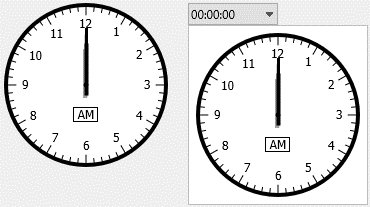
Analog Time Picker
The picker shows a text field with a drop-down that opens an analog clock face.
Set the Initial Time
Set SelectedTime during form setup. Control the displayed text with TimeFormat and the drop-down size with DropDownWidth and DropDownHeight.
procedure TForm1.ConfigureAnalogTimePicker;
begin
  TMSFNCAnalogTimePicker1.SelectedTime := EncodeTime(9, 30, 0, 0);
  TMSFNCAnalogTimePicker1.TimeFormat := 'hh:nn';
  TMSFNCAnalogTimePicker1.DropDownWidth := 260;
  TMSFNCAnalogTimePicker1.DropDownHeight := 260;
end;
void __fastcall TForm1::ConfigureAnalogTimePicker()
{
  TMSFNCAnalogTimePicker1->SelectedTime = EncodeTime(9, 30, 0, 0);
  TMSFNCAnalogTimePicker1->TimeFormat = "hh:nn";
  TMSFNCAnalogTimePicker1->DropDownWidth = 260;
  TMSFNCAnalogTimePicker1->DropDownHeight = 260;
}
Handle User Selection
OnTimeSelected fires with the selected TTime once the user confirms a time in the drop-down.
procedure TForm1.FormCreate(Sender: TObject);
begin
  TMSFNCAnalogTimePicker1.OnTimeSelected := TMSFNCAnalogTimePicker1TimeSelected;
end;

procedure TForm1.TMSFNCAnalogTimePicker1TimeSelected(Sender: TObject;
  ATime: TTime);
begin
  Caption := FormatDateTime('hh:nn', ATime);
end;
void __fastcall TForm1::FormCreate(TObject *Sender)
{
  TMSFNCAnalogTimePicker1->OnTimeSelected = TMSFNCAnalogTimePicker1TimeSelected;
}

void __fastcall TForm1::TMSFNCAnalogTimePicker1TimeSelected(TObject *Sender,
  System::TTime ATime)
{
  Caption = FormatDateTime("hh:nn", ATime);
}
Allow a Blank Value
SelectedTime is a TTime, so there is no separate "no value" state at the type level — midnight (00:00:00) doubles as the sentinel for "nothing selected". AllowNumericNullValue (default True) controls how that sentinel is displayed: when SelectedTime is exactly midnight, the text field shows an empty string instead of the formatted 00:00:00. Set AllowNumericNullValue := False when midnight is a legitimate time value you want to always show as text.
Call Clear to reset the picker to that blank state. Clear sets SelectedTime := 0.0, which — together with AllowNumericNullValue := True — clears the text field back to empty; it does not change AllowNumericNullValue itself.
procedure TForm1.ConfigureBlankableTimePicker;
begin
  TMSFNCAnalogTimePicker1.AllowNumericNullValue := True;
  TMSFNCAnalogTimePicker1.SelectedTime := EncodeTime(14, 15, 0, 0);
end;

procedure TForm1.ClearButtonClick(Sender: TObject);
begin
  TMSFNCAnalogTimePicker1.Clear;
end;
void __fastcall TForm1::ConfigureBlankableTimePicker()
{
  TMSFNCAnalogTimePicker1->AllowNumericNullValue = true;
  TMSFNCAnalogTimePicker1->SelectedTime = EncodeTime(14, 15, 0, 0);
}

void __fastcall TForm1::ClearButtonClick(TObject *Sender)
{
  TMSFNCAnalogTimePicker1->Clear();
}
Interaction
- Click inside the circle (within the minute marks) to set the hour; click outside to set the minute.
- Drag with the left button held to follow the cursor when
FollowMouseis enabled. - Click the AM/PM rectangle to toggle between AM and PM when it is visible.
- Set
Editable := Trueto allow typing the time directly. Clicking the drop-down then sets the selector to the typed time.
Analog Time Selector
TTMSFNCAnalogTimeSelector is a standalone clock face that can be used independently or together with the picker.
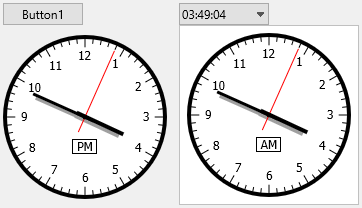
Live Clock and Time Zones
Use Settings.Auto to display the device's current time continuously. Combine it with Settings.TimeOffset (in minutes) to show a second clock in a different time zone.
procedure TForm1.ConfigureAnalogTimeSelector;
begin
  { Show a live clock }
  TMSFNCAnalogTimeSelector1.Settings.Auto := True;
  TMSFNCAnalogTimeSelector1.Appearance.ShowSecondPointer := True;

  { Show a second clock offset by 2 hours (UTC+2 vs UTC) }
  TMSFNCAnalogTimeSelector2.Settings.Auto := True;
  TMSFNCAnalogTimeSelector2.Settings.TimeOffset := 120;  { minutes }

  { Set a fixed time on a selector that is not in auto mode }
  TMSFNCAnalogTimeSelector3.Settings.Auto := False;
  TMSFNCAnalogTimeSelector3.Time := StrToTime('15:30:00');
end;
void __fastcall TForm1::ConfigureAnalogTimeSelector()
{
  // Show a live clock
  TMSFNCAnalogTimeSelector1->Settings->Auto = true;
  TMSFNCAnalogTimeSelector1->Appearance->ShowSecondPointer = true;

  // Show a second clock offset by 2 hours (UTC+2 vs UTC)
  TMSFNCAnalogTimeSelector2->Settings->Auto = true;
  TMSFNCAnalogTimeSelector2->Settings->TimeOffset = 120;  // minutes

  // Set a fixed time on a selector that is not in auto mode
  TMSFNCAnalogTimeSelector3->Settings->Auto = false;
  TMSFNCAnalogTimeSelector3->Time = StrToTime("15:30:00");
}
Set Settings.ReadOnly := True to allow display without user interaction.
Respond to Time Changes
The selector fires OnTimeChanged whenever the selected time changes, plus fine-grained events OnHourChanged, OnMinuteChanged, and OnSecondChanged when each unit changes independently.
Appearance
Both controls share Appearance (selector) and SelectorAppearance (picker) to control clock face colours, hands, and tick styling. The selector's Style property applies a predefined theme to every appearance value at once.
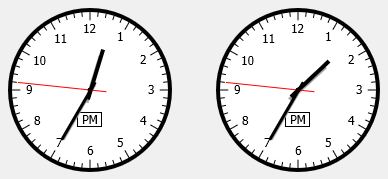
Use Appearance.ShowSecondPointer := True to display the second hand on either component.
High-DPI Displays
Both controls express their sizes in design pixels measured at 96 DPI and
rescale them when the host form moves to a monitor with a different DPI. That
covers the picker's Font, DropDownWidth and DropDownHeight, and on the
clock face HourFont, AMPMFont, CenterPointSize, HourMarkLength and
MinuteMarkLength. Reach for this when you set those metrics in code rather
than at design time: author each one as its unscaled design value and let the
control do the arithmetic. Multiplying by the current scale factor yourself
double-scales the clock face, which shows up as oversized numerals and a
pivot point that no longer sits under the hands.
HourMarkLength and MinuteMarkLength are pixel insets measured inwards from
the clock radius, and they are only rescaled when greater than 1 — a
sub-pixel value stays exactly as authored.
{ Call this from your form's OnCreate: }
procedure TForm1.ConfigureAnalogTimeMetrics;
begin
  TMSFNCAnalogTimePicker1.BeginUpdate;
  try
    // Every value below is a design pixel measured at 96 DPI. On a high-DPI
    // monitor the picker rescales its own Font, DropDownWidth and
    // DropDownHeight, and rescales the clock face it hosts, so none of them
    // may be pre-multiplied by the current scale factor.
    TMSFNCAnalogTimePicker1.Font.Size := 12;
    TMSFNCAnalogTimePicker1.DropDownWidth := 260;
    TMSFNCAnalogTimePicker1.DropDownHeight := 260;

    // SelectorAppearance metrics are pixel lengths, so they take part in the
    // same rescale. HourMarkLength and MinuteMarkLength are insets measured
    // inwards from the clock radius; keep them above 1 so they scale.
    TMSFNCAnalogTimePicker1.SelectorAppearance.CenterPointSize := 9;
    TMSFNCAnalogTimePicker1.SelectorAppearance.HourMarkLength := 10;
    TMSFNCAnalogTimePicker1.SelectorAppearance.MinuteMarkLength := 5;
  finally
    TMSFNCAnalogTimePicker1.EndUpdate;
  end;
end;
// Call this from your form's OnCreate:
void __fastcall TForm1::ConfigureAnalogTimeMetrics()
{
  TMSFNCAnalogTimePicker1->BeginUpdate();
  try
  {
    // Every value below is a design pixel measured at 96 DPI. On a high-DPI
    // monitor the picker rescales its own Font, DropDownWidth and
    // DropDownHeight, and rescales the clock face it hosts, so none of them
    // may be pre-multiplied by the current scale factor.
    TMSFNCAnalogTimePicker1->Font->Size = 12;
    TMSFNCAnalogTimePicker1->DropDownWidth = 260;
    TMSFNCAnalogTimePicker1->DropDownHeight = 260;

    // SelectorAppearance metrics are pixel lengths, so they take part in the
    // same rescale. HourMarkLength and MinuteMarkLength are insets measured
    // inwards from the clock radius; keep them above 1 so they scale.
    TMSFNCAnalogTimePicker1->SelectorAppearance->CenterPointSize = 9;
    TMSFNCAnalogTimePicker1->SelectorAppearance->HourMarkLength = 10;
    TMSFNCAnalogTimePicker1->SelectorAppearance->MinuteMarkLength = 5;
  }
  __finally
  {
    TMSFNCAnalogTimePicker1->EndUpdate();
  }
}
Combining the Picker and Selector
A common layout pairs the picker with a read-only selector that shows the selected time on a large clock face.
procedure TForm1.FormCreate(Sender: TObject);
begin
  { Selector shows the currently picked time as a large clock face }
  TMSFNCAnalogTimeSelector1.Settings.ReadOnly := True;
  TMSFNCAnalogTimeSelector1.Appearance.ShowSecondPointer := False;
  TMSFNCAnalogTimeSelector1.Time := TMSFNCAnalogTimePicker1.SelectedTime;
end;

procedure TForm1.TMSFNCAnalogTimePicker1TimeSelected(Sender: TObject;
  ATime: TTime);
begin
  { Update the display selector and a label simultaneously }
  TMSFNCAnalogTimeSelector1.Time := ATime;
  lblTime.Caption := FormatDateTime('hh:nn', ATime);
end;
void __fastcall TForm1::FormCreate(TObject *Sender)
{
  // Selector shows the currently picked time as a large clock face
  TMSFNCAnalogTimeSelector1->Settings->ReadOnly = true;
  TMSFNCAnalogTimeSelector1->Appearance->ShowSecondPointer = false;
  TMSFNCAnalogTimeSelector1->Time = TMSFNCAnalogTimePicker1->SelectedTime;
}

void __fastcall TForm1::TMSFNCAnalogTimePicker1TimeSelected(TObject *Sender,
  System::TTime ATime)
{
  // Update the display selector and a label simultaneously
  TMSFNCAnalogTimeSelector1->Time = ATime;
  lblTime->Text = FormatDateTime("hh:nn", ATime);
}