Fill Kind Selection
TTMSFNCFillKindPicker uses TTMSFNCFillKindSelector to show available TTMSFNCGraphicsFillKind values in a compact picker.
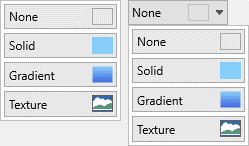
Configure the Picker
Set SelectedFillKind to choose the initial value. Use CloseOnSelection, DropDownWidth, and DropDownHeight to control the drop-down behavior.
TMSFNCFillKindPicker1.SelectedFillKind := gfkSolid;
TMSFNCFillKindPicker1.CloseOnSelection := True;
TMSFNCFillKindPicker1.DropDownWidth := 160;
TMSFNCFillKindPicker1.DropDownHeight := 140;
TMSFNCFillKindPicker1.OnFillKindSelected := TMSFNCFillKindPicker1FillKindSelected;
TMSFNCFillKindPicker1->SelectedFillKind = gfkSolid;
TMSFNCFillKindPicker1->CloseOnSelection = true;
TMSFNCFillKindPicker1->DropDownWidth = 160;
TMSFNCFillKindPicker1->DropDownHeight = 140;
TMSFNCFillKindPicker1->OnFillKindSelected = TMSFNCFillKindPicker1FillKindSelected;
Apply Selection
Handle OnFillKindSelected to apply the selected fill kind to another fill object or to persist the choice.
procedure TForm1.TMSFNCFillKindPicker1FillKindSelected(Sender: TObject; AFillKind: TTMSFNCGraphicsFillKind);
begin
  TMSFNCPanel1.Fill.Kind := AFillKind;
end;
void __fastcall TForm1::TMSFNCFillKindPicker1FillKindSelected(TObject *Sender, TTMSFNCGraphicsFillKind AFillKind)
{
  TMSFNCPanel1->Fill->Kind = AFillKind;
}
Use the Selector Directly
Use TTMSFNCFillKindSelector directly when users should see the fill-kind choices without opening a drop-down.
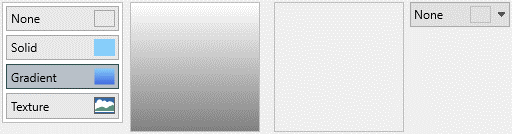
TMSFNCFillKindSelector1.SelectedFillKind := gfkGradient;
TMSFNCFillKindSelector1.OnFillKindSelected := TMSFNCFillKindPicker1FillKindSelected;
TMSFNCFillKindSelector1->SelectedFillKind = gfkGradient;
TMSFNCFillKindSelector1->OnFillKindSelected = TMSFNCFillKindPicker1FillKindSelected;
Combining the picker, selection handling, and the visible selector
Keep a picker and a standalone selector in sync so a toolbar button and a settings panel always show the same fill kind:
procedure TForm1.FormCreate(Sender: TObject);
begin
  TMSFNCFillKindPicker1.SelectedFillKind   := gfkSolid;
  TMSFNCFillKindPicker1.CloseOnSelection   := True;
  TMSFNCFillKindSelector1.SelectedFillKind := gfkSolid;
end;

procedure TForm1.TMSFNCFillKindPicker1FillKindSelected(
  Sender: TObject; AFillKind: TTMSFNCGraphicsFillKind);
begin
  TMSFNCFillKindSelector1.SelectedFillKind := AFillKind;
  MyShape.Fill.Kind := AFillKind;
end;
void __fastcall TForm1::FormCreate(TObject *Sender)
{
  TMSFNCFillKindPicker1->SelectedFillKind = gfkSolid;
  TMSFNCFillKindPicker1->CloseOnSelection = true;
  TMSFNCFillKindSelector1->SelectedFillKind = gfkSolid;
}

void __fastcall TForm1::TMSFNCFillKindPicker1FillKindSelected(
  TObject *Sender, TTMSFNCGraphicsFillKind AFillKind)
{
  TMSFNCFillKindSelector1->SelectedFillKind = AFillKind;
  MyShape->Fill->Kind = AFillKind;
}
High-DPI Displays
The picker rescales its Font, DropDownWidth and DropDownHeight, and the
fill kind selector inside the drop-down rescales
Appearance.VerticalSpacing, Appearance.HorizontalSpacing and
Appearance.Font, whenever the host form moves to a monitor with a different
DPI. All of those are design pixels measured at 96 DPI, so set them to their
unscaled design values and let the control scale them.
Rows and Columns count swatches rather than pixels, so the shape of the
swatch grid is unaffected by DPI — only the pixel metrics around it are
rescaled. Sizing the drop-down through the grid therefore survives a move to a
high-DPI monitor better than a hard-coded DropDownHeight.
{ Call this from your form's OnCreate: }
procedure TForm1.ConfigureFillKindMetrics;
begin
  TMSFNCFillKindPicker1.BeginUpdate;
  try
    // Design pixels measured at 96 DPI. On a high-DPI monitor the picker
    // rescales its Font, DropDownWidth and DropDownHeight, and the fill kind
    // selector it hosts rescales the appearance spacings, so author all of
    // them unscaled.
    TMSFNCFillKindPicker1.Font.Size := 12;
    TMSFNCFillKindPicker1.DropDownWidth := 200;
    TMSFNCFillKindPicker1.DropDownHeight := 160;
    TMSFNCFillKindPicker1.Appearance.VerticalSpacing := 4;
    TMSFNCFillKindPicker1.Appearance.HorizontalSpacing := 4;

    // Rows and Columns are swatch counts, so the grid shape is unaffected by
    // DPI - only the pixel metrics above are rescaled around it.
    TMSFNCFillKindPicker1.Rows := 3;
    TMSFNCFillKindPicker1.Columns := 3;
  finally
    TMSFNCFillKindPicker1.EndUpdate;
  end;
end;
// Call this from your form's OnCreate:
void __fastcall TForm1::ConfigureFillKindMetrics()
{
  TMSFNCFillKindPicker1->BeginUpdate();
  try
  {
    // Design pixels measured at 96 DPI. On a high-DPI monitor the picker
    // rescales its Font, DropDownWidth and DropDownHeight, and the fill kind
    // selector it hosts rescales the appearance spacings, so author all of
    // them unscaled.
    TMSFNCFillKindPicker1->Font->Size = 12;
    TMSFNCFillKindPicker1->DropDownWidth = 200;
    TMSFNCFillKindPicker1->DropDownHeight = 160;
    TMSFNCFillKindPicker1->Appearance->VerticalSpacing = 4;
    TMSFNCFillKindPicker1->Appearance->HorizontalSpacing = 4;

    // Rows and Columns are swatch counts, so the grid shape is unaffected by
    // DPI - only the pixel metrics above are rescaled around it.
    TMSFNCFillKindPicker1->Rows = 3;
    TMSFNCFillKindPicker1->Columns = 3;
  }
  __finally
  {
    TMSFNCFillKindPicker1->EndUpdate();
  }
}