Getting Started with TMS FNC Filter View
TTMSFNCFilterView is a composable filter-panel component. You populate it with purpose-built filter controls — checkboxes, radio groups, trackbars, range sliders, combo boxes, date pickers — and it assembles them into a structured filter expression that your data source can consume directly.
Prerequisites
- Delphi with TMS FNC UI Pack installed.
- A VCL, FMX, or WEB application.
Steps
1. Drop the component
At design time: drop a TTMSFNCFilterView from the TMS FNC UI Pack palette page onto a form. Use the context menu (right-click) to add built-in filter controls without writing code.
2. Set the output format
FilterView.FilterFormatType := fftDelphiDataSet;
Use fftDelphiDataSet to produce expressions compatible with TDataSet.Filter. Use fftUniversalFilterExpressions for a framework-agnostic format.
3. Add filter controls
Add controls programmatically using the Add* methods. Wrap multiple additions in BeginUpdate / EndUpdate to batch filter structure rebuilds:
uses
  FMX.TMSFNCFilterView, TMS.TMSFNCFilterBuilder;

procedure TFilterViewForm.SetupFilterView;
var
  fv: TTMSFNCFilterView;
  PickUpRadioGroup: TTMSFNCFilterViewRadioGroup;
begin
  fv := TTMSFNCFilterView.Create(Self);
  fv.Parent := Self;
  fv.Align := TAlignLayout.Left;

  fv.BeginUpdate;

  fv.FilterFormatType := fftDelphiDataSet;

  // Availability — single checkbox
  fv.AddText('Availability:');
  fv.AddFilterCheckBox(False, 'Empty', fdtBoolean, feoEqual, True).Text := 'Available';

  // Delivery Option — exclusive radio group
  fv.AddText('Delivery Options:');
  PickUpRadioGroup := fv.AddFilterRadioGroup(
    ['Pick-up store', 'TMS Post', 'Fast Transport', 'Pack AG ING'], 0, 'Delivery');
  PickUpRadioGroup.FilterExpressions.AddOrUpdateExpression('Pick-up store', '', False);

  // Rating — numeric trackbar
  fv.AddText('Rating:');
  fv.AddFilterTrackBar(0, 0, 5, 'Rating', fdtNumber, feoLargerThanOrEqual);

  // Price — dual-thumb range slider
  fv.AddText('Price:');
  fv.AddFilterRangeSlider(0, 200, 0, 200, 'Price', fdtNumber);

  fv.OnFilterTextChanged := DoFilterTextChanged;

  fv.EndUpdate;
end;

procedure TFilterViewForm.DoFilterTextChanged(Sender: TObject; AFilterText: string);
begin
  FilterLbl.Text := AFilterText;
end;
void __fastcall TFilterViewForm::SetupFilterView()
{
  TTMSFNCFilterView *fv = new TTMSFNCFilterView(this);
  fv->Parent = this;
  fv->Align = TAlignLayout::Left;

  fv->BeginUpdate();

  fv->FilterFormatType = fftDelphiDataSet;

  // Availability - single checkbox
  fv->AddText("Availability:");
  fv->AddFilterCheckBox(TValue::From<bool>(false), "Empty", fdtBoolean, feoEqual, true)->Text = "Available";

  // Delivery Option - exclusive radio group
  fv->AddText("Delivery Options:");
  System::UnicodeString delivery[] = {"Pick-up store", "TMS Post", "Fast Transport", "Pack AG ING"};
  TTMSFNCFilterViewRadioGroup *PickUpRadioGroup = fv->AddFilterRadioGroup(delivery, 3, 0, "Delivery");
  PickUpRadioGroup->FilterExpressions->AddOrUpdateExpression("Pick-up store", "", false);

  // Rating - numeric trackbar
  fv->AddText("Rating:");
  fv->AddFilterTrackBar(0, 0, 5, "Rating", fdtNumber, feoLargerThanOrEqual);

  // Price - dual-thumb range slider
  fv->AddText("Price:");
  fv->AddFilterRangeSlider(0, 200, 0, 200, "Price", fdtNumber);

  fv->OnFilterTextChanged = DoFilterTextChanged;

  fv->EndUpdate();
}

void __fastcall TFilterViewForm::DoFilterTextChanged(TObject *Sender, System::UnicodeString AFilterText)
{
  FilterLbl->Text = AFilterText;
}
4. React to filter changes
Wire OnFilterTextChanged to apply the generated filter text to your data source:
procedure TFormMain.FilterViewFilterTextChanged(Sender: TObject; AFilterText: string);
begin
  DataSet.Filter := AFilterText;
  DataSet.Filtered := AFilterText <> '';
end;
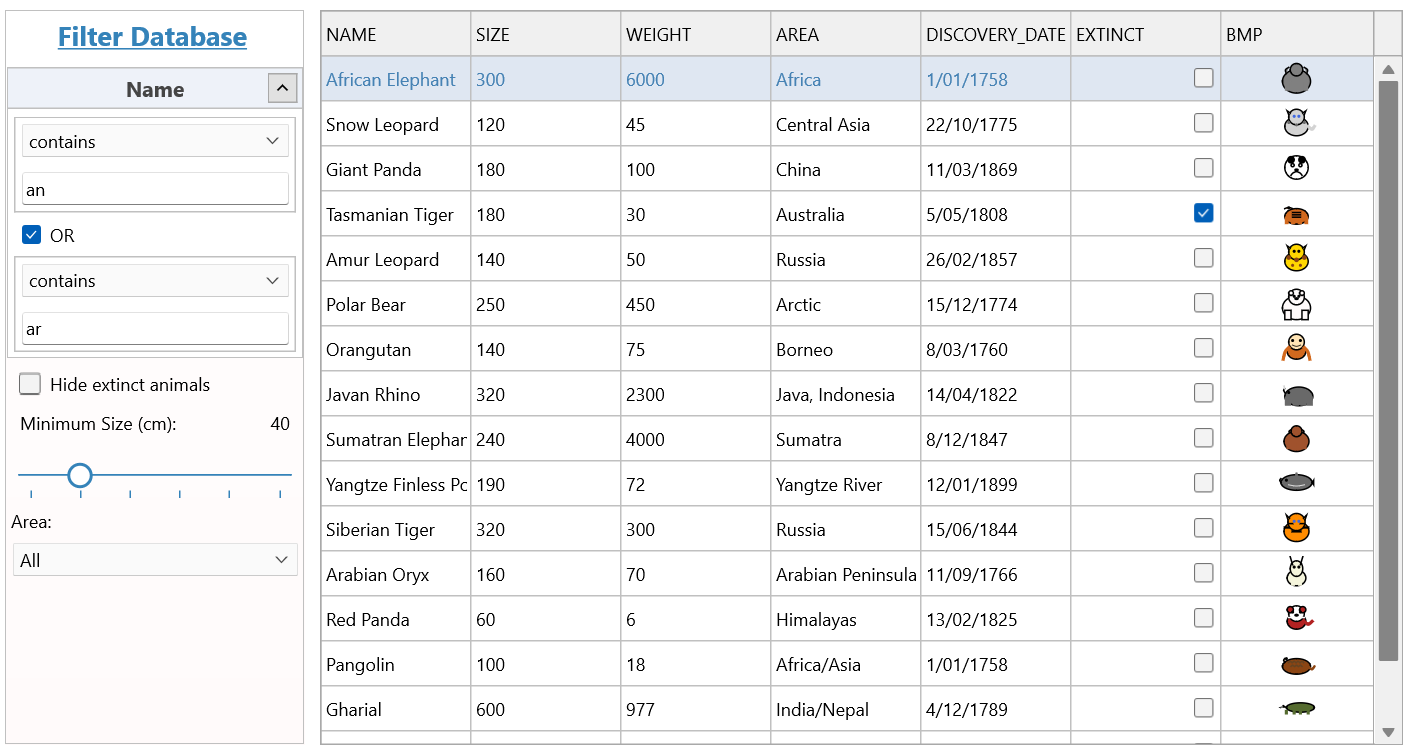
5. Check the result
Read FilterView.FilterText at any time to get the current filter string without waiting for the next change event.
Next steps
- Filter controls — properties and examples for each control type
- Expressions and custom controls — the expression system,
OnExpressionNotFound, and integrating non-FilterView controls - API reference