Progress and rating
TTMSFNCProgressBar displays a horizontal or vertical fill that represents a numeric value between Minimum and Maximum. The same base class powers TTMSFNCRating, which divides the bar into discrete blocks so users can tap or drag to set a star-style rating.
Basic usage
Set Minimum, Maximum, and Value at design time or runtime. The bar redraws immediately when Value changes:
// Show progress of a background operation
procedure TForm1.StartOperation;
begin
  TMSFNCProgressBar1.Minimum := 0;
  TMSFNCProgressBar1.Maximum := 100;
  TMSFNCProgressBar1.Value   := 0;
end;

procedure TForm1.UpdateProgress(APercent: Integer);
begin
  TMSFNCProgressBar1.Value := APercent;
end;
// Show progress of a background operation
void __fastcall TForm1::StartOperation()
{
  TMSFNCProgressBar1->Minimum = 0;
  TMSFNCProgressBar1->Maximum = 100;
  TMSFNCProgressBar1->Value   = 0;
}

void __fastcall TForm1::UpdateProgress(int APercent)
{
  TMSFNCProgressBar1->Value = APercent;
}
Shape and segmented display
Layout.Shape switches between psHorizontalLine (default) and psVerticalLine. Layout.Blocks splits the filled area into equal segments with Layout.Spacing pixels of gap between them:
TMSFNCProgressBar1.Layout.Shape   := psVerticalLine;
TMSFNCProgressBar1.Layout.Blocks  := 8;
TMSFNCProgressBar1.Layout.Spacing := 2;
TMSFNCProgressBar1->Layout->Shape   = psVerticalLine;
TMSFNCProgressBar1->Layout->Blocks  = 8;
TMSFNCProgressBar1->Layout->Spacing = 2;
Displaying the value label
Set Layout.ShowValue to True to draw a text label. Layout.ValueType controls the content:
| Value | Label shows |
|---|---|
pvtPercentage |
Percentage of the range (default) |
pvtValue |
The raw numeric Value |
pvtCustom |
The string you assign to CustomValue |
Position the label with Layout.TextPosition (ptpStart, ptpCenter, ptpEnd, ptpProgressEnd, ptpFollowCenter, ptpFollowEnd, ptpProgressCenter). Rotate the label with Layout.TextOrientation (ptoHorizontal, ptoLeft, ptoRight, ptoUpsideDown).
Add Layout.Prefix and Layout.Suffix strings to wrap the label, for example '%'.
Appearance and threshold levels
Appearance.Fill styles the track behind the bar. The filled portion is coloured by the Levels collection, which changes colour automatically as Value crosses a threshold.
Important
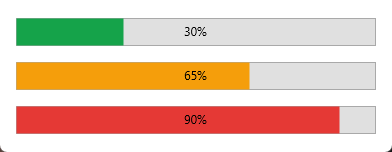
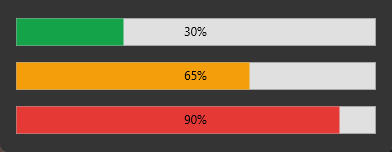
A level's Fill applies to values up to the next level's LevelPosition, not above its own. So the first level is the base colour below the first threshold, and the thresholds you want live on the levels that follow it. Three levels at 0 / 50 / 80 give green below 50, amber from 50 to 80, and red above 80.
// Vertical segmented bar with percentage label
procedure TForm1.ConfigureProgressBar;
begin
  with TMSFNCProgressBar1 do
  begin
    // Five equal blocks with gaps between them
    Layout.Blocks  := 5;
    Layout.Spacing := 3;
    Layout.Shape   := psVerticalLine;

    // Label: "72%" centred inside the filled area
    Layout.ShowValue    := True;
    Layout.ValueType    := pvtPercentage;
    Layout.Decimals     := 0;
    Layout.Suffix       := '%';
    Layout.TextPosition := ptpCenter;

    // Progress fill colour and background
    Appearance.Fill.Color            := $FF15A34A;
    Appearance.DefaultLevelFill.Color := $FFE0E0E0;
  end;
end;

// Threshold-based colour change using Levels
procedure TForm1.AddLevels;
var
  L: TTMSFNCCustomProgressBarLevel;
begin
  { A level's Fill covers values up to the NEXT level's LevelPosition, so the
    first level is the base colour and the thresholds you want (50 and 80) are
    set on the levels that FOLLOW it. }
  TMSFNCProgressBar1.Levels.Clear;

  L := TTMSFNCCustomProgressBarLevel(TMSFNCProgressBar1.Levels.Add);
  L.LevelPosition := 0;
  L.Fill.Color    := $FF15A34A;        // green, up to 50 %

  L := TTMSFNCCustomProgressBarLevel(TMSFNCProgressBar1.Levels.Add);
  L.LevelPosition := 50;
  L.Fill.Color    := $FFF59E0B;        // amber, 50 % to 80 %

  L := TTMSFNCCustomProgressBarLevel(TMSFNCProgressBar1.Levels.Add);
  L.LevelPosition := 80;
  L.Fill.Color    := $FFE53935;        // red, above 80 %
end;
// Vertical segmented bar with percentage label
void __fastcall TForm1::ConfigureProgressBar()
{
  TTMSFNCProgressBar *p = TMSFNCProgressBar1;
  // Five equal blocks with gaps between them
  p->Layout->Blocks  = 5;
  p->Layout->Spacing = 3;
  p->Layout->Shape   = psVerticalLine;

  // Label: "72%" centred inside the filled area
  p->Layout->ShowValue    = true;
  p->Layout->ValueType    = pvtPercentage;
  p->Layout->Decimals     = 0;
  p->Layout->Suffix       = "%";
  p->Layout->TextPosition = ptpCenter;

  // Progress fill colour and background
  p->Appearance->Fill->Color             = (TAlphaColor)0xFF15A34A;
  p->Appearance->DefaultLevelFill->Color = (TAlphaColor)0xFFE0E0E0;
}

// Threshold-based colour change using Levels
void __fastcall TForm1::AddLevels()
{
  TTMSFNCCustomProgressBarLevel *L;
  /* A level's Fill covers values up to the NEXT level's LevelPosition, so the
     first level is the base colour and the thresholds you want (50 and 80) are
     set on the levels that FOLLOW it. */
  TMSFNCProgressBar1->Levels->Clear();

  L = static_cast<TTMSFNCCustomProgressBarLevel *>(TMSFNCProgressBar1->Levels->Add());
  L->LevelPosition = 0;
  L->Fill->Color   = (TAlphaColor)0xFF15A34A;        // green, up to 50 %

  L = static_cast<TTMSFNCCustomProgressBarLevel *>(TMSFNCProgressBar1->Levels->Add());
  L->LevelPosition = 50;
  L->Fill->Color   = (TAlphaColor)0xFFF59E0B;        // amber, 50 % to 80 %

  L = static_cast<TTMSFNCCustomProgressBarLevel *>(TMSFNCProgressBar1->Levels->Add());
  L->LevelPosition = 80;
  L->Fill->Color   = (TAlphaColor)0xFFE53935;        // red, above 80 %
}
Appearance.Stacked makes multiple levels stack visually from left to right rather than replacing each other.
Reacting to level changes
OnLevelsChanged fires whenever the Levels collection is modified: an item is added, removed, or reordered, or an existing level's LevelPosition, Fill, Stroke, or ActiveFont is edited. Use it to keep dependent UI in sync — for example a legend or status label that reports how many thresholds are configured — without polling Levels.Count elsewhere in your code:
procedure TForm1.TMSFNCProgressBar1LevelsChanged(Sender: TObject);
begin
  // Fires for any change to the Levels collection: items added or removed,
  // reordered, or a level's LevelPosition/Fill/Stroke/ActiveFont edited.
  LabelLevelCount.Text := Format('%d threshold level(s) configured',
    [TMSFNCProgressBar1.Levels.Count]);
end;

procedure TForm1.AddHighUsageLevel;
var
  L: TTMSFNCCustomProgressBarLevel;
begin
  // Any mutation below triggers OnLevelsChanged once the change is applied.
  L := TTMSFNCCustomProgressBarLevel(TMSFNCProgressBar1.Levels.Add);
  L.LevelPosition := 90;
  L.Fill.Color    := $FFE53935;
end;

procedure TForm1.FormCreate(Sender: TObject);
begin
  TMSFNCProgressBar1.OnLevelsChanged := TMSFNCProgressBar1LevelsChanged;
end;
void __fastcall TForm1::TMSFNCProgressBar1LevelsChanged(TObject *Sender)
{
  // Fires for any change to the Levels collection: items added or removed,
  // reordered, or a level's LevelPosition/Fill/Stroke/ActiveFont edited.
  LabelLevelCount->Text = Format("%d threshold level(s) configured",
    ARRAYOFCONST((TMSFNCProgressBar1->Levels->Count)));
}

void __fastcall TForm1::AddHighUsageLevel()
{
  // Any mutation below triggers OnLevelsChanged once the change is applied.
  TTMSFNCCustomProgressBarLevel *L =
    static_cast<TTMSFNCCustomProgressBarLevel *>(TMSFNCProgressBar1->Levels->Add());
  L->LevelPosition = 90;
  L->Fill->Color   = (TAlphaColor)0xFFE53935;
}

void __fastcall TForm1::FormCreate(TObject *Sender)
{
  TMSFNCProgressBar1->OnLevelsChanged = TMSFNCProgressBar1LevelsChanged;
}
Applying a global font
Both TTMSFNCProgressBar and TTMSFNCRating expose GlobalFont, a single font descriptor that cascades to every text-bearing sub-object in the control instead of requiring separate edits to Appearance.Font, Appearance.DefaultLevelFont, and each Levels item's ActiveFont. Reach for it whenever the value label needs to match your application's typography, especially after configuring threshold levels as above: without GlobalFont you would otherwise set the font on the base appearance and again on every level.
Setting GlobalFont.Name, .Size, or .Style immediately reapplies that attribute everywhere; leave an attribute at its default to keep that aspect per-object:
procedure TForm1.ApplyGlobalFont;
begin
  with TMSFNCProgressBar1 do
  begin
    // GlobalFont cascades to Appearance.Font, Appearance.DefaultLevelFont,
    // and ActiveFont on every item in Levels - no need to touch each one.
    GlobalFont.Name  := 'Segoe UI';
    GlobalFont.Size  := 12;
    GlobalFont.Style := [TFontStyle.fsBold];
  end;
end;
void __fastcall TForm1::ApplyGlobalFont()
{
  TTMSFNCProgressBar *p = TMSFNCProgressBar1;
  // GlobalFont cascades to Appearance.Font, Appearance.DefaultLevelFont,
  // and ActiveFont on every item in Levels - no need to touch each one.
  p->GlobalFont->Name  = "Segoe UI";
  p->GlobalFont->Size  = 12;
  p->GlobalFont->Style = TFontStyles() << TFontStyle::fsBold;
}
Rating control
TTMSFNCRating shares the same base API. Set Layout.Blocks to the number of rating steps and enable interaction:
| Property | Effect |
|---|---|
Interaction.SnapToValue |
Click snaps to the nearest block |
Interaction.SlideToValue |
Drag slides to a new rating |
Interaction.KeyboardSupport |
Arrow keys change the value |
Interaction.ReadOnlyMode |
Disables all mouse and keyboard input |
// Five-star interactive rating control
procedure TForm1.ConfigureRating;
begin
  with TMSFNCRating1 do
  begin
    Minimum := 0;
    Maximum := 5;
    Value   := 0;

    // Five discrete star blocks; click to snap to nearest integer
    Layout.Blocks    := 5;
    Layout.Spacing   := 4;
    Layout.ShowValue := False;

    // Allow the user to drag or click a new rating
    Interaction.SnapToValue := True;
    Interaction.SlideToValue := True;
    Interaction.KeyboardSupport := True;
  end;
end;

// React when the user changes the rating
procedure TForm1.TMSFNCRating1ValueChanged(Sender: TObject; AValue: Single);
begin
  StatusLabel.Text := Format('Rating: %.0f / 5', [AValue]);
end;
// Five-star interactive rating control
void __fastcall TForm1::ConfigureRating()
{
  TTMSFNCRating *r = TMSFNCRating1;
  r->Minimum = 0;
  r->Maximum = 5;
  r->Value   = 0;

  // Five discrete star blocks; click to snap to nearest integer
  r->Layout->Blocks    = 5;
  r->Layout->Spacing   = 4;
  r->Layout->ShowValue = false;

  // Allow the user to drag or click a new rating
  r->Interaction->SnapToValue = true;
  r->Interaction->SlideToValue = true;
  r->Interaction->KeyboardSupport = true;
}

// React when the user changes the rating
void __fastcall TForm1::TMSFNCRating1ValueChanged(TObject *Sender, float AValue)
{
  StatusLabel->Text = Format("Rating: %.0f / 5", ARRAYOFCONST(((Extended)AValue)));
}
Use OnSlideValueChanged, OnSnapValueChanged, or OnKeyboardValueChanged to react after a change, and their *Change counterparts (with var AAllow: Boolean) to cancel one.
Custom draw hook
OnBeforeDrawBlock fires before each block is rendered and lets you fully replace its drawing by setting ADefaultDraw := False. OnBeforeDrawValue fires before the label and receives the current text string so you can override it:
procedure TForm1.TMSFNCProgressBar1BeforeDrawBlock(Sender: TObject;
  AGraphics: TTMSFNCGraphics; ARect: TRectF;
  ACorners: TTMSFNCGraphicsCorners;
  var AAllow, ADefaultDraw: Boolean);
begin
  AGraphics.Fill.Color := $FFFF9800;
  ADefaultDraw := True;  // let the bar draw, but fill colour is already set
end;
void __fastcall TForm1::TMSFNCProgressBar1BeforeDrawBlock(TObject *Sender,
  TTMSFNCGraphics *AGraphics, const TRectF &ARect,
  TTMSFNCGraphicsCorners ACorners,
  bool &AAllow, bool &ADefaultDraw)
{
  AGraphics->Fill->Color = (TAlphaColor)0xFFFF9800;
  ADefaultDraw = true;  // let the bar draw, but fill colour is already set
}
Combining blocks, levels, and a custom label
The example below builds a segmented upload indicator that changes colour at 75 % and 90 % and shows a "12 MB / 50 MB" label using pvtCustom:
// Segmented upload progress bar with threshold colours and a custom label
procedure TForm1.FormCreate(Sender: TObject);
begin
  with TMSFNCProgressBar1 do
  begin
    Minimum := 0;
    Maximum := 100;
    Value   := 0;

    Layout.Blocks       := 10;
    Layout.Spacing      := 2;
    Layout.Shape        := psHorizontalLine;
    Layout.ShowValue    := True;
    Layout.ValueType    := pvtCustom;   // controlled via OnBeforeDrawValue
    Layout.TextPosition := ptpCenter;

    // Base fill (0–50 %)
    Appearance.Fill.Color := $FF519657;

    // Amber above 75 %
    with TTMSFNCCustomProgressBarLevel(Levels.Add) do
    begin
      LevelPosition := 75;
      Fill.Color    := $FFE69820;
    end;

    // Red above 90 %
    with TTMSFNCCustomProgressBarLevel(Levels.Add) do
    begin
      LevelPosition := 90;
      Fill.Color    := $FFC62828;
    end;
  end;
end;

// Supply a friendly "12 MB / 50 MB" label instead of a percentage
procedure TForm1.TMSFNCProgressBar1BeforeDrawValue(Sender: TObject;
  AGraphics: TTMSFNCGraphics; AText: string; ARect: TRectF;
  APosition: TTMSFNCProgressBarTextPosition;
  AOrientation: TTMSFNCProgressBarTextOrientation;
  var AAllow: Boolean; var ADefaultDraw: Boolean);
begin
  TMSFNCProgressBar1.CustomValue :=
    Format('%d MB / %d MB',
      [Round(TMSFNCProgressBar1.Value / TMSFNCProgressBar1.Maximum * 50), 50]);
end;
// Segmented upload progress bar with threshold colours and a custom label
void __fastcall TForm1::FormCreate(TObject *Sender)
{
  TTMSFNCProgressBar *p = TMSFNCProgressBar1;
  p->Minimum = 0;
  p->Maximum = 100;
  p->Value   = 0;

  p->Layout->Blocks       = 10;
  p->Layout->Spacing      = 2;
  p->Layout->Shape        = psHorizontalLine;
  p->Layout->ShowValue    = true;
  p->Layout->ValueType    = pvtCustom;   // controlled via OnBeforeDrawValue
  p->Layout->TextPosition = ptpCenter;

  // Base fill (0-50 %)
  p->Appearance->Fill->Color = (TAlphaColor)0xFF519657;

  // Amber above 75 %
  TTMSFNCCustomProgressBarLevel *L =
    static_cast<TTMSFNCCustomProgressBarLevel *>(p->Levels->Add());
  L->LevelPosition = 75;
  L->Fill->Color   = (TAlphaColor)0xFFE69820;

  // Red above 90 %
  L = static_cast<TTMSFNCCustomProgressBarLevel *>(p->Levels->Add());
  L->LevelPosition = 90;
  L->Fill->Color   = (TAlphaColor)0xFFC62828;
}

// Supply a friendly "12 MB / 50 MB" label instead of a percentage
void __fastcall TForm1::TMSFNCProgressBar1BeforeDrawValue(TObject *Sender,
  TTMSFNCGraphics *AGraphics, System::UnicodeString AText, const TRectF &ARect,
  TTMSFNCProgressBarTextPosition APosition,
  TTMSFNCProgressBarTextOrientation AOrientation,
  bool &AAllow, bool &ADefaultDraw)
{
  TMSFNCProgressBar1->CustomValue =
    Format("%d MB / %d MB",
      ARRAYOFCONST((
        (int)(TMSFNCProgressBar1->Value / TMSFNCProgressBar1->Maximum * 50 + 0.5), 50)));
}