Items, Columns, and Filtering
TTMSFNCSearchList is a multi-column list with built-in text filtering, category support, and match highlighting. TTMSFNCSearchEdit wraps the same list in a dropdown attached to an edit control.
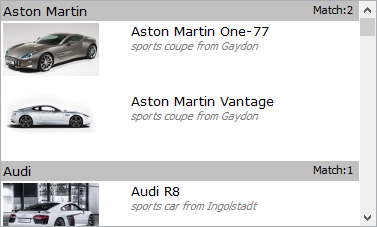
Architecture
| Collection | Purpose |
|---|---|
Columns |
Defines the number and width of columns. |
Items |
All rows (regular items and category headers). |
Categories |
Optional category definitions for grouping and filtering. |
Columns
Each TColumnItem in Columns controls one column:
| Property | Description |
|---|---|
Width |
Column width in pixels. |
Visible |
Show or hide the column. |
ControlFont |
Use the list's global font when True; use Font when False. |
Font |
Per-column font (effective only when ControlFont = False). |
Color |
Column background colour. clNone uses the control background. |
Items
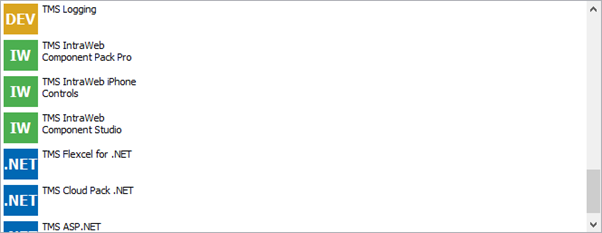
Items is a collection of TSearchListItem. Each item has:
ItemType—itItem(regular) oritCategory(category header row).CategoryID— links the item to a category.Columns— per-column data (TSearchColumnItems).
Each TSearchColumnItem exposes:
| Property | Description |
|---|---|
Caption |
Primary text. |
Description |
Secondary text shown below the caption. |
Picture |
Optional image. |
ImageIndex |
Index in an associated image list. |
Color |
Per-cell background colour override. |
TextColor |
Per-cell text colour override. |
Shape |
Background shape: sNone, sRect, sBar (left-side coloured bar). |
// Build a two-column search list with categories
procedure TForm1.FormCreate(Sender: TObject);
var
  item: TSearchListItem;
  col: TSearchColumnItem;
begin
  TMSFNCSearchList1.BeginUpdate;
  try
    // --- Columns ---
    with TMSFNCSearchList1.Columns.Add do
    begin
      Width   := 60;
      Visible := True;
    end;
    with TMSFNCSearchList1.Columns.Add do
    begin
      Width   := 200;
      Visible := True;
    end;

    // --- Categories ---
    with TMSFNCSearchList1.Categories.Add do
    begin
      ID      := 1;
      Caption := 'Development';
    end;
    with TMSFNCSearchList1.Categories.Add do
    begin
      ID      := 2;
      Caption := 'Design';
    end;

    // --- Category header items ---
    item := TMSFNCSearchList1.Items.Add;
    item.ItemType  := itCategory;
    item.CategoryID := 1;
    item.Columns.Add.Caption := 'Development';

    // --- Regular items ---
    item := TMSFNCSearchList1.Items.Add;
    item.CategoryID := 1;
    item.Columns.Add.Caption := 'DEV';
    col := item.Columns.Add;
    col.Caption     := 'Delphi';
    col.Description := 'Pascal-based RAD IDE';

    item := TMSFNCSearchList1.Items.Add;
    item.CategoryID := 2;
    item.Columns.Add.Caption := 'IW';
    col := item.Columns.Add;
    col.Caption     := 'IntraWeb';
    col.Description := 'Web application framework';
  finally
    TMSFNCSearchList1.EndUpdate;
  end;
end;
// Build a two-column search list with categories
void __fastcall TForm1::FormCreate(TObject *Sender)
{
  TSearchListItem *item;
  TSearchColumnItem *col;
  TColumnItem *lcol;

  TMSFNCSearchList1->BeginUpdate();
  try
  {
    // --- Columns ---
    lcol = TMSFNCSearchList1->Columns->Add();
    lcol->Width = 60;
    lcol->Visible = true;
    lcol = TMSFNCSearchList1->Columns->Add();
    lcol->Width = 200;
    lcol->Visible = true;

    // --- Categories ---
    TCategoryItem *cat = TMSFNCSearchList1->Categories->Add();
    cat->ID = 1;
    cat->Caption = "Development";
    cat = TMSFNCSearchList1->Categories->Add();
    cat->ID = 2;
    cat->Caption = "Design";

    // --- Category header items ---
    item = TMSFNCSearchList1->Items->Add();
    item->ItemType = itCategory;
    item->CategoryID = 1;
    item->Columns->Add()->Caption = "Development";

    // --- Regular items ---
    item = TMSFNCSearchList1->Items->Add();
    item->CategoryID = 1;
    item->Columns->Add()->Caption = "DEV";
    col = item->Columns->Add();
    col->Caption = "Delphi";
    col->Description = "Pascal-based RAD IDE";

    item = TMSFNCSearchList1->Items->Add();
    item->CategoryID = 2;
    item->Columns->Add()->Caption = "IW";
    col = item->Columns->Add();
    col->Caption = "IntraWeb";
    col->Description = "Web application framework";
  }
  __finally
  {
    TMSFNCSearchList1->EndUpdate();
  }
}
Note
Wrap bulk item additions in BeginUpdate / EndUpdate to avoid incremental redraws.
Categories
Each TCategoryItem has:
| Property | Description |
|---|---|
ID |
Numeric identifier referenced by Items[].CategoryID. |
Caption |
Category display name. |
Filter |
When True, items with this category ID are hidden. |
Filtering
Set FilterCondition properties and call IUpdateFilter to apply:
// --- Filter by text ---
TMSFNCSearchList1.FilterCondition.Text            := 'Del';
TMSFNCSearchList1.FilterCondition.AllColumns      := True;   // search all columns
TMSFNCSearchList1.FilterCondition.CaseSensitive   := False;
TMSFNCSearchList1.FilterCondition.FilterType      := mStartWord; // mText/mStartWord/mEndWord/mEntireWord
TMSFNCSearchList1.FilterCondition.FilterData      := fdAll;      // fdCaption/fdDescription/fdAll
TMSFNCSearchList1.FilterCondition.AutoSelect      := True;       // auto-select first match
TMSFNCSearchList1.FilterCondition.MaxCategoryItems := 5;         // max shown per category
TMSFNCSearchList1.IUpdateFilter;

// --- Clear the filter ---
TMSFNCSearchList1.ClearFilter;

// --- Filter by category ---
TMSFNCSearchList1.FilterCondition.Categories := True;
// Mark a category as hidden
TMSFNCSearchList1.Categories.Items[1].Filter := True;  // hide Design category
TMSFNCSearchList1.IUpdateFilter;

// --- Custom item filter event ---
procedure TForm1.TMSFNCSearchList1FilterItem(Sender: TObject;
  AItem: TSearchListItem; var Retain: Boolean);
begin
  // Retain only items from category 1 whose caption starts with 'D'
  Retain := (AItem.CategoryID = 1) and
            AItem.Columns[1].Caption.StartsWith('D', True);
end;
void __fastcall TForm1::ConfigureSearchListFilter()
{
  // --- Filter by text ---
  TMSFNCSearchList1->FilterCondition->Text = "Del";
  TMSFNCSearchList1->FilterCondition->AllColumns = true;      // search all columns
  TMSFNCSearchList1->FilterCondition->CaseSensitive = false;
  TMSFNCSearchList1->FilterCondition->FilterType = Fmx::Tmsfncsearchlist::mStartWord; // mText/mStartWord/mEndWord/mEntireWord
  TMSFNCSearchList1->FilterCondition->FilterData = fdAll;      // fdCaption/fdDescription/fdAll
  TMSFNCSearchList1->FilterCondition->AutoSelect = true;       // auto-select first match
  TMSFNCSearchList1->FilterCondition->MaxCategoryItems = 5;    // max shown per category
  TMSFNCSearchList1->UpdateFilter();

  // --- Clear the filter ---
  TMSFNCSearchList1->ClearFilter();

  // --- Filter by category ---
  TMSFNCSearchList1->FilterCondition->Categories = true;
  // Mark a category as hidden
  TMSFNCSearchList1->Categories->Items[1]->Filter = true;  // hide Design category
  TMSFNCSearchList1->UpdateFilter();
}

// --- Custom item filter event ---
void __fastcall TForm1::TMSFNCSearchList1FilterItem(TObject *Sender,
  TSearchListItem *AItem, bool &Retain)
{
  // Retain only items from category 1 whose caption starts with 'D'
  Retain = (AItem->CategoryID == 1) &&
           (AItem->Columns->Items[1]->Caption.UpperCase().Pos("D") == 1);
}
| Property | Description |
|---|---|
Text |
Text to search for. |
AllColumns |
Search all columns when True; otherwise use Column. |
Column |
Index of the column to search (when AllColumns = False). |
CaseSensitive |
Case-sensitive matching. |
FilterType |
mText (anywhere), mStartWord, mEndWord, mEntireWord. |
FilterData |
fdCaption, fdDescription, or fdAll. |
Categories |
True filters items by category Filter flags. |
CategoryItems |
True removes category header rows when they have no matching children. |
AutoSelect |
Auto-select the first matching item. |
MaxCategoryItems |
Cap the number of retained items per category. |
TMSFNCSearchList1.ClearFilter; // remove the filter
Match highlighting
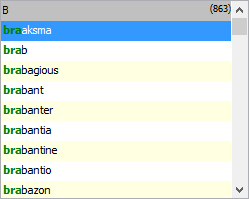
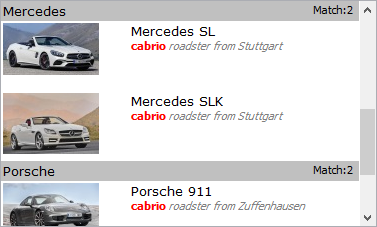
The matching portion of text is highlighted during a filter:
TMSFNCSearchList1.Appearance.HighlightColor     := gcYellow;
TMSFNCSearchList1.Appearance.HighlightTextColor := gcBlack;
TMSFNCSearchList1.Appearance.HighlightFontStyle := [fsBold];
Appearance
| Property | Description |
|---|---|
ItemHeight |
Height of regular items. |
CategoryItemHeight |
Height of category header items. |
Appearance.Banding |
Alternate row background colours. |
Appearance.BandColorEven / BandColorOdd |
Even/odd row colours. |
Appearance.CategoryColor |
Category header background. |
Appearance.SelectionColor / SelectionTextColor |
Selected item colours. |
Appearance.FilterCount |
fcShow shows the match count in category headers. |
Appearance.FilterCountFormat |
Format string for the count (default '(%d)'). |
Applying a TMS Styles theme
UIStyle skins the whole list with one of the built-in TMS Styles themes instead of colouring it property-by-property through Appearance. Use it when the list needs to match a themed application shell (Office-, Windows-, or terminal-style palettes) without hand-tuning every appearance colour. The default, tsCustom, leaves the list's own Appearance settings in full control; assigning any other TTMSStyle value repaints the list using that theme's palette. This is the classic per-control TTMSStyle style enum, distinct from the newer TTMSFNCStylesManager global theming system.
procedure TForm1.FormCreate(Sender: TObject);
begin
  // tsCustom (the default) leaves the list's own Appearance colors in effect.
  // The control applies the Office 2019 palettes: tsOffice2019White,
  // tsOffice2019Gray and tsOffice2019Black.
  TMSFNCSearchList1.UIStyle := tsOffice2019White;
end;
void __fastcall TForm1::FormCreate(TObject *Sender)
{
  // tsCustom (the default) leaves the list's own Appearance colors in effect.
  // The control applies the Office 2019 palettes: tsOffice2019White,
  // tsOffice2019Gray and tsOffice2019Black.
  // Only in non-FNC library builds; the property is not declared in the FNC headers:
  // TMSFNCSearchList1->UIStyle = tsOffice2019White;
}
Note
UIStyle is available only in non-library (VCL/FMX) builds of the control. Setting a theme after custom Appearance colours were applied overrides them; set UIStyle first if you plan to fine-tune specific colours afterwards.
Hit-testing with ItemAtXY
ItemAtXY resolves the row under a pixel coordinate, which is the building block for any interaction the built-in mouse handling does not already cover — hover previews, tooltips, custom context menus, or a bespoke drag source. It returns a display row index (or -1 when the coordinate is not over a row), so convert the result with DisplayToItemIndex before indexing into Items — the same conversion the control uses internally for its own click handling.
procedure TForm1.TMSFNCSearchList1MouseMove(Sender: TObject; Shift: TShiftState;
  X, Y: Single);
var
  row: Integer;
begin
  // ItemAtXY returns a display row index, or -1 when the coordinate is not over a row
  row := TMSFNCSearchList1.ItemAtXY(Round(X), Round(Y));
  if row <> -1 then
    lblHover.Text := TMSFNCSearchList1.Items[
      TMSFNCSearchList1.DisplayToItemIndex(row)].Columns[0].Caption
  else
    lblHover.Text := '';
end;

procedure TForm1.TMSFNCSearchList1MouseDown(Sender: TObject; Button: TMouseButton;
  Shift: TShiftState; X, Y: Single);
var
  row: Integer;
begin
  // Custom hit-test on mouse-down, e.g. to select the row under a context-menu click
  row := TMSFNCSearchList1.ItemAtXY(Round(X), Round(Y));
  if row <> -1 then
    TMSFNCSearchList1.ItemIndex := row;
end;
void __fastcall TForm1::TMSFNCSearchList1MouseMove(TObject *Sender, TShiftState Shift,
  float X, float Y)
{
  // ItemAtXY returns a display row index, or -1 when the coordinate is not over a row
  int row = TMSFNCSearchList1->ItemAtXY(static_cast<int>(X + 0.5f), static_cast<int>(Y + 0.5f));
  if (row != -1)
    lblHover->Text = TMSFNCSearchList1->Items->Items[
      TMSFNCSearchList1->DisplayToItemIndex(row)]->Columns->Items[0]->Caption;
  else
    lblHover->Text = "";
}

void __fastcall TForm1::TMSFNCSearchList1MouseDown(TObject *Sender, TMouseButton Button,
  TShiftState Shift, float X, float Y)
{
  // Custom hit-test on mouse-down, e.g. to select the row under a context-menu click
  int row = TMSFNCSearchList1->ItemAtXY(static_cast<int>(X + 0.5f), static_cast<int>(Y + 0.5f));
  if (row != -1)
    TMSFNCSearchList1->ItemIndex = row;
}
TTMSFNCSearchEdit
TTMSFNCSearchEdit is an edit control that shows a TTMSFNCSearchList dropdown while the user types. Set FilterCondition.Column to determine which column's caption text populates the edit control when an item is selected.

The optional category button (left of the edit) lets users filter by category. Its popup type is set via CategoryButton.PopupType:
pmMenu— plain menu of categories.pmCheck— multi-select checkboxes.pmRadio— single-select radio buttons.
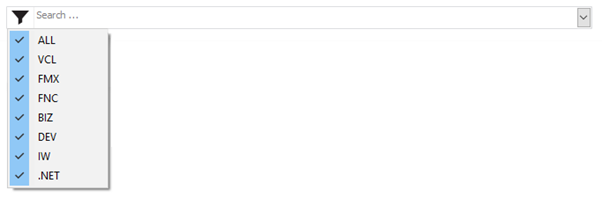
The optional search button (right of the edit) fires OnSearchButtonClick when clicked.
Combining columns, categories, filtering, and match highlighting
The following example builds a two-column product list with category grouping, applies a live text filter, and highlights matches:
procedure TForm1.FormCreate(Sender: TObject);
var
  cat: TCategoryItem;
  item: TSearchListItem;
begin
  TMSFNCSearchList1.BeginUpdate;

  // Two columns
  TMSFNCSearchList1.Columns.Add.Width := 180; // Name
  TMSFNCSearchList1.Columns.Add.Width := 100; // Price

  // Categories
  cat    := TMSFNCSearchList1.Categories.Add;
  cat.ID := 1; cat.Caption := 'Electronics';
  cat    := TMSFNCSearchList1.Categories.Add;
  cat.ID := 2; cat.Caption := 'Clothing';

  // Items
  for var d in [
    TArray<string>.Create('1', 'Laptop',    '999'),
    TArray<string>.Create('1', 'Phone',     '699'),
    TArray<string>.Create('2', 'T-Shirt',    '29'),
    TArray<string>.Create('2', 'Jeans',      '59')] do
  begin
    item := TMSFNCSearchList1.Items.Add;
    item.CategoryID := StrToInt(d[0]);
    item.Columns.Add.Caption := d[1];
    item.Columns.Add.Caption := '$' + d[2];
  end;

  // Highlight matches in yellow
  TMSFNCSearchList1.Appearance.HighlightColor     := gcYellow;
  TMSFNCSearchList1.Appearance.HighlightTextColor := gcBlack;

  TMSFNCSearchList1.EndUpdate;
end;

procedure TForm1.edtSearchChange(Sender: TObject);
begin
  TMSFNCSearchList1.FilterCondition.Text       := edtSearch.Text;
  TMSFNCSearchList1.FilterCondition.AllColumns := True;
  TMSFNCSearchList1.IUpdateFilter;
end;