Splitter Guide
TTMSFNCSplitter divides the client area between two aligned controls, letting the user resize them by dragging. Place it between two controls with matching alignment; when dragged it resizes the control to its edge and the rest of the client area adjusts automatically.

Basic setup
Give the anchored control and the splitter the same Align value (for example, both alLeft). Configure MinSize to prevent the panel from collapsing completely, choose a drag indicator style, and set ResizeStyle to rsContinuous for live resizing.
// Typical usage: a panel aligned Left next to a splitter aligned Left,
// with the remaining area filled by a second control.
// The splitter automatically resizes the panel to its left when dragged.

// At design time: set Panel1.Align = alLeft, Splitter.Align = alLeft.
// At runtime: configure limits and style.

TMSFNCSplitter1.MinSize := 80;                          // panel cannot shrink below 80px
TMSFNCSplitter1.SplitterIndicator := siCircles;         // three-dot drag handle
TMSFNCSplitter1.ResizeStyle := rsContinuous;            // live resizing
TMSFNCSplitter1.ShowIndicator := True;
void __fastcall TForm1::ConfigureSplitter()
{
  // Typical usage: a panel aligned Left next to a splitter aligned Left,
  // with the remaining area filled by a second control.
  // The splitter automatically resizes the panel to its left when dragged.

  // At design time: set Panel1.Align = Left, Splitter.Align = Left.
  // At runtime: configure limits and style.

  TMSFNCSplitter1->MinSize = 80;                          // panel cannot shrink below 80px
  TMSFNCSplitter1->SplitterIndicator = siCircles;         // three-dot drag handle
  TMSFNCSplitter1->ResizeStyle = rsContinuous;            // live resizing
  TMSFNCSplitter1->ShowIndicator = true;
}
SplitterIndicator options are: siCircle, siCircles, siLine, siSquare, siSquares, siImage. Set ShowIndicator := False to hide the handle entirely for a frameless look.
Appearance customisation
The Appearance property controls the fill and stroke colours for normal, hover, and pressed states of both the splitter bar and the indicator.
// Custom splitter colours and indicator style
TMSFNCSplitter1.Appearance.SplitterFill.Kind  := gfkSolid;
TMSFNCSplitter1.Appearance.SplitterFill.Color := $FFD0E8FF;

TMSFNCSplitter1.Appearance.SplitterHoverFill.Kind  := gfkSolid;
TMSFNCSplitter1.Appearance.SplitterHoverFill.Color := $FF90C0F0;

TMSFNCSplitter1.Appearance.IndicatorFill.Kind  := gfkSolid;
TMSFNCSplitter1.Appearance.IndicatorFill.Color := $FF4080C0;

TMSFNCSplitter1.SplitterIndicator := siLine;
TMSFNCSplitter1.Width := 6;
void __fastcall TForm1::ConfigureSplitterAppearance()
{
  // Custom splitter colours and indicator style
  TMSFNCSplitter1->Appearance->SplitterFill->Kind = gfkSolid;
  TMSFNCSplitter1->Appearance->SplitterFill->Color = static_cast<TTMSFNCGraphicsColor>(0xFFD0E8FF);

  TMSFNCSplitter1->Appearance->SplitterHoverFill->Kind = gfkSolid;
  TMSFNCSplitter1->Appearance->SplitterHoverFill->Color = static_cast<TTMSFNCGraphicsColor>(0xFF90C0F0);

  TMSFNCSplitter1->Appearance->IndicatorFill->Kind = gfkSolid;
  TMSFNCSplitter1->Appearance->IndicatorFill->Color = static_cast<TTMSFNCGraphicsColor>(0xFF4080C0);

  TMSFNCSplitter1->SplitterIndicator = siLine;
  TMSFNCSplitter1->Width = 6;
}
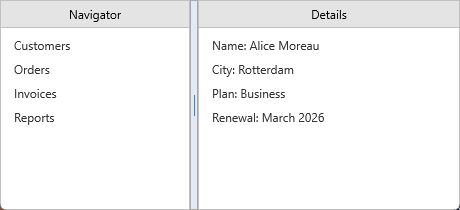
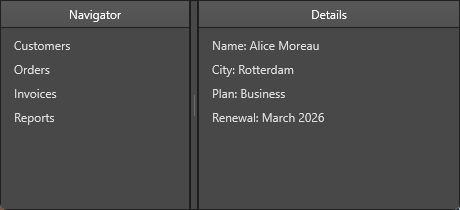
siLine strokes the grip, so branding it means setting
Appearance.IndicatorStroke as well as IndicatorFill - setting only the fill
leaves the default grey line.
Responding to splitter moves
OnSplitterMoved fires after the drag is complete. Use it to persist the panel width to user settings so the layout is restored on the next launch.
// Track how much the panel was resized and save the new width to settings.
procedure TForm1.TMSFNCSplitter1SplitterMoved(Sender: TObject;
  AResizeStyle: TTMSFNCSplitterResizeStyle; ADownPos: TPointF;
  ACurrentPos: TPointF; ASplit: Single);
begin
  LabelWidth.Caption := 'Panel width: ' + Format('%.0f', [Panel1.Width]) + 'px';
  AppSettings.NavPanelWidth := Round(Panel1.Width);
end;
// Track how much the panel was resized and save the new width to settings.
void __fastcall TForm1::TMSFNCSplitter1SplitterMoved(TObject *Sender,
  TTMSFNCSplitterResizeStyle AResizeStyle, const System::Types::TPointF &ADownPos,
  const System::Types::TPointF &ACurrentPos, float ASplit)
{
  LabelWidth->Text = "Panel width: " + Format("%.0f", ARRAYOFCONST(((Extended)Panel1->Width))) + "px";
  AppSettings.NavPanelWidth = static_cast<int>(Panel1->Width + 0.5f);
}
OnSplitterMove fires continuously during the drag when ResizeStyle := rsContinuous, making it useful for live previews.
Combining setup, appearance, and persistence
This example configures a left-panel splitter with a styled indicator, live resizing,
and an OnSplitterMoved handler that saves the panel width to user settings so it
is restored on the next application launch:
procedure TForm1.FormCreate(Sender: TObject);
begin
  // Basic setup: the left panel and the splitter share alLeft alignment
  TMSFNCSplitter1.MinSize          := 120;          // panel cannot shrink below 120 px
  TMSFNCSplitter1.ResizeStyle      := rsContinuous; // live resize
  TMSFNCSplitter1.SplitterIndicator := siCircles;   // three-dot handle
  TMSFNCSplitter1.ShowIndicator    := True;

  // Appearance: tinted track with a bright indicator
  TMSFNCSplitter1.Appearance.SplitterFill.Color      := $FFE8F0FF;
  TMSFNCSplitter1.Appearance.SplitterHoverFill.Color := $FF90C0F0;
  TMSFNCSplitter1.Appearance.IndicatorFill.Color     := $FF4080C0;

  // Restore saved width from last session
  LeftPanel.Width := AppSettings.NavPanelWidth;

  // Wire persistence handler
  TMSFNCSplitter1.OnSplitterMoved := SplitterMoved;
end;

procedure TForm1.SplitterMoved(Sender: TObject;
  AResizeStyle: TTMSFNCSplitterResizeStyle; ADownPos, ACurrentPos: TPointF;
  ASplit: Single);
begin
  AppSettings.NavPanelWidth := Round(LeftPanel.Width);
end;
void __fastcall TForm1::FormCreate(TObject *Sender)
{
  // Basic setup: the left panel and the splitter share Left alignment
  TMSFNCSplitter1->MinSize = 120;                 // panel cannot shrink below 120 px
  TMSFNCSplitter1->ResizeStyle = rsContinuous;    // live resize
  TMSFNCSplitter1->SplitterIndicator = siCircles; // three-dot handle
  TMSFNCSplitter1->ShowIndicator = true;

  // Appearance: tinted track with a bright indicator
  TMSFNCSplitter1->Appearance->SplitterFill->Color = static_cast<TTMSFNCGraphicsColor>(0xFFE8F0FF);
  TMSFNCSplitter1->Appearance->SplitterHoverFill->Color = static_cast<TTMSFNCGraphicsColor>(0xFF90C0F0);
  TMSFNCSplitter1->Appearance->IndicatorFill->Color = static_cast<TTMSFNCGraphicsColor>(0xFF4080C0);

  // Restore saved width from last session
  LeftPanel->Width = AppSettings.NavPanelWidth;

  // Wire persistence handler
  TMSFNCSplitter1->OnSplitterMoved = SplitterMoved;
}

void __fastcall TForm1::SplitterMoved(TObject *Sender,
  TTMSFNCSplitterResizeStyle AResizeStyle, const System::Types::TPointF &ADownPos,
  const System::Types::TPointF &ACurrentPos, float ASplit)
{
  AppSettings.NavPanelWidth = static_cast<int>(LeftPanel->Width + 0.5f);
}