Webhook setup
The WhatsApp Business Platform delivers incoming messages by calling a
webhook: an HTTPS URL that you register in your Meta app, which Meta first
verifies and then posts every event to. TTMSFNCWhatsAppServer is that
endpoint. It answers Meta's verification request with the verify token you
configure, receives the posted JSON payloads, and forwards them over WebSocket
to the connected
TTMSFNCWhatsAppReceiver clients. It is a
TTMSFNCWebSocketServer descendant with TLS
always enabled. This chapter walks through registering the callback URL and
verify token in the Meta dashboard, subscribing to the message field, serving
the endpoint over HTTPS, and using a path other than the server root.
Preparing the Meta app
Before the webhook can be registered, you need a Meta developer app with the WhatsApp product added and a WhatsApp Business account connected to it. Follow Meta's WhatsApp Cloud API getting started guide to create the app, add WhatsApp, and obtain a test phone number; the TMS Cloud Key page describes the same account setup for TMS products. The webhook settings then live under WhatsApp > Configuration in the app dashboard.
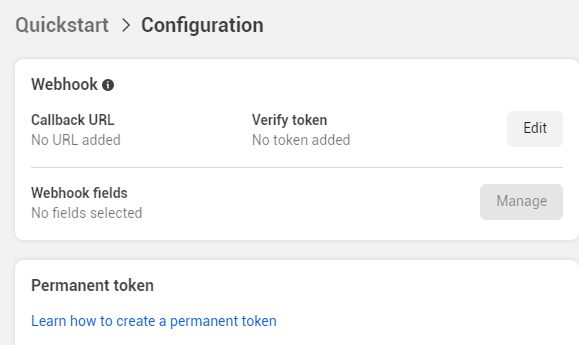
Meta updates its dashboard from time to time, so labels and layout may differ slightly from the screenshots in this chapter.
Setting the callback URL and verify token
Select Edit in the Webhook section to open the callback URL dialog.
- Callback URL is the public HTTPS address of your
TTMSFNCWhatsAppServer, for examplehttps://hooks.example.com/. It combines your domain,Port(omit it for443), andPathNamewhen you use one. - Verify token is a string of your choice. Enter the same value in
VerifyToken. A temporary string is fine during development; use a long random value in production.
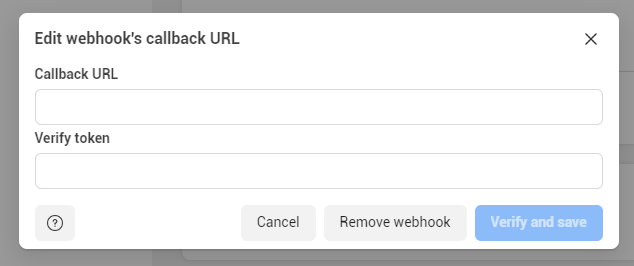
The server must be running and reachable at that URL before you select Verify and save, because Meta verifies it immediately.
How verification works
When you save the callback URL, Meta sends a GET request to it with three
query parameters: hub.mode, hub.verify_token, and hub.challenge. When
hub.verify_token equals VerifyToken, the server answers with the value of
hub.challenge, which completes the verification. With any other token the
challenge is not returned, and Meta rejects the URL. After verification, Meta
delivers events as POST requests with a JSON body; the server passes each
body to OnRawMessage and
then forwards it to the receivers (see
Forwarding messages).
Choosing the webhook fields
A verified webhook receives nothing until you subscribe to fields. Select
Manage next to Webhook fields and subscribe to messages to be notified
of incoming messages sent to the WhatsApp number. You can subscribe to more
fields; the server receives every subscribed event, but the receiver component
only turns messages payloads into parsed messages. Select Done to save.

Serving the webhook over HTTPS
WhatsApp only calls webhooks over HTTPS, as described in Meta's
webhook endpoint requirements.
TTMSFNCWhatsAppServer therefore always runs with TLS; UseSSL is enabled
and not exposed. Supply a certificate that Meta trusts — issued by a public
certificate authority for the domain in the callback URL, not self-signed —
through CertificateFile,
CertificateKeyFile,
and RootCertificateFile,
and provide the key's pass phrase from
OnGetSSLPassword when
it has one. Certificate formats, PFX conversion, and OpenSSL deployment are
covered in the server's Secure connections
chapter. TTMSFNCWhatsAppServer does not publish OnCreateIOHandler, so it
always uses the default OpenSSL handler and the OpenSSL 1.0.2 libraries.
The minimal setup — port, verify token, certificate files, and a look at each payload:
procedure TForm1.FormCreate(Sender: TObject);
begin
  // Callback URL in the Meta dashboard: https://<your-domain>/
  TMSFNCWhatsAppServer1.Port := 443;
  TMSFNCWhatsAppServer1.VerifyToken := 'my-verify-token';   // same value as in the dashboard
  TMSFNCWhatsAppServer1.CertificateFile := 'certs\cert.pem';
  TMSFNCWhatsAppServer1.CertificateKeyFile := 'certs\key.pem';
  TMSFNCWhatsAppServer1.RootCertificateFile := 'certs\chain.pem';
  TMSFNCWhatsAppServer1.Active := True;
end;

procedure TForm1.TMSFNCWhatsAppServer1RawMessage(Sender: TObject;
  AMessage: string; var ABroadcast: Boolean);
begin
  // AMessage is the JSON body WhatsApp posted. This event runs on the
  // server's connection thread, so queue user interface updates.
  TThread.Queue(nil,
    procedure
    begin
      Memo1.Lines.Add(AMessage);
    end);
  // Leave ABroadcast True to forward the payload to every connected receiver.
end;
void __fastcall TForm1::FormCreate(TObject *Sender)
{
  // Callback URL in the Meta dashboard: https://<your-domain>/
  TMSFNCWhatsAppServer1->Port = 443;
  TMSFNCWhatsAppServer1->VerifyToken = "my-verify-token";   // same value as in the dashboard
  TMSFNCWhatsAppServer1->CertificateFile = "certs\\cert.pem";
  TMSFNCWhatsAppServer1->CertificateKeyFile = "certs\\key.pem";
  TMSFNCWhatsAppServer1->RootCertificateFile = "certs\\chain.pem";
  TMSFNCWhatsAppServer1->Active = true;
}

void __fastcall TForm1::ShowRaw()
{
  Memo1->Lines->Add(FRaw);
}

void __fastcall TForm1::TMSFNCWhatsAppServer1RawMessage(TObject *Sender,
  System::UnicodeString AMessage, bool &ABroadcast)
{
  // AMessage is the JSON body WhatsApp posted. This event runs on the
  // server's connection thread, so queue user interface updates.
  FRaw = AMessage;
  TThread::Queue(nullptr, ShowRaw);
  // Leave ABroadcast True to forward the payload to every connected receiver.
}
Using a path other than the root
The simplest callback URL is the server root (PathName empty). The server's
built-in HTTP handling answers requests for the root with status 200, but
answers requests for any other path with 404 Not Found — and Meta treats a
404 as a failed verification or delivery, even when the server has processed
the request. To serve the webhook on a path such as /whatsapp, set
PathName and handle
OnCommandGet, which replaces the
built-in handling for plain HTTP requests on that path; set the response status
to 200 there. The verification answer and payload forwarding still run after
your handler.
uses
  IdContext, IdCustomHTTPServer;

procedure TForm1.FormCreate(Sender: TObject);
begin
  // Callback URL: https://<your-domain>/whatsapp
  TMSFNCWhatsAppServer1.PathName := 'whatsapp';
  // OnCommandGet must run on the connection thread to shape the response.
  TMSFNCWhatsAppServer1.AutoSyncEvents := False;
  TMSFNCWhatsAppServer1.OnCommandGet := TMSFNCWhatsAppServer1CommandGet;
end;

procedure TForm1.TMSFNCWhatsAppServer1CommandGet(AContext: TIdContext;
  ARequestInfo: TIdHTTPRequestInfo; AResponseInfo: TIdHTTPResponseInfo);
begin
  // Runs for every non-WebSocket request on the webhook path, before the
  // server answers the verification challenge or forwards a POSTed payload.
  AResponseInfo.ResponseNo := 200;
  if (ARequestInfo.Command = 'GET') and (ARequestInfo.Params.Values['health'] = '1') then
    AResponseInfo.ContentText := 'OK';
end;
#include <IdContext.hpp>
#include <IdCustomHTTPServer.hpp>

void __fastcall TForm1::FormCreate(TObject *Sender)
{
  // Callback URL: https://<your-domain>/whatsapp
  TMSFNCWhatsAppServer1->PathName = "whatsapp";
  // OnCommandGet must run on the connection thread to shape the response.
  TMSFNCWhatsAppServer1->AutoSyncEvents = false;
  TMSFNCWhatsAppServer1->OnCommandGet = TMSFNCWhatsAppServer1CommandGet;
}

void __fastcall TForm1::TMSFNCWhatsAppServer1CommandGet(TIdContext *AContext,
  TIdHTTPRequestInfo *ARequestInfo, TIdHTTPResponseInfo *AResponseInfo)
{
  // Runs for every non-WebSocket request on the webhook path, before the
  // server answers the verification challenge or forwards a POSTed payload.
  AResponseInfo->ResponseNo = 200;
  if ((ARequestInfo->Command == "GET") && (ARequestInfo->Params->Values["health"] == "1"))
    AResponseInfo->ContentText = "OK";
}
Combining HTTPS, verification, and a custom path
A production host combines the three: a pass-phrase protected certificate, a
verify token read from configuration, and a custom path answered from
OnCommandGet.
uses
  IdContext, IdCustomHTTPServer;

procedure TForm1.StartWebhookHost;
begin
  // HTTPS: TLS is always on; supply the certificate and its pass phrase.
  TMSFNCWhatsAppServer1.CertificateFile := 'certs\cert.pem';
  TMSFNCWhatsAppServer1.CertificateKeyFile := 'certs\key.pem';
  TMSFNCWhatsAppServer1.RootCertificateFile := 'certs\chain.pem';
  TMSFNCWhatsAppServer1.OnGetSSLPassword := WhatsAppGetSSLPassword;

  // Verification: the token entered next to the callback URL.
  TMSFNCWhatsAppServer1.VerifyToken := GetSetting('WhatsAppVerifyToken');

  // Custom path: https://hooks.example.com/whatsapp, answered with 200.
  TMSFNCWhatsAppServer1.Port := 443;
  TMSFNCWhatsAppServer1.PathName := 'whatsapp';
  TMSFNCWhatsAppServer1.AutoSyncEvents := False;
  TMSFNCWhatsAppServer1.OnCommandGet := WhatsAppCommandGet;

  TMSFNCWhatsAppServer1.Active := True;
end;

procedure TForm1.WhatsAppGetSSLPassword(Sender: TObject; var APassword: string);
begin
  APassword := GetSetting('CertificatePassPhrase');
end;

procedure TForm1.WhatsAppCommandGet(AContext: TIdContext;
  ARequestInfo: TIdHTTPRequestInfo; AResponseInfo: TIdHTTPResponseInfo);
begin
  AResponseInfo.ResponseNo := 200;
end;
#include <IdContext.hpp>
#include <IdCustomHTTPServer.hpp>

void __fastcall TForm1::StartWebhookHost()
{
  // HTTPS: TLS is always on; supply the certificate and its pass phrase.
  TMSFNCWhatsAppServer1->CertificateFile = "certs\\cert.pem";
  TMSFNCWhatsAppServer1->CertificateKeyFile = "certs\\key.pem";
  TMSFNCWhatsAppServer1->RootCertificateFile = "certs\\chain.pem";
  TMSFNCWhatsAppServer1->OnGetSSLPassword = WhatsAppGetSSLPassword;

  // Verification: the token entered next to the callback URL.
  TMSFNCWhatsAppServer1->VerifyToken = GetSetting("WhatsAppVerifyToken");

  // Custom path: https://hooks.example.com/whatsapp, answered with 200.
  TMSFNCWhatsAppServer1->Port = 443;
  TMSFNCWhatsAppServer1->PathName = "whatsapp";
  TMSFNCWhatsAppServer1->AutoSyncEvents = false;
  TMSFNCWhatsAppServer1->OnCommandGet = WhatsAppCommandGet;

  TMSFNCWhatsAppServer1->Active = true;
}

void __fastcall TForm1::WhatsAppGetSSLPassword(TObject *Sender, System::UnicodeString &APassword)
{
  APassword = GetSetting("CertificatePassPhrase");
}

void __fastcall TForm1::WhatsAppCommandGet(TIdContext *AContext,
  TIdHTTPRequestInfo *ARequestInfo, TIdHTTPResponseInfo *AResponseInfo)
{
  AResponseInfo->ResponseNo = 200;
}
Pitfalls
- Start the server before saving the callback URL. Meta verifies the URL immediately.
- The tokens must match exactly.
VerifyTokenis compared withhub.verify_tokencase-sensitively. - Use a publicly trusted certificate. Meta does not call webhooks with self-signed or expired certificates, or certificates for another domain.
- A custom path needs
OnCommandGet. Without it, requests for a non-root path are answered with404. - Keep
AutoSyncEventsoff when usingOnCommandGet. With it enabled the handler is queued to the main thread and runs after the response has already been sent. - Subscribe to
messages. Without a field subscription no events arrive, even though verification succeeded.
Related API
TTMSFNCWhatsAppServer,VerifyToken,OnRawMessagePort,PathName,AutoSyncEventsCertificateFile,CertificateKeyFile,RootCertificateFile,OnGetSSLPassword
See also
- Forwarding messages — inspect, filter, and route payloads to receivers.
- Receiving messages — the receiver side.
- Server secure connections — certificates and OpenSSL.