Events
TTMSFNCBloxControl raises events across the whole interaction and rendering
lifecycle, so an application can react to what the user does, track changes, and
draw its own overlays. This chapter groups the events by purpose and shows
worked handlers for the three most common needs: responding to selection,
tracking modifications, and custom drawing.
What you can hook into
| Group | Events |
|---|---|
| Element interaction | OnElementClick, OnElementDblClick, OnElementMouseDown, OnElementMouseUp, OnElementMouseMove, OnElementSelect, OnElementUnselect, OnElementInsert, OnElementRemove, OnElementResizing |
| Selection & changes | OnSelectionChange, OnModified, OnAfterMove, OnAfterResize, OnAfterUndo, OnAfterRedo |
| Rendering | OnBeforeRender, OnAfterRender, OnAfterBackgroundRender, OnElementPainting, OnElementPainted |
| Zoom & registration | OnZoomChanged, OnRegisterElements |
| In-place editing | OnGetInplaceEditorClass, OnSetInplaceEditorData, OnSetInplaceEditorElementData, OnSetInplaceEditorSize |
Responding to selection
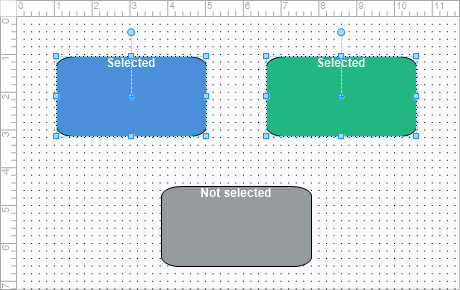
OnElementClick fires for a clicked element (Element is the one clicked), and
OnSelectionChange fires whenever the selection set changes. Use them to drive a
property inspector or status bar:
procedure TForm1.BloxControl1ElementClick(Sender: TObject;
  Element: TTMSFNCBloxElement);
begin
  if Element is TTMSFNCBloxBlock then
    StatusLabel.Text := 'Block: ' + TTMSFNCBloxBlock(Element).Text
  else if Element is TTMSFNCBloxLine then
    StatusLabel.Text := 'Line selected';
end;

procedure TForm1.BloxControl1SelectionChange(Sender: TObject);
begin
  StatusLabel.Text := Format('%d element(s) selected',
    [BloxControl1.Presenter.SelectedCount]);
end;
void __fastcall TForm1::BloxControl1ElementClick(TObject *Sender,
  TTMSFNCBloxElement *Element)
{
  TTMSFNCBloxBlock *LBlock = dynamic_cast<TTMSFNCBloxBlock *>(Element);
  if (LBlock != nullptr)
    StatusLabel->Text = "Block: " + LBlock->Text;
  else if (dynamic_cast<TTMSFNCBloxLine *>(Element) != nullptr)
    StatusLabel->Text = "Line selected";
}

void __fastcall TForm1::BloxControl1SelectionChange(TObject *Sender)
{
  StatusLabel->Text = Format("%d element(s) selected",
    ARRAYOFCONST((BloxControl1->Presenter->SelectedCount())));
}
Tracking modifications
OnModified fires on any change to the diagram; OnElementInsert and
OnElementRemove report structural edits. Together they maintain a "dirty" flag
so you can prompt before closing:
procedure TForm1.BloxControl1Modified(Sender: TObject);
begin
  FDiagramDirty := True;
  SaveButton.Enabled := True;
end;

procedure TForm1.BloxControl1ElementInsert(Sender: TObject;
  Element: TTMSFNCBloxElement);
begin
  FDiagramDirty := True;
  StatusLabel.Text := Format('Inserted (%d elements)',
    [BloxControl1.Blox.ElementCount]);
end;

procedure TForm1.BloxControl1ElementRemove(Sender: TObject;
  Element: TTMSFNCBloxElement);
begin
  FDiagramDirty := True;
end;
void __fastcall TForm1::BloxControl1Modified(TObject *Sender)
{
  FDiagramDirty = true;
  SaveButton->Enabled = true;
}

void __fastcall TForm1::BloxControl1ElementInsert(TObject *Sender,
  TTMSFNCBloxElement *Element)
{
  FDiagramDirty = true;
  StatusLabel->Text = Format("Inserted (%d elements)",
    ARRAYOFCONST((BloxControl1->Blox->ElementCount)));
}

void __fastcall TForm1::BloxControl1ElementRemove(TObject *Sender,
  TTMSFNCBloxElement *Element)
{
  FDiagramDirty = true;
}
Custom drawing
OnAfterRender fires once all elements are painted, giving you the renderer's
canvas to draw an overlay (watermark, guide region, annotation).
OnElementPainting lets you take over drawing of an individual element (set
Painted := True to suppress the default paint).
procedure TForm1.BloxControl1AfterRender(Sender: TObject;
  Renderer: TTMSFNCBloxRenderer);
begin
  { Renderer.Canvas draws in blox coordinates; Pen/Brush can be customised first. }
  Renderer.Canvas.DrawRectangle(0, 0, 200, 150);
end;
void __fastcall TForm1::BloxControl1AfterRender(TObject *Sender,
  Fmx::Tmsfncbloxuirenderer::TTMSFNCBloxRenderer *Renderer)
{
  // Renderer->Canvas draws in blox coordinates; Pen/Brush can be customised first.
  Renderer->Canvas->DrawRectangle(0, 0, 200, 150);
}
Putting it together
A real editor usually wires several events at once. This handler set combines selection feedback, modification tracking, and a live element count — keeping a status bar and a dirty flag in sync as the user edits:
procedure TForm1.WireDiagramEvents;
begin
  BloxControl1.OnSelectionChange := DiagramSelectionChange;
  BloxControl1.OnModified := DiagramModified;
end;

procedure TForm1.DiagramSelectionChange(Sender: TObject);
begin
  StatusLabel.Text := Format('%d of %d element(s) selected',
    [BloxControl1.Presenter.SelectedCount, BloxControl1.Blox.ElementCount]);
end;

procedure TForm1.DiagramModified(Sender: TObject);
begin
  FDiagramDirty := True;
  SaveButton.Enabled := True;
end;
void __fastcall TForm1::WireDiagramEvents()
{
  BloxControl1->OnSelectionChange = DiagramSelectionChange;
  BloxControl1->OnModified = DiagramModified;
}

void __fastcall TForm1::DiagramSelectionChange(TObject *Sender)
{
  StatusLabel->Text = Format("%d of %d element(s) selected",
    ARRAYOFCONST((BloxControl1->Presenter->SelectedCount(), BloxControl1->Blox->ElementCount)));
}

void __fastcall TForm1::DiagramModified(TObject *Sender)
{
  FDiagramDirty = true;
  SaveButton->Enabled = true;
}
Pitfalls
- Element mouse events carry blox coordinates in
X,Y— convert withPresenter.ClientToCanvas/CanvasToClientif you need pixels. OnModifiedcan fire frequently during a drag; debounce expensive work (e.g. autosave) rather than running it on every call.OnElementPaintingruns in the render loop. Keep handlers cheap and avoid modifying the element tree from inside them.