SVG
TMS FNC Core supports importing and rendering uncompressed SVG files in XML format. SVG scales cleanly at any DPI, making it suitable for icon sets in high-DPI applications without needing separate image sizes.
Supported SVG Features
Supported elements: circle, clipPath, defs (limited), ellipse, g, image (base64 only), line, path, pattern (limited), polygon, polyline, rect, style.
Supported style parameters (in <style> element): fill (no gradients), stroke (no gradients), stroke-width, opacity.
Supported primitive parameters: fill (no gradients), stroke (no gradients), stroke-width, transform (scale, rotate, translate, matrix).
Adding SVG to Your Application
At Design Time
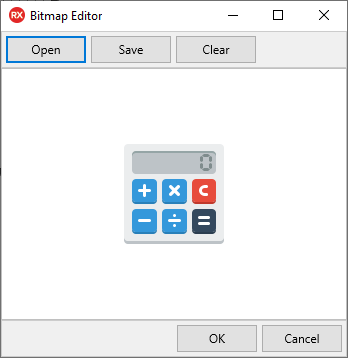
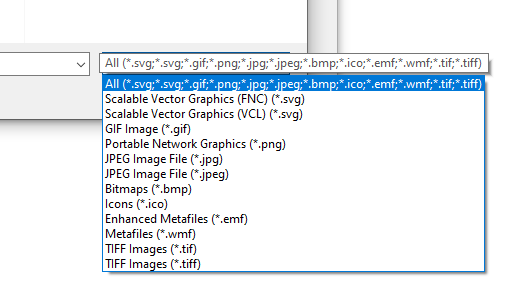
Use the built-in TTMSFNCBitmap editor (FMX, VCL) or the TPicture open file dialog (VCL, WEB) to pick SVG files:
TTMSFNCBitmap editor (FMX, VCL):
TPicture (VCL, WEB):
At Runtime
TMSFNCButton1.Image.Bitmap.LoadFromFile('icon.svg');
TMSFNCButton1.Image.Bitmap.LoadFromStream(MyStream);
LoadFromFile, LoadFromStream, SaveToFile, and SaveToStream work the same as for PNG, JPG, GIF, BMP, and ICO.
Grayscale
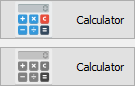
Apply grayscale to an SVG at runtime to produce disabled-state icons from a single image:
FMX:
TMSFNCButton1.Image.Bitmap.SVG.GrayScale := True;
TMSFNCButton1.Image.Repaint;
VCL:
(TMSFNCButton1.Image.Bitmap.Graphic as TTMSFNCSVGBitmap).SVG.GrayScale := True;
TMSFNCButton1.Image.Repaint;
Note
Grayscale is not supported on WEB Core.
TVirtualImageList (Delphi Rio and Newer)
TTMSFNCSVGImageCollection extends the standard image collection to support SVG. Attach it to a TVirtualImageList to get auto-scaled images at any resolution from a single SVG list — no multiple icon sizes required.
WEB Core
WEB Core renders SVG natively without a separate import engine. All components that display images support SVG out of the box. Some SVG files with mismatched ViewBox attributes may scale differently compared to desktop platforms.