Showing a value
TTMSFNCWidgetLCDLabel is a seven-segment LCD-style readout: it shows a number
(or a time) as lit segments on a panel. You set the value and a format; the widget
draws the digits. This chapter covers showing a numeric value, formatting it, and
switching to a clock display.
The numeric value
The display is driven by the Caption sub-object. Set Caption.Value to the
number and Caption.Format to a FormatFloat mask — the default '000.00' shows
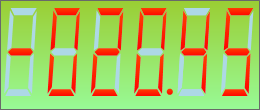
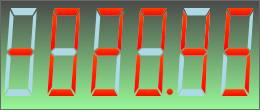
leading zeros and two decimals (so -20.45 reads as -020.45). Update
Caption.Value as your data changes and the readout updates.
procedure TForm1.SetupLcd;
begin
  FLcd := TTMSFNCWidgetLCDLabel.Create(Self);
  FLcd.Parent := Self;
  FLcd.SetBounds(20, 20, 240, 100);

  FLcd.Caption.Value := -20.45;    // the number shown on the seven-segment display
  FLcd.Caption.Format := '000.00'; // FormatFloat mask (the default)
end;
void __fastcall TForm1::SetupLcd()
{
  FLcd = new TTMSFNCWidgetLCDLabel(this);
  FLcd->Parent = this;
  FLcd->SetBounds(20, 20, 240, 100);

  FLcd->Caption->Value = -20.45;    // the number shown on the seven-segment display
  FLcd->Caption->Format = "000.00"; // FormatFloat mask (the default)
}
Formatting the digits
Caption.Format is a standard FormatFloat mask: use '0' for forced digits and
'#' for optional ones, so '000.00' pads to three integer digits and '#0.0'
shows a single decimal without leading zeros. Match the mask to your range so the
panel width stays stable as the value changes.
Showing a clock
Set Caption.ValueType to the time mode to display a TDateTime instead of a
number: Caption.TimeValue holds the time and Caption.TimeFormat (a
FormatDateTime mask, default 'hh:nn:ss') formats it. Use it for a clock or a
countdown readout on a dashboard.
Pitfalls
Caption.Formatis aFormatFloatmask, not aFormatstring. Use'000.00', not'%.2f'.- Match the mask to the value range. A mask narrower than the value clips digits; a wider one pads them.
- Switch
ValueTypeto show time.Caption.Valueis ignored in time mode — setCaption.TimeValueinstead.
See also
- Styling the display — background gradient and segment colors.
- API reference — full class reference.