Styling the display
The LCD label's look comes from two layers: the panel background behind the digits and the segment colors that draw the digits themselves. This chapter covers the background and the lit/unlit segment fills.
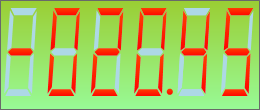
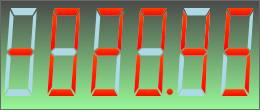
The background
Fill themes the panel behind the digits. Set Fill.Color (and Fill.ColorTo
with Fill.Kind := gfkGradient) for a gradient, or gfkSolid for a flat panel.
The demo uses a yellow-green to pale-green gradient for a classic backlit-LCD look.
Border frames the panel.
Lit and unlit segments
A seven-segment display draws each digit from segments that are either lit or
unlit. Caption.Fill colors the lit segments (the visible value), and
Caption.FillOff colors the unlit segments — the faint "ghost" of all
segments that gives an LCD its characteristic look. Set Caption.FillOff.Kind to
gfkSolid with a low-contrast color for a subtle ghost, or to none to hide unlit
segments entirely. This example themes the background and both segment fills
together.
procedure TForm1.StyleLcd;
begin
  FLcd.Caption.Value := -20.45;

  // Background gradient behind the digits.
  FLcd.Fill.Color := gcYellowgreen;
  FLcd.Fill.ColorTo := gcPalegreen;
  FLcd.Fill.Kind := gfkGradient;

  // Lit segments and the faint "ghost" of unlit segments.
  FLcd.Caption.Fill.Color := gcBlack;
  FLcd.Caption.FillOff.Color := gcLightBlue;
  FLcd.Caption.FillOff.Kind := gfkSolid;
end;
void __fastcall TForm1::StyleLcd()
{
  FLcd->Caption->Value = -20.45;

  // Background gradient behind the digits.
  FLcd->Fill->Color = gcYellowgreen;
  FLcd->Fill->ColorTo = gcPalegreen;
  FLcd->Fill->Kind = TTMSFNCGraphicsFillKind::gfkGradient;

  // Lit segments and the faint "ghost" of unlit segments.
  FLcd->Caption->Fill->Color = gcBlack;
  FLcd->Caption->FillOff->Color = gcLightblue;
  FLcd->Caption->FillOff->Kind = TTMSFNCGraphicsFillKind::gfkSolid;
}
Pitfalls
- Keep lit/unlit segments distinct. If
Caption.FillandCaption.FillOffare too similar, the value is hard to read against the ghost. - A gradient needs
Fill.Kind := gfkGradient. SettingColorToalone has no effect while the kind is solid. - Low contrast hurts legibility. Ensure the lit segment color stands out
against the panel
Fill.
See also
- Showing a value — set and format the value.
- API reference — full class reference.