Peaks and colors
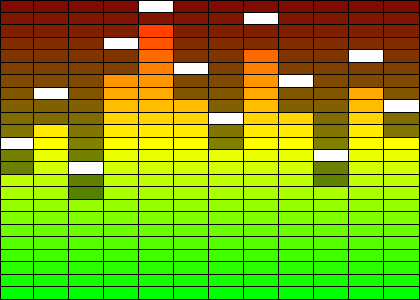
Each LED bar is a two-gradient affair: the lit segments (below Value) are drawn
with the active gradient, and the unlit segments above with the inactive
gradient. On top of that, a channel can show a single peak marker — a held
indicator at a chosen step, the classic "peak hold" of an audio meter. This
chapter covers the four gradient colors, the per-channel stroke, and the peak
indicator, so you can give a bar a distinct, readable look in both light and dark.
The two gradients
A channel exposes two gradients, each defined by a start (bottom) and stop (top)
color. ActiveStartColor/ActiveStopColor color the lit segments — the demo runs
lime at the bottom to red at the top, the familiar level-meter ramp.
StartColor/StopColor color the unlit segments above the current Value,
typically a dim green-to-maroon so the bar's full height stays visible. These are
direct color values (TTMSFNCGraphicsColor), so assign a color straight to them.
procedure TForm1.StyleLEDScope;
var
  Channel: TTMSFNCWidgetLEDScopeChannel;
begin
  // A single channel with a custom look and a peak marker.
  Channel := FScope.Channels.Add;
  Channel.Steps := 30;

  // Lit segments (below Value) use the "active" gradient...
  Channel.ActiveStartColor := gcLime;  // bottom of the lit gradient
  Channel.ActiveStopColor := gcRed;    // top of the lit gradient
  // ...unlit segments (above Value) use the inactive gradient.
  Channel.StartColor := gcGreen;
  Channel.StopColor := gcMaroon;

  // Stroke is an object: set its Color sub-property, not the stroke itself.
  Channel.Stroke.Color := gcBlack;

  Channel.Value := 18;        // 18 of 30 segments lit
  Channel.ShowPeak := True;   // draw the peak marker
  Channel.PeakValue := 26;    // at step 26
  Channel.PeakColor := gcWhite;
end;
void __fastcall TForm1::StyleLEDScope()
{
  // A single channel with a custom look and a peak marker.
  TTMSFNCWidgetLEDScopeChannel *Channel = FScope->Channels->Add();
  Channel->Steps = 30;

  // Lit segments (below Value) use the "active" gradient...
  Channel->ActiveStartColor = gcLime;  // bottom of the lit gradient
  Channel->ActiveStopColor = gcRed;    // top of the lit gradient
  // ...unlit segments (above Value) use the inactive gradient.
  Channel->StartColor = gcGreen;
  Channel->StopColor = gcMaroon;

  // Stroke is an object: set its Color sub-property, not the stroke itself.
  Channel->Stroke->Color = gcBlack;

  Channel->Value = 18;        // 18 of 30 segments lit
  Channel->ShowPeak = true;   // draw the peak marker
  Channel->PeakValue = 26;    // at step 26
  Channel->PeakColor = gcWhite;
}
The segment stroke
Stroke outlines each LED segment, which is what gives the stack its discrete
"chip" look rather than a smooth bar. Unlike the gradient colors, Stroke is a
graphics-stroke object: set its Color sub-property — Stroke.Color := gcBlack
— never assign a color to Stroke itself. You can also widen it or make it
transparent (gcNull) for a seamless bar.
Peak markers
Set ShowPeak := True and a non-zero PeakValue (a one-based step index, clamped
to 0..Steps) to draw a held marker at that step. PeakColor colors it; if you
leave it gcNull, the marker borrows the active gradient color at that height
instead of a dedicated color. Because the Value setter raises PeakValue to
match whenever Value climbs past it, set the peak after the value when you want
it parked above the current level.
Pitfalls
Strokeis an object.Stroke := gcBlackdoes not compile — useStroke.Color := gcBlack. The gradient colors, by contrast, take a color directly.PeakValueis one-based and clamped. It is held within0..Steps;0hides the marker even whenShowPeakisTrue.Valuecan move the peak. RaisingValuepastPeakValuebumps the peak up, so assignValuefirst, thenPeakValue.
See also
- Channels and values — the channel set,
Steps, andValue. - Get started — the shortest working scope.
- API reference — full class reference.