Scrolling and events
A static panel shows only as many characters as it has cells. To present a longer
message — a news ticker, a stock feed, a rolling status line — turn the matrix
label into a marquee with Scroll. When scrolling is enabled the widget animates
the text continuously across the grid on a timer, and raises OnScrollDone each
time the message has fully passed. This chapter shows how to start scrolling,
control its direction and speed, color individual segments of the message with
inline codes, and react when a cycle completes. For static text, casing, sizing,
and colors, see the Display and appearance chapter.
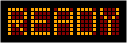
Start scrolling
Scrolling is driven by the Scroll settings object. Set Scroll.Enabled := True
to start the marquee; the widget starts its internal timer and advances the text
one step per tick. Scroll.Direction chooses msdRightToLeft (the default,
classic ticker motion) or msdLeftToRight. Scroll.Interval is the delay in
milliseconds between steps — lower values scroll faster. The snippet below builds a
12-cell ticker with a colored multi-segment message and wires the cycle-complete
event.
{ OnScrollDone is not published in this release; reach it through a cracker class. }
type
  TMatrixCracker = class(TTMSFNCWidgetMatrixLabel)
  public
    property OnScrollDone;
  end;

procedure TForm1.SetupTicker;
var
  Matrix: TTMSFNCWidgetMatrixLabel;
begin
  Matrix := TTMSFNCWidgetMatrixLabel.Create(Self);
  Matrix.Parent := Self;
  Matrix.Position.X := 20;
  Matrix.Position.Y := 20;

  Matrix.BeginUpdate;
  try
    Matrix.Leds := 12;

    // %A..%G switch the lit color mid-string: %A=red, %B=lime, %C=blue, ...
    Matrix.Text := '%ASTOCK ALERT  %BTMSN +4.2%%  %CVOLUME HIGH';

    // Scrolling overrides the static alignment and runs continuously.
    Matrix.Scroll.Enabled := True;
    Matrix.Scroll.Direction := msdRightToLeft;
    Matrix.Scroll.Interval := 120; // ms between steps; lower = faster

    TMatrixCracker(Matrix).OnScrollDone := MatrixScrollDone;
  finally
    Matrix.EndUpdate;
  end;
end;

procedure TForm1.MatrixScrollDone(Sender: TObject);
begin
  // Fires each time the message has fully passed across the grid.
  Inc(FCycleCount);
end;
void __fastcall TForm1::SetupTicker()
{
  TTMSFNCWidgetMatrixLabel *Matrix = new TTMSFNCWidgetMatrixLabel(this);
  Matrix->Parent = this;
  Matrix->Position->X = 20;
  Matrix->Position->Y = 20;

  Matrix->BeginUpdate();
  __try
  {
    Matrix->Leds = 12;

    // %A..%G switch the lit color mid-string: %A=red, %B=lime, %C=blue, ...
    Matrix->Text = "%ASTOCK ALERT  %BTMSN +4.2%%  %CVOLUME HIGH";

    // Scrolling overrides the static alignment and runs continuously.
    Matrix->Scroll->Enabled = true;
    Matrix->Scroll->Direction = TTMSFNCWidgetMatrixLabelScrollDirection::msdRightToLeft;
    Matrix->Scroll->Interval = 120; // ms between steps; lower = faster

    // OnScrollDone is not published in this release; reach it through a cracker class.
    static_cast<TMatrixCracker *>(Matrix)->OnScrollDone = MatrixScrollDone;
  }
  __finally
  {
    Matrix->EndUpdate();
  }
}

void __fastcall TForm1::MatrixScrollDone(TObject *Sender)
{
  // Fires each time the message has fully passed across the grid.
  FCycleCount++;
}
Direction and speed
Scroll.Direction can be flipped at runtime to reverse the motion, and
Scroll.Interval can be tuned to match the urgency of the content — a fast
Interval of around 80–120 ms reads as an active ticker, while 400–500 ms
gives a calm, easy-to-read crawl. Because the alignment setting is ignored while
scrolling, the text always enters from the edge implied by the direction.
Inline color segments
The same %-code mechanism described in
Display and appearance colors a scrolling message per
segment: %A through %G (and %0–%9) switch the lit color for the characters
that follow, so a single Text string can render, for example, a red alert prefix
followed by a green value. Write a literal percent sign as %%.
Handle the scroll-done event
OnScrollDone fires once per completed scroll cycle — that is, each time the whole
message has scrolled off and the position resets. Use it to count passes, rotate to
the next message in a queue, or stop scrolling after a fixed number of repeats. The
handler signature is a plain TNotifyEvent, where Sender is the matrix label.
The snippet under Start scrolling assigns
MatrixScrollDone and increments a counter on each pass; the same hook can swap
the Text to advance a playlist of messages.
{ Inside the form, FMessages: TStringList holds the playlist, FIndex: Integer: }
procedure TForm1.MatrixScrollDone(Sender: TObject);
begin
  // Advance to the next message each time the current one has fully scrolled.
  FIndex := (FIndex + 1) mod FMessages.Count;
  (Sender as TTMSFNCWidgetMatrixLabel).Text := FMessages[FIndex];
end;
// Inside the form, FMessages (TStringList) holds the playlist, FIndex (int) the position:
void __fastcall TForm1::MatrixScrollDone(TObject *Sender)
{
  // Advance to the next message each time the current one has fully scrolled.
  FIndex = (FIndex + 1) % FMessages->Count;
  dynamic_cast<TTMSFNCWidgetMatrixLabel *>(Sender)->Text = FMessages->Strings[FIndex];
}
Pitfalls
- Scrolling overrides alignment.
Appearance.Alignmenthas no effect whileScroll.EnabledisTrue; disable scrolling to position static text. Intervalis per step, not per character. A very smallIntervalcan scroll faster than it is comfortable to read; tune it against the cell count.OnScrollDonefires per full cycle, not per character. Do not use it for per-frame work — it only signals that the message has completely passed.- Toggle through
Scroll, not a top-level property. Enable and disable the marquee viaScroll.Enabled; there is no separateScrollingflag on the control itself.