Sorting
Single- and multi-column sorting with one toggle, plus programmatic sort control, default sort options, and custom comparison handlers.
Overview
Sorting in TTMSFNCDataGrid works on two levels:
| Level | API | When to use |
|---|---|---|
| User-driven | Options.Sorting.Enabled := True |
The user sorts by clicking a column header. Direction toggles between ascending → descending → none. |
| Programmatic | Grid.Sort(AColumn, ADirection) |
Set an initial sort, or react to a button or filter. |
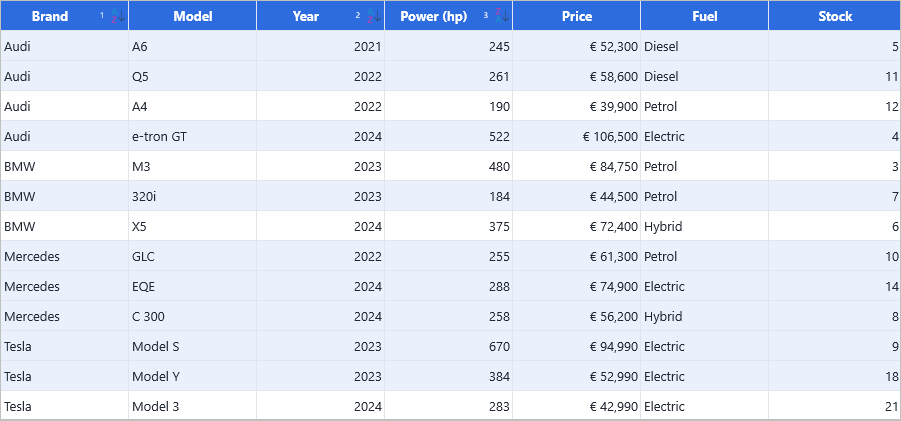
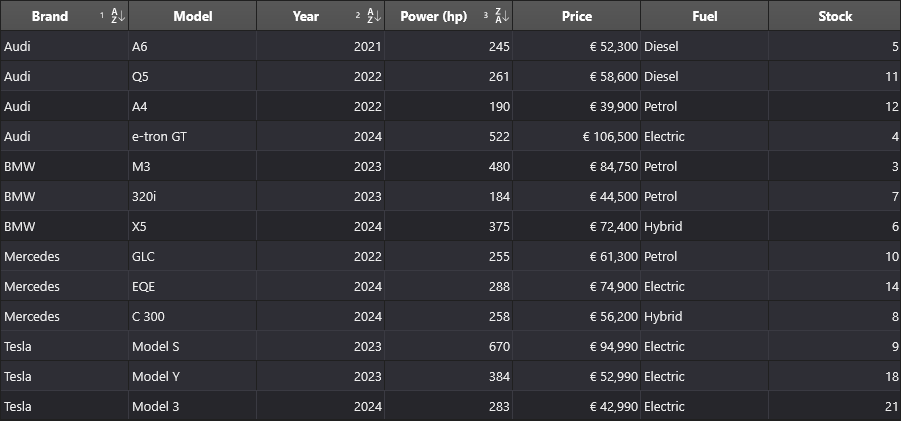
Sort indicators are drawn automatically in the header cells of sorted columns. Each shows an ascending/descending arrow and, when more than one column is sorted, a priority number (1, 2, 3 …) marking that column's position in the multi-column sort order:
Quick example
procedure TForm1.FormCreate(Sender: TObject);
begin
  Grid.Options.IO.StartColumn := 1;
  Grid.Options.IO.StartRow := 1;
  Grid.LoadFromCSVData('CARS.csv');

  Grid.Cells[1, 0] := 'Brand';
  Grid.Cells[2, 0] := 'Type';
  Grid.AutoNumberColumn(0, 1);

  // Allow the user to sort by clicking column headers
  Grid.Options.Sorting.Enabled := True;

  // Initial sort: by Brand, ascending
  Grid.Sort(1, gsdAscending);
end;
void __fastcall TForm1::FormCreate(TObject *Sender)
{
  Grid->Options->IO->StartColumn = 1;
  Grid->Options->IO->StartRow = 1;
  Grid->LoadFromCSVData("CARS.csv");

  Grid->Strings[1][0] = "Brand";
  Grid->Strings[2][0] = "Type";
  Grid->AutoNumberColumn(0, 1);

  // Allow the user to sort by clicking column headers
  Grid->Options->Sorting->Enabled = true;

  // Initial sort: by Brand, ascending
  Grid->Sort(1, gsdAscending);
}
Step by step
Enable user sorting
uses
  FMX.TMSFNCDataGrid;

procedure TForm1.EnableSorting;
begin
  Grid.Options.Sorting.Enabled := True;
end;
void __fastcall TForm1::EnableSorting()
{
  Grid->Options->Sorting->Enabled = true;
}
By default, clicking a column header cycles through ascending → descending → none.
Set the default sort direction
Options.Sorting.Direction controls the direction used when sorting is triggered
programmatically or when the user clicks an unsorted header for the first time:
uses
  FMX.TMSFNCDataGrid;

procedure TForm1.SetDefaultSortDirection;
begin
  Grid.Options.Sorting.Direction := gsdAscending;
end;
void __fastcall TForm1::SetDefaultSortDirection()
{
  Grid->Options->Sorting->Direction = gsdAscending;
}
Sort programmatically
uses
  FMX.TMSFNCDataGrid;

procedure TForm1.SortProgrammatically;
begin
  Grid.Sort(1, gsdAscending);  // sort by column 1 ascending (single column)
  Grid.Sort(2, gsdDescending); // RE-sorts by column 2 only — replaces the previous sort
  Grid.SortIndexList.Clear;    // clear all sort columns
  Grid.SortIndexed;            // apply the (now empty) list -> unsorted
end;
void __fastcall TForm1::SortProgrammatically()
{
  Grid->Sort(1, gsdAscending);  // sort by column 1 ascending (single column)
  Grid->Sort(2, gsdDescending); // RE-sorts by column 2 only - replaces the previous sort
  Grid->SortIndexList->Clear(); // clear all sort columns
  Grid->SortIndexed();          // apply the (now empty) list -> unsorted
}
Important
The single-column Grid.Sort(AColumn, ADirection) replaces the current
sort — it does not add a column. Calling it twice leaves the grid sorted by the
last column only. For a multi-column sort, pass all columns in one call with the
array overload (next section).
Multi-column sort
Pass every column in one Grid.Sort call using the array overload — the
position in the arrays is the sort priority. The first column is primary, the
next is the tie-breaker, and so on:
uses
  FMX.TMSFNCDataGrid;

procedure TForm1.MultiColumnSort;
begin
  // Primary: column 1 ascending; Secondary: column 3 descending
  Grid.Sort([1, 3], [gsdAscending, gsdDescending]);
end;
void __fastcall TForm1::MultiColumnSort()
{
  // Primary: column 1 ascending; Secondary: column 3 descending
  DynamicArray<int> Columns;
  Columns.Length = 2;
  Columns[0] = 1;
  Columns[1] = 3;
  DynamicArray<TTMSFNCDataGridSortDirection> Directions;
  Directions.Length = 2;
  Directions[0] = gsdAscending;
  Directions[1] = gsdDescending;
  Grid->Sort(Columns, Directions);
}
Each sorted header then shows its priority number (1, 2, …) next to the arrow, as in the overview screenshot. The user can also build multi-column sorts interactively by holding Ctrl while clicking additional column headers — each Ctrl-click adds the column to the existing sort.
For deferred multi-sort (build the list first, then apply in one step), use SortIndexList — see Programmatic multi-column sort with SortIndexList.
Specify the sort format
The grid infers the cell type automatically (gsfAutomatic). Override this
when a column's string representation doesn't match its logical type:
uses
  FMX.TMSFNCDataGrid;

procedure TForm1.SetSortFormat;
begin
  Grid.Options.Sorting.Format := gsfNumeric;
end;
void __fastcall TForm1::SetSortFormat()
{
  Grid->Options->Sorting->Format = gsfNumeric;
}
| Value | Effect |
|---|---|
gsfAutomatic |
The grid detects the type from the cell value (default). |
gsfAlphabetic |
Always sort as strings. |
gsfNumeric |
Parse values as numbers before comparing. |
gsfDateTime |
Parse values as dates/times before comparing. |
gsfBoolean |
Parse values as booleans. |
gsfCustom |
Use OnCustomCompare for all comparisons. |
Case-sensitive sort
uses
  FMX.TMSFNCDataGrid;

procedure TForm1.SetCaseSensitiveSort;
begin
  Grid.Options.Sorting.CaseSensitive := True;
end;
void __fastcall TForm1::SetCaseSensitiveSort()
{
  Grid->Options->Sorting->CaseSensitive = true;
}
Sort only the data rows (not the header)
Options.Sorting.Row points to the first data row the sort applies from.
Leave it at 0 (the default) to sort from row 1 (after the fixed header row):
uses
  FMX.TMSFNCDataGrid;

procedure TForm1.SetSortRow;
begin
  Grid.Options.Sorting.Row := 1; // skip header row 0
end;
void __fastcall TForm1::SetSortRow()
{
  Grid->Options->Sorting->Row = 1; // skip header row 0
}
Custom comparison
For domain-specific orderings (e.g. sort week names by day-of-week index, not
alphabetically), hook OnCustomCompare — it is a function that returns the
comparison result directly:
function TForm1.GridCustomCompare(Sender: TObject;
  AColumn, ARow1, ARow2: Integer;
  AData1, AData2: TTMSFNCDataGridCellValue; ALevel: Integer): Integer;
begin
  Result := 0;
  if AColumn = WeekColumn then
    Result := DayIndex(AData1) - DayIndex(AData2);
end;
int __fastcall TForm1::GridCustomCompare(TObject *Sender,
  int AColumn, int ARow1, int ARow2,
  const TTMSFNCDataGridCellValue &AData1, const TTMSFNCDataGridCellValue &AData2, int ALevel)
{
  int Result = 0;
  if (AColumn == WeekColumn)
    Result = DayIndex(AData1) - DayIndex(AData2);
  return Result;
}
Programmatic multi-column sort with SortIndexList
Grid.Sort(col, dir) is immediate — it applies the sort right away. For building a multi-column sort in code before committing it, use SortIndexList:
uses
  FMX.TMSFNCDataGrid;

// Build a multi-column sort, then commit it in one step.
procedure TForm1.DeferredMultiSort;
begin
  Grid.SortIndexList.Clear;
  Grid.SortIndexList.Add(2, gsdAscending);  // primary: column 2 ascending
  Grid.SortIndexList.Add(0, gsdDescending); // secondary: column 0 descending
  Grid.SortIndexed;                         // apply the list
end;

// Equivalent to three header-clicks while holding Ctrl.
procedure TForm1.CtrlClickEquivalent;
begin
  Grid.SortIndexList.Add(0, gsdAscending);
  Grid.SortIndexList.Add(1, gsdAscending);
  Grid.SortIndexList.Add(2, gsdDescending);
  Grid.SortIndexed;
end;

// Reset the sort via the list.
procedure TForm1.ResetSort;
begin
  Grid.SortIndexList.Clear;
  Grid.SortIndexed; // clears all active sort indicators and unsorts
end;
// Build a multi-column sort, then commit it in one step.
void __fastcall TForm1::DeferredMultiSort()
{
  Grid->SortIndexList->Clear();
  Grid->SortIndexList->Add(2, gsdAscending);  // primary: column 2 ascending
  Grid->SortIndexList->Add(0, gsdDescending); // secondary: column 0 descending
  Grid->SortIndexed();                        // apply the list
}

// Equivalent to three header-clicks while holding Ctrl.
void __fastcall TForm1::CtrlClickEquivalent()
{
  Grid->SortIndexList->Add(0, gsdAscending);
  Grid->SortIndexList->Add(1, gsdAscending);
  Grid->SortIndexList->Add(2, gsdDescending);
  Grid->SortIndexed();
}

// Reset the sort via the list.
void __fastcall TForm1::ResetSort()
{
  Grid->SortIndexList->Clear();
  Grid->SortIndexed(); // clears all active sort indicators and unsorts
}
SortIndexList is a TTMSFNCDataGridSortIndexList. Useful methods:
| Method | Effect |
|---|---|
Add(AColumn, ADirection) |
Appends a column to the sort order. |
Find(AColumn, var Item) |
Looks up an existing sort entry by column index. |
Toggle(AColumn) |
Cycles the column through ascending → descending → none (like a header click). |
Clear |
Removes all sort entries. |
SortIndexed reads the list and applies all entries at once — the DeferredMultiSort and CtrlClickEquivalent procedures above build the list, and ResetSort clears it (Clear then SortIndexed) to unsort.
Styling the sort priority indicator
The arrow glyph and the multi-column priority number are styled through
Grid.SortIndicatorAppearance. Use it to match the indicator to a custom header
theme or to make the priority number stand out as a badge:
procedure TForm1.SetupSortedView;
begin
  Grid.Options.Sorting.Enabled := True;

  // Multi-column sort in one call: Brand asc, Year asc, Power desc.
  // The array order is the priority shown as the number on each header.
  Grid.Sort([BrandColumn, YearColumn, PowerColumn],
            [gsdAscending, gsdAscending, gsdDescending]);

  // Style the priority-number badge that appears next to the arrow.
  Grid.SortIndicatorAppearance.IndexFont.Size  := 9;
  Grid.SortIndicatorAppearance.IndexFont.Color := gcWhite;
  Grid.SortIndicatorAppearance.IndexFill.Kind  := gfkSolid;
  Grid.SortIndicatorAppearance.IndexFill.Color := gcSteelblue;
  Grid.SortIndicatorAppearance.IndexStroke.Kind := gskNone;

  // Size of the ascending/descending arrow glyph (pixels, before DPI scaling).
  Grid.SortIndicatorAppearance.GlyphSize := 16;
end;
void __fastcall TForm1::SetupSortedView()
{
  Grid->Options->Sorting->Enabled = true;

  // Multi-column sort in one call: Brand asc, Year asc, Power desc.
  // The array order is the priority shown as the number on each header.
  DynamicArray<int> Columns;
  Columns.Length = 3;
  Columns[0] = BrandColumn;
  Columns[1] = YearColumn;
  Columns[2] = PowerColumn;
  DynamicArray<TTMSFNCDataGridSortDirection> Directions;
  Directions.Length = 3;
  Directions[0] = gsdAscending;
  Directions[1] = gsdAscending;
  Directions[2] = gsdDescending;
  Grid->Sort(Columns, Directions);

  // Style the priority-number badge that appears next to the arrow.
  Grid->SortIndicatorAppearance->IndexFont->Size  = 9;
  Grid->SortIndicatorAppearance->IndexFont->Color = gcWhite;
  Grid->SortIndicatorAppearance->IndexFill->Kind  = gfkSolid;
  Grid->SortIndicatorAppearance->IndexFill->Color = gcSteelblue;
  Grid->SortIndicatorAppearance->IndexStroke->Kind = gskNone;

  // Size of the ascending/descending arrow glyph (pixels, before DPI scaling).
  Grid->SortIndicatorAppearance->GlyphSize = 16;
}
| Property | Controls | Default |
|---|---|---|
IndexFont |
Font of the priority number. | Size 8; colour gcNull (inherits the header font colour). |
IndexFill |
Background fill of the number badge. | gfkNone (no badge background). |
IndexStroke |
Border of the number badge. | gskNone (no badge border). |
GlyphSize |
Size of the ascending/descending arrow glyph, in pixels before DPI scaling. | 16. |
The priority number only appears while more than one column is sorted; with a
single sorted column just the arrow is drawn. On a dark header, set
IndexFont.Color explicitly (the default gcNull inherits the header font
colour, which is usually what you want).
Combining multi-column sort, custom compare, and sort events
This example applies a three-level sort (Brand → Year → Horsepower), overrides comparisons for the week-name column with a domain-specific key, and shows a status bar message after each sort:
procedure TForm1.FormCreate(Sender: TObject);
begin
  Grid.Options.Sorting.Enabled := True;

  // Initial three-level programmatic sort via SortIndexList
  Grid.SortIndexList.Clear;
  Grid.SortIndexList.Add(BrandColumn,  gsdAscending);    // primary
  Grid.SortIndexList.Add(YearColumn,   gsdDescending);   // secondary
  Grid.SortIndexList.Add(HpColumn,     gsdAscending);    // tertiary
  Grid.SortIndexed;

  // Wire custom compare for the week-name column only
  Grid.OnCustomCompare := GridCustomCompare;

  // Status feedback after any sort (user-driven or programmatic)
  Grid.OnAfterSortColumn := GridAfterSortColumn;
end;

// Custom sort order for day names (Mon < Tue < ... < Sun)
const
  DayOrder: array[0..6] of string = ('Mon', 'Tue', 'Wed', 'Thu', 'Fri', 'Sat', 'Sun');

function TForm1.GridCustomCompare(Sender: TObject;
  AColumn, ARow1, ARow2: Integer;
  AData1, AData2: TTMSFNCDataGridCellValue; ALevel: Integer): Integer;
  function DayIndex(const S: string): Integer;
  var I: Integer;
  begin
    Result := 99;
    for I := 0 to High(DayOrder) do
      if SameText(S, DayOrder[I]) then begin Result := I; Exit end;
  end;
begin
  if AColumn = WeekDayColumn then
    Result := DayIndex(AData1.AsString) - DayIndex(AData2.AsString)
  else
    Result := 0;  // use the default comparer for other columns
end;

procedure TForm1.GridAfterSortColumn(Sender: TObject; AColumn: Integer);
var
  SortIndex: TTMSFNCDataGridSortIndex;
  Direction: TTMSFNCDataGridSortDirection;
begin
  // The event passes only the column; read the direction from the sort index list
  Direction := gsdAscending;
  if Grid.SortIndexList.Find(AColumn, SortIndex) then
    Direction := SortIndex.Direction;

  StatusBar1.SimpleText := Format('Sorted by column %d (%s)',
    [AColumn, IfThen(Direction = gsdAscending, '↑', '↓')]);
end;
void __fastcall TForm1::FormCreate(TObject *Sender)
{
  Grid->Options->Sorting->Enabled = true;

  // Initial three-level programmatic sort via SortIndexList
  Grid->SortIndexList->Clear();
  Grid->SortIndexList->Add(BrandColumn,  gsdAscending);    // primary
  Grid->SortIndexList->Add(YearColumn,   gsdDescending);   // secondary
  Grid->SortIndexList->Add(HpColumn,     gsdAscending);    // tertiary
  Grid->SortIndexed();

  // Wire custom compare for the week-name column only
  Grid->OnCustomCompare = GridCustomCompare;

  // Status feedback after any sort (user-driven or programmatic)
  Grid->OnAfterSortColumn = GridAfterSortColumn;
}

// Custom sort order for day names (Mon < Tue < ... < Sun)
static const System::UnicodeString DayOrder[7] = {"Mon", "Tue", "Wed", "Thu", "Fri", "Sat", "Sun"};

static int DayIndex(const System::UnicodeString S)
{
  for (int I = 0; I < 7; I++)
    if (SameText(S, DayOrder[I]))
      return I;
  return 99;
}

int __fastcall TForm1::GridCustomCompare(TObject *Sender,
  int AColumn, int ARow1, int ARow2,
  const TTMSFNCDataGridCellValue &AData1, const TTMSFNCDataGridCellValue &AData2, int ALevel)
{
  if (AColumn == WeekDayColumn)
    return DayIndex(TValue(AData1).ToString()) - DayIndex(TValue(AData2).ToString());
  else
    return 0;  // use the default comparer for other columns
}

void __fastcall TForm1::GridAfterSortColumn(TObject *Sender, int AColumn)
{
  // The event passes only the column; read the direction from the sort index list
  TTMSFNCDataGridSortDirection Direction = gsdAscending;
  TTMSFNCDataGridSortIndex *SortIndex = nullptr;
  if (Grid->SortIndexList->Find(AColumn, SortIndex))
    Direction = SortIndex->Direction;

  StatusLabel->Text = Format("Sorted by column %d (%s)",
    ARRAYOFCONST((AColumn, (Direction == gsdAscending) ? System::UnicodeString(wchar_t(0x2191)) : System::UnicodeString(wchar_t(0x2193)))));
}
Related API
TTMSFNCDataGrid.Options.Sorting.EnabledTTMSFNCDataGrid.Options.Sorting.Direction— default direction (gsdAscending/gsdDescending)TTMSFNCDataGrid.Options.Sorting.CaseSensitiveTTMSFNCDataGrid.Options.Sorting.Format— type hint for comparisonsTTMSFNCDataGrid.Options.Sorting.Row— first row included in the sortTTMSFNCDataGrid.Sort(AColumn, ADirection)TTMSFNCDataGrid.SortIndexList—TTMSFNCDataGridSortIndexList;Add,Find,Toggle,ClearTTMSFNCDataGrid.SortIndexed— apply the sort index listTTMSFNCDataGrid.SortIndicatorAppearance— style the arrow (GlyphSize) and the multi-column priority number (IndexFont/IndexFill/IndexStroke)OnBeforeSortColumn/OnAfterSortColumnOnCustomCompare— custom comparison callback