Header, footer, and action buttons
TTMSFNCPanel can display a header bar above and a footer bar below its content area. Both bars support HTML text, four optional action buttons, and clickable anchor links. The header is visible by default; the footer is hidden by default.
Enabling the header and footer
TMSFNCPanel1.Header.Visible := True;
TMSFNCPanel1.Header.Text := '<b>My Panel</b>';
TMSFNCPanel1.Header.Size := 32; // height in pixels

TMSFNCPanel1.Footer.Visible := True;
TMSFNCPanel1.Footer.Text := 'Status: ready';
Action buttons
Each element (Header or Footer) exposes a Buttons set with four values:
| Value | Button shown | Default action |
|---|---|---|
pbClose |
× close | Hides or frees the panel (CloseAction) |
pbExpander |
▼/▲ expand | Collapses or expands the height (ExpandAction) |
pbCompact |
◀/▶ compact | Collapses or expands the width (CompactAction) |
pbDropDown |
▾ drop-down | Opens a popup control (DropDownAction) |
Enable buttons by assigning the set:
TMSFNCPanel1.Header.Visible := True;
TMSFNCPanel1.Header.Text := 'Results';
TMSFNCPanel1.Header.Size := 30;
// Show close and expand buttons in the header
TMSFNCPanel1.Header.Buttons := [pbClose, pbExpander];
TMSFNCPanel1.CloseAction := pcaHide;
TMSFNCPanel1.ExpandAction := peaExpand;

// Footer with a compact (width-collapse) button
TMSFNCPanel1.Footer.Visible := True;
TMSFNCPanel1.Footer.Text := 'Ready';
TMSFNCPanel1.Footer.Buttons := [pbCompact];
TMSFNCPanel1.CompactAction := pcCompact;
TMSFNCPanel1->Header->Visible = true;
TMSFNCPanel1->Header->Text = "Results";
TMSFNCPanel1->Header->Size = 30;
// Show close and expand buttons in the header
TMSFNCPanel1->Header->Buttons = TTMSFNCPanelButtons() << pbClose << pbExpander;
TMSFNCPanel1->CloseAction = pcaHide;
TMSFNCPanel1->ExpandAction = peaExpand;

// Footer with a compact (width-collapse) button
TMSFNCPanel1->Footer->Visible = true;
TMSFNCPanel1->Footer->Text = "Ready";
TMSFNCPanel1->Footer->Buttons = TTMSFNCPanelButtons() << pbCompact;
TMSFNCPanel1->CompactAction = pcCompact;
Close behaviour
CloseAction controls what happens when the close button is clicked:
| Value | Effect |
|---|---|
pcaNone |
Nothing — handle OnHeaderCloseButtonClick manually |
pcaHide |
Sets Visible := False (default) |
pcaFree |
Frees the panel |
Expand and compact behaviour
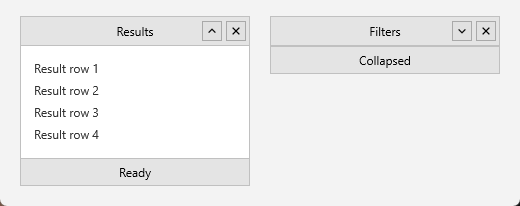
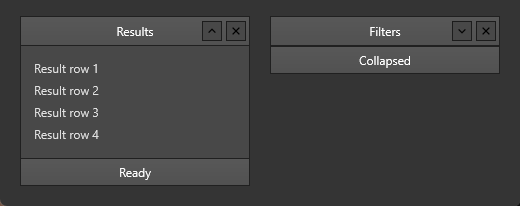
The right-hand panel is collapsed. Note that ExpandState writes its field
directly and has no side effect - call Collapse (or Expand) to actually
fold the panel, as the expander button does.
ExpandAction = peaExpand(default): the expand button toggles the panel height between its full height and the header-only height.CompactAction = pcCompact(default): the compact button toggles the panel width between its full width and the header-button-only width.
Call the methods directly to control state in code:
TMSFNCPanel1.Collapse;          // collapse height
TMSFNCPanel1.Expand;            // restore height
TMSFNCPanel1.Collapse(True);    // collapse width (compact)
TMSFNCPanel1.Expand(True);      // restore width (compact)
Drop-down popup
Assign any TControl to Header.DropDownControl. When the drop-down button is clicked the control is shown in a popup below the header. Set DropDownWidth and DropDownHeight on the element to size the popup:
TMSFNCPanel1.Header.DropDownControl := MyListBox;
TMSFNCPanel1.Header.DropDownWidth := 200;
TMSFNCPanel1.Header.DropDownHeight := 150;
TMSFNCPanel1.DropDownAction := pddaPopup;
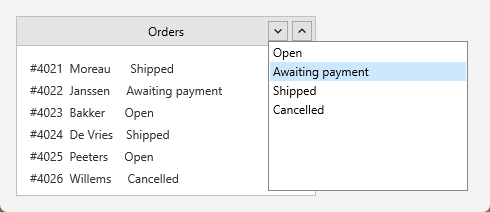
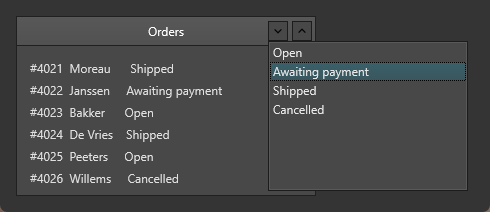
The popup is a TTMSFNCPopup, so it is a separate top-level window placed at
screen coordinates rather than a child of the panel. Two consequences: it is
drawn over anything at that position including outside the form, and it closes
when its placement form is re-activated. DropDownAction is pddaPopup by
default; set it to pddaNone to keep the button and handle
OnHeaderDropDownButtonClick yourself instead.
Handling button click events
Each button has a dedicated event. Handle OnHeaderCloseButtonClick if you need custom close logic:
procedure TForm1.TMSFNCPanel1HeaderCloseButtonClick(Sender: TObject);
begin
  // Custom close: ask before hiding
  if MessageDlg('Close this panel?', TMsgDlgType.mtConfirmation,
      [mbYes, mbNo], 0) = mrYes then
    TMSFNCPanel1.Visible := False;
end;

procedure TForm1.TMSFNCPanel1HeaderAnchorClick(Sender: TObject; AAnchor: String);
begin
  // Header.Text can contain <a href="..."> links
  if AAnchor = 'help' then
    ShowHelp;
end;
void __fastcall TForm1::TMSFNCPanel1HeaderCloseButtonClick(TObject *Sender)
{
  // Custom close: ask before hiding
  if (MessageDlg("Close this panel?", TMsgDlgType::mtConfirmation,
      TMsgDlgButtons() << TMsgDlgBtn::mbYes << TMsgDlgBtn::mbNo, 0) == mrYes)
    TMSFNCPanel1->Visible = false;
}

void __fastcall TForm1::TMSFNCPanel1HeaderAnchorClick(TObject *Sender, System::UnicodeString AAnchor)
{
  // Header.Text can contain <a href="..."> links
  if (AAnchor == "help")
    ShowHelp();
}
Customising button appearance
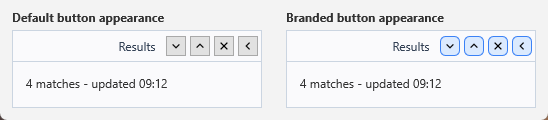
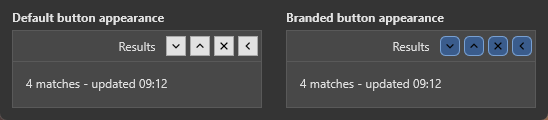
ButtonsAppearance.ButtonAppearance controls the fill, stroke, and rounding shared by all buttons. The two panels below carry the same four buttons — only the right one is branded:
TMSFNCPanel1.ButtonsAppearance.ButtonAppearance.FlatStyle := False;
TMSFNCPanel1.ButtonsAppearance.ButtonAppearance.Rounding := 5;
TMSFNCPanel1.ButtonsAppearance.ButtonAppearance.ShowInnerStroke := False;
TMSFNCPanel1.ButtonsAppearance.ButtonAppearance.NormalFill.Color := $FFDBEAFE;
TMSFNCPanel1.ButtonsAppearance.ButtonAppearance.NormalStroke.Color := $FF3B82F6;
FlatStyle must be False for the fill to appear. A flat button draws its
glyph only, so setting NormalFill on a flat button changes nothing visible.
Alongside the normal state there are HoverFill/HoverStroke and
DownFill/DownStroke, plus Transparent, ShowInnerStroke, InnerStroke
and Corners.
Assign custom bitmaps through ButtonsAppearance.CloseBitmap, ExpandBitmap, CollapseBitmap, CompactBitmap, StretchBitmap, and DropDownBitmap; leave one empty to keep the default glyph.
Combining expand and drop-down in a collapsible filter panel
The example below builds a panel that collapses its content area when the expand button is clicked and shows a filter control in a popup when the drop-down button is clicked:
// Build a collapsible filter panel with a drop-down picker
procedure TForm1.FormCreate(Sender: TObject);
begin
  with TMSFNCPanel1 do
  begin
    Header.Visible := True;
    Header.Text := 'Filter';
    Header.Size := 32;
    Header.Buttons := [pbExpander, pbDropDown];
    ExpandAction := peaExpand;
    DropDownAction := pddaPopup;
    // Assign a pre-created filter control as the drop-down
    Header.DropDownControl := FilterComboBox;
    Header.DropDownWidth := 220;
    Header.DropDownHeight := 180;
    Footer.Visible := False;
  end;
end;

procedure TForm1.TMSFNCPanel1HeaderExpandButtonClick(Sender: TObject);
begin
  // Update a status label to reflect collapse state
  if TMSFNCPanel1.ExpandState = pesCollapsed then
    StatusLabel.Text := 'Panel collapsed'
  else
    StatusLabel.Text := 'Panel expanded';
end;
// Build a collapsible filter panel with a drop-down picker
void __fastcall TForm1::FormCreate(TObject *Sender)
{
  TTMSFNCPanel *p = TMSFNCPanel1;
  p->Header->Visible = true;
  p->Header->Text = "Filter";
  p->Header->Size = 32;
  p->Header->Buttons = TTMSFNCPanelButtons() << pbExpander << pbDropDown;
  p->ExpandAction = peaExpand;
  p->DropDownAction = pddaPopup;
  // Assign a pre-created filter control as the drop-down
  p->Header->DropDownControl = FilterComboBox;
  p->Header->DropDownWidth = 220;
  p->Header->DropDownHeight = 180;
  p->Footer->Visible = false;
}

void __fastcall TForm1::TMSFNCPanel1HeaderExpandButtonClick(TObject *Sender)
{
  // Update a status label to reflect collapse state
  if (TMSFNCPanel1->ExpandState == pesCollapsed)
    StatusLabel->Text = "Panel collapsed";
  else
    StatusLabel->Text = "Panel expanded";
}
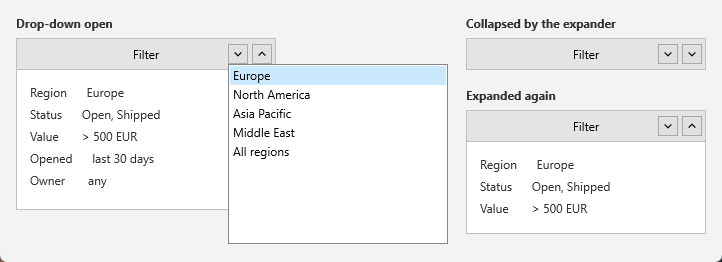
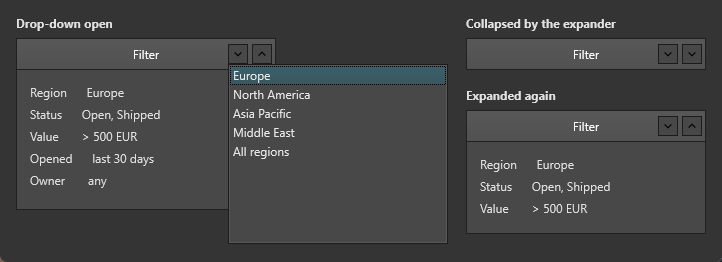
The expander glyph flips with the state, so the same button reads as both
"collapse" and "expand". ExpandState only reports it — assigning to
ExpandState writes the field with no side effect, so call Collapse and
Expand to actually change the panel.