Getting Started with TMS FNC Task Dialog
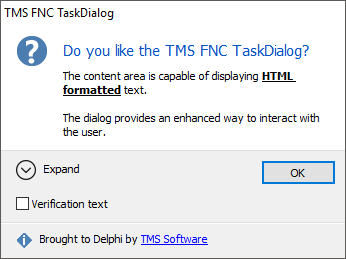
Use TTMSFNCTaskDialog when a message needs more structure than a simple message box: an instruction line, expandable details, command links, radio choices, a verification check box, progress, or an input field.
Create a Dialog
- Drop a
TTMSFNCTaskDialogon the form. - Set the text users should scan first in
TitleandInstruction. - Choose an
Icon, then add standard or custom buttons. - Call
Executefrom the action that should show the dialog.
procedure TForm1.ConfigureTaskDialog;
begin
  TMSFNCTaskDialog1.Title := 'Save changes';
  TMSFNCTaskDialog1.Instruction := 'Choose how to continue before closing this project.';
  TMSFNCTaskDialog1.Content := 'Unsaved changes will be lost if you close without saving.';
  TMSFNCTaskDialog1.Icon := tdiInformation;
  TMSFNCTaskDialog1.Options := TMSFNCTaskDialog1.Options + [tdoCommandLinks, tdoCommandLinksNoIcon];
  TMSFNCTaskDialog1.CustomButtons.Clear;
  TMSFNCTaskDialog1.CustomButtons.Add('Save and close');
  TMSFNCTaskDialog1.CustomButtons.Add('Close without saving');
  TMSFNCTaskDialog1.CustomButtons.Add('Cancel');
  TMSFNCTaskDialog1.ExpandedText := 'The project file and all open documents are checked before closing.';
  TMSFNCTaskDialog1.ExpandControlText := 'Show details';
  TMSFNCTaskDialog1.CollapseControlText := 'Hide details';
  TMSFNCTaskDialog1.Footer := 'You can change this behavior in application options.';
  TMSFNCTaskDialog1.FooterIcon := tdiWarning;
  TMSFNCTaskDialog1.VerifyText := 'Do not ask again for this project';
  TMSFNCTaskDialog1.Execute;
end;
void __fastcall TForm1::ConfigureTaskDialog()
{
  TMSFNCTaskDialog1->Title = "Save changes";
  TMSFNCTaskDialog1->Instruction = "Choose how to continue before closing this project.";
  TMSFNCTaskDialog1->Content = "Unsaved changes will be lost if you close without saving.";
  TMSFNCTaskDialog1->Icon = tdiInformation;
  TMSFNCTaskDialog1->Options = TMSFNCTaskDialog1->Options << tdoCommandLinks << tdoCommandLinksNoIcon;
  TMSFNCTaskDialog1->CustomButtons->Clear();
  TMSFNCTaskDialog1->CustomButtons->Add("Save and close");
  TMSFNCTaskDialog1->CustomButtons->Add("Close without saving");
  TMSFNCTaskDialog1->CustomButtons->Add("Cancel");
  TMSFNCTaskDialog1->ExpandedText = "The project file and all open documents are checked before closing.";
  TMSFNCTaskDialog1->ExpandControlText = "Show details";
  TMSFNCTaskDialog1->CollapseControlText = "Hide details";
  TMSFNCTaskDialog1->Footer = "You can change this behavior in application options.";
  TMSFNCTaskDialog1->FooterIcon = tdiWarning;
  TMSFNCTaskDialog1->VerifyText = "Do not ask again for this project";
  TMSFNCTaskDialog1->Execute();
}