Appearance
Blox separates what an element is from how it looks. Every block and line
carries its own Fill, Stroke, Shadow, and font, and the control itself has
a background, a snap grid, and rulers. This chapter shows how to style elements
and how to set up the canvas surface so a diagram reads cleanly and matches your
application theme.
Element fill, stroke and shadow
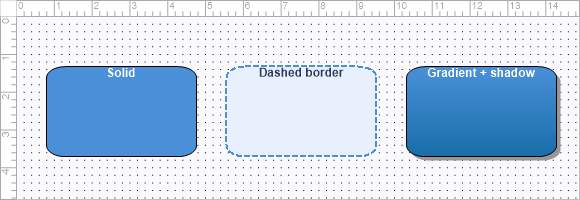
Each element exposes Fill (TTMSFNCBloxFill), Stroke (TTMSFNCBloxStroke),
and Shadow (TTMSFNCBloxShadow). For the common cases the FillColor,
StrokeColor, and StrokeWidth shortcuts are enough; reach into the objects for
gradients, stroke styles, and shadows.
| Object | Key members |
|---|---|
Fill |
FillType (ftNone, ftSolid, ftTexture, ftGradient), Color, SecondColor, GradientMode (gsHorizontal, gsVertical), Texture |
Stroke |
Color, Width, Style (ssSolid, ssDash, ssDot, ssDashDot, …) |
Shadow |
Visible, Color, HOffset, VOffset |
procedure TForm1.StyleBlock(ABlock: TTMSFNCBloxBlock);
begin
  ABlock.Fill.FillType := ftSolid;
  ABlock.Fill.Color := MakeGraphicsColor(232, 240, 254);

  ABlock.Stroke.Color := MakeGraphicsColor(74, 144, 217);
  ABlock.Stroke.Width := 2;
  ABlock.Stroke.Style := ssDash;
end;
void __fastcall TForm1::StyleBlock(TTMSFNCBloxBlock *ABlock)
{
  ABlock->Fill->FillType = ftSolid;
  ABlock->Fill->Color = MakeGraphicsColor(232, 240, 254);

  ABlock->Stroke->Color = MakeGraphicsColor(74, 144, 217);
  ABlock->Stroke->Width = 2;
  ABlock->Stroke->Style = ssDash;
}
A gradient fill combined with a soft shadow gives blocks depth — this example sets both on one block:
procedure TForm1.AddGradientBlock;
var
  LBlock: TTMSFNCBloxBlock;
begin
  LBlock := TTMSFNCBloxBlock.Create;
  LBlock.Left := 80;
  LBlock.Top := 80;
  LBlock.Width := 200;
  LBlock.Height := 100;
  LBlock.Shape := RoundRect;
  LBlock.Text := 'Gradient';
  LBlock.TextColor := gcWhite;

  LBlock.Fill.FillType := ftGradient;
  LBlock.Fill.GradientMode := gsVertical;
  LBlock.Fill.Color := MakeGraphicsColor(74, 144, 217);
  LBlock.Fill.SecondColor := MakeGraphicsColor(23, 110, 168);

  LBlock.Shadow.Visible := True;
  LBlock.Shadow.Color := MakeGraphicsColor(120, 120, 120);
  LBlock.Shadow.HOffset := 4;
  LBlock.Shadow.VOffset := 4;

  BloxControl1.Blox.Add(LBlock);
end;
void __fastcall TForm1::AddGradientBlock()
{
  TTMSFNCBloxBlock *LBlock = new TTMSFNCBloxBlock();
  LBlock->Left = 80;
  LBlock->Top = 80;
  LBlock->Width = 200;
  LBlock->Height = 100;
  LBlock->Shape = Fmx::Tmsfncbloxcoreblock::RoundRect;
  LBlock->Text = "Gradient";
  LBlock->TextColor = gcWhite;

  LBlock->Fill->FillType = ftGradient;
  LBlock->Fill->GradientMode = gsVertical;
  LBlock->Fill->Color = MakeGraphicsColor(74, 144, 217);
  LBlock->Fill->SecondColor = MakeGraphicsColor(23, 110, 168);

  LBlock->Shadow->Visible = true;
  LBlock->Shadow->Color = MakeGraphicsColor(120, 120, 120);
  LBlock->Shadow->HOffset = 4;
  LBlock->Shadow->VOffset = 4;

  BloxControl1->Blox->Add(LBlock);
}
The canvas surface
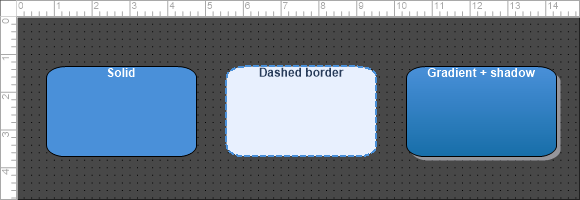
The control's own Fill and Stroke paint the diagram background. DefaultUnit
(duMili, duCenti, duInch) sets the measuring unit applied to the rulers and
snap grid.
procedure TForm1.ConfigureCanvas;
begin
  BloxControl1.BeginUpdate;
  try
    { Background surface. }
    BloxControl1.Fill.Color := MakeGraphicsColor(250, 250, 252);

    { Measuring unit applied to rulers and snap grid. }
    BloxControl1.DefaultUnit := duCenti;

    { Snap grid. }
    BloxControl1.SnapGrid.Active := True;
    BloxControl1.SnapGrid.Visible := True;
    BloxControl1.SnapGrid.Style := gsDots;
    BloxControl1.SnapGrid.SizeX := 0.5;
    BloxControl1.SnapGrid.SizeY := 0.5;

    { Rulers. }
    BloxControl1.TopRuler.Visible := True;
    BloxControl1.LeftRuler.Visible := True;
    BloxControl1.TopRuler.AutoFactor := True;
    BloxControl1.LeftRuler.AutoFactor := True;
  finally
    BloxControl1.EndUpdate;
  end;
end;
void __fastcall TForm1::ConfigureCanvas()
{
  BloxControl1->BeginUpdate();
  __try
  {
    // Background surface.
    BloxControl1->Fill->Color = MakeGraphicsColor(250, 250, 252);

    // Measuring unit applied to rulers and snap grid.
    BloxControl1->DefaultUnit = Fmx::Tmsfncbloxuiruler::duCenti;

    // Snap grid.
    BloxControl1->SnapGrid->Active = true;
    BloxControl1->SnapGrid->Visible = true;
    BloxControl1->SnapGrid->Style = Fmx::Tmsfncbloxuisnapgrid::gsDots;
    BloxControl1->SnapGrid->SizeX = 0.5;
    BloxControl1->SnapGrid->SizeY = 0.5;

    // Rulers.
    BloxControl1->TopRuler->Visible = true;
    BloxControl1->LeftRuler->Visible = true;
    BloxControl1->TopRuler->AutoFactor = true;
    BloxControl1->LeftRuler->AutoFactor = true;
  }
  __finally
  {
    BloxControl1->EndUpdate();
  }
}
Snap grid
SnapGrid aligns inserting, moving, and resizing to a regular step. Active
turns snapping on, Force snaps inserted objects immediately, SizeX / SizeY
set the step (or set SnapToRuler to follow the ruler ticks instead), Style
chooses gsDots or gsLines, and Visible shows or hides it.
Rulers
LeftRuler and TopRuler (TTMSFNCBloxRuler) draw measurement scales. Set
Visible, the MeasureUnit, Divisions between values, and AutoFactor (when
True, the ruler step adapts as the diagram is zoomed). The snap-grid and ruler
setup is shown in the canvas snippet above.
Selection handle appearance
Handles are the affordance a user reads before touching anything: their colour says "this is selected", their shape says what kind of manipulation is on offer, and a greyed handle says "this action is blocked here". Branding them is therefore not decoration — it is how a diagram editor communicates its own rules — and the control keeps two separate palettes so a group never looks like a lone element.
ElementHandleAppearance and GroupHandleAppearance (both
TTMSFNCBloxHandlesAppearance) hold four handle roles, each a
TTMSFNCBloxHandleAppearance:
| Role | Handles it styles |
|---|---|
Size |
The eight sizing handles around the element bounds. |
Rotate |
The rotation handle. |
RotCenter |
The marker for the rotation centre. |
Custom |
Handles a custom element class contributes itself. |
Each role carries FillColor, StrokeColor, DisabledFillColor,
DisabledStrokeColor, Size (radius in pixels), Style and Visible. The
Disabled pair is what gets painted when the element forbids that action — an
element with crNoResize in Restrictions (so CanResize returns False)
shows grey sizing handles rather than none, which is usually what you want:
users see the handle and learn the element is fixed.
Style is a TTMSFNCBloxHandleStyle: hhRectangle, hhEllipse, hhDiamond,
hhCrossedEllipse, hhRectangleX or hhEllipseX. Out of the box element
handles are light blue with a dodger-blue stroke, group handles light coral with
a firebrick stroke, Size is 3 (6 on FMX mobile, for touch), and Style is
hhRectangle.
Overriding handles on one element
Element.HandlesAppearance is an overlay, not a replacement. When the element
is drawn, the control-level palette is copied and then only the values the
element has actually set are applied on top, detected by sentinel:
| Member | Overrides only when | So the "inherit" value is |
|---|---|---|
| the four colours | not gcNull |
gcNull (the constructor default) |
Size |
greater than 0 |
0 |
Style |
not hhRectangle |
hhRectangle |
Visible |
never — see the pitfall below | — |
That is why a fresh element inherits everything: its own appearance is constructed entirely from sentinels.
procedure TForm1.StyleSelectionHandles;
var
  LElement: TTMSFNCBloxElement;
begin
  BloxControl1.BeginUpdate;
  try
    { Handles drawn around a single selected element. }
    BloxControl1.ElementHandleAppearance.Size.FillColor := gcWhite;
    BloxControl1.ElementHandleAppearance.Size.StrokeColor := gcSteelblue;
    BloxControl1.ElementHandleAppearance.Size.Size := 4;
    BloxControl1.ElementHandleAppearance.Size.Style := hhRectangle;

    { Disabled colors are what a restricted element paints instead. }
    BloxControl1.ElementHandleAppearance.Size.DisabledFillColor := gcSilver;
    BloxControl1.ElementHandleAppearance.Size.DisabledStrokeColor := gcSilver;

    { The rotation handle and the rotation-center marker are styled apart. }
    BloxControl1.ElementHandleAppearance.Rotate.FillColor := gcSeagreen;
    BloxControl1.ElementHandleAppearance.Rotate.Style := hhEllipse;
    BloxControl1.ElementHandleAppearance.RotCenter.FillColor := gcCoral;
    BloxControl1.ElementHandleAppearance.RotCenter.Style := hhCrossedEllipse;

    { A second palette keeps a group visually distinct from a lone element. }
    BloxControl1.GroupHandleAppearance.Size.FillColor := gcWhite;
    BloxControl1.GroupHandleAppearance.Size.StrokeColor := gcCrimson;
    BloxControl1.GroupHandleAppearance.Size.Size := 4;
    BloxControl1.GroupHandleAppearance.Size.Style := hhDiamond;

    { Per-element overlay: only the values assigned here replace the
      control-level ones; everything left at its sentinel keeps inheriting. }
    if BloxControl1.Blox.ElementCount > 0 then
    begin
      LElement := BloxControl1.Blox.Elements[0];
      LElement.HandlesAppearance.Size.FillColor := gcDarkorange;
      LElement.HandlesAppearance.Size.Size := 6;
      LElement.HandlesAppearance.Size.Style := hhEllipse;

      { Restrict the element so its handles paint the Disabled colors. }
      LElement.Restrictions := LElement.Restrictions + [crNoRotation];
    end;
  finally
    BloxControl1.EndUpdate;
  end;
end;
void __fastcall TForm1::StyleSelectionHandles()
{
  TTMSFNCBloxElement *LElement;

  BloxControl1->BeginUpdate();
  __try
  {
    // Handles drawn around a single selected element.
    BloxControl1->ElementHandleAppearance->Size->FillColor = gcWhite;
    BloxControl1->ElementHandleAppearance->Size->StrokeColor = gcSteelblue;
    BloxControl1->ElementHandleAppearance->Size->Size = 4;
    BloxControl1->ElementHandleAppearance->Size->Style = Fmx::Tmsfncbloxcorehandle::hhRectangle;

    // Disabled colors are what a restricted element paints instead.
    BloxControl1->ElementHandleAppearance->Size->DisabledFillColor = gcSilver;
    BloxControl1->ElementHandleAppearance->Size->DisabledStrokeColor = gcSilver;

    // The rotation handle and the rotation-center marker are styled apart.
    BloxControl1->ElementHandleAppearance->Rotate->FillColor = gcSeagreen;
    BloxControl1->ElementHandleAppearance->Rotate->Style = Fmx::Tmsfncbloxcorehandle::hhEllipse;
    BloxControl1->ElementHandleAppearance->RotCenter->FillColor = gcCoral;
    BloxControl1->ElementHandleAppearance->RotCenter->Style = Fmx::Tmsfncbloxcorehandle::hhCrossedEllipse;

    // A second palette keeps a group visually distinct from a lone element.
    BloxControl1->GroupHandleAppearance->Size->FillColor = gcWhite;
    BloxControl1->GroupHandleAppearance->Size->StrokeColor = gcCrimson;
    BloxControl1->GroupHandleAppearance->Size->Size = 4;
    BloxControl1->GroupHandleAppearance->Size->Style = Fmx::Tmsfncbloxcorehandle::hhDiamond;

    // Per-element overlay: only the values assigned here replace the
    // control-level ones; everything left at its sentinel keeps inheriting.
    if (BloxControl1->Blox->ElementCount > 0)
    {
      LElement = BloxControl1->Blox->Elements[0];
      LElement->HandlesAppearance->Size->FillColor = gcDarkorange;
      LElement->HandlesAppearance->Size->Size = 6;
      LElement->HandlesAppearance->Size->Style = Fmx::Tmsfncbloxcorehandle::hhEllipse;

      // Restrict the element so its handles paint the Disabled colors.
      LElement->Restrictions = LElement->Restrictions << Fmx::Tmsfncbloxcoreelement::crNoRotation;
    }
  }
  __finally
  {
    BloxControl1->EndUpdate();
  }
}
Putting it together
A polished diagram styles both the elements and the surface they sit on. This example configures the canvas background, snap grid, and rulers, then adds a gradient-filled, shadowed block onto it — combining element appearance with the canvas setup:
procedure TForm1.BuildStyledScene;
var
  LBlock: TTMSFNCBloxBlock;
begin
  BloxControl1.BeginUpdate;
  try
    { Canvas surface. }
    BloxControl1.Fill.Color := MakeGraphicsColor(250, 250, 252);
    BloxControl1.DefaultUnit := duCenti;
    BloxControl1.SnapGrid.Active := True;
    BloxControl1.SnapGrid.Style := gsDots;
    BloxControl1.TopRuler.Visible := True;
    BloxControl1.LeftRuler.Visible := True;

    { A gradient, shadowed block on that surface. }
    LBlock := TTMSFNCBloxBlock.Create;
    LBlock.Left := 60;
    LBlock.Top := 60;
    LBlock.Width := 200;
    LBlock.Height := 100;
    LBlock.Shape := RoundRect;
    LBlock.Text := 'Styled';
    LBlock.TextColor := gcWhite;
    LBlock.Fill.FillType := ftGradient;
    LBlock.Fill.GradientMode := gsVertical;
    LBlock.Fill.Color := MakeGraphicsColor(74, 144, 217);
    LBlock.Fill.SecondColor := MakeGraphicsColor(23, 110, 168);
    LBlock.Shadow.Visible := True;
    LBlock.Shadow.HOffset := 4;
    LBlock.Shadow.VOffset := 4;
    BloxControl1.Blox.Add(LBlock);
  finally
    BloxControl1.EndUpdate;
  end;
end;
void __fastcall TForm1::BuildStyledScene()
{
  TTMSFNCBloxBlock *LBlock;

  BloxControl1->BeginUpdate();
  __try
  {
    // Canvas surface.
    BloxControl1->Fill->Color = MakeGraphicsColor(250, 250, 252);
    BloxControl1->DefaultUnit = Fmx::Tmsfncbloxuiruler::duCenti;
    BloxControl1->SnapGrid->Active = true;
    BloxControl1->SnapGrid->Style = Fmx::Tmsfncbloxuisnapgrid::gsDots;
    BloxControl1->TopRuler->Visible = true;
    BloxControl1->LeftRuler->Visible = true;

    // A gradient, shadowed block on that surface.
    LBlock = new TTMSFNCBloxBlock();
    LBlock->Left = 60;
    LBlock->Top = 60;
    LBlock->Width = 200;
    LBlock->Height = 100;
    LBlock->Shape = Fmx::Tmsfncbloxcoreblock::RoundRect;
    LBlock->Text = "Styled";
    LBlock->TextColor = gcWhite;
    LBlock->Fill->FillType = ftGradient;
    LBlock->Fill->GradientMode = gsVertical;
    LBlock->Fill->Color = MakeGraphicsColor(74, 144, 217);
    LBlock->Fill->SecondColor = MakeGraphicsColor(23, 110, 168);
    LBlock->Shadow->Visible = true;
    LBlock->Shadow->HOffset = 4;
    LBlock->Shadow->VOffset = 4;
    BloxControl1->Blox->Add(LBlock);
  }
  __finally
  {
    BloxControl1->EndUpdate();
  }
}
Pitfalls
Visiblecannot be overridden per element. The per-element overlay copies colours,SizeandStylebut neverVisible, so settingElement.HandlesAppearance.Size.Visible := Falsehas no effect. Hide a handle role at the control level, or restrict the element instead so it paints theDisabledcolours.You cannot force
hhRectangleon one element.hhRectangleis the sentinel for "inherit the style", so an element cannot opt back to rectangles when the control-level style is something else. Invert the design: makehhRectanglethe control-level style and give the exceptional elements the other shapes.A gradient needs
FillType := ftGradient. SettingColorandSecondColoralone has no effect whileFillTypeisftSolid.SnapToRuleroverridesSizeX/SizeY. When it isTrue, the explicit step sizes are ignored and the grid follows the ruler subdivisions.The
FillColorshortcut impliesftSolid. To switch back to a gradient after using it, setFillTypeexplicitly again.