Getting started with TMS FNC Blox ToolBar
Prerequisites
- TMS FNC Core and TMS FNC Blox installed.
- TMS FNC UI Pack installed for the toolbar bridge package.
- A
TTMSFNCBloxControlplaced on the form.
Add the toolbars
Drop the toolbar components that match the editor you want to build:
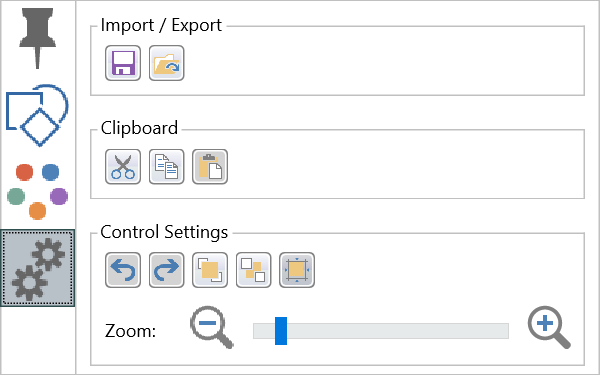
TTMSFNCBloxEditToolBar- open/save integration, clipboard commands, undo/redo, and zoom.TTMSFNCBloxFormatBlockToolBar- stroke, fill, image, rotation, z-order, and snap-to-grid commands.TTMSFNCBloxFormatBlockTextToolBar- font, style, alignment, and text-color commands.TTMSFNCBloxSelectToolBar- selection mode and insertion of blocks, polygons, lines, arcs, beziers, polylines, and other registered elements.TTMSFNCBloxToolBar- context-sensitive popup panels for common editing and formatting actions.
Align the focused toolbars above or beside the diagram canvas. Assign every toolbar's BloxControl property to the same control.
Link at runtime
procedure TForm1.FormCreate(Sender: TObject);
begin
  BloxEditToolBar1.BloxControl := BloxControl1;
  BloxFormatBlockToolBar1.BloxControl := BloxControl1;
  BloxFormatBlockTextToolBar1.BloxControl := BloxControl1;
end;
void __fastcall TForm1::FormCreate(TObject *Sender)
{
  BloxEditToolBar1->BloxControl = BloxControl1;
  BloxFormatBlockToolBar1->BloxControl = BloxControl1;
  BloxFormatBlockTextToolBar1->BloxControl = BloxControl1;
}
When the form contains one Blox Control, a toolbar can discover it during loading. An explicit assignment is still preferable because it documents the relationship and remains correct when a form hosts more than one diagram.
Initialize the context toolbar
Call InitializeDefault when you create TTMSFNCBloxToolBar at runtime. Call Rebuild after registering custom elements so its insertion panels reflect the current registry.
procedure TForm1.SetUpToolBar;
begin
  BloxToolBar1.BloxControl := BloxControl1;
  BloxToolBar1.InitializeDefault;   { standard insert/format/edit/zoom tools }
end;
void __fastcall TForm1::SetUpToolBar()
{
  BloxToolBar1->BloxControl = BloxControl1;
  BloxToolBar1->InitializeDefault();   // standard insert/format/edit/zoom tools
}
Verify the editor
Run the application, insert a block with the selection toolbar, select it, and verify that the formatting controls become enabled. The toolbar state follows the current Blox selection automatically.