Styling the widget
Beyond the value, TTMSFNCWidgetProgress lets you shape the circular arc, mark
the current value, add tickmarks, and theme the surface. This chapter covers the
progress arc, the value indicator, and the tickmarks and fill.
The progress arc
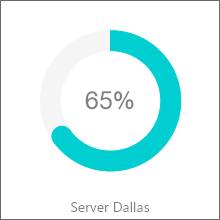
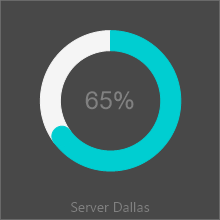
CircleOptions controls the arc that represents the value. Thickness sets how
wide the ring is, and StartAngle sets where 0% begins (in degrees) — 90 starts
the fill at the top. Tune these to make the widget read as a ring, a thick donut,
or a partial arc. This example sets a value and shapes the arc and indicator
together.
procedure TForm1.StyleProgress;
begin
  FProgress.Value := 65;

  // The circular arc: thickness and where 0% starts (degrees).
  FProgress.CircleOptions.Thickness := 16;
  FProgress.CircleOptions.StartAngle := 90;

  // A dot marks the current value along the arc (piNone hides it, piBitmap uses an image).
  FProgress.ValueIndicator.Kind := piDot;

  FProgress.CaptionOptions.Text := 'Backup';
end;
void __fastcall TForm1::StyleProgress()
{
  FProgress->Value = 65;

  // The circular arc: thickness and where 0% starts (degrees).
  FProgress->CircleOptions->Thickness = 16;
  FProgress->CircleOptions->StartAngle = 90;

  // A dot marks the current value along the arc (piNone hides it, piBitmap uses an image).
  FProgress->ValueIndicator->Kind = TTMSFNCWPValueIndicatorKind::piDot;

  FProgress->CaptionOptions->Text = "Backup";
}
The value indicator
ValueIndicator.Kind chooses the marker drawn at the current value along the arc:
piDot draws a dot, piBitmap draws an image (set ValueIndicator.BitmapName and
assign a BitmapContainer), and piNone hides it. A bitmap indicator — the
demo's blue ball — turns the progress ring into a themed gauge.
Tickmarks and fill
Tickmarks adds graduation marks around the circle for a gauge-like scale, while
Fill and Border theme the widget's background and outline. Combine a subtle
Fill, a clear arc color, and tickmarks for a dashboard-ready look; the
OnBeforeDraw…/OnAfterDraw… events let you draw custom decorations over any
part.
Pitfalls
- A thick arc plus a large indicator can overlap. Balance
CircleOptions.Thicknessagainst the indicator size. piBitmapneeds aBitmapContainer. SetValueIndicator.BitmapNameto a name that exists in the assigned container, or nothing draws.- Custom-draw events run every repaint. Keep
OnBeforeDraw…/OnAfterDraw…handlers cheap, as they fire on each value change.
See also
- Showing progress — set and format the value.
- API reference — full class reference.