Tasks & hierarchy
Tasks are the heart of a project. Each TTMSFNCGanttTask carries a name and
description, a planned start and duration, a calculated schedule, a progress
percentage, an optional cost and state, and a collection of subtasks that form a
work-breakdown hierarchy. This chapter covers adding tasks at the project root
and as nested subtasks, the sibling and event-marker helpers, reading the
calculated schedule, and finding, moving, locking, and deleting tasks. Reach for
the hierarchy whenever a plan has phases that contain smaller pieces of work.
Adding tasks and subtasks
Project.AddTask appends a root task; Task.AddSubTask nests a task below
another. Both take the name, description, planned start, and a duration value
plus its unit (gdtSeconds, gdtMinutes, gdtHours, gdtWorkDays), and return
the created task. A planned start of 0 (or Now) lets the task calculate its
own start from dependencies and the calendar. AddNextEventMarker adds a
zero-duration milestone:
procedure TForm1.BuildTaskTree;
var
  Phase, Sub: TTMSFNCGanttTask;
begin
  GanttProject1.BeginUpdate;
  try
    GanttProject1.ClearTasks;

    // Root task.
    Phase := GanttProject1.AddTask('Phase 1 — Analysis', 'Requirements and planning',
      Now, 4, gdtWorkDays);
    Phase.Progress := 100;

    // Nested subtasks below the root task.
    Sub := Phase.AddSubTask('Interviews', 'Stakeholder interviews',
      Now, 2, gdtWorkDays, whWorkTimeAndDays, 100);
    Sub.Cost := 1500;

    Sub := Phase.AddSubTask('Specification', 'Write the spec',
      Now + 2, 2, gdtWorkDays, whWorkTimeAndDays, 60);
    Sub.Locked := True;   // prevent interactive reschedule

    // A zero-duration milestone marker after the phase.
    Phase.AddNextEventMarker('Sign-off', 'Analysis approved');
  finally
    GanttProject1.EndUpdate;
  end;
end;

procedure TForm1.FindAndMoveTask;
var
  Task: TTMSFNCGanttTask;
begin
  Task := GanttProject1.GetTaskByTaskName('Specification');
  if Assigned(Task) then
    Task.MoveTaskTime(1);   // shift one day later
end;
void __fastcall TForm1::BuildTaskTree()
{
  TTMSFNCGanttTask *Phase, *Sub;

  GanttProject1->BeginUpdate();
  try
  {
    GanttProject1->ClearTasks();

    // Root task.
    Phase = GanttProject1->AddTask(L"Phase 1 \x2014 Analysis", "Requirements and planning",
      Now(), 4, gdtWorkDays);
    Phase->Progress = 100;

    // Nested subtasks below the root task.
    Sub = Phase->AddSubTask("Interviews", "Stakeholder interviews",
      Now(), 2, gdtWorkDays, whWorkTimeAndDays, 100);
    Sub->Cost = 1500;

    Sub = Phase->AddSubTask("Specification", "Write the spec",
      Now() + 2, 2, gdtWorkDays, whWorkTimeAndDays, 60);
    Sub->Locked = true;   // prevent interactive reschedule

    // A zero-duration milestone marker after the phase.
    Phase->AddNextEventMarker("Sign-off", "Analysis approved");
  }
  __finally
  {
    GanttProject1->EndUpdate();
  }
}

void __fastcall TForm1::FindAndMoveTask()
{
  TTMSFNCGanttTask *Task;

  Task = GanttProject1->GetTaskByTaskName("Specification");
  if (Task != nullptr)
    Task->MoveTaskTime(1);   // shift one day later
}
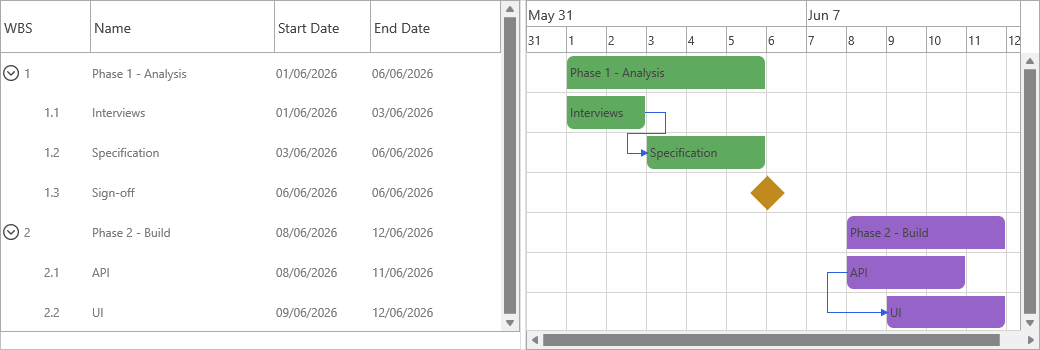
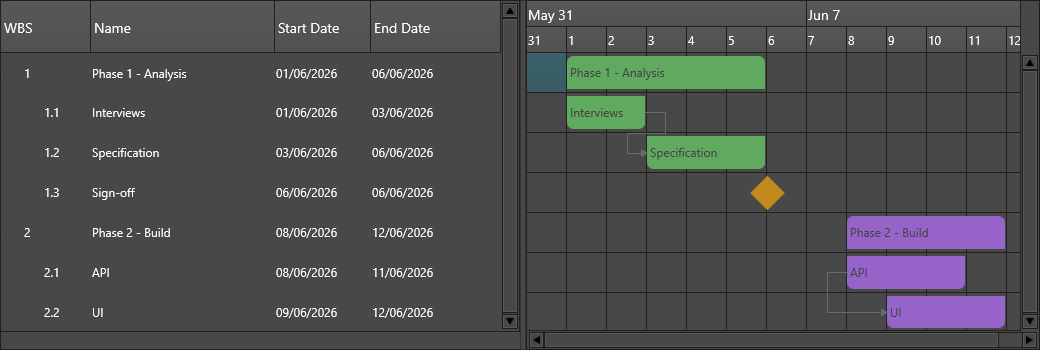
Note
Wrap task building in BeginUpdate/EndUpdate. Scheduling
(CalculateTasks) runs once on EndUpdate instead of after every change.
Task properties
| Property | Description |
|---|---|
Name |
Display name of the task |
Description |
Longer description |
PlannedStart |
Requested start date/time before dependency scheduling |
PlannedDuration |
Planned duration (Value + DurationType) |
PlannedEnd |
Planned finish date/time |
ScheduledStart / ScheduledEnd |
Calculated dates after dependencies and the calendar are applied (read-only) |
Progress |
Completion percentage |
Cost |
Cost value; a parent can reflect the sum of its subtasks |
WorkTimePolicy |
Calendar policy used to schedule the task (see Work-time calendar) |
TaskStateName |
Name of the assigned task state |
IsEventMarker |
Renders the task as a zero-duration milestone |
Locked |
Blocks interactive and programmatic schedule changes |
WBS |
Work-breakdown path computed from the hierarchy (read-only) |
TaskId / DBKey |
Application identifier / data-binding key |
Note
PlannedStart is what you request; ScheduledStart is what the project
calculates after applying dependencies and the work-time calendar. Read
ScheduledStart/ScheduledEnd to position or report a task — they can differ
from the planned values.
Sibling and dependent helpers
Besides AddSubTask, a task exposes sibling helpers that place a new task
relative to itself — AddNextTask, AddNextTaskSameStartDate,
AddNextTaskSameEndDate — and AddDependentTask, which creates a task and
its dependency in one call (see Dependencies). Event-marker
variants (AddSubEventMarker, AddNextEventMarker, AddDependentEventMarker)
add zero-duration milestones.
Finding, moving, and deleting tasks
The project offers lookups by name, identifier, WBS, and flattened index:
GetTaskByTaskName, GetTaskByTaskId, GetTaskByWBS, GetTaskByCount, plus
GetNextTask/GetPreviousTask for ordered traversal. MoveTaskTime shifts a
task's schedule by a time offset, and DeleteTask / DeleteTaskByTaskId remove
tasks. The snippet above finds a task by name and moves it one day later.
Task states
A project can carry a set of named States (priority + appearance) that tasks
reference by name. Call Project.SetDefaultStates to create the built-in set,
then assign a task's state with Task.SetTaskStateByName('...') or
Task.TaskStateName. States let many tasks share one appearance and priority
definition managed in a single place.
Per-task bar appearance
Most styling is the chart's job, but a single task can override its own bar look
through Task.TaskAppearance (TTMSFNCGanttTaskAppearance): Fill and Stroke
for the bar, ProgressFill / ProgressStroke for the completed portion, plus
Corners, Rounding, and Font. Use it to flag one task — a critical
milestone or an at-risk item — without defining a shared task state:
{ Inside a method of your form, with a task reference already obtained: }
Task.TaskAppearance.Fill.Color := gcCrimson;
Task.TaskAppearance.ProgressFill.Color := gcDarkred;
Task.TaskAppearance.Rounding := 4;
For styling that applies to every task, prefer a shared task state or the chart's appearance options instead of per-task overrides.
Putting it together
A typical flow combines several of the operations above: build a hierarchy, then locate a task by name and read its calculated schedule back:
procedure TForm1.BuildAndInspect;
var
  Phase, Spec: TTMSFNCGanttTask;
begin
  GanttProject1.BeginUpdate;
  try
    GanttProject1.ClearTasks;
    // Adding + hierarchy
    Phase := GanttProject1.AddTask('Analysis', 'Requirements', Now, 4, gdtWorkDays);
    Phase.AddSubTask('Interviews', '', Now, 2, gdtWorkDays, whWorkTimeAndDays, 100);
    Phase.AddSubTask('Specification', '', Now + 2, 2, gdtWorkDays);
  finally
    GanttProject1.EndUpdate;
  end;

  // Finding + reading the calculated schedule
  Spec := GanttProject1.GetTaskByTaskName('Specification');
  if Assigned(Spec) then
    Caption := Format('Specification: %s - %s',
      [DateToStr(Spec.ScheduledStart), DateToStr(Spec.ScheduledEnd)]);
end;
void __fastcall TForm1::BuildAndInspect()
{
  TTMSFNCGanttTask *Phase, *Spec;

  GanttProject1->BeginUpdate();
  try
  {
    GanttProject1->ClearTasks();
    // Adding + hierarchy
    Phase = GanttProject1->AddTask("Analysis", "Requirements", Now(), 4, gdtWorkDays);
    Phase->AddSubTask("Interviews", "", Now(), 2, gdtWorkDays, whWorkTimeAndDays, 100);
    Phase->AddSubTask("Specification", "", Now() + 2, 2, gdtWorkDays);
  }
  __finally
  {
    GanttProject1->EndUpdate();
  }

  // Finding + reading the calculated schedule
  Spec = GanttProject1->GetTaskByTaskName("Specification");
  if (Spec != nullptr)
    Caption = Format("Specification: %s - %s",
      ARRAYOFCONST((DateToStr(Spec->ScheduledStart), DateToStr(Spec->ScheduledEnd))));
}
Pitfalls
- Setting
PlannedStartdoes not guaranteeScheduledStartmatches it — a dependency or the work-time calendar can push the calculated start out. - A
Lockedtask ignores reschedule attempts; clearLockedbefore moving it programmatically. - Build tasks inside
BeginUpdate/EndUpdate; without it, everyAddTasktriggers a full recalculation.
Related API
TTMSFNCGanttProject—AddTask,GetTaskByTaskName,DeleteTask,States,SetDefaultStatesTTMSFNCGanttTask—AddSubTask,AddNextEventMarker,MoveTaskTime,ScheduledStart
See also
- Dependencies — link tasks and let the schedule cascade
- Work-time calendar — how durations become calendar dates
- Persistence — save the task tree to JSON