Getting started
Get a working TTMSFNCDataGrid on screen in five minutes.
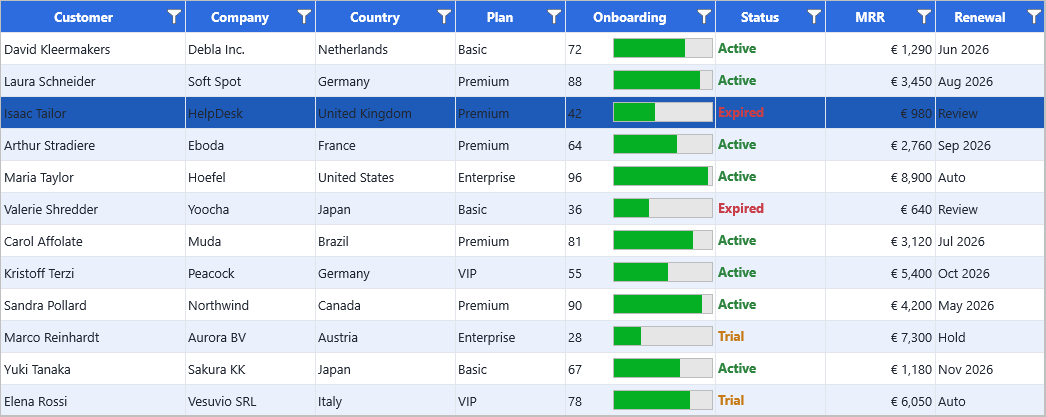
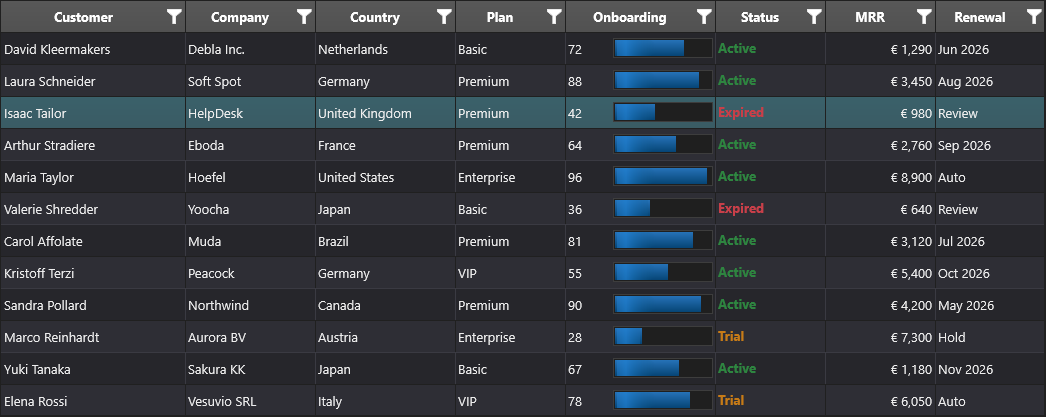
Add the component to a form
- Open your Delphi or C++ Builder project.
- In the Tool Palette, search for TTMSFNCDataGrid.
- Drag it onto your form and align it as you like.
The snippet above creates a 3×5 grid with three headers and one populated row. Cell
values are stored as TValue, so you can assign integers, strings, dates, booleans,
or floats directly without conversion.
Populate cells
The simplest way to put data into the grid is direct assignment to Cells[col, row]:
Grid.Cells[0, 1] := 1;            // integer
Grid.Cells[1, 1] := 'John Doe';   // string
Grid.Cells[2, 1] := EncodeDate(2024, 6, 1);  // date
Grid.Cells[3, 1] := True;         // boolean
Grid.Cells[4, 1] := 12500.75;     // float
The grid renders each value using a default format that matches its type. To control
the display format (currency, date, custom strings for booleans, …), see
Editing cells and the Formatting property on each column.
Handle a cell click
procedure TForm1.GridCellClick(Sender: TObject; ACol, ARow: Integer);
begin
  ShowMessage(Format('Cell clicked at column %d, row %d', [ACol, ARow]));
end;

// Wire it up
Grid.OnCellClick := GridCellClick;
Where to next
- Editing cells — let users modify the data with built-in or custom editors (combobox, date picker, color picker, …).
- Filtering — narrow visible rows by value, pattern, or condition.
- Import & export (XLS) — round-trip the grid to and from Excel files.