Editing cells
Let users modify grid data with built-in or custom inplace editors — combobox, date picker, color picker, trackbar, spinbox, HTML, or any control you build yourself.
Overview
Each column in the grid can declare which editor appears when the user starts editing one of its cells. The grid ships with a set of ready-made editors covering the common cases:
| Editor type | Constant | Use it for |
|---|---|---|
| Plain text | getEdit |
Strings, numbers — the default. |
| Combobox | getComboBox |
A fixed or data-driven list of choices. |
| Date picker | getDatePicker |
TDate / TDateTime values. |
| Color picker | getColorPicker |
Picking colours, optionally targeting cell appearance. |
| Trackbar | getTrackBar |
Bounded numeric values with a slider. |
| Spinbox | getSpinBox |
Bounded numeric input with up/down buttons. |
| HTML editor | getHTMLEditor |
Rich text with bold/italic, links, anchors. |
| Custom | getCustom |
Any control you provide via OnGetInplaceEditorClass. |
You enable editing by assigning Editor on the column and adding the corresponding
setting flag (gcsEditor) so the column knows it owns that property at runtime.
Quick example
procedure TForm1.FormCreate(Sender: TObject);
begin
  // Load sample data
  Grid.Options.IO.StartColumn := 1;
  Grid.Options.IO.StartRow := 1;
  Grid.LoadFromCSVData('cars.csv');

  // Allow direct edit on Tab / Arrow / Enter
  Grid.Options.Keyboard.TabKeyDirectEdit := True;
  Grid.Options.Keyboard.ArrowKeyDirectEdit := True;
  Grid.Options.Keyboard.EnterKeyDirectEdit := True;

  // Column 1: combobox with a fixed list of brands
  Grid.Columns[1].AddSetting(gcsEditor);
  Grid.Columns[1].AddSetting(gcsEditorItems);
  Grid.Columns[1].Editor := getComboBox;
  Grid.Columns[1].EditorItems.AddStrings(
    ['Mercedes', 'Audi', 'Bugatti', 'Alfa Romeo', 'Jaguar', 'BMW']);

  // Column 3: trackbar (range customised in OnGetInplaceEditorProperties)
  Grid.Columns[3].AddSetting(gcsEditor);
  Grid.Columns[3].Editor := getTrackBar;

  // Column 4: date picker, displaying values as date/time
  Grid.Columns[4].AddSetting(gcsEditor);
  Grid.Columns[4].Editor := getDatePicker;
  Grid.Columns[4].AddSetting(gcsFormatting);
  Grid.Columns[4].Formatting.&Type := gdftDateTime;

  // Column 5: color picker that targets the cell fill colour
  Grid.Columns[5].AddSetting(gcsEditor);
  Grid.Columns[5].Editor := getColorPicker;
  Grid.Columns[5].AddSetting(gcsEditorTarget);
  Grid.Columns[5].EditorTarget := getFillColor;

  // Column 6: spinbox
  Grid.Columns[6].AddSetting(gcsEditor);
  Grid.Columns[6].Editor := getSpinBox;

  // Column 7: rich HTML editor
  Grid.Columns[7].AddSetting(gcsEditor);
  Grid.Columns[7].Editor := getHTMLEditor;
end;

procedure TForm1.GridGetInplaceEditorProperties(Sender: TObject;
  ACell: TTMSFNCDataGridCellCoord; AInplaceEditor: TTMSFNCDataGridInplaceEditor;
  AInplaceEditorType: TTMSFNCDataGridInplaceEditorType);
begin
  // Customise the trackbar maximum
  if AInplaceEditorType = getTrackBar then
    (AInplaceEditor as TTMSFNCDataGridTrackBar).Max := 3000;
end;
void __fastcall TForm1::FormCreate(TObject *Sender)
{
  // Load sample data
  Grid->Options->IO->StartColumn = 1;
  Grid->Options->IO->StartRow = 1;
  Grid->LoadFromCSVData("cars.csv");

  // Allow direct edit on Tab / Arrow / Enter
  Grid->Options->Keyboard->TabKeyDirectEdit = true;
  Grid->Options->Keyboard->ArrowKeyDirectEdit = true;
  Grid->Options->Keyboard->EnterKeyDirectEdit = true;

  // Column 1: combobox with a fixed list of brands
  Grid->Columns->Items[1]->AddSetting(gcsEditor);
  Grid->Columns->Items[1]->AddSetting(gcsEditorItems);
  Grid->Columns->Items[1]->Editor = getComboBox;
  Grid->Columns->Items[1]->EditorItems->AddStrings(
    OPENARRAY(System::UnicodeString, ("Mercedes", "Audi", "Bugatti", "Alfa Romeo", "Jaguar", "BMW")));

  // Column 3: trackbar (range customised in OnGetInplaceEditorProperties)
  Grid->Columns->Items[3]->AddSetting(gcsEditor);
  Grid->Columns->Items[3]->Editor = getTrackBar;

  // Column 4: date picker, displaying values as date/time
  Grid->Columns->Items[4]->AddSetting(gcsEditor);
  Grid->Columns->Items[4]->Editor = getDatePicker;
  Grid->Columns->Items[4]->AddSetting(gcsFormatting);
  Grid->Columns->Items[4]->Formatting->Type = gdftDateTime;

  // Column 5: color picker that targets the cell fill colour
  Grid->Columns->Items[5]->AddSetting(gcsEditor);
  Grid->Columns->Items[5]->Editor = getColorPicker;
  Grid->Columns->Items[5]->AddSetting(gcsEditorTarget);
  Grid->Columns->Items[5]->EditorTarget = getFillColor;

  // Column 6: spinbox
  Grid->Columns->Items[6]->AddSetting(gcsEditor);
  Grid->Columns->Items[6]->Editor = getSpinBox;

  // Column 7: rich HTML editor
  Grid->Columns->Items[7]->AddSetting(gcsEditor);
  Grid->Columns->Items[7]->Editor = getHTMLEditor;
}

void __fastcall TForm1::GridGetInplaceEditorProperties(TObject *Sender,
  const TTMSFNCDataGridCellCoord &ACell, TTMSFNCDataGridInplaceEditor *AInplaceEditor,
  TTMSFNCDataGridInplaceEditorType AInplaceEditorType)
{
  // Customise the trackbar maximum
  if (AInplaceEditorType == getTrackBar)
    dynamic_cast<TTMSFNCDataGridTrackBar*>(AInplaceEditor)->Max = 3000;
}
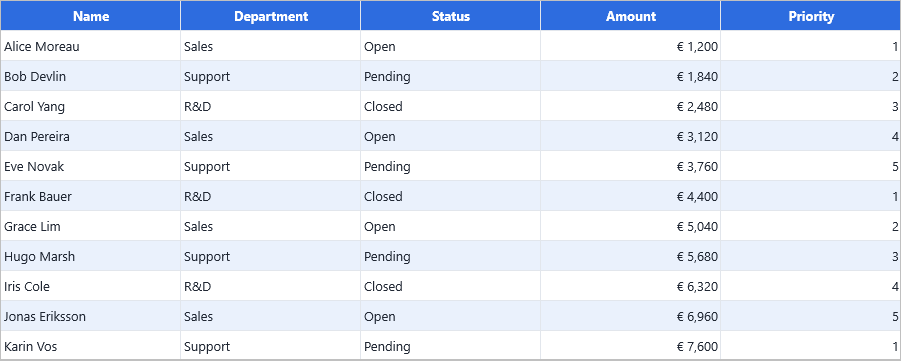
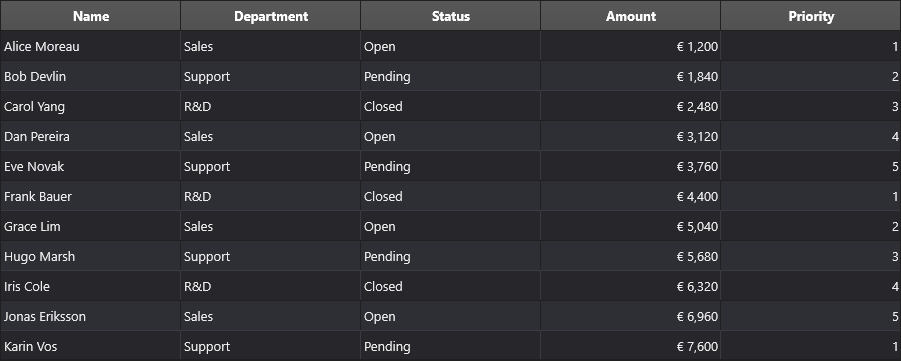
With editing enabled and an editor assigned per column, the grid looks like an ordinary populated grid until the user activates a cell; the configured editor (a combobox on Department, a spinbox on Amount) then opens in place:
Step by step
1. Enable editing globally
Grid.Options.Editing.Enabled := True;
2. Choose the editor per column
Set the column's Editor property to one of the constants above:
Grid.Columns[1].Editor := getComboBox;
3. Mark the setting as overridden
Without this step, the column reverts to the grid-level default. AddSetting opts
the column in to manage its own copy of the property — the columns editor at design
time does this automatically.
Grid.Columns[1].AddSetting(gcsEditor);
4. Provide editor-specific data
Comboboxes need a list of items; format-aware editors need a format type:
// Combobox items
Grid.Columns[1].AddSetting(gcsEditorItems);
Grid.Columns[1].EditorItems.AddStrings(['Mercedes', 'Audi', 'BMW']);

// Date picker formatting
Grid.Columns[4].AddSetting(gcsFormatting);
Grid.Columns[4].Formatting.&Type := gdftDateTime;
5. Enable auto-complete
Auto-complete narrows the combobox drop-down as the user types. Configure it via
Options.Editing.AutoComplete:
Grid.Options.Editing.AutoComplete.Enabled := True;
6. Enable direct drop-down
With DirectDropDown := True, the combobox or date picker drops open as soon as
the cell enters edit mode — the user doesn't have to click the arrow:
Grid.Options.Editing.DirectDropDown := True;
7. Customise the editor instance
Use OnGetInplaceEditorProperties to tweak the editor before it appears —
set ranges, masks, item heights, anything the editor type exposes:
procedure TForm1.GridGetInplaceEditorProperties(Sender: TObject;
  ACell: TTMSFNCDataGridCellCoord; AInplaceEditor: TTMSFNCDataGridInplaceEditor;
  AInplaceEditorType: TTMSFNCDataGridInplaceEditorType);
begin
  if AInplaceEditorType = getTrackBar then
    (AInplaceEditor as TTMSFNCDataGridTrackBar).Max := 3000;
end;
void __fastcall TForm1::GridGetInplaceEditorProperties(TObject *Sender,
  const TTMSFNCDataGridCellCoord &ACell, TTMSFNCDataGridInplaceEditor *AInplaceEditor,
  TTMSFNCDataGridInplaceEditorType AInplaceEditorType)
{
  if (AInplaceEditorType == getTrackBar)
    dynamic_cast<TTMSFNCDataGridTrackBar*>(AInplaceEditor)->Max = 3000;
}
8. (Optional) Target an appearance instead of the value
By default the editor reads and writes the cell value. Set EditorTarget to
change a different aspect:
Grid.Columns[5].AddSetting(gcsEditorTarget);
Grid.Columns[5].EditorTarget := getFillColor;
The colour picker now changes the cell's background fill rather than its text.
9. (Optional) Enable direct-edit shortcuts
By default the user has to press F2 (or double-click) to enter edit mode. Enable keyboard shortcuts so typing immediately starts editing:
Grid.Options.Keyboard.TabKeyDirectEdit   := True;
Grid.Options.Keyboard.ArrowKeyDirectEdit := True;
Grid.Options.Keyboard.EnterKeyDirectEdit := True;
Typing into a numeric column
When the user starts an edit by typing a digit into a float column, the seed character is placed in the editor as typed and only formatted once the edit is committed. The caret therefore stays behind the digit and the user keeps typing normally; the column's float formatting (thousands separators, decimals) is applied to the finished value, not to the first keystroke.
Editor alignment
The inplace editor follows the cell layout's VerticalTextAlign, so an editor
opened on a vertically centred or bottom-aligned cell lines up with the text it
replaces instead of jumping to the top of the cell. Set the alignment on the
layout — see Appearance and theming — and both the
rendered cell and its editor follow it.
Per-cell ReadOnly
Individual cells can be marked read-only independently of the column's editor setting. Set the ReadOnly flag on the extended cell item:
// Prevent editing a specific cell
Grid.CellDataExtended[3, 5].ReadOnly := True;
CellDataExtended[col, row]returns theTTMSFNCDataGridCellItemExtendeddirectly. UseOnGetCellPropertiesto setReadOnlydynamically without allocating a persistent item.
For dynamic per-row or per-column logic, use OnGetCellProperties:
procedure TForm1.GridGetCellProperties(Sender: TObject;
  ACell: TTMSFNCDataGridCell);
begin
  // Lock the calculated column
  if ACell.Column = CalcColumn then
    ACell.ReadOnly := True;

  // Lock all cells in completed rows
  if Grid.Booleans[StatusColumn, ACell.Row] then
    ACell.ReadOnly := True;
end;
void __fastcall TForm1::GridGetCellProperties(TObject *Sender,
  TTMSFNCDataGridCell *ACell)
{
  // Lock the calculated column
  if (ACell->Column == CalcColumn)
    Grid->ReadOnlys[ACell->Column][ACell->Row] = true;

  // Lock all cells in completed rows
  if (Grid->Booleans[StatusColumn][ACell->Row])
    Grid->ReadOnlys[ACell->Column][ACell->Row] = true;
}
ReadOnly set in OnGetCellProperties is transient — it applies only for the current render or interaction pass. Permanently locked cells (like formula columns) should combine both approaches: set the flag persistently on the cell item and enforce it in the event for safety.
Custom editors
For controls that aren't on the built-in list, set Editor := getCustom and
supply the editor class in OnGetInplaceEditorClass (the handler exposes a
var AInplaceEditorClass: TTMSFNCDataGridInplaceEditorClass). Any descendant of
TTMSFNCDataGridInplaceEditor is supported.
Choosing the editor per cell
Setting Editor on the column is the right tool when every cell in a column
edits the same way. Some grids need the editor to vary per cell — a settings
or key/value grid where each row edits a different kind of value (a date on one
row, a colour on the next, a free string on a third). For that, leave the column
editor unset and decide at runtime in OnGetInplaceEditorType, which fires each
time a cell is about to open for editing and lets you return a different built-in
editor per cell. For a non-built-in control, return a class from
OnGetInplaceEditorClass instead.
procedure TForm1.FormCreate(Sender: TObject);
begin
  Grid.Options.Editing.Enabled := True;
  // The value column manages its own editor; the type column (0) drives it.
  Grid.Columns[1].AddSetting(gcsEditor);
end;

procedure TForm1.GridGetInplaceEditorType(Sender: TObject;
  ACell: TTMSFNCDataGridCellCoord;
  var AInplaceEditorType: TTMSFNCDataGridInplaceEditorType);
begin
  // Only the value column (1) varies its editor per row.
  if ACell.Column <> 1 then
    Exit;

  // Pick the editor from the row's "type" in column 0.
  if Grid.Strings[0, ACell.Row] = 'Date' then
    AInplaceEditorType := getDatePicker
  else if Grid.Strings[0, ACell.Row] = 'Color' then
    AInplaceEditorType := getColorPicker
  else if Grid.Strings[0, ACell.Row] = 'Choice' then
    AInplaceEditorType := getComboBox
  else
    AInplaceEditorType := getEdit;
end;
void __fastcall TForm1::FormCreate(TObject *Sender)
{
  Grid->Options->Editing->Enabled = true;
  // The value column manages its own editor; the type column (0) drives it.
  Grid->Columns->Items[1]->AddSetting(gcsEditor);
}

void __fastcall TForm1::GridGetInplaceEditorType(TObject *Sender,
  const TTMSFNCDataGridCellCoord &ACell,
  TTMSFNCDataGridInplaceEditorType &AInplaceEditorType)
{
  TTMSFNCDataGridCellCoord Cell = ACell;  // ACell is const; its getters are not
  // Only the value column (1) varies its editor per row.
  if (Cell.Column != 1)
    return;

  // Pick the editor from the row's "type" in column 0.
  if (Grid->Strings[0][Cell.Row] == "Date")
    AInplaceEditorType = getDatePicker;
  else if (Grid->Strings[0][Cell.Row] == "Color")
    AInplaceEditorType = getColorPicker;
  else if (Grid->Strings[0][Cell.Row] == "Choice")
    AInplaceEditorType = getComboBox;
  else
    AInplaceEditorType = getEdit;
}
OnGetInplaceEditorType runs on every edit, so keep the decision cheap — read a
type column or a lookup, not a database round-trip.
Read-only and role-based permissions
Editability is layered: each level below narrows what the level above allows, so you can lock the whole grid, a column, a single cell, or gate edits on a runtime role. Choose the narrowest mechanism that expresses your rule.
| Mechanism | Scope | Use it when |
|---|---|---|
Options.Editing.Enabled |
Whole grid | Editing is on or off globally. |
Omit gcsEditor on the column |
Column | A column is display-only. |
CellDataExtended[col, row].ReadOnly |
One cell, persistent | A specific cell is permanently locked. |
OnGetCellProperties → ACell.ReadOnly |
One cell, transient | Lock by a data-driven rule evaluated at render. |
OnCanEditCell |
Each edit attempt | Gate editing on a role or row state. |
OnBeforeCutToClipboard / OnBeforePasteFromClipboard / OnBeforeClearSelectedCells |
Bulk edits | Block clipboard and clear operations. |
OnCanEditCell is the right place for a role check because it fires for every
edit attempt regardless of which editor the cell uses. For a fully read-only or
role-based grid, route the mutating actions — edit, delete, clear, clipboard
write — through a single flag so one toggle flips the whole grid:
procedure TForm1.ApplyPermissions;
begin
  // Wire every mutating action through the same role check. Flip FCanEdit and
  // call Grid.Invalidate to switch the whole grid between read-only and editable.
  Grid.OnCanEditCell := GridCanEditCell;
  Grid.OnCanDeleteRow := GridCanDeleteRow;
  Grid.OnBeforeClearSelectedCells := GridBeforeClearSelectedCells;
  Grid.OnBeforeCutToClipboard := GridBeforeClipboardWrite;
  Grid.OnBeforePasteFromClipboard := GridBeforeClipboardWrite;
end;

procedure TForm1.GridCanEditCell(Sender: TObject; AColumn, ARow: Integer;
  var ACanEdit: Boolean);
begin
  ACanEdit := FCanEdit;
end;

procedure TForm1.GridCanDeleteRow(Sender: TObject; ARow: Integer;
  var ACanDelete: Boolean);
begin
  ACanDelete := FCanEdit;
end;

procedure TForm1.GridBeforeClearSelectedCells(Sender: TObject;
  ASelection: TTMSFNCDataGridCellCoordRange; var ACanClear: Boolean);
begin
  ACanClear := FCanEdit;
end;

procedure TForm1.GridBeforeClipboardWrite(Sender: TObject;
  var ACanExecute: Boolean);
begin
  // Shared by cut and paste: both modify grid content.
  ACanExecute := FCanEdit;
end;
void __fastcall TForm1::ApplyPermissions()
{
  // Wire every mutating action through the same role check. Flip FCanEdit and
  // call Grid->Invalidate to switch the whole grid between read-only and editable.
  Grid->OnCanEditCell = GridCanEditCell;
  Grid->OnCanDeleteRow = GridCanDeleteRow;
  Grid->OnBeforeClearSelectedCells = GridBeforeClearSelectedCells;
  Grid->OnBeforeCutToClipboard = GridBeforeClipboardWrite;
  Grid->OnBeforePasteFromClipboard = GridBeforeClipboardWrite;
}

void __fastcall TForm1::GridCanEditCell(TObject *Sender, int AColumn, int ARow,
  bool &ACanEdit)
{
  ACanEdit = FCanEdit;
}

void __fastcall TForm1::GridCanDeleteRow(TObject *Sender, int ARow,
  bool &ACanDelete)
{
  ACanDelete = FCanEdit;
}

void __fastcall TForm1::GridBeforeClearSelectedCells(TObject *Sender,
  const TTMSFNCDataGridCellCoordRange &ASelection, bool &ACanClear)
{
  ACanClear = FCanEdit;
}

void __fastcall TForm1::GridBeforeClipboardWrite(TObject *Sender,
  bool &ACanExecute)
{
  // Shared by cut and paste: both modify grid content.
  ACanExecute = FCanEdit;
}
Each var ACan… parameter arrives pre-set to the grid's normal behaviour; only
assign it in the branch you want to override, and leave it untouched otherwise.
Combining editors, validation and permissions
A real data-entry grid uses several of these features at once: per-column
editors for input, validation to reject bad values, and a permission gate so
only authorised users can change data. The validation hook itself —
OnCellEditValidateData, together with the value-transfer events — is covered
in depth in Inplace editor events; the example below
shows the pieces wired together into one setup.
procedure TForm1.SetupDataEntryGrid;
begin
  Grid.Options.Editing.Enabled := True;

  // Per-column editors: a fixed-choice department and a numeric headcount.
  Grid.Columns[1].AddSetting(gcsEditor);
  Grid.Columns[1].Editor := getComboBox;
  Grid.Columns[1].AddSetting(gcsEditorItems);
  Grid.Columns[1].EditorItems.AddStrings(['Sales', 'Support', 'R&D']);

  Grid.Columns[2].AddSetting(gcsEditor);
  Grid.Columns[2].Editor := getSpinBox;

  // Validation + permission gate, wired together.
  Grid.OnCanEditCell := GridCanEditCell;
  Grid.OnCellEditValidateData := GridValidate;
end;

procedure TForm1.GridCanEditCell(Sender: TObject; AColumn, ARow: Integer;
  var ACanEdit: Boolean);
begin
  // Read-only unless the user may edit; the key column locks once it has data.
  ACanEdit := FCanEdit and not ((AColumn = 0) and (Grid.Strings[0, ARow] <> ''));
end;

procedure TForm1.GridValidate(Sender: TObject;
  ACell: TTMSFNCDataGridCellCoord;
  AInplaceEditor: TTMSFNCDataGridInplaceEditor;
  var AValue: TTMSFNCDataGridCellValue; var AValid: Boolean);
begin
  // Headcount (column 2) must be a positive integer; rejection keeps the editor open.
  if ACell.Column = 2 then
    AValid := AValue.AsInteger > 0;
end;
void __fastcall TForm1::SetupDataEntryGrid()
{
  Grid->Options->Editing->Enabled = true;

  // Per-column editors: a fixed-choice department and a numeric headcount.
  Grid->Columns->Items[1]->AddSetting(gcsEditor);
  Grid->Columns->Items[1]->Editor = getComboBox;
  Grid->Columns->Items[1]->AddSetting(gcsEditorItems);
  Grid->Columns->Items[1]->EditorItems->AddStrings(OPENARRAY(System::UnicodeString, ("Sales", "Support", "R&D")));

  Grid->Columns->Items[2]->AddSetting(gcsEditor);
  Grid->Columns->Items[2]->Editor = getSpinBox;

  // Validation + permission gate, wired together.
  Grid->OnCanEditCell = GridCanEditCell;
  Grid->OnCellEditValidateData = GridValidate;
}

void __fastcall TForm1::GridCanEditCell(TObject *Sender, int AColumn, int ARow,
  bool &ACanEdit)
{
  // Read-only unless the user may edit; the key column locks once it has data.
  ACanEdit = FCanEdit && !((AColumn == 0) && (Grid->Strings[0][ARow] != ""));
}

void __fastcall TForm1::GridValidate(TObject *Sender,
  const TTMSFNCDataGridCellCoord &ACell,
  TTMSFNCDataGridInplaceEditor *AInplaceEditor,
  TTMSFNCDataGridCellValue &AValue, bool &AValid)
{
  TTMSFNCDataGridCellCoord Cell = ACell;  // ACell is const; its getters are not
  // Headcount (column 2) must be a positive integer; rejection keeps the editor open.
  if (Cell.Column == 2)
    AValid = AValue.AsInteger() > 0;
}
Validation rejects a value by setting AValid := False, which keeps the editor
open with the entered text still in it so the user can correct the entry
rather than retyping it — the grid does not discard the value or move on to the
next cell.
Common mistakes
- Editor reverts to the grid default. The column needs
AddSetting(gcsEditor)to own itsEditorvalue; without it the assignment is ignored at runtime. - Validating too late.
OnAfter…events are read-only — the value is already stored. Validate inOnCellEditValidateData(it receives the parsedTValue) or inOnBeforeCloseInplaceEditor. - A
var ACanEdit/ACanExecuteflag assigned unconditionally. It is pre-set to the grid's intended behaviour; only override in the branch you mean to change. - Confusing persistent and transient read-only.
CellDataExtended[col, row].ReadOnlysticks;ACell.ReadOnlyset inOnGetCellPropertiesapplies only to the current render. Lock formula columns with both.
Related API
TTMSFNCDataGridColumn.Editor— editor type constant.TTMSFNCDataGridColumn.EditorItems— combobox items list.TTMSFNCDataGridColumn.EditorTarget— what the editor modifies (getFillColor, etc.).TTMSFNCDataGridCellItemExtended.ReadOnly— per-cell read-only flag; prevents editing regardless of column settings.TTMSFNCDataGridCell.ReadOnly— same flag exposed on the rendering cell for use inOnGetCellProperties.TTMSFNCDataGrid.CellDataExtended[col, row]— access extended cell item directly; set.ReadOnlyto lock a specific cell persistently.TTMSFNCDataGrid.Options.Editing.EnabledTTMSFNCDataGrid.Options.Editing.AutoComplete.EnabledTTMSFNCDataGrid.Options.Editing.DirectDropDownTTMSFNCDataGrid.Options.Keyboard.TabKeyDirectEdit/ArrowKeyDirectEdit/EnterKeyDirectEditOnGetInplaceEditorProperties— tweak the editor before it shows.OnGetInplaceEditorType— choose the built-in editor per cell.OnGetInplaceEditorClass— provide a custom editor class (getCustom).OnCanEditCell— gate editing per attempt (role / row state).OnBeforeCutToClipboard/OnBeforePasteFromClipboard/OnBeforeClearSelectedCells— block bulk edits.OnGetCellProperties— setACell.ReadOnlydynamically per cell.OnCellEditGetData/OnCellEditSetData/OnCellEditValidateData
See also
- Inplace editor events — editor lifecycle, value transfer, and validation in depth.
- Filtering — letting users narrow rows by value.
- Keyboard & mouse — direct-edit keyboard shortcuts.
- Demo:
Demo/FMX/DataGrid/Basic/Editing