Custom cells
Take full control of how a cell looks by subclassing
TTMSFNCDataGridCelland routing the grid to your class viaOnGetCellClass.
Overview
TTMSFNCDataGridCell is the runtime cell object the renderer creates for
each visible cell on every paint cycle. It carries the cell's value, layout,
state, and rectangle, and exposes a set of Draw... methods
(DrawBackground, DrawBorders, DrawText, DrawBitmap, …) that you can
override.
Use a custom cell class when:
- You need owner-drawn rendering (sparkline, star rating, traffic-light badge, …).
- You need cell-level event handling (mouse-enter highlight, custom hit testing) without writing a per-cell control.
- A
OnGetCellLayoutevent handler isn't enough — you need a different shape, not just a different colour.
For pure cosmetic changes (font, fill, alignment), prefer Appearance & theming. For embedded live controls (buttons, progress bars), prefer Cell controls.
Quick example
type
  TStarRatingCell = class(TTMSFNCDataGridCell)
  protected
    procedure DrawText(AGraphics: TTMSFNCGraphics; ARect: TRectF;
      AText: string); override;
  end;

procedure TStarRatingCell.DrawText(AGraphics: TTMSFNCGraphics; ARect: TRectF;
  AText: string);
var
  Stars: Integer;
  Display: string;
begin
  // Render the integer value as that many stars
  if TryStrToInt(AText, Stars) then
    Display := StringOfChar('*', Max(0, Min(5, Stars)))
  else
    Display := AText;
  inherited DrawText(AGraphics, ARect, Display);
end;

procedure TForm1.GridGetCellClass(Sender: TObject; AColumn, ARow: Integer;
  var ACellClass: TTMSFNCDataGridCellClass);
begin
  if AColumn = 4 then               // the rating column
    ACellClass := TStarRatingCell;
end;

procedure TForm1.FormCreate(Sender: TObject);
begin
  Grid.OnGetCellClass := GridGetCellClass;
  Grid.Cells[4, 1] := 5;
  Grid.Cells[4, 2] := 3;
  Grid.Cells[4, 3] := 4;
end;
// The Pascal snippet overrides DrawText(AGraphics, ARect, AText), which the cell class does not declare;
// the real virtual is DrawText(AGraphics), so the text is drawn from the override.
class TStarRatingCell : public TTMSFNCDataGridCell
{
protected:
  virtual void __fastcall DrawText(TTMSFNCGraphics *AGraphics);
};

void __fastcall TStarRatingCell::DrawText(TTMSFNCGraphics *AGraphics)
{
  // Render the integer value as that many stars
  int Stars;
  System::UnicodeString Display;
  if (TryStrToInt(Text, Stars))
    Display = StringOfChar(L'*', Max(0, Min(5, Stars)));
  else
    Display = Text;
  AGraphics->Font->Assign(Layout->Font);
  AGraphics->DrawText(Rect, Display);
}

void __fastcall TForm1::GridGetCellClass(TObject *Sender, int AColumn, int ARow,
  TTMSFNCDataGridCellClass &ACellClass)
{
  if (AColumn == 4)               // the rating column
    ACellClass = __classid(TStarRatingCell);
}

void __fastcall TForm1::FormCreate(TObject *Sender)
{
  Grid->OnGetCellClass = GridGetCellClass;
  Grid->Ints[4][1] = 5;
  Grid->Ints[4][2] = 3;
  Grid->Ints[4][3] = 4;
}
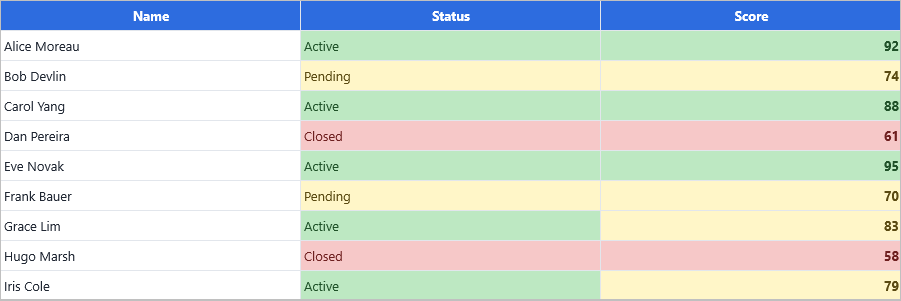
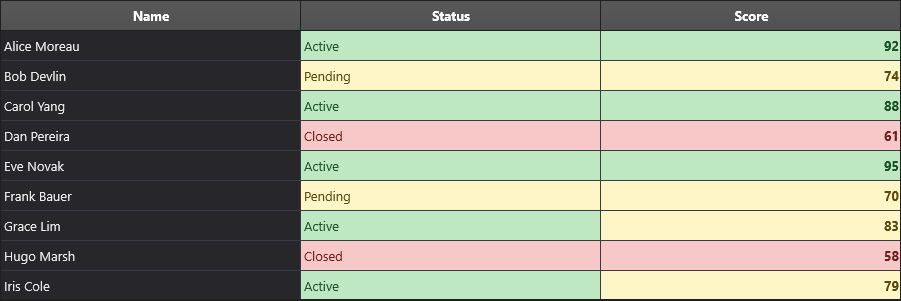
This example renders integers in a "Rating" column as ***** instead of
the literal number. The trick: subclass TTMSFNCDataGridCell, override
DrawText, and tell the grid to instantiate your class for that column via
OnGetCellClass.
Step by step
1. Subclass TTMSFNCDataGridCell
type
  TBadgeCell = class(TTMSFNCDataGridCell)
  protected
    procedure DrawText(AGraphics: TTMSFNCGraphics); override;
    procedure DrawBackground(AGraphics: TTMSFNCGraphics); override;
  end;
class TBadgeCell : public TTMSFNCDataGridCell
{
protected:
  virtual void __fastcall DrawText(TTMSFNCGraphics *AGraphics);
  virtual void __fastcall DrawBackground(TTMSFNCGraphics *AGraphics);
};
Override any combination of: Draw, DrawBackground, DrawCommentIndicator,
DrawContent, DrawControl, DrawFilterButton, DrawSortIndicator,
DrawText — or the top-level Draw method that calls them in order.
2. Wire it up
procedure TForm1.GridGetCellClass(Sender: TObject; AColumn, ARow: Integer;
  var ACellClass: TTMSFNCDataGridCellClass);
begin
  if AColumn = RatingColumn then
    ACellClass := TBadgeCell;
end;
class TBadgeCell : public TTMSFNCDataGridCell
{
};

void __fastcall TForm1::GridGetCellClass(TObject *Sender, int AColumn, int ARow,
  TTMSFNCDataGridCellClass &ACellClass)
{
  if (AColumn == RatingColumn)
    ACellClass = __classid(TBadgeCell);
}
The grid creates a fresh instance of your class for every visible cell on every paint. Keep the class lightweight — no expensive constructors.
3. Use the cell's kind and state
Inside the override, check Self.Kind (TTMSFNCDataGridCellKind: gckCell,
gckFixedRowCell, gckFixedColumnCell, gckFixedRootCell, …) to distinguish
structural cell roles. For selection and focus state, Self.CellState
(TTMSFNCDataGridCellState enum: gcsNormal, gcsFocused, gcsFixed,
gcsFixedSelected, gcsSelected) tells you the current interaction state.
4. Read the cell value
Self.Data.Value holds the underlying TTMSFNCDataGridCellValue. Convert via
the TTMSFNCDataGridData helpers: ValueToString, ValueToInteger,
ValueToFloat, etc.
Combining custom cell rendering with per-class selection and data display
This example registers a custom cell class for one column, draws a colored
badge based on the cell value, and uses OnGetCellLayout for the remaining
columns — showing the two customization layers working side by side:
// Custom cell class: draws a colored priority badge
type
  TPriorityCell = class(TTMSFNCDataGridCell)
  protected
    procedure DrawContent(AGraphics: TTMSFNCGraphics); override;
  end;

procedure TPriorityCell.DrawContent(AGraphics: TTMSFNCGraphics);
var
  Priority: Integer;
  BadgeColor: TAlphaColor;
  ContentRect: TRectF;
begin
  inherited;
  Priority := StrToIntDef(Data.Value.ToString, 0);
  case Priority of
    1: BadgeColor := $FF00AA00;   // green — low
    2: BadgeColor := $FFDDAA00;   // amber — medium
    3: BadgeColor := $FFDD0000;   // red   — high
    else BadgeColor := $FF888888;
  end;
  ContentRect := Rect;
  AGraphics.Fill.Color := BadgeColor;
  AGraphics.DrawEllipse(RectF(ContentRect.Left + 4, ContentRect.Top + 4,
                              ContentRect.Left + 20, ContentRect.Bottom - 4));
end;

// Register the class only for the Priority column (Step by step: OnGetCellClass)
procedure TForm1.GridGetCellClass(Sender: TObject; AColumn, ARow: Integer;
  var ACellClass: TTMSFNCDataGridCellClass);
begin
  if AColumn = PriorityColumn then
    ACellClass := TPriorityCell;
end;

// Light-touch styling for all other columns via OnGetCellLayout
procedure TForm1.GridGetCellLayout(Sender: TObject; ACell: TTMSFNCDataGridCell);
begin
  if (ACell.Row > 0) and (ACell.Column = NameColumn) then
    ACell.Layout.Font.Style := [fsBold];
end;
// Custom cell class: draws a colored priority badge
class TPriorityCell : public TTMSFNCDataGridCell
{
protected:
  virtual void __fastcall DrawContent(TTMSFNCGraphics *AGraphics);
};

void __fastcall TPriorityCell::DrawContent(TTMSFNCGraphics *AGraphics)
{
  TTMSFNCDataGridCell::DrawContent(AGraphics);
  int Priority = StrToIntDef(Data->Value.ToString(), 0);
  TAlphaColor BadgeColor;
  switch (Priority)
  {
    case 1:  BadgeColor = (TAlphaColor)0xFF00AA00; break;   // green - low
    case 2:  BadgeColor = (TAlphaColor)0xFFDDAA00; break;   // amber - medium
    case 3:  BadgeColor = (TAlphaColor)0xFFDD0000; break;   // red   - high
    default: BadgeColor = (TAlphaColor)0xFF888888; break;
  }
  TRectF ContentRect = Rect;
  AGraphics->Fill->Color = BadgeColor;
  AGraphics->DrawEllipse(RectF(ContentRect.Left + 4, ContentRect.Top + 4,
                               ContentRect.Left + 20, ContentRect.Bottom - 4));
}

// Register the class only for the Priority column (Step by step: OnGetCellClass)
void __fastcall TForm1::GridGetCellClass(TObject *Sender, int AColumn, int ARow,
  TTMSFNCDataGridCellClass &ACellClass)
{
  if (AColumn == PriorityColumn)
    ACellClass = __classid(TPriorityCell);
}

// Light-touch styling for all other columns via OnGetCellLayout
void __fastcall TForm1::GridGetCellLayout(TObject *Sender, TTMSFNCDataGridCell *ACell)
{
  if ((ACell->Row > 0) && (ACell->Column == NameColumn))
    ACell->Layout->Font->Style = TFontStyles() << TFontStyle::fsBold;
}
Where to look in the source
The base cell lives in FMX.TMSFNCDataGridCell.pas. The built-in variants
(TTMSFNCDataGridCheckBoxCell, TTMSFNCDataGridRadioButtonCell,
TTMSFNCDataGridProgressBarCell, …) in the same file are good models for
your own subclasses.
Related API
TTMSFNCDataGridCell— base classTTMSFNCDataGrid.OnGetCellClass— pick the class per cell/columnTTMSFNCDataGrid.OnGetCellLayout— light-touch styling without subclassingCell.Draw,DrawBackground,DrawText,DrawControl,DrawContent— overridable methodsCell.Kind— structural role (TTMSFNCDataGridCellKind)Cell.CellState— interaction state (TTMSFNCDataGridCellState)Cell.Data.Value— the cell value (TTMSFNCDataGridCellValue)
See also
- Cell controls — embed live controls instead of owner-drawing.
- Appearance & theming — when colour/font is enough.