Selection
Pick the right selection mode, set selections programmatically, query what the user has selected, and react to selection changes.
Overview
Selection in TTMSFNCDataGrid is governed by Options.Selection.Mode — a single setting that determines whether one cell, one row, a range of cells, multiple disjoint rows, or anything in between is selectable. On top of the mode, RangeType selects between standard range expansion and Excel-style anchored selection.
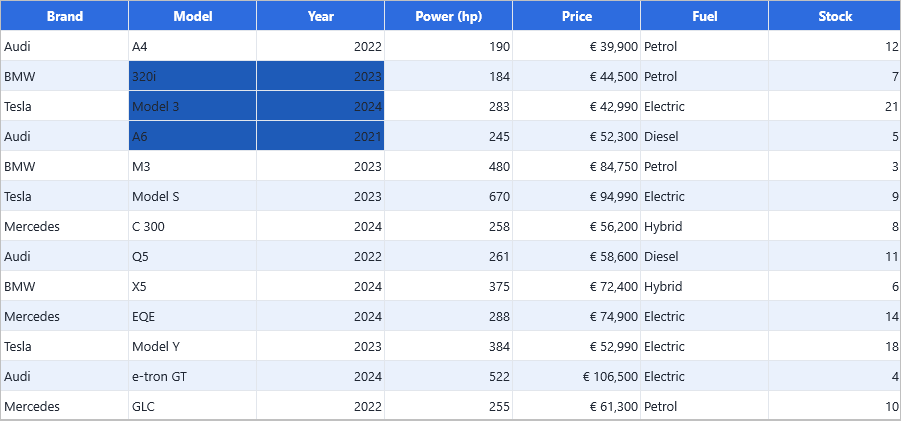
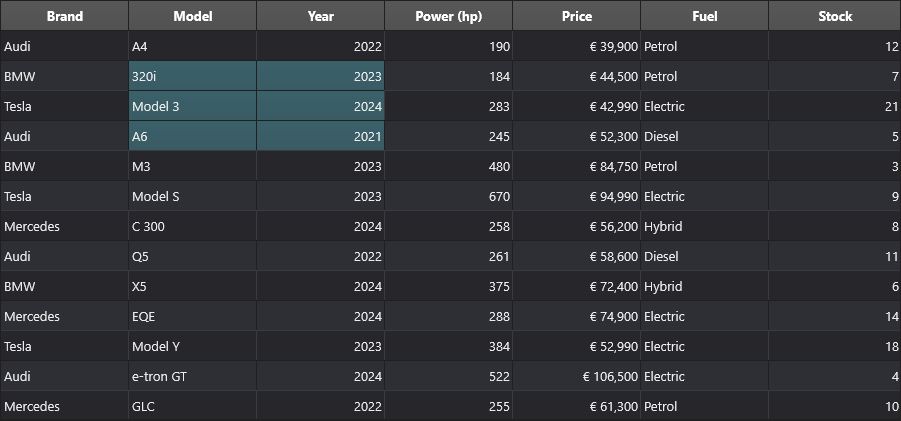
Quick example
Grid.Options.Selection.Mode := gsmCellRange;
Grid.Selection := MakeCellRange(0, 1, 3, 4);   // L=0, T=1, R=3, B=4
Selection modes
| Mode | Behaviour |
|---|---|
gsmNone |
Selection disabled. Other interactions still work. |
gsmSingleCell |
Exactly one cell at a time. |
gsmSingleRow |
One whole row. |
gsmSingleColumn |
One whole column. |
gsmCellRange |
A contiguous rectangle. Shift+Click extends. |
gsmRowRange |
Multiple contiguous rows. |
gsmColumnRange |
Multiple contiguous columns. |
gsmDisjunctRow |
Non-contiguous rows. Ctrl+Click to add. |
gsmDisjunctColumn |
Non-contiguous columns. |
gsmDisjunctCell |
Non-contiguous individual cells. |
gsmDisjunctCellRange |
Disjoint ranges, like Windows Explorer. |
Grid.Options.Selection.Mode := gsmDisjunctRow; // user can Ctrl+Click rows
Programmatic selection
Single cell
Grid.FocusedCell := MakeCell(2, 5);
A rectangular range
Grid.Selection := MakeCellRange(2, 1, 5, 10); // L=2, T=1, R=5, B=10
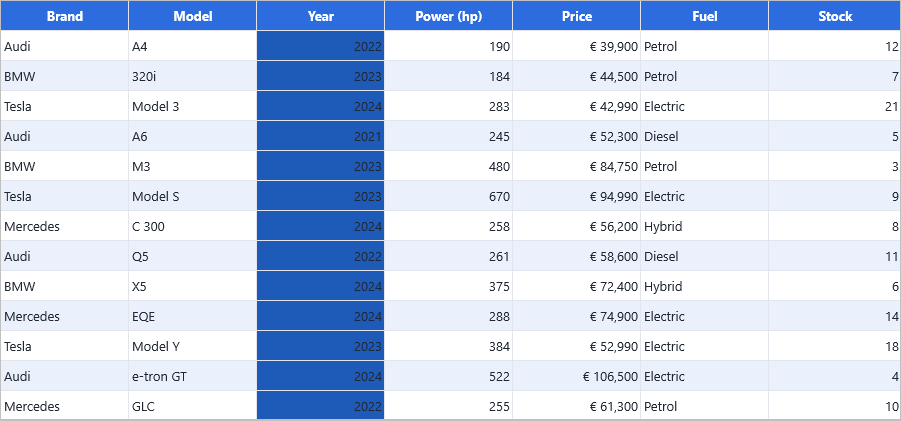
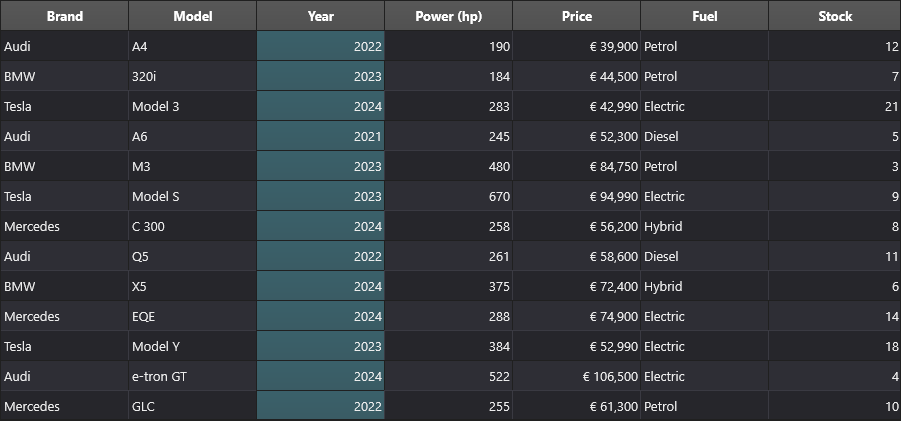
A whole row or column (in matching mode)
Grid.Options.Selection.Mode := gsmSingleRow;
Grid.SelectedRows[5] := True;

Grid.Options.Selection.Mode := gsmSingleColumn;
Grid.SelectedColumns[2] := True;
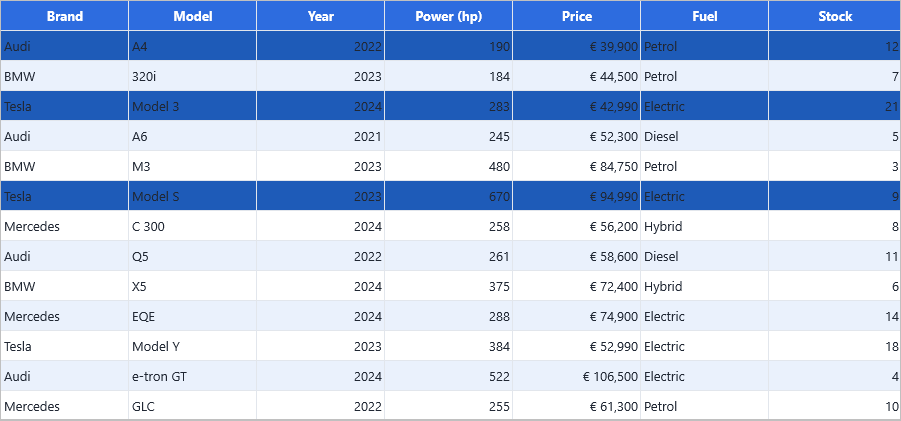
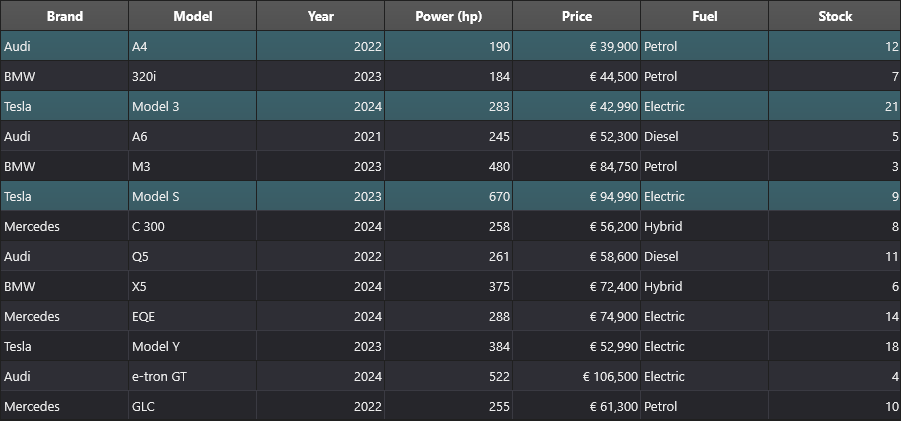
Multiple disjoint rows
Grid.Options.Selection.Mode := gsmDisjunctRow;
Grid.SelectedRows[2] := True;
Grid.SelectedRows[5] := True;
Grid.SelectedRows[8] := True;
Reading the selection
| API | Returns |
|---|---|
Grid.Selection |
Current rectangular range (always set, even in single-cell mode). |
Grid.FocusedCell |
The cell with keyboard focus. |
Grid.SelectedCells[col, row] |
True if (col, row) is part of the selection. |
Grid.SelectedRows[row] |
True if the row is selected. |
Grid.SelectedColumns[col] |
True if the column is selected. |
Grid.SelectedCellCount |
Number of selected cells (any mode). |
Grid.SelectedRowCount |
Number of selected rows. |
Grid.SelectedColumnCount |
Number of selected columns. |
for var i := 0 to Grid.RowCount - 1 do
  if Grid.SelectedRows[i] then
    ProcessRow(i);
Excel-style range selection
Grid.Options.Selection.RangeType := gsrtKeepFocusedCell;
In this mode the grid behaves like Excel — the anchor cell stays put while Shift+Arrow expands the active end of the selection:
| Keys | Behaviour |
|---|---|
| Arrow | Move active cell; resets the anchor. |
| Shift+Arrow | Expand selection one cell from the anchor. |
| Ctrl+Arrow | Jump to the next data boundary; selection unchanged. |
| Ctrl+Shift+Arrow | Expand selection to the next data boundary. |
| Click | Set new anchor. |
| Shift+Click | Expand from anchor to clicked cell. |
Selection on fixed cells
Options.Mouse.FixedCellSelection lets the fixed corner / row / column act as a selection trigger:
| Value | Effect |
|---|---|
gfcsAll |
Top-left fixed cell selects every cell (with gsmCellRange). |
gfcsRow |
Click a fixed-column cell to select its row (with gsmSingleRow). |
gfcsColumn |
Click a fixed-row cell to select its column (with gsmSingleColumn). |
gfcsRowRange / gfcsColumnRange |
Same, but supporting drag-extend with gsmRowRange / gsmColumnRange. |
Fixed-cell selection is automatically suppressed when column-dragging, row-dragging, or sorting is enabled, since they need the click for their own behaviour.
Visual highlight on fixed cells
Set Options.Selection.ShowSelectionInFixedCells := True to highlight the row's fixed cell (and the column's fixed header) for the current selection — a row-number / header glow that follows the selection.
Events
| Event | When it fires |
|---|---|
OnSelectingCell |
Before the selection changes; you can cancel. |
OnSelectCell |
After the selection has moved. |
OnSelectingCells / OnSelectCells |
Range equivalents. |
procedure TForm1.GridSelectCell(Sender: TObject; AColumn, ARow: Integer);
begin
  StatusBar1.SimpleText :=
    Format('Selected (%d, %d)', [AColumn, ARow]);
end;
Clearing selection
Grid.ClearSelection;        // clears every form of selection
Grid.SelectedRows[5] := False;
Grid.Selection := MakeCellRange(-1, -1, -1, -1);
Related API
Grid.Options.Selection.Mode— selection mode (see table above).Grid.Options.Selection.RangeType—gsrtNormalorgsrtKeepFocusedCell(Excel-style).Grid.Options.Selection.ShowSelectionInFixedCells— highlight fixed header.Grid.Options.Mouse.FixedCellSelection— fixed-cell click behaviour.Grid.Selection,Grid.FocusedCellGrid.SelectedCells[col, row],SelectedRows[row],SelectedColumns[col]Grid.SelectedCellCount,SelectedRowCount,SelectedColumnCountGrid.ClearSelectionOnSelectingCell/OnSelectCell
See also
- Cells, columns & coordinates — selection coordinate system.
- Keyboard & mouse — navigation keys also drive selection.
- Clipboard — copy/cut operate on the current selection.