Filtering
Filtering narrows the visible items without removing them from the collection.
The list box offers two complementary mechanisms: an interactive header
filter drop-down the user operates, and a programmatic filter collection
you build from code with one or more conditions combined by logical operators.
Use interactive filtering for ad-hoc exploration of a populated list; use the
filter collection when the application decides what to show (a search box, a
category selector, a saved view). The filtered subset is always available
through FilteredItems.
Interactive header filter
Set Interaction.Filtering.Enabled := True to show a filter button at the
right edge of the header. Clicking it opens a drop-down of unique values;
choosing one filters the list, and the (All) entry clears it. DropDownWidth
and DropDownHeight size the drop-down panel.
Enabling interactive filtering takes one property; the
OnNeedFilterDropDownData handler supplies the values shown in the drop-down
(omit it to let the control derive them from the item text):
procedure TForm1.EnableInteractiveFilter;
begin
  // Shows a filter button at the right of the header. The user picks a value
  // from the drop-down to filter the list; '(All)' clears the filter.
  ListBox1.Interaction.Filtering.Enabled := True;
  ListBox1.Interaction.Filtering.DropDownWidth := 160;
  ListBox1.Interaction.Filtering.DropDownHeight := 200;
end;

// Supply the values shown in the header filter drop-down.
procedure TForm1.ListBox1NeedFilterDropDownData(Sender: TObject;
  AValues: TStrings);
begin
  AValues.Add('Belgium');
  AValues.Add('France');
  AValues.Add('Germany');
end;
void __fastcall TForm1::EnableInteractiveFilter()
{
  // Shows a filter button at the right of the header. The user picks a value
  // from the drop-down to filter the list; '(All)' clears the filter.
  ListBox1->Interaction->Filtering->Enabled = true;
  ListBox1->Interaction->Filtering->DropDownWidth = 160;
  ListBox1->Interaction->Filtering->DropDownHeight = 200;
}

// Supply the values shown in the header filter drop-down.
void __fastcall TForm1::ListBox1NeedFilterDropDownData(TObject *Sender,
  TStrings *AValues)
{
  AValues->Add("Belgium");
  AValues->Add("France");
  AValues->Add("Germany");
}
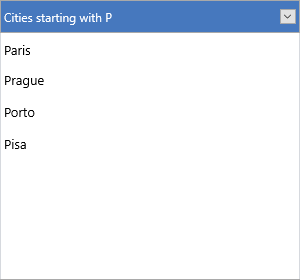
The capture below shows the filtered list after a value has been chosen — only the matching subset remains visible:

Programmatic filter collection
Filter is a collection of TTMSFNCListBoxFilterData rules. Each rule has a
Condition (supporting * wildcards), a CaseSensitive flag, optional
Prefix/Suffix applied before matching, and an Operation that combines it
with the other rules. Build the collection, then call ApplyFilter;
RemoveFilters clears every rule:
procedure TForm1.ApplyContainsP;
var
  Rule: TTMSFNCListBoxFilterData;
begin
  // Build the filter collection, then apply it.
  ListBox1.Filter.Clear;
  Rule := ListBox1.Filter.Add;
  Rule.Condition := '*P*';          // wildcard match
  Rule.CaseSensitive := False;
  ListBox1.ApplyFilter;
end;

procedure TForm1.ApplyTwoConditions;
var
  Rule: TTMSFNCListBoxFilterData;
begin
  ListBox1.Filter.Clear;

  Rule := ListBox1.Filter.Add;
  Rule.Condition := 'A*';
  Rule.CaseSensitive := False;

  Rule := ListBox1.Filter.Add;
  Rule.Condition := 'B*';
  Rule.CaseSensitive := False;
  Rule.Operation := lfoOR;          // item passes when it matches A* OR B*

  ListBox1.ApplyFilter;
end;

procedure TForm1.ClearAllFilters;
begin
  ListBox1.RemoveFilters;
end;
void __fastcall TForm1::ApplyContainsP()
{
  // Build the filter collection, then apply it.
  ListBox1->Filter->Clear();
  TTMSFNCListBoxFilterData *Rule = ListBox1->Filter->Add();
  Rule->Condition = "*P*";          // wildcard match
  Rule->CaseSensitive = false;
  ListBox1->ApplyFilter();
}

void __fastcall TForm1::ApplyTwoConditions()
{
  ListBox1->Filter->Clear();

  TTMSFNCListBoxFilterData *Rule = ListBox1->Filter->Add();
  Rule->Condition = "A*";
  Rule->CaseSensitive = false;

  Rule = ListBox1->Filter->Add();
  Rule->Condition = "B*";
  Rule->CaseSensitive = false;
  Rule->Operation = lfoOR;          // item passes when it matches A* OR B*

  ListBox1->ApplyFilter();
}

void __fastcall TForm1::ClearAllFilters()
{
  ListBox1->RemoveFilters();
}
Combining conditions
| Value | Description |
|---|---|
lfoSHORT |
Stop at the first matching condition |
lfoNONE |
Ignore this condition |
lfoAND |
Item passes only when it also satisfies the previous conditions |
lfoOR |
Item passes when it satisfies this or any previous condition |
lfoXOR |
Item passes when it satisfies exactly one of the conditions |
Reading the visible subset
After a filter is applied, FilteredItems returns the array of items currently
visible, and OnFilterSelect fires when the user picks a value in the
drop-down (you can adjust the chosen condition there):
{ Inside a method of your form: }
var
  I: Integer;
begin
  for I := 0 to High(ListBox1.FilteredItems) do
    Memo1.Lines.Add(ListBox1.FilteredItems[I].Text);
end;
Putting it together
Interactive and programmatic filtering coexist: keep the header drop-down
enabled while applying a programmatic rule, then read FilteredItems to act on
what remains visible:
procedure TForm1.ApplyCombinedFilter;
var
  Rule: TTMSFNCListBoxFilterData;
  I: Integer;
begin
  // Interactive drop-down stays available...
  ListBox1.Interaction.Filtering.Enabled := True;

  // ...while a programmatic rule narrows the list immediately.
  ListBox1.Filter.Clear;
  Rule := ListBox1.Filter.Add;
  Rule.Condition := 'A*';
  Rule.CaseSensitive := False;
  ListBox1.ApplyFilter;

  // Read back what remains visible after filtering.
  Memo1.Lines.Clear;
  for I := 0 to High(ListBox1.FilteredItems) do
    Memo1.Lines.Add(ListBox1.FilteredItems[I].Text);
end;
void __fastcall TForm1::ApplyCombinedFilter()
{
  // Interactive drop-down stays available...
  ListBox1->Interaction->Filtering->Enabled = true;

  // ...while a programmatic rule narrows the list immediately.
  ListBox1->Filter->Clear();
  TTMSFNCListBoxFilterData *Rule = ListBox1->Filter->Add();
  Rule->Condition = "A*";
  Rule->CaseSensitive = false;
  ListBox1->ApplyFilter();

  // Read back what remains visible after filtering.
  Memo1->Lines->Clear();
  for (int I = 0; I < ListBox1->FilteredItems.Length; I++)
    Memo1->Lines->Add(ListBox1->FilteredItems[I]->Text);
}
Pitfalls
RemoveFilterremoves the active filter;RemoveFilters(plural) clears the entireFiltercollection. CallRemoveFiltersafter building rules withFilter.Addto start clean.- Conditions use shell-style
*wildcards, not SQL%. - Adding rules to
Filterdoes nothing until you callApplyFilter.
Related API
TTMSFNCListBox—Interaction.Filtering,Filter,ApplyFilter,RemoveFilter,RemoveFilters,FilteredItems,OnNeedFilterDropDownData,OnFilterSelect
See also
- Interaction — sorting and selection alongside filtering
- Events —
OnNeedFilterDropDownDataandOnFilterSelectwiring