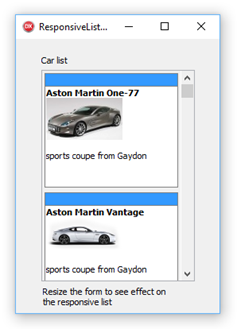
Getting Started with TMS FNC Responsive List
Use TTMSFNCResponsiveList when items should rearrange themselves as the available width or height changes. A responsive list combines item data with one or more layout conditions that decide how many rows or columns to use.
Create a Responsive List
- Drop a
TTMSFNCResponsiveListon the form. - Add one or more
Conditionsfor the width ranges you want to support. - Add
Itemsand set the item text, header, footer, and template values.
procedure TForm1.ConfigureResponsiveList;
var
  Condition: TResponsiveCondition;
  Item: TResponsiveListItem;
begin
  TMSFNCResponsiveList1.Conditions.Clear;

  Condition := TMSFNCResponsiveList1.Conditions.Add;
  Condition.WidthFrom := 0;
  Condition.WidthTo := 320;
  Condition.Columns := 1;
  Condition.ItemHeight := 140;

  Condition := TMSFNCResponsiveList1.Conditions.Add;
  Condition.WidthFrom := 321;
  Condition.WidthTo := -1;
  Condition.Columns := 3;
  Condition.ItemHeight := 140;

  TMSFNCResponsiveList1.Items.Clear;

  Item := TMSFNCResponsiveList1.Items.Add;
  Item.HeaderText := 'Support';
  Item.Content := '<b>Open tickets</b><br>12 items need review';
  Item.FooterText := 'Updated today';

  Item := TMSFNCResponsiveList1.Items.Add;
  Item.HeaderText := 'Sales';
  Item.Content := '<b>Pipeline</b><br>4 opportunities closing';
  Item.FooterText := 'This week';
end;
void __fastcall TForm1::ConfigureResponsiveList()
{
  TResponsiveCondition *Condition;
  TResponsiveListItem *Item;

  TMSFNCResponsiveList1->Conditions->Clear();

  Condition = TMSFNCResponsiveList1->Conditions->Add();
  Condition->WidthFrom = 0;
  Condition->WidthTo = 320;
  Condition->Columns = 1;
  Condition->ItemHeight = 140;

  Condition = TMSFNCResponsiveList1->Conditions->Add();
  Condition->WidthFrom = 321;
  Condition->WidthTo = -1;
  Condition->Columns = 3;
  Condition->ItemHeight = 140;

  TMSFNCResponsiveList1->Items->Clear();

  Item = TMSFNCResponsiveList1->Items->Add();
  Item->HeaderText = "Support";
  Item->Content = "<b>Open tickets</b><br>12 items need review";
  Item->FooterText = "Updated today";

  Item = TMSFNCResponsiveList1->Items->Add();
  Item->HeaderText = "Sales";
  Item->Content = "<b>Pipeline</b><br>4 opportunities closing";
  Item->FooterText = "This week";
}