Shortcut Hints
Pressing ALT or F10 activates the shortcut hint system, overlaying each control with its assigned keyboard shortcut. This lets users navigate and execute ribbon actions without touching the mouse — the same pattern used in Microsoft Office.
How it works
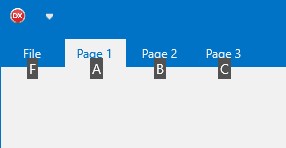
- ALT or F10 pressed — hint badges appear on pages and the file button.
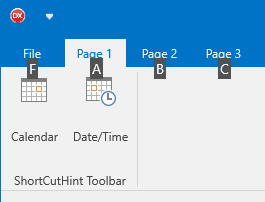
- User types the page hint — that page is selected; hint badges now appear on toolbars.
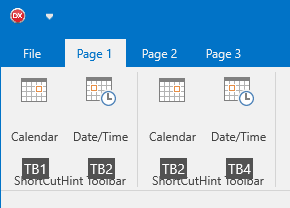
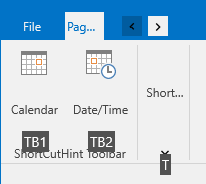
- User types the toolbar or button hint — the toolbar drops down (if compact) or the button action fires.
Assigning hints
Set ShortCutHint on pages, toolbars, and buttons:
// Shortcut hints — ALT/F10 keyboard navigation
procedure TForm1.FormCreate(Sender: TObject);
var
  tb: TTMSFNCRibbonToolBar;
  btn: TTMSFNCRibbonToolBarButton;
begin
  // Assign single-character hints to pages
  TMSFNCRibbon1.PageControl.Pages[0].ShortCutHint := 'H';
  TMSFNCRibbon1.PageControl.Pages[1].ShortCutHint := 'N';
  TMSFNCRibbon1.PageControl.Pages[2].ShortCutHint := 'V';

  // Add a toolbar with a group-level hint and per-button hints
  tb := TMSFNCRibbon1.PageControl.PageContainers[0].AddToolBar('Actions');
  tb.ShortCutHint := 'T';   // shown when the tab is active

  btn := tb.AddButton;
  btn.Text := 'New';
  btn.ShortCutHint := 'N1';

  btn := tb.AddButton;
  btn.Text := 'Open';
  btn.ShortCutHint := 'O1';

  btn := tb.AddButton;
  btn.Text := 'Save';
  btn.ShortCutHint := 'S1';
end;

// Press ALT → page hints shown → press H → tab selected → toolbar hints shown
// → press T (compact) or N1/O1/S1 (button direct).
// Shortcut hints - ALT/F10 keyboard navigation
void __fastcall TForm1::FormCreate(TObject *Sender)
{
  // Assign single-character hints to pages
  TMSFNCRibbon1->PageControl->Pages->Pages[0]->ShortCutHint = "H";
  TMSFNCRibbon1->PageControl->Pages->Pages[1]->ShortCutHint = "N";
  TMSFNCRibbon1->PageControl->Pages->Pages[2]->ShortCutHint = "V";

  // Add a toolbar with a group-level hint and per-button hints
  TTMSFNCRibbonToolBar *tb = TMSFNCRibbon1->PageControl->PageContainers[0]->AddToolBar("Actions");
  tb->ShortCutHint = "T";   // shown when the tab is active

  TTMSFNCRibbonToolBarButton *btn = tb->AddButton();
  btn->Text = "New";
  btn->ShortCutHint = "N1";

  btn = tb->AddButton();
  btn->Text = "Open";
  btn->ShortCutHint = "O1";

  btn = tb->AddButton();
  btn->Text = "Save";
  btn->ShortCutHint = "S1";
}

// Press ALT -> page hints shown -> press H -> tab selected -> toolbar hints shown
// -> press T (compact) or N1/O1/S1 (button direct).
Hint strings
- Single character — straightforward navigation:
'H','N','V'. - Multi-character — allows more buttons than letters:
'TB1','TB2'. - Hints are case-insensitive.
Note
The file button has the default shortcut hint 'F'. Assign hints to other controls without conflicting with it, or override the file button hint via its ShortCutHint property.
Toolbar-level hints
When a toolbar is compacted, its ShortCutHint is shown instead of the individual button hints. Typing the toolbar hint opens the compact dropdown, then button hints are shown inside.
Combining page hints, toolbar hints, and keyboard navigation
Assign page hints, toolbar hints, and button hints in one setup block so the full hint navigation chain is consistent:
procedure TForm1.FormCreate(Sender: TObject);
var
  tb: TTMSFNCRibbonToolBar;
  btn: TTMSFNCRibbonToolBarButton;
begin
  // Page-level hints (ALT shows these first)
  TMSFNCRibbon1.PageControl.Pages[0].ShortCutHint := 'H';   // Home
  TMSFNCRibbon1.PageControl.Pages[1].ShortCutHint := 'N';   // Insert
  TMSFNCRibbon1.PageControl.Pages[2].ShortCutHint := 'P';   // Page Layout

  // Toolbar-level hint — shown when that page is active
  tb := TMSFNCRibbon1.PageControl.PageContainers[0].ToolBars[0];
  tb.ShortCutHint := 'C';   // Clipboard toolbar

  // Button hints within that toolbar
  btn := tb.Buttons[0] as TTMSFNCRibbonToolBarButton;
  btn.ShortCutHint := 'X';  // Cut
  (tb.Buttons[1] as TTMSFNCRibbonToolBarButton).ShortCutHint := 'C2'; // Copy
  (tb.Buttons[2] as TTMSFNCRibbonToolBarButton).ShortCutHint := 'V';  // Paste
end;
void __fastcall TForm1::FormCreate(TObject *Sender)
{
  // Page-level hints (ALT shows these first)
  TMSFNCRibbon1->PageControl->Pages->Pages[0]->ShortCutHint = "H";   // Home
  TMSFNCRibbon1->PageControl->Pages->Pages[1]->ShortCutHint = "N";   // Insert
  TMSFNCRibbon1->PageControl->Pages->Pages[2]->ShortCutHint = "P";   // Page Layout

  // Toolbar-level hint - shown when that page is active
  TTMSFNCRibbonToolBar *tb = TMSFNCRibbon1->PageControl->PageContainers[0]->ToolBars[0];
  tb->ShortCutHint = "C";   // Clipboard toolbar

  // Button hints within that toolbar
  TTMSFNCRibbonToolBarButton *btn = dynamic_cast<TTMSFNCRibbonToolBarButton*>(tb->Controls->Items[0]);
  btn->ShortCutHint = "X";  // Cut
  dynamic_cast<TTMSFNCRibbonToolBarButton*>(tb->Controls->Items[1])->ShortCutHint = "C2"; // Copy
  dynamic_cast<TTMSFNCRibbonToolBarButton*>(tb->Controls->Items[2])->ShortCutHint = "V";  // Paste
}