Toolbar Layout and Responsive Resizing
TTMSFNCRibbonToolBar is the main content area within each ribbon page. It hosts buttons and other controls and automatically compacts itself as the form width decreases.
Adding toolbars
Add a toolbar to a page container at design time (right-click → Add Toolbar) or in code:
tb := TMSFNCRibbon1.PageControl.PageContainers[0].AddToolBar('Clipboard');
tb = TMSFNCRibbon1->PageControl->PageContainers[0]->AddToolBar("Clipboard");
Add controls to the toolbar using the Add* methods inherited from TTMSFNCToolBar:
btn := tb.AddButton;
tb.AddSeparator;
tb.AddFontNamePicker;
tb.AddFontSizePicker;
tb.AddColorPicker;
tb.AddBitmapPicker;
tb.AddItemPicker;
btn = tb->AddButton();
tb->AddSeparator();
tb->AddFontNamePicker();
tb->AddFontSizePicker();
tb->AddColorPicker();
tb->AddBitmapPicker();
tb->AddItemPicker();
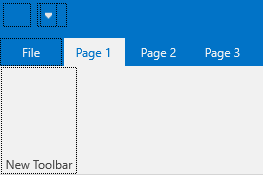
Page containers
Toolbars are never children of the ribbon or of a tab: each ribbon page owns a container panel, and that panel is what hosts the page's toolbars and renders the collapse/expand affordance. Go through the container whenever you need to add, count, or restyle the toolbars of a page you did not create at design time - for example when the tab set is built from a permission list at start-up.
PageControl.PageContainers[I] is the indexed route to the container of page
I; PageControl.Pages[I].Container reaches the same object from a page you
already hold. Each container exposes AddToolBar, ToolBars[], ToolBarCount,
and CollapseButtonHint.
procedure TForm1.FormCreate(Sender: TObject);
var
  I: Integer;
  cnt: TTMSFNCRibbonPageControlContainer;
  tb: TTMSFNCRibbonToolBar;
begin
  TMSFNCRibbon1.BeginUpdate;
  try
    TMSFNCRibbon1.PageControl.AddPage('Home');
    TMSFNCRibbon1.PageControl.AddPage('Insert');

    // There is no PageContainerCount: the number of containers is the number
    // of pages, so drive the loop from Pages.Count.
    for I := 0 to TMSFNCRibbon1.PageControl.Pages.Count - 1 do
    begin
      // PageContainers returns nil for an out-of-range index instead of
      // raising, so always test the result before using it.
      cnt := TMSFNCRibbon1.PageControl.PageContainers[I];
      if cnt = nil then
        Continue;

      cnt.CollapseButtonHint := 'Collapse the ribbon';

      if cnt.ToolBarCount = 0 then
      begin
        tb := cnt.AddToolBar('Clipboard');
        tb.AddButton.Text := 'Paste';
      end;
    end;
  finally
    TMSFNCRibbon1.EndUpdate;
  end;
end;
void __fastcall TForm1::FormCreate(TObject *Sender)
{
  TMSFNCRibbon1->BeginUpdate();
  try
  {
    TMSFNCRibbon1->PageControl->AddPage("Home");
    TMSFNCRibbon1->PageControl->AddPage("Insert");

    // There is no PageContainerCount: the number of containers is the number
    // of pages, so drive the loop from Pages.Count.
    for (int I = 0; I < TMSFNCRibbon1->PageControl->Pages->Count; I++)
    {
      // PageContainers returns nullptr for an out-of-range index instead of
      // raising, so always test the result before using it.
      TTMSFNCRibbonPageControlContainer *cnt = TMSFNCRibbon1->PageControl->PageContainers[I];
      if (cnt == nullptr)
        continue;

      cnt->CollapseButtonHint = "Collapse the ribbon";

      if (cnt->ToolBarCount == 0)
      {
        TTMSFNCRibbonToolBar *tb = cnt->AddToolBar("Clipboard");
        tb->AddButton()->Text = "Paste";
      }
    }
  }
  __finally
  {
    TMSFNCRibbon1->EndUpdate();
  }
}
Pitfalls
PageContainersreturnsnilfor an out-of-range index rather than raising, so a loop that runs past the last page fails silently unless you test the result. There is noPageContainerCount- the count isPages.Count.- A container only exists once its page does. Adding a page and immediately
indexing
PageContainersworks, but indexing beforeAddPagereturnsnil. AddToolBarappends by default; pass an explicit index as the second argument to insert a toolbar between existing ones.- Wrap a bulk build in
BeginUpdate/EndUpdateon the ribbon. EveryAddToolBarotherwise triggers a layout pass, which is what makes a code-built ribbon visibly flicker on start-up.
Button layout modes
TTMSFNCRibbonToolBarButton.Layout selects one of four presentation styles:
| Value | Appearance |
|---|---|
bblNone |
Default — the button adapts to the available space. |
bblLarge |
Tall button with the bitmap stacked above the text label. Uses LargeLayoutBitmaps if available. |
bblLabel |
Compact button with the bitmap to the left of the text. |
bblBitmap |
Bitmap only — no visible text. |

Responsive resizing
By default each toolbar has two states: full layout and compact layout. As the form shrinks, the rightmost toolbar collapses to compact first, then the next, and so on.
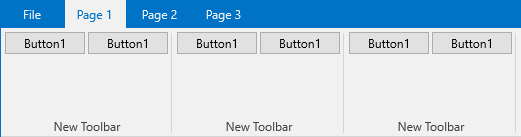
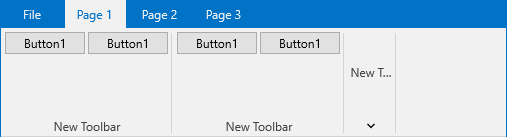
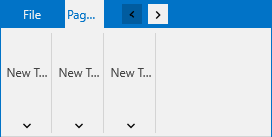
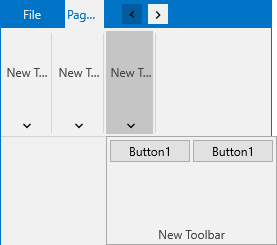
When a toolbar is in compact mode, clicking it opens a dropdown showing the full layout:
Intermediate layout steps
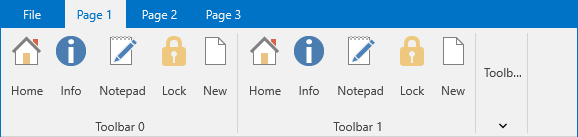
When buttons have bblLarge layout, the toolbar can resize through intermediate steps before going compact:
- bblLarge → bblLabel → bblBitmap → compact


Constraining layout resizing
Use MinimumLayout and MaximumLayout to lock individual buttons at a specific step:
// Configure button layouts with MinimumLayout/MaximumLayout constraints
procedure TForm1.FormCreate(Sender: TObject);
var
  tb: TTMSFNCRibbonToolBar;
  btn: TTMSFNCRibbonToolBarButton;
  I: Integer;
begin
  for I := 0 to 2 do
  begin
    tb := TMSFNCRibbon1.PageControl.PageContainers[0].AddToolBar('Toolbar ' + IntToStr(I));

    // This button stays large — never shrinks below bblLarge
    btn := tb.AddButton;
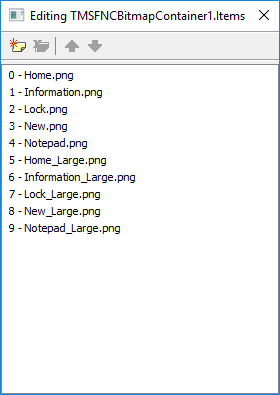
    btn.BitmapContainer := TMSFNCBitmapContainer1;
    btn.Layout := bblLarge;
    btn.MinimumLayout := bblLarge;
    btn.Bitmaps.AddBitmapName('Home.png');
    btn.LargeLayoutBitmaps.AddBitmapName('Home_Large.png');
    btn.Text := 'Home';

    // This button starts at label layout and goes no larger
    btn := tb.AddButton;
    btn.BitmapContainer := TMSFNCBitmapContainer1;
    btn.Layout := bblLabel;
    btn.MaximumLayout := bblLabel;
    btn.Bitmaps.AddBitmapName('Notepad.png');
    btn.LargeLayoutBitmaps.AddBitmapName('Notepad_Large.png');
    btn.Text := 'Notepad';
  end;

  // Prevent a specific toolbar from ever going into compact mode
  // tb.CanCompact := False;
end;
// Configure button layouts with MinimumLayout/MaximumLayout constraints
void __fastcall TForm1::FormCreate(TObject *Sender)
{
  for (int I = 0; I < 3; I++)
  {
    TTMSFNCRibbonToolBar *tb = TMSFNCRibbon1->PageControl->PageContainers[0]->AddToolBar("Toolbar " + IntToStr(I));

    // This button stays large - never shrinks below bblLarge
    TTMSFNCRibbonToolBarButton *btn = tb->AddButton();
    btn->BitmapContainer = TMSFNCBitmapContainer1;
    btn->Layout = bblLarge;
    btn->MinimumLayout = bblLarge;
    btn->Bitmaps->AddBitmapName("Home.png");
    btn->LargeLayoutBitmaps->AddBitmapName("Home_Large.png");
    btn->Text = "Home";

    // This button starts at label layout and goes no larger
    btn = tb->AddButton();
    btn->BitmapContainer = TMSFNCBitmapContainer1;
    btn->Layout = bblLabel;
    btn->MaximumLayout = bblLabel;
    btn->Bitmaps->AddBitmapName("Notepad.png");
    btn->LargeLayoutBitmaps->AddBitmapName("Notepad_Large.png");
    btn->Text = "Notepad";
  }

  // Prevent a specific toolbar from ever going into compact mode
  // tb->CanCompact = false;
}

| Property | Description |
|---|---|
Layout |
Current display mode. |
MinimumLayout |
The smallest layout the button will shrink to. |
MaximumLayout |
The largest layout the button will grow to. |
CompactLayout |
Layout used when the toolbar is displayed from its compact dropdown. Default matches MaximumLayout. |
CanCompact |
Set to False on TTMSFNCRibbonToolBar to prevent that toolbar from ever entering compact mode. |
Large bitmaps
When Layout = bblLarge, the component switches to LargeLayoutBitmaps if available, falling back to the standard Bitmaps collection otherwise:
btn.BitmapContainer := TMSFNCBitmapContainer1;
btn.Layout := bblLarge;
btn.Bitmaps.AddBitmapName('Cut.png');         // used in label/bitmap/compact
btn.LargeLayoutBitmaps.AddBitmapName('Cut_Large.png'); // used in bblLarge
btn->BitmapContainer = TMSFNCBitmapContainer1;
btn->Layout = bblLarge;
btn->Bitmaps->AddBitmapName("Cut.png");                  // used in label/bitmap/compact
btn->LargeLayoutBitmaps->AddBitmapName("Cut_Large.png"); // used in bblLarge
Combining toolbars, button layout modes, and responsive resizing
Add two toolbars to the first page, mix large and label layout buttons, constrain how far each button shrinks, and prevent one toolbar from ever entering compact mode:
procedure TForm1.FormCreate(Sender: TObject);
var
  tbClip, tbFont: TTMSFNCRibbonToolBar;
  btnCut, btnPaste, btnFont: TTMSFNCRibbonToolBarButton;
begin
  tbClip := TMSFNCRibbon1.PageControl.PageContainers[0].AddToolBar('Clipboard');
  tbFont := TMSFNCRibbon1.PageControl.PageContainers[0].AddToolBar('Font');

  // Clipboard: large paste, compact cut
  btnPaste := tbClip.AddButton;
  btnPaste.Text   := 'Paste';
  btnPaste.Layout := bblLarge;
  btnPaste.MinimumLayout := bblLabel;   // stops shrinking at label, never bitmap-only

  btnCut := tbClip.AddButton;
  btnCut.Text   := 'Cut';
  btnCut.Layout := bblLabel;
  btnCut.MinimumLayout := bblBitmap;

  // Font toolbar never collapses to compact
  tbFont.CanCompact := False;
  btnFont := tbFont.AddButton;
  btnFont.Text   := 'Bold';
  btnFont.Layout := bblLabel;

  // Large bitmaps for the paste button in bblLarge state
  btnPaste.BitmapContainer := TMSFNCBitmapContainer1;
  btnPaste.Bitmaps.AddBitmapName('paste_small');
  btnPaste.LargeLayoutBitmaps.AddBitmapName('paste_large');
end;
void __fastcall TForm1::FormCreate(TObject *Sender)
{
  TTMSFNCRibbonToolBar *tbClip = TMSFNCRibbon1->PageControl->PageContainers[0]->AddToolBar("Clipboard");
  TTMSFNCRibbonToolBar *tbFont = TMSFNCRibbon1->PageControl->PageContainers[0]->AddToolBar("Font");

  // Clipboard: large paste, compact cut
  TTMSFNCRibbonToolBarButton *btnPaste = tbClip->AddButton();
  btnPaste->Text = "Paste";
  btnPaste->Layout = bblLarge;
  btnPaste->MinimumLayout = bblLabel;   // stops shrinking at label, never bitmap-only

  TTMSFNCRibbonToolBarButton *btnCut = tbClip->AddButton();
  btnCut->Text = "Cut";
  btnCut->Layout = bblLabel;
  btnCut->MinimumLayout = bblBitmap;

  // Font toolbar never collapses to compact
  tbFont->CanCompact = false;
  TTMSFNCRibbonToolBarButton *btnFont = tbFont->AddButton();
  btnFont->Text = "Bold";
  btnFont->Layout = bblLabel;

  // Large bitmaps for the paste button in bblLarge state
  btnPaste->BitmapContainer = TMSFNCBitmapContainer1;
  btnPaste->Bitmaps->AddBitmapName("paste_small");
  btnPaste->LargeLayoutBitmaps->AddBitmapName("paste_large");
}
Full ribbon: theme, QAT, groups, and shortcut hints together
The combination above wires toolbars and layout. The end-to-end snippet adds theming, the QAT, page-level groups, and shortcut-hint generation so you can see how the ribbon-wide options interact:
// Combined: theme, pages, toolbars with layout constraints,
// QAT, groups, and shortcut hints.
procedure TForm1.FormCreate(Sender: TObject);
var
  tb: TTMSFNCRibbonToolBar;
  btn: TTMSFNCRibbonToolBarButton;
  g: TTMSFNCRibbonGroup;
begin
  // Theme first so all subsequent additions inherit it
  TMSFNCRibbon1.Theme := rbtLightBlue;
  TMSFNCRibbon1.BitmapContainer := TMSFNCBitmapContainer1;

  // QAT below the ribbon to free space for groups
  TMSFNCRibbon1.QATMode := rqmBelowRibbon;
  TMSFNCRibbon1.QAT.AddButton.BitmapContainer := TMSFNCBitmapContainer1;

  // Pages
  TMSFNCRibbon1.PageControl.Pages.Clear;
  TMSFNCRibbon1.PageControl.AddPage('Home');
  TMSFNCRibbon1.PageControl.AddPage('Insert');
  TMSFNCRibbon1.PageControl.AddPage('Format');

  // Page shortcut hints
  TMSFNCRibbon1.PageControl.Pages[0].ShortCutHint := 'H';
  TMSFNCRibbon1.PageControl.Pages[1].ShortCutHint := 'I';
  TMSFNCRibbon1.PageControl.Pages[2].ShortCutHint := 'F';

  // Home toolbar — Clipboard group
  tb := TMSFNCRibbon1.PageControl.PageContainers[0].AddToolBar('Clipboard');
  tb.ShortCutHint := 'C';

  btn := tb.AddButton;
  btn.Layout := bblLarge;
  btn.MinimumLayout := bblLarge;
  btn.Text := 'Paste';
  btn.BitmapContainer := TMSFNCBitmapContainer1;
  btn.LargeLayoutBitmaps.AddBitmapName('Paste_Large.png');
  btn.ShortCutHint := 'V';

  btn := tb.AddButton;
  btn.Layout := bblLabel;
  btn.MaximumLayout := bblLabel;
  btn.Text := 'Cut';
  btn.BitmapContainer := TMSFNCBitmapContainer1;
  btn.Bitmaps.AddBitmapName('Cut.png');
  btn.ShortCutHint := 'X';

  btn := tb.AddButton;
  btn.Layout := bblLabel;
  btn.MaximumLayout := bblLabel;
  btn.Text := 'Copy';
  btn.BitmapContainer := TMSFNCBitmapContainer1;
  btn.Bitmaps.AddBitmapName('Copy.png');
  btn.ShortCutHint := 'C2';

  // Contextual group spanning Insert and Format tabs
  g := TMSFNCRibbon1.Groups.Add;
  g.Text := '<b>Table Tools</b>';
  g.StartPageIndex := 1;
  g.EndPageIndex := 2;
end;
// Combined: theme, pages, toolbars with layout constraints,
// QAT, groups, and shortcut hints.
void __fastcall TForm1::FormCreate(TObject *Sender)
{
  // Theme first so all subsequent additions inherit it
  TMSFNCRibbon1->Theme = rbtLightBlue;
  TMSFNCRibbon1->BitmapContainer = TMSFNCBitmapContainer1;

  // QAT below the ribbon to free space for groups
  TMSFNCRibbon1->QATMode = rqmBelowRibbon;
  TMSFNCRibbon1->QAT->AddButton()->BitmapContainer = TMSFNCBitmapContainer1;

  // Pages
  TMSFNCRibbon1->PageControl->Pages->Clear();
  TMSFNCRibbon1->PageControl->AddPage("Home");
  TMSFNCRibbon1->PageControl->AddPage("Insert");
  TMSFNCRibbon1->PageControl->AddPage("Format");

  // Page shortcut hints
  TMSFNCRibbon1->PageControl->Pages->Pages[0]->ShortCutHint = "H";
  TMSFNCRibbon1->PageControl->Pages->Pages[1]->ShortCutHint = "I";
  TMSFNCRibbon1->PageControl->Pages->Pages[2]->ShortCutHint = "F";

  // Home toolbar - Clipboard group
  TTMSFNCRibbonToolBar *tb = TMSFNCRibbon1->PageControl->PageContainers[0]->AddToolBar("Clipboard");
  tb->ShortCutHint = "C";

  TTMSFNCRibbonToolBarButton *btn = tb->AddButton();
  btn->Layout = bblLarge;
  btn->MinimumLayout = bblLarge;
  btn->Text = "Paste";
  btn->BitmapContainer = TMSFNCBitmapContainer1;
  btn->LargeLayoutBitmaps->AddBitmapName("Paste_Large.png");
  btn->ShortCutHint = "V";

  btn = tb->AddButton();
  btn->Layout = bblLabel;
  btn->MaximumLayout = bblLabel;
  btn->Text = "Cut";
  btn->BitmapContainer = TMSFNCBitmapContainer1;
  btn->Bitmaps->AddBitmapName("Cut.png");
  btn->ShortCutHint = "X";

  btn = tb->AddButton();
  btn->Layout = bblLabel;
  btn->MaximumLayout = bblLabel;
  btn->Text = "Copy";
  btn->BitmapContainer = TMSFNCBitmapContainer1;
  btn->Bitmaps->AddBitmapName("Copy.png");
  btn->ShortCutHint = "C2";

  // Contextual group spanning Insert and Format tabs
  TTMSFNCRibbonGroup *g = TMSFNCRibbon1->Groups->Add();
  g->Text = "<b>Table Tools</b>";
  g->StartPageIndex = 1;
  g->EndPageIndex = 2;
}