Horizontal ruler
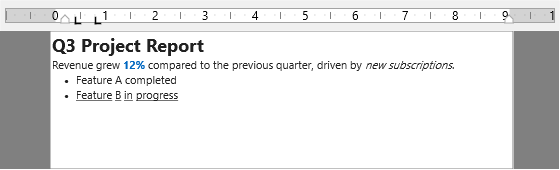
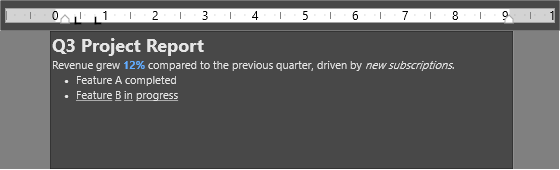
TTMSFNCRichEditorHorizontalRuler adds document-style page margins, paragraph indents, and tab stops to a bound rich editor. Use it when the editor surface needs visible layout controls rather than property-only configuration. The ruler connects through the inherited RichEditor property, just like the edit and format toolbars.
Binding and placement
Bind the ruler to the same editor as the companion toolbars, then use Layout to decide where the ruler appears and which markers the user can adjust. AutoPosition and AutoWidth keep the ruler aligned with the editor content as the form changes size.
procedure TForm1.ConfigureRulerLayout;
begin
  with TMSFNCRichEditorHorizontalRuler1.Layout do
  begin
    // Place the ruler above the editor and let it track the editor width.
    RulerPosition := rpTop;
    AutoPosition  := True;   // keep the ruler aligned to the editor content
    AutoWidth     := True;   // match the ruler length to the editor

    // Hide markers you do not want the user to drag.
    ShowLeftMargin    := True;
    ShowRightMargin   := True;
    ShowLeftIndent    := True;
    ShowRightIndent   := True;
    ShowHangingIndent := False;

    // Tune the tick-mark scale and labeling.
    TickMarks.Step                := 5;
    TickMarks.LabelStep           := 10;
    TickMarks.ContinuousLabelSteps := False;
  end;
end;
void __fastcall TForm1::ConfigureRulerLayout()
{
  TTMSFNCRichEditorHorizontalRulerLayout *l = TMSFNCRichEditorHorizontalRuler1->Layout;

  // Place the ruler above the editor and let it track the editor width.
  l->RulerPosition = rpTop;
  l->AutoPosition  = true;   // keep the ruler aligned to the editor content
  l->AutoWidth     = true;   // match the ruler length to the editor

  // Hide markers you do not want the user to drag.
  l->ShowLeftMargin    = true;
  l->ShowRightMargin   = true;
  l->ShowLeftIndent    = true;
  l->ShowRightIndent   = true;
  l->ShowHangingIndent = false;

  // Tune the tick-mark scale and labeling.
  l->TickMarks->Step                 = 5;
  l->TickMarks->LabelStep            = 10;
  l->TickMarks->ContinuousLabelSteps = false;
}
Margins and paragraph indents
Page margins are configured on Layout, while paragraph indent markers are direct ruler properties. Set both before the user starts editing if the document should open with a known layout.
procedure TForm1.ConfigureRulerMarginsAndIndents;
begin
  TMSFNCRichEditorHorizontalRuler1.RichEditor := TMSFNCRichEditor1;

  // Page margins live on Layout and are expressed in ruler units.
  TMSFNCRichEditorHorizontalRuler1.Layout.LeftMargin  := 50;
  TMSFNCRichEditorHorizontalRuler1.Layout.RightMargin := 46;

  // Paragraph indents are properties of the ruler itself (also ruler units).
  TMSFNCRichEditorHorizontalRuler1.LeftIndent    := 10;  // left indent marker
  TMSFNCRichEditorHorizontalRuler1.RightIndent   := 8;   // right indent marker
  TMSFNCRichEditorHorizontalRuler1.HangingIndent := 4;   // first-line hanging box
end;
void __fastcall TForm1::ConfigureRulerMarginsAndIndents()
{
  TMSFNCRichEditorHorizontalRuler1->RichEditor = TMSFNCRichEditor1;

  // Page margins live on Layout and are expressed in ruler units.
  TMSFNCRichEditorHorizontalRuler1->Layout->LeftMargin  = 50;
  TMSFNCRichEditorHorizontalRuler1->Layout->RightMargin = 46;

  // Paragraph indents are properties of the ruler itself (also ruler units).
  TMSFNCRichEditorHorizontalRuler1->LeftIndent    = 10;  // left indent marker
  TMSFNCRichEditorHorizontalRuler1->RightIndent   = 8;   // right indent marker
  TMSFNCRichEditorHorizontalRuler1->HangingIndent = 4;   // first-line hanging box
}
Tab stops and snapping
The Tabs collection stores the visible tab stops. Layout.TabMove controls how dragged stops snap, and Layout.TabSize sets the snapping distance when step snapping is enabled. Batch tab collection changes with BeginUpdate and EndUpdate to avoid repeated redraws.
procedure TForm1.ConfigureRulerTabs;
begin
  // TabMove controls how a dragged tab stop snaps: tmPixel (free), tmStep,
  // tmTickMark, tmLabel, or tmAll (snap to any of them).
  TMSFNCRichEditorHorizontalRuler1.Layout.TabMove := tmStep;
  TMSFNCRichEditorHorizontalRuler1.Layout.TabSize := 5;

  // Populate tab stops. AddTab takes the indent position in ruler units and
  // returns the index of the new stop. Batch the changes to redraw once.
  TMSFNCRichEditorHorizontalRuler1.Tabs.BeginUpdate;
  try
    TMSFNCRichEditorHorizontalRuler1.Tabs.Clear;
    TMSFNCRichEditorHorizontalRuler1.Tabs.AddTab(20);
    TMSFNCRichEditorHorizontalRuler1.Tabs.AddTab(40);
    TMSFNCRichEditorHorizontalRuler1.Tabs.AddTab(60);
  finally
    TMSFNCRichEditorHorizontalRuler1.Tabs.EndUpdate;
  end;
end;
void __fastcall TForm1::ConfigureRulerTabs()
{
  // TabMove controls how a dragged tab stop snaps: tmPixel (free), tmStep,
  // tmTickMark, tmLabel, or tmAll (snap to any of them).
  TMSFNCRichEditorHorizontalRuler1->Layout->TabMove = tmStep;
  TMSFNCRichEditorHorizontalRuler1->Layout->TabSize = 5;

  // Populate tab stops. AddTab takes the indent position in ruler units and
  // returns the index of the new stop. Batch the changes to redraw once.
  TMSFNCRichEditorHorizontalRuler1->Tabs->BeginUpdate();
  try
  {
    TMSFNCRichEditorHorizontalRuler1->Tabs->Clear();
    TMSFNCRichEditorHorizontalRuler1->Tabs->AddTab(20);
    TMSFNCRichEditorHorizontalRuler1->Tabs->AddTab(40);
    TMSFNCRichEditorHorizontalRuler1->Tabs->AddTab(60);
  }
  __finally
  {
    TMSFNCRichEditorHorizontalRuler1->Tabs->EndUpdate();
  }
}
Combining margins, indents, and tab stops
Margins, indents, and tab stops are separate settings, but readers experience them as one page layout: a tab stop only makes sense inside the margins, and a hanging indent only reads correctly next to the tab that follows it. Configure them together in a single routine so the values stay consistent and the ruler redraws once. This is the pattern to use when creating a new document template or restoring a layout from your own settings. The example sets the margins and snap mode, adds paragraph indents, and finishes with snapped tab stops inside one batched update.
procedure TForm1.ConfigureRulerLayout;
begin
  TMSFNCRichEditorHorizontalRuler1.RichEditor := TMSFNCRichEditor1;

  // Page margins and snapping live on Layout.
  TMSFNCRichEditorHorizontalRuler1.Layout.LeftMargin  := 50;
  TMSFNCRichEditorHorizontalRuler1.Layout.RightMargin := 46;
  TMSFNCRichEditorHorizontalRuler1.Layout.TabMove     := tmStep;
  TMSFNCRichEditorHorizontalRuler1.Layout.TabSize     := 5;

  // Paragraph indents sit inside the margins.
  TMSFNCRichEditorHorizontalRuler1.LeftIndent    := 10;
  TMSFNCRichEditorHorizontalRuler1.HangingIndent := 4;

  // Tab stops snap to the step size set above.
  TMSFNCRichEditorHorizontalRuler1.Tabs.BeginUpdate;
  try
    TMSFNCRichEditorHorizontalRuler1.Tabs.Clear;
    TMSFNCRichEditorHorizontalRuler1.Tabs.AddTab(20);
    TMSFNCRichEditorHorizontalRuler1.Tabs.AddTab(40);
  finally
    TMSFNCRichEditorHorizontalRuler1.Tabs.EndUpdate;
  end;
end;
void __fastcall TForm1::ConfigureRulerLayout()
{
  TMSFNCRichEditorHorizontalRuler1->RichEditor = TMSFNCRichEditor1;

  // Page margins and snapping live on Layout.
  TMSFNCRichEditorHorizontalRuler1->Layout->LeftMargin  = 50;
  TMSFNCRichEditorHorizontalRuler1->Layout->RightMargin = 46;
  TMSFNCRichEditorHorizontalRuler1->Layout->TabMove     = tmStep;
  TMSFNCRichEditorHorizontalRuler1->Layout->TabSize     = 5;

  // Paragraph indents sit inside the margins.
  TMSFNCRichEditorHorizontalRuler1->LeftIndent    = 10;
  TMSFNCRichEditorHorizontalRuler1->HangingIndent = 4;

  // Tab stops snap to the step size set above.
  TMSFNCRichEditorHorizontalRuler1->Tabs->BeginUpdate();
  try
  {
    TMSFNCRichEditorHorizontalRuler1->Tabs->Clear();
    TMSFNCRichEditorHorizontalRuler1->Tabs->AddTab(20);
    TMSFNCRichEditorHorizontalRuler1->Tabs->AddTab(40);
  }
  __finally
  {
    TMSFNCRichEditorHorizontalRuler1->Tabs->EndUpdate();
  }
}
Pitfalls
- Bind the ruler before expecting live editor synchronisation. Without
RichEditor, marker changes stay local to the ruler surface. - Choose the snap mode for the task. Free movement is useful for precision layout, while tick or step snapping is easier for form-like documents.