Building a custom toolbar
This chapter is a worked example that combines three features documented separately elsewhere — toolbar configuration, programmatic formatting, and events — into a single, common scenario: replacing the built-in toolbar with your own. You might do this to match a ribbon-based application shell, to expose only the actions your document type needs, or to place editing controls somewhere other than directly above the editor. The pattern has three moving parts, and the snippet at the end wires all of them together.
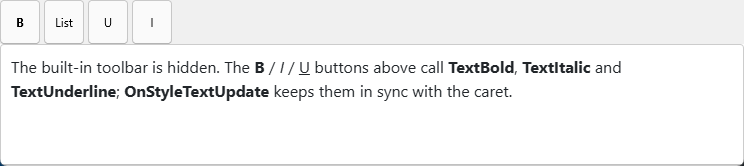
1. Hide the built-in toolbar
Set Toolbar.Visible := False so the editor shows only the editing surface. Your own controls — buttons, combo boxes, a ribbon — take over the formatting role.
2. Call formatting methods from your buttons
Each custom button calls the matching formatting method: a Bold button calls TextBold, a font picker calls SetFontName, a size picker calls SetFontSize, and so on. Because the methods act on the current selection or caret, the experience is identical to the built-in toolbar.
3. Reflect the caret style with OnStyleTextUpdate
A custom toolbar must also stay in sync with the cursor: when the user clicks into bold text, the Bold button should appear pressed. Handle OnStyleTextUpdate and push the reported IsBold, IsItalic, FontName, and FontSize values back onto your controls. This closes the loop — the toolbar both drives and reflects the editor.
Putting it together
The following form hides the toolbar, wires custom buttons and pickers to the formatting methods, and uses OnStyleTextUpdate to keep them synchronized with the caret:
procedure TForm1.FormCreate(Sender: TObject);
begin
  { Combination example: toolbar configuration + programmatic formatting + events.
    Hide the built-in toolbar and present your own UI instead. }
  TMSFNCWXHTMLMemo1.BeginUpdate;
  try
    TMSFNCWXHTMLMemo1.Toolbar.Visible := False;
    TMSFNCWXHTMLMemo1.HTML.Text := '<p>Format me with the buttons above.</p>';
  finally
    TMSFNCWXHTMLMemo1.EndUpdate;
  end;

  { Reflect the caret's current style back onto the custom buttons. }
  TMSFNCWXHTMLMemo1.OnStyleTextUpdate := HTMLMemoStyleTextUpdate;
end;

{ Each custom button calls a formatting method on the editor. }
procedure TForm1.btnBoldClick(Sender: TObject);
begin
  TMSFNCWXHTMLMemo1.TextBold;
end;

procedure TForm1.btnItalicClick(Sender: TObject);
begin
  TMSFNCWXHTMLMemo1.TextItalic;
end;

procedure TForm1.cmbFontChange(Sender: TObject);
begin
  TMSFNCWXHTMLMemo1.SetFontName(cmbFont.Selected.Text);
end;

procedure TForm1.cmbSizeChange(Sender: TObject);
begin
  TMSFNCWXHTMLMemo1.SetFontSize(StrToInt(cmbSize.Selected.Text));
end;

{ OnStyleTextUpdate fires as the caret moves: push the reported state onto
  the buttons so they show the formatting at the cursor. }
procedure TForm1.HTMLMemoStyleTextUpdate(Sender: TObject;
  IsBold, IsItalic, IsUnderline, IsStrikeThrough: Boolean;
  FontName: string; FontSize: Integer;
  ForeColor, BackColor: TTMSFNCGraphicsColor);
var
  i: Integer;
begin
  btnBold.IsPressed   := IsBold;
  btnItalic.IsPressed := IsItalic;

  i := cmbFont.Items.IndexOf(FontName);
  if i >= 0 then
    cmbFont.ItemIndex := i;

  i := cmbSize.Items.IndexOf(IntToStr(FontSize));
  if i >= 0 then
    cmbSize.ItemIndex := i;
end;
void __fastcall TForm1::FormCreate(TObject *Sender)
{
  // Combination example: toolbar configuration + programmatic formatting + events.
  // Hide the built-in toolbar and present your own UI instead.
  TMSFNCWXHTMLMemo1->BeginUpdate();
  try
  {
    TMSFNCWXHTMLMemo1->Toolbar->Visible = false;
    TMSFNCWXHTMLMemo1->HTML->Text = "<p>Format me with the buttons above.</p>";
  }
  __finally
  {
    TMSFNCWXHTMLMemo1->EndUpdate();
  }

  // Reflect the caret's current style back onto the custom buttons.
  TMSFNCWXHTMLMemo1->OnStyleTextUpdate = HTMLMemoStyleTextUpdate;
}

// Each custom button calls a formatting method on the editor.
void __fastcall TForm1::btnBoldClick(TObject *Sender)
{
  TMSFNCWXHTMLMemo1->TextBold();
}

void __fastcall TForm1::btnItalicClick(TObject *Sender)
{
  TMSFNCWXHTMLMemo1->TextItalic();
}

void __fastcall TForm1::cmbFontChange(TObject *Sender)
{
  TMSFNCWXHTMLMemo1->SetFontName(cmbFont->Selected->Text);
}

void __fastcall TForm1::cmbSizeChange(TObject *Sender)
{
  TMSFNCWXHTMLMemo1->SetFontSize(StrToInt(cmbSize->Selected->Text));
}

// OnStyleTextUpdate fires as the caret moves: push the reported state onto
// the buttons so they show the formatting at the cursor.
void __fastcall TForm1::HTMLMemoStyleTextUpdate(TObject *Sender,
  bool IsBold, bool IsItalic, bool IsUnderline, bool IsStrikeThrough,
  System::UnicodeString FontName, int FontSize,
  TTMSFNCGraphicsColor ForeColor, TTMSFNCGraphicsColor BackColor)
{
  btnBold->IsPressed = IsBold;
  btnItalic->IsPressed = IsItalic;

  int i = cmbFont->Items->IndexOf(FontName);
  if (i >= 0)
    cmbFont->ItemIndex = i;

  i = cmbSize->Items->IndexOf(IntToStr(FontSize));
  if (i >= 0)
    cmbSize->ItemIndex = i;
}
This single example exercises all three features at once: the toolbar is configured off, formatting is driven entirely through methods, and an event keeps the UI consistent. From here you can swap the plain buttons for a TTMSFNCToolBar or ribbon without changing the editor interaction at all.
Pitfalls
- Wiring buttons before
OnInit. Assigning content or calling methods before the editor is ready does nothing; do initial setup fromOnInit. - Forgetting the sync step. Without
OnStyleTextUpdate, custom buttons drift out of step with the caret and confuse users. It is the part most easily overlooked. - Leaving the built-in toolbar visible. If you forget
Toolbar.Visible := False, the user sees two toolbars.
See also
- Configuring the toolbar — the built-in toolbar this example replaces.
- Programmatic formatting — every method called here.
- Events —
OnStyleTextUpdateandOnInitin detail. TTMSFNCWXHTMLMemoAPI reference