Find & replace
Built-in modal dialogs for searching and replacing cell values, with events to pre-fill, validate, or react to each operation.
Overview
Two methods open the dialogs:
| Method | What it does |
|---|---|
Grid.ShowFindDialog |
Opens the find dialog. The first match is highlighted; subsequent invocations move to the next match. |
Grid.ShowReplaceDialog |
Opens the replace dialog. Each match is also writable. |
Both dialogs are modal. Ctrl+F and Ctrl+H open them by default — see Options.Keyboard.FindShortcut / ReplaceShortcut.
Quick example
procedure TForm1.FindButtonClick(Sender: TObject);
begin
  Grid.ShowFindDialog;
end;
That's it for the basic case. The user types a search string in the dialog, presses Find Next, and the grid jumps to each match.
Step by step
1. Show the dialogs
Grid.ShowFindDialog;
Grid.ShowReplaceDialog;
2. Wire keyboard shortcuts
The shortcuts are on by default. To disable them (e.g. because you want to bind your own actions):
Grid.Options.Keyboard.FindShortcut    := False;
Grid.Options.Keyboard.ReplaceShortcut := False;
3. Pre-fill the search text
Use OnBeforeShowFindDialog to set the initial text or cancel the dialog:
procedure TForm1.GridBeforeShowFindDialog(Sender: TObject;
  AFindDialog: TTMSFNCFindDialog; var ACanShow: Boolean);
begin
  AFindDialog.FindText := SearchEdit.Text;       // pre-fill from a separate edit
end;
void __fastcall TForm1::GridBeforeShowFindDialog(TObject *Sender,
  TTMSFNCFindDialog *AFindDialog, bool &ACanShow)
{
  AFindDialog->FindText = SearchEdit->Text;       // pre-fill from a separate edit
}
The same pattern applies to OnBeforeShowReplaceDialog, which receives a TTMSFNCReplaceDialog.
4. React to each find or replace operation
Two pairs of events fire for each operation — one before (cancellable), one after (informational):
procedure TForm1.GridBeforeDialogFind(Sender: TObject;
  AFindText: string;
  var AParameters: TTMSFNCDataGridDataFindParameters;
  var ACanFind: Boolean);
begin
  if Length(AFindText) < 2 then
    ACanFind := False;             // cancel — too short
end;

procedure TForm1.GridAfterDialogFind(Sender: TObject;
  AFindText: string;
  AResultCell: TTMSFNCDataGridCellCoord;
  AFound: Boolean);
begin
  if AFound then
    StatusBar1.SimpleText :=
      Format('Found at col %d, row %d', [AResultCell.Column, AResultCell.Row])
  else
    StatusBar1.SimpleText := 'Not found';
end;
void __fastcall TForm1::GridBeforeDialogFind(TObject *Sender,
  System::UnicodeString AFindText,
  TTMSFNCDataGridDataFindParameters &AParameters,
  bool &ACanFind)
{
  if (AFindText.Length() < 2)
    ACanFind = false;             // cancel - too short
}

void __fastcall TForm1::GridAfterDialogFind(TObject *Sender,
  System::UnicodeString AFindText,
  const TTMSFNCDataGridCellCoord &AResultCell,
  bool AFound)
{
  TTMSFNCDataGridCellCoord Cell = AResultCell;
  if (AFound)
    StatusLabel->Text =
      Format("Found at col %d, row %d", ARRAYOFCONST((Cell.Column, Cell.Row)));
  else
    StatusLabel->Text = "Not found";
}
Replace operations have equivalents OnBeforeDialogReplace (AFindText, AReplaceText, AParameters, ACanReplace) and OnAfterDialogReplace (with AReplaceCount — the total number of cells changed in this run).
Programmatic find without the dialog
If you want a quiet, headless find — for example to highlight matches in a status bar — bypass the dialog and call the find API directly:
procedure TForm1.QuietFind;
var
  Params: TTMSFNCDataGridDataFindParameters;
  Found: TTMSFNCDataGridCellCoord;
begin
  Params := [gfnAutoGoto];
  Found := Grid.Find('Smith', Params);
  if Found.Column >= 0 then
    Grid.GoToCell(Found);
end;
void __fastcall TForm1::QuietFind()
{
  TTMSFNCDataGridDataFindParameters Params;
  Params << gfnAutoGoto;
  TTMSFNCDataGridCellCoord Found = Grid->Find("Smith", Params);
  if (Found.Column >= 0)
    Grid->GoToCell(Found);
}
For typing-driven row jumping (no dialog at all), see Keyboard & mouse → Lookup.
Controlling the search with TTMSFNCDataGridDataFindParameters
Find, Replace, and the dialog events all accept a TTMSFNCDataGridDataFindParameters value — a set of flags that together define how the search runs.
procedure TForm1.FindWithParameters;
var
  Params: TTMSFNCDataGridDataFindParameters;
  Found: TTMSFNCDataGridCellCoord;
begin
  Params := [gfnMatchCase, gfnAutoGoto, gfnIgnoreHTMLTags];
  Found := Grid.Find('Smith', Params);
end;
void __fastcall TForm1::FindWithParameters()
{
  TTMSFNCDataGridDataFindParameters Params;
  Params << gfnMatchCase << gfnAutoGoto << gfnIgnoreHTMLTags;
  TTMSFNCDataGridCellCoord Found = Grid->Find("Smith", Params);
}
You can also assemble a default set and override individual flags in OnBeforeDialogFind:
procedure TForm1.GridBeforeDialogFind(Sender: TObject;
  AFindText: string;
  var AParameters: TTMSFNCDataGridDataFindParameters;
  var ACanFind: Boolean);
begin
  Include(AParameters, gfnIgnoreHTMLTags);  // always strip HTML during dialog find
  Include(AParameters, gfnIncludeHiddenRows);
end;
void __fastcall TForm1::GridBeforeDialogFind(TObject *Sender,
  System::UnicodeString AFindText,
  TTMSFNCDataGridDataFindParameters &AParameters,
  bool &ACanFind)
{
  AParameters << gfnIgnoreHTMLTags;  // always strip HTML during dialog find
  AParameters << gfnIncludeHiddenRows;
}
Flag reference
| Flag | Effect |
|---|---|
gfnMatchCase |
Case-sensitive comparison. Default is case-insensitive. |
gfnMatchFull |
Match the whole cell value; without this flag a substring match is performed. |
gfnMatchStart |
Match only when AFindText appears at the start of the cell value. |
gfnMatchRegular |
Treat AFindText as a regular expression. |
gfnBackward |
Search backward from the current position instead of forward. |
gfnDirectionLeftRight |
Scan left-to-right within each row before moving to the next row. Default is top-to-bottom within each column. |
gfnAutoGoto |
Automatically scroll the grid to bring the found cell into view. |
gfnIgnoreHTMLTags |
Strip HTML tags before comparing — useful when cell data contains markup. |
gfnIncludeFixed |
Include fixed (header) rows in the search. |
gfnIncludeHiddenRows |
Include rows that are currently hidden by a filter. |
gfnIncludeHiddenColumns |
Include columns that are currently hidden. |
gfnFindInCurrentRow |
Restrict the search to the row that contains the focused cell. |
gfnFindInCurrentColumn |
Restrict the search to the column that contains the focused cell. |
gfnFindInPresetColumn |
Restrict the search to a specific column set programmatically (see Find overloads that accept a column parameter). |
gfnFindInPresetRow |
Restrict the search to a specific row set programmatically. |
gfnSelectedCells |
Search only within the currently selected cell range. |
Programmatic highlight and mark
Two pairs of methods let you highlight or persistently mark cells whose text contains a search string — without opening any dialog.
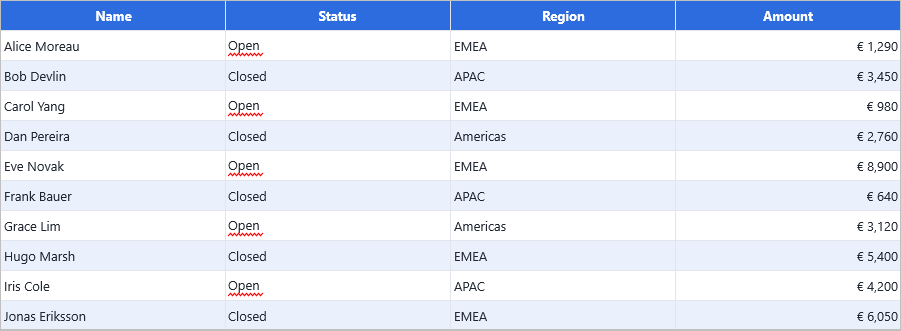
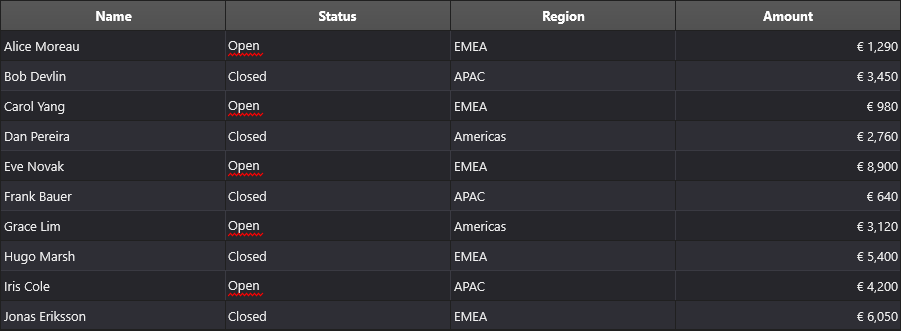
HilightCells applies a temporary visual highlight. It clears automatically when the grid scrolls or repaints. Use it for live search feedback:
var Opts := DefaultHilightOptions;
Opts.Mode          := ghmGrid;        // ghmCell, ghmColumn, ghmRow, ghmGrid
Opts.CaseSensitive := False;
Opts.FullText      := False;          // substring match; True = whole-cell match
Grid.HilightCells('overdue', Opts);

// Remove the highlight when the search box clears
Grid.UnhilightCells(Opts);
MarkCells applies a persistent mark that survives repaint and scroll. Marks are rendered as a coloured background chip and remain until explicitly removed:
var Opts := DefaultMarkOptions;      // same record type as HilightOptions
Opts.Mode          := ghmGrid;
Opts.CaseSensitive := False;

Grid.MarkCells('critical', Opts);    // mark all cells containing 'critical'

// Remove when done
Grid.UnmarkCells(Opts);
TTMSFNCDataGridHilightMode controls the scope:
| Value | Scope |
|---|---|
ghmCell |
One specific cell (uses Opts.Column and Opts.Row) |
ghmColumn |
Every cell in the column specified by Opts.Column |
ghmRow |
Every cell in the row specified by Opts.Row |
ghmGrid |
Every cell in the entire grid |
Both DefaultHilightOptions and DefaultMarkOptions are global helper functions that return a zero-initialised record with Mode := ghmGrid.
MarkCells shares the same TTMSFNCDataGridHilightOptions record type (aliased as TTMSFNCDataGridMarkOptions). The visual difference between a mark and a highlight is controlled by the grid's cell appearance — marks use the MarkedLayout appearance state.
Callback reference
| Event | When it fires |
|---|---|
OnBeforeShowFindDialog |
Before the find dialog is displayed; ACanShow cancels. |
OnAfterShowFindDialog |
After the find dialog has been shown. |
OnBeforeShowReplaceDialog |
Before the replace dialog is displayed. |
OnAfterShowReplaceDialog |
After the replace dialog has been shown. |
OnBeforeDialogFind |
Before each find operation; ACanFind cancels. |
OnAfterDialogFind |
After each find operation; reports result cell and found flag. |
OnBeforeDialogReplace |
Before each replace operation; ACanReplace cancels. |
OnAfterDialogReplace |
After replace completes; reports total replacement count. |
Localizing the dialogs
Dialog labels follow the system locale by default. To override individual strings, use the dialog's Localization property after OnBeforeShowFindDialog fires (see Localization).
Related API
Grid.ShowFindDialog,Grid.ShowReplaceDialogGrid.Options.Keyboard.FindShortcut/ReplaceShortcutGrid.FindDialog,Grid.ReplaceDialog— direct access to the dialog instances.OnBeforeShowFindDialog,OnAfterShowFindDialogOnBeforeShowReplaceDialog,OnAfterShowReplaceDialogOnBeforeDialogFind,OnAfterDialogFindOnBeforeDialogReplace,OnAfterDialogReplaceGrid.HilightCells(AText, AOptions)— temporary highlight matching cellsGrid.UnhilightCells(AOptions)— remove highlightsGrid.MarkCells(AText, AOptions)— persistent mark matching cellsGrid.UnmarkCells(AOptions)— remove marksTTMSFNCDataGridHilightOptions— scope (Mode),CaseSensitive,FullText,Column,RowTTMSFNCDataGridHilightMode—ghmCell,ghmColumn,ghmRow,ghmGridDefaultHilightOptions/DefaultMarkOptions— convenience constructorsTTMSFNCDataGridDataFindParameter— individual flag values (see table above)TTMSFNCDataGridDataFindParameters—set of TTMSFNCDataGridDataFindParameter
See also
- Keyboard & mouse — typeahead lookup is a lighter alternative.
- Localization — translating the dialog labels.