Drag & drop
Reorder columns or rows inside the grid, drag data between grids, and accept files from the operating system.
Overview
TTMSFNCDataGrid supports several drag scenarios:
| Scenario | Main settings |
|---|---|
| Reorder columns | Options.Mouse.ColumnDragging := True |
| Reorder rows | Options.Mouse.RowDragging := True |
| Drag outside the grid | Options.Mouse.DragMode := gdmDrag |
| Drop files from the OS | AcceptDropFiles := True |
| Hidden-column management | ShowColumnsEditor |
Reorder columns and rows
uses
  FMX.TMSFNCDataGrid;

procedure TForm1.EnableReorder;
begin
  Grid.Options.Mouse.ColumnDragging := True;
  Grid.Options.Mouse.RowDragging := True;
end;
void __fastcall TForm1::EnableReorder()
{
  Grid->Options->Mouse->ColumnDragging = true;
  Grid->Options->Mouse->RowDragging = true;
}
The user starts the drag from a column or row and drops it at the target position.
Use the drag/drop decision events to control what can move:
| Event | Use it for |
|---|---|
OnCanDragRow / OnCanDragColumn |
Prevent dragging protected rows or columns. |
OnCanDropRow / OnCanDropColumn |
Prevent dropping into invalid positions. |
OnRowDropped / OnColumnDropped |
Persist the new order or update related UI. |
Drag outside the grid
By default, dragging is handled internally by the grid. To participate in the framework drag/drop events, enable drag mode:
uses
  FMX.TMSFNCDataGrid, FMX.TMSFNCDataGridRenderer;

procedure TForm1.EnableDragMode;
begin
  Grid.Options.Mouse.DragMode := gdmDrag;
end;
void __fastcall TForm1::EnableDragMode()
{
  Grid->Options->Mouse->DragMode = gdmDrag;
}
Example: move a column from one grid to another.
procedure TForm1.DestinationGridDragDrop(Sender: TObject;
  const Data: TDragObject; const Point: TPointF);
var
  Cell: TTMSFNCDataGridCellCoord;
begin
  if Data.Source = SourceGrid then
  begin
    Cell := SourceGrid.DragCell;
    SourceGrid.Root.CopyColumnTo(
      Cell.Column,
      DestinationGrid.Root,
      DestinationGrid.XYToColumn(Point.X, Point.Y));
    SourceGrid.DeleteColumn(Cell.Column);
    SourceGrid.ResetDrag;
  end;
end;
void __fastcall TForm1::DestinationGridDragDrop(TObject *Sender,
  const TDragObject &Data, const TPointF &Point)
{
  if (Data.Source == SourceGrid)
  {
    TTMSFNCDataGridCellCoord Cell = SourceGrid->DragCell;
    SourceGrid->Root->CopyColumnTo(
      Cell.Column,
      DestinationGrid->Root,
      DestinationGrid->XYToColumn(Point.X, Point.Y));
    SourceGrid->DeleteColumn(Cell.Column);
    SourceGrid->ResetDrag();
  }
}
Columns editor entry point
Use the columns editor to let users drag hidden columns back into the grid or manage column visibility.
uses
  FMX.TMSFNCDataGrid, FMX.TMSFNCDataGridRenderer;

procedure TForm1.ShowEditor;
begin
  Grid.LoadSampleData;
  Grid.HideColumn(2);
  Grid.HideColumn(3);
  Grid.Options.Mouse.ColumnDragging := True;
  Grid.Options.Mouse.DragMode := gdmDrag;
  Grid.ShowColumnsEditor;
end;
void __fastcall TForm1::ShowEditor()
{
  Grid->LoadSampleData();
  Grid->HideColumn(2);
  Grid->HideColumn(3);
  Grid->Options->Mouse->ColumnDragging = true;
  Grid->Options->Mouse->DragMode = gdmDrag;
  Grid->ShowColumnsEditor();
}
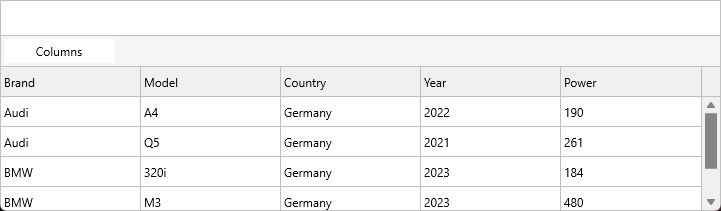
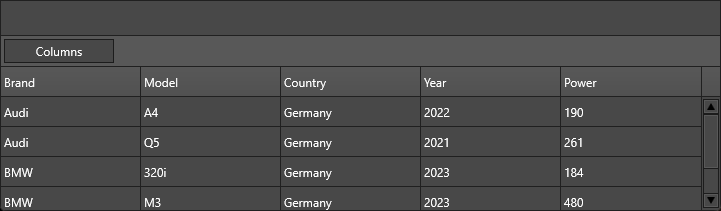
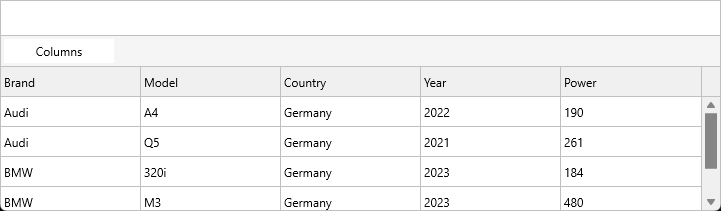
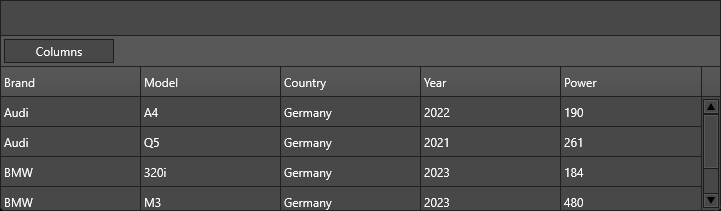
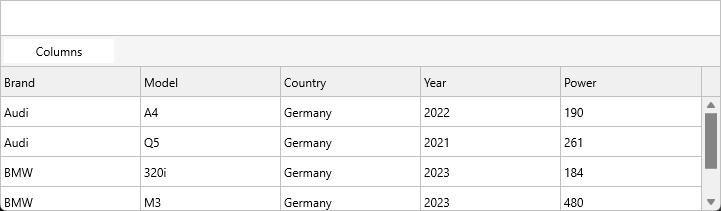
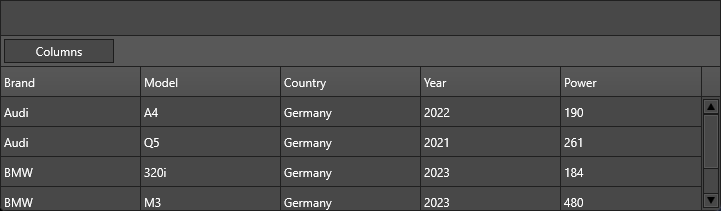
The screenshot shows the grid configured with a Columns action. Adjust the dialog behavior with the editor options:
uses
  FMX.TMSFNCDataGrid, FMX.TMSFNCDataGridColumnsEditor;

procedure TForm1.ConfigureEditor;
begin
  Grid.ColumnsEditor.Options.EnableDragDrop := False;
  Grid.ColumnsEditor.Options.Mode := gcemAll;
end;
void __fastcall TForm1::ConfigureEditor()
{
  Grid->ColumnsEditor->Options->EnableDragDrop = false;
  Grid->ColumnsEditor->Options->Mode = gcemAll;
}
Drop files
Set AcceptDropFiles to allow files to be dropped from the operating system.
uses
  FMX.TMSFNCDataGrid;

procedure TForm1.EnableDropFiles;
begin
  Grid.AcceptDropFiles := True;
end;
void __fastcall TForm1::EnableDropFiles()
{
  Grid->AcceptDropFiles = true;
}
Then handle OnDropFiles:
procedure TForm1.GridDropFiles(Sender: TObject;
  ADropFiles: TTMSFNCCustomControlDropFiles);
var
  FileName: string;
begin
  if ADropFiles.Files.Count = 0 then
    Exit;

  FileName := ADropFiles.Files[0];
  if SameText(ExtractFileExt(FileName), '.csv') then
  begin
    Grid.Clear;
    Grid.LoadFromCSVData(FileName);
  end;
end;
void __fastcall TForm1::GridDropFiles(TObject *Sender,
  TTMSFNCCustomControlDropFiles *ADropFiles)
{
  if (ADropFiles->Files->Count == 0)
    return;

  System::UnicodeString FileName = ADropFiles->Files->Strings[0];
  if (SameText(ExtractFileExt(FileName), ".csv"))
  {
    Grid->Clear();
    Grid->LoadFromCSVData(FileName);
  }
}
Use the framework drag-over event to accept only the file types your application can handle.
Customizing the drag indicator
When the user drags a row or column, the grid draws a semi-transparent rectangle over the source item and a coloured drop-line at the target position. Both are styled through DragAppearance:
uses
  FMX.TMSFNCDataGrid;

procedure TForm1.StyleDragIndicator;
begin
  Grid.DragAppearance.Fill.Color   := $200080FF;   // semi-transparent blue overlay
  Grid.DragAppearance.Stroke.Color := $FF0080FF;   // solid blue drop-line
  Grid.DragAppearance.Size         := 3;            // line thickness in pixels
end;
void __fastcall TForm1::StyleDragIndicator()
{
  Grid->DragAppearance->Fill->Color   = (TTMSFNCGraphicsColor)0x200080FF;   // semi-transparent blue overlay
  Grid->DragAppearance->Stroke->Color = (TTMSFNCGraphicsColor)0xFF0080FF;   // solid blue drop-line
  Grid->DragAppearance->Size          = 3;                                  // line thickness in pixels
}
TTMSFNCDataGridDragAppearance properties:
| Property | Type | Description |
|---|---|---|
Fill |
TTMSFNCGraphicsFill |
Fill of the semi-transparent rectangle drawn over the dragged item. |
Stroke |
TTMSFNCGraphicsStroke |
Stroke of the drop-position indicator line. |
Size |
Single |
Width of the drop-line in pixels. Default is 2. |
Combining reordering, file drops, and drag indicator styling
For data-entry tools, it is common to let users reorder columns, drag rows into a useful order, and drop a CSV file to refresh the data. Keep those settings together during initialization so the drag affordance, operating-system file drops, and in-grid reorder behavior do not drift apart.
procedure TForm1.FormCreate(Sender: TObject);
begin
  Grid.Options.Mouse.ColumnDragging := True;
  Grid.Options.Mouse.RowDragging := True;
  Grid.AcceptDropFiles := True;
  Grid.OnDropFiles := GridDropFiles;

  Grid.DragAppearance.Fill.Color := $200080FF;
  Grid.DragAppearance.Stroke.Color := $FF0080FF;
  Grid.DragAppearance.Size := 3;
end;

procedure TForm1.GridDropFiles(Sender: TObject;
  ADropFiles: TTMSFNCCustomControlDropFiles);
begin
  if ADropFiles.Count > 0 then
    Grid.LoadFromCSVData(ADropFiles[0]);
end;
void __fastcall TForm1::FormCreate(TObject *Sender)
{
  Grid->Options->Mouse->ColumnDragging = true;
  Grid->Options->Mouse->RowDragging = true;
  Grid->AcceptDropFiles = true;
  Grid->OnDropFiles = GridDropFiles;

  Grid->DragAppearance->Fill->Color = (TTMSFNCGraphicsColor)0x200080FF;
  Grid->DragAppearance->Stroke->Color = (TTMSFNCGraphicsColor)0xFF0080FF;
  Grid->DragAppearance->Size = 3;
}

void __fastcall TForm1::GridDropFiles(TObject *Sender,
  TTMSFNCCustomControlDropFiles *ADropFiles)
{
  if (ADropFiles->Files->Count > 0)
    Grid->LoadFromCSVData(ADropFiles->Files->Strings[0]);
}
Related API
TTMSFNCDataGrid.Options.Mouse.ColumnDraggingTTMSFNCDataGrid.Options.Mouse.RowDraggingTTMSFNCDataGrid.Options.Mouse.DragModeTTMSFNCDataGrid.DragCellTTMSFNCDataGrid.ResetDragTTMSFNCDataGrid.AcceptDropFilesTTMSFNCDataGrid.ShowColumnsEditorTTMSFNCDataGrid.ColumnsEditorTTMSFNCDataGrid.DragAppearance—TTMSFNCDataGridDragAppearance; drag indicator fill, stroke, and size.OnCanDragRow/OnCanDragColumnOnCanDropRow/OnCanDropColumnOnRowDropped/OnColumnDroppedOnDropFiles
See also
- Column management - hiding and moving columns.
- Import & export (CSV) - loading CSV files.
- Demo:
Demo/FMX/DataGrid/Advanced/Columns Editor