Column management
Hide, reorder, freeze, fix and resize columns — programmatically or via the built-in columns editor dialog.
Overview
Three orthogonal column behaviours, each with its own count property:
| Property | Effect |
|---|---|
FixedColumnCount |
Columns at the left edge that never scroll. Headers and row-number columns. |
FixedRightColumnCount |
Same, but at the right edge. |
FreezeColumnCount |
Like fixed, but the user can scroll past them. Common for keeping ID/name columns visible while exploring distant columns. |
On top of that, every column can be hidden, resized, and reordered by drag-and-drop.


Quick example
procedure TForm1.FormCreate(Sender: TObject);
begin
  // Fixed (always visible) columns at the leftmost edge
  Grid.FixedColumnCount      := 1;
  Grid.FixedRightColumnCount := 0;

  // Freeze: like fixed, but the user can scroll past these on the right.
  Grid.FreezeColumnCount := 2;

  // Hide column 4 entirely
  Grid.HideColumn(4);

  // Resize specific columns
  Grid.ColumnWidths[0] := 30;
  Grid.AutoSizeColumns;

  // Let the user reorder columns by drag-and-drop on header cells
  Grid.Options.Column.Dragging.Enabled := True;
end;

procedure TForm1.ShowColumnsEditorClick(Sender: TObject);
begin
  // Modal dialog with a checked list of all columns; the user can
  // toggle visibility and reorder with drag-and-drop.
  Grid.ShowColumnsEditor;
end;
void __fastcall TForm1::FormCreate(TObject *Sender)
{
  // Fixed (always visible) columns at the leftmost edge
  Grid->FixedColumnCount      = 1;
  Grid->FixedRightColumnCount = 0;

  // Freeze: like fixed, but the user can scroll past these on the right.
  Grid->FreezeColumnCount = 2;

  // Hide column 4 entirely
  Grid->HideColumn(4);

  // Resize specific columns
  Grid->ColumnWidths[0] = 30;
  Grid->AutoSizeColumns();

  // Let the user reorder columns by drag-and-drop on header cells
  Grid->Options->Mouse->ColumnDragging = true;
}

void __fastcall TForm1::ShowColumnsEditorClick(TObject *Sender)
{
  // Modal dialog with a checked list of all columns; the user can
  // toggle visibility and reorder with drag-and-drop.
  Grid->ShowColumnsEditor();
}
Step by step
Access columns
procedure TForm1.AccessColumns;
var
  Col: TTMSFNCDataGridColumn;
begin
  Grid.Columns[2].Header := 'Country';      // by index
  Col := Grid.Columns.ColumnByName('Name'); // by name (returns TTMSFNCDataGridColumn)
end;
void __fastcall TForm1::AccessColumns()
{
  Grid->Columns->Items[2]->Header = "Country";                   // by index
  TTMSFNCDataGridColumn *Col = Grid->Columns->ColumnByName("Name"); // by name (returns TTMSFNCDataGridColumn)
}
Add, insert, and delete columns
uses
  FMX.TMSFNCDataGrid;

procedure TForm1.ColumnCrud;
begin
  Grid.Columns.Add;         // append via collection
  Grid.AddColumn;           // equivalent convenience method
  Grid.Columns.Insert(2);   // insert before column index 2
  Grid.InsertColumn(2);     // equivalent convenience method
  Grid.InsertColumns(2, 3); // insert 3 columns starting at index 2
  Grid.DeleteColumn(4);     // remove column 4 and shift left
  Grid.DeleteColumns(4, 2); // remove 2 columns starting at index 4
  Grid.SwapColumns(1, 3);   // exchange columns 1 and 3 in place
  Grid.ColumnCount := 6;    // set the total column count directly
end;
void __fastcall TForm1::ColumnCrud()
{
  Grid->Columns->Add();         // append via collection
  Grid->AddColumn();            // equivalent convenience method
  Grid->Columns->Insert(2);     // insert before column index 2
  Grid->InsertColumn(2);        // equivalent convenience method
  Grid->InsertColumns(2, 3);    // insert 3 columns starting at index 2
  Grid->DeleteColumn(4);        // remove column 4 and shift left
  Grid->DeleteColumns(4, 2);    // remove 2 columns starting at index 4
  Grid->SwapColumns(1, 3);      // exchange columns 1 and 3 in place
  Grid->ColumnCount = 6;        // set the total column count directly
}
Add, insert, and delete rows
uses
  FMX.TMSFNCDataGrid;

procedure TForm1.RowCrud;
begin
  Grid.AddRow;          // append a new empty row at the bottom
  Grid.InsertRow(2);    // insert a row before index 2
  Grid.InsertRows(2, 5); // insert 5 rows starting at index 2
  Grid.DeleteRow(4);    // remove row 4 and shift rows up
  Grid.DeleteRows(4, 3); // remove 3 rows starting at index 4
  Grid.SwapRows(1, 3);  // exchange rows 1 and 3 in place
  Grid.RowCount := 100; // set the total row count directly
end;
void __fastcall TForm1::RowCrud()
{
  Grid->AddRow();          // append a new empty row at the bottom
  Grid->InsertRow(2);      // insert a row before index 2
  Grid->InsertRows(2, 5);  // insert 5 rows starting at index 2
  Grid->DeleteRow(4);      // remove row 4 and shift rows up
  Grid->DeleteRows(4, 3);  // remove 3 rows starting at index 4
  Grid->SwapRows(1, 3);    // exchange rows 1 and 3 in place
  Grid->RowCount = 100;    // set the total row count directly
}
InsertRow / InsertRows fire OnBeforeInsertRow / OnAfterInsertRow so you can
initialise new cells or cancel the insertion. Similarly, InsertColumn fires
OnBeforeInsertColumn / OnAfterInsertColumn.
Hide / show
uses
  FMX.TMSFNCDataGrid;

procedure TForm1.HideShowColumns;
begin
  Grid.HideColumn(4);
  Grid.UnhideColumn(4);
  Grid.UnhideAllColumns;
end;
void __fastcall TForm1::HideShowColumns()
{
  Grid->HideColumn(4);
  Grid->UnhideColumn(4);
  Grid->UnhideAllColumns();
}
Equivalent: set Grid.Columns[4].Visible := False.
Resize
uses
  FMX.TMSFNCDataGrid;

procedure TForm1.ResizeColumns;
begin
  Grid.ColumnWidths[0] := 30;
  Grid.AutoSizeColumn(2);
  Grid.AutoSizeColumns; // auto-size every column
end;
void __fastcall TForm1::ResizeColumns()
{
  Grid->ColumnWidths[0] = 30;
  Grid->AutoSizeColumn(2);
  Grid->AutoSizeColumns(); // auto-size every column
}
AutoSizeColumn measures the widest cell content and sets the width to fit
plus a configurable padding (Options.Column.AutoSizePadding).
Reorder
uses
  FMX.TMSFNCDataGrid;

procedure TForm1.ReorderColumns;
begin
  // Allow the user to drag headers
  Grid.Options.Mouse.ColumnDragging := True;

  // Or move programmatically — column 4 ends up at position 1
  Grid.MoveColumn(4, 1);

  // ColumnDragModes is a set — combine modes as needed
  Grid.Options.Mouse.ColumnDragModes := [gcdmReorder];                     // reorder only
  Grid.Options.Mouse.ColumnDragModes := [gcdmReorder, gcdmVisualGrouping]; // both
end;
void __fastcall TForm1::ReorderColumns()
{
  // Allow the user to drag headers
  Grid->Options->Mouse->ColumnDragging = true;

  // Or move programmatically - column 4 ends up at position 1
  Grid->MoveColumn(4, 1);

  // ColumnDragModes is a set - combine modes as needed
  Grid->Options->Mouse->ColumnDragModes = TTMSFNCDataGridColumnDragModes() << gcdmReorder;                       // reorder only
  Grid->Options->Mouse->ColumnDragModes = TTMSFNCDataGridColumnDragModes() << gcdmReorder << gcdmVisualGrouping; // both
}
Freeze and fix
uses
  FMX.TMSFNCDataGrid;

procedure TForm1.FreezeAndFix;
begin
  Grid.FixedColumnCount      := 1; // always visible on the left
  Grid.FixedRightColumnCount := 1; // always visible on the right
  Grid.FreezeColumnCount     := 2; // scrollable but "sticky"
end;
void __fastcall TForm1::FreezeAndFix()
{
  Grid->FixedColumnCount      = 1; // always visible on the left
  Grid->FixedRightColumnCount = 1; // always visible on the right
  Grid->FreezeColumnCount     = 2; // scrollable but "sticky"
}
Stretch columns to fill available space
uses
  FMX.TMSFNCDataGrid;

procedure TForm1.StretchColumns;
begin
  Grid.Options.Column.Stretching.Enabled := True;

  // Distribute extra space proportionally to each column's current width
  Grid.Options.Column.Stretching.Mode := gstmProportional;

  // Or stretch a single column only
  Grid.Options.Column.Stretching.Mode  := gstmIndex;
  Grid.Options.Column.Stretching.Index := 3; // column 3 absorbs all extra space
end;
void __fastcall TForm1::StretchColumns()
{
  Grid->Options->Column->Stretching->Enabled = true;

  // Distribute extra space proportionally to each column's current width
  Grid->Options->Column->Stretching->Mode = gstmProportional;

  // Or stretch a single column only
  Grid->Options->Column->Stretching->Mode  = gstmIndex;
  Grid->Options->Column->Stretching->Index = 3; // column 3 absorbs all extra space
}
The default stretch mode (gstmAll) distributes remaining horizontal space across all flexible columns equally. Two additional modes are available:
Stretching.Mode |
Effect |
|---|---|
gstmAll |
Extra space divided equally across all non-fixed columns (default). |
gstmIndex |
Only the column at Stretching.Index stretches to fill the space. |
gstmProportional |
Distributes extra space proportionally to each column's current width — wider columns gain more pixels. |
Both the proportional mode and the single-column gstmIndex mode (with Stretching.Index) are shown in the snippet above.
Two-way column and row sizing
By default, dragging the right edge of a column header resizes that column. Enable two-way sizing to allow resizing from either edge:
uses
  FMX.TMSFNCDataGrid;

procedure TForm1.EnableTwoWaySizing;
begin
  Grid.Options.Mouse.ColumnSizingMode := gszmTwoSided; // resize from left or right edge
  Grid.Options.Mouse.RowSizingMode    := gszmTwoSided; // resize from top or bottom edge
end;
void __fastcall TForm1::EnableTwoWaySizing()
{
  Grid->Options->Mouse->ColumnSizingMode = gszmTwoSided; // resize from left or right edge
  Grid->Options->Mouse->RowSizingMode    = gszmTwoSided; // resize from top or bottom edge
}
The default (gszmOneSided) restricts resizing to the trailing edge only.
ColumnViewMode and RowViewMode
These properties control how RowCount and ColumnCount relate to the visible viewport.
| Property value | Effect |
|---|---|
gcvmTotalColumns (default) |
ColumnCount is the total number of allocated columns. |
gcvmControl |
ColumnCount is clamped to however many columns fit in the current viewport. |
grvmTotalRows (default) |
RowCount is the total number of allocated rows. |
grvmControl |
RowCount is clamped to however many rows fit in the current viewport. |
The default (TotalColumns / TotalRows) is the most common setup and matches the behaviour most code assumes.
In the Control modes the rows or columns rarely fill the grid exactly, leaving a
strip of empty space after the last one. The border of the last visible row (and
of the last visible column) is kept while an inplace editor is open in it, so a
cell being edited at the edge of the data keeps its outline instead of appearing
to lose one side.
Column settings and AddSetting
Every column has a Settings set of type TTMSFNCDataGridColumnSettings. Only properties that are included in this set are applied at render time; everything else falls back to the grid-wide default. The purpose of this design is to let you set a grid-level default once and have columns opt in to owning their own copy of a property without affecting other columns.
procedure TTMSFNCDataGridColumn.AddSetting(ASetting: TTMSFNCDataGridColumnSetting);
begin
  Settings := Settings + [ASetting];   // opt the column in to owning the guarded property
end;
void __fastcall TTMSFNCDataGridColumn::AddSetting(TTMSFNCDataGridColumnSetting ASetting)
{
  Settings = Settings << ASetting;   // opt the column in to owning the guarded property
}
AddSetting is simply Settings := Settings + [ASetting]. Call it whenever you set a column property that the grid honours only when the corresponding setting flag is present:
| Setting flag | Property it guards |
|---|---|
gcsAppearance |
Appearance (cell fill, font, stroke) |
gcsType |
Type (cell control type — checkbox, button, bitmap, …) |
gcsEditor |
Editor (inplace editor type) |
gcsEditorTarget |
EditorTarget (what the editor modifies) |
gcsEditorItems |
EditorItems (combobox item list) |
gcsReadOnly |
ReadOnly |
gcsFormatting |
Formatting (display format type and string) |
gcsFilterButton |
FilterButton |
gcsFilterEditor |
FilterEditor |
gcsFilterEditorType |
FilterEditorType |
gcsFilterDefaultType |
FilterDefaultType |
gcsControlText / gcsControlWidth / gcsControlHeight / gcsControlAlign / gcsControlPosition / gcsControlMargins |
Embedded control properties |
Example:
uses
  FMX.TMSFNCDataGrid;

procedure TForm1.ConfigureColumnSettings;
begin
  // Without AddSetting the Editor property has no effect at runtime
  Grid.Columns[2].Editor := getComboBox;
  Grid.Columns[2].AddSetting(gcsEditor);      // opt this column in

  Grid.Columns[2].EditorItems.AddStrings(['Yes', 'No', 'N/A']);
  Grid.Columns[2].AddSetting(gcsEditorItems); // opt this column in to owning its items

  Grid.Columns[3].Formatting.&Type := gdftDateTime;
  Grid.Columns[3].AddSetting(gcsFormatting);  // opt this column in to owning its format
end;
void __fastcall TForm1::ConfigureColumnSettings()
{
  // Without AddSetting the Editor property has no effect at runtime
  Grid->Columns->Items[2]->Editor = getComboBox;
  Grid->Columns->Items[2]->AddSetting(gcsEditor);      // opt this column in

  Grid->Columns->Items[2]->EditorItems->AddStrings(OPENARRAY(System::UnicodeString, ("Yes", "No", "N/A")));
  Grid->Columns->Items[2]->AddSetting(gcsEditorItems); // opt this column in to owning its items

  Grid->Columns->Items[3]->Formatting->Type = gdftDateTime;
  Grid->Columns->Items[3]->AddSetting(gcsFormatting);  // opt this column in to owning its format
}
At design time the Object Inspector adds the necessary settings automatically whenever you change a column property through the IDE.
AddSettingis only needed when you configure columns in code.
Open the columns editor
A built-in dialog gives the user a checked list of all columns with drag-and-drop reordering. Show it with:
uses
  FMX.TMSFNCDataGrid;

procedure TForm1.OpenColumnsEditor;
begin
  Grid.ShowColumnsEditor;
end;
void __fastcall TForm1::OpenColumnsEditor()
{
  Grid->ShowColumnsEditor();
}
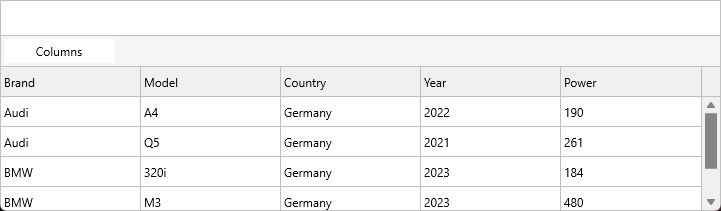
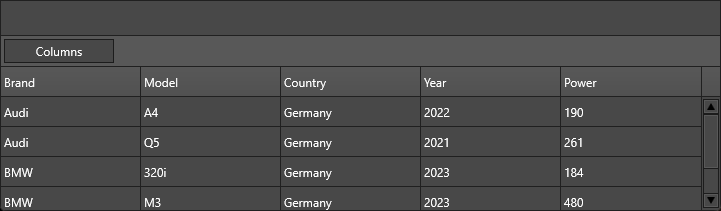
The grid remains the configured owner of the column list; the screenshot shows
the grid-side setup and action entry point before the dialog is opened. To
customise the dialog (translation, drag-and-drop on/off, visible-only filter),
drop a TTMSFNCDataGridColumnsEditor
component on the form, point its Renderer at the grid, and call Execute.
Combining column hiding, resizing, and stretching
This example hides a technical ID column, auto-sizes two content columns, enables proportional stretching so the remaining columns fill the available width, and makes the Name column fixed so it stays visible while the user scrolls right:
uses
  FMX.TMSFNCDataGrid;

procedure TForm1.FormCreate(Sender: TObject);
begin
  // Hide the internal ID column — users don't need to see it
  Grid.HideColumn(IdColumn);

  // Auto-size two content columns based on their content
  Grid.AutoSizeColumn(NameColumn);
  Grid.AutoSizeColumn(DescColumn);

  // Stretch all visible columns proportionally to fill the grid width
  Grid.Options.Column.Stretching.Enabled := True;
  Grid.Options.Column.Stretching.Mode    := gstmProportional;

  // Fix the Name column so it never scrolls out of view
  Grid.FixedColumnCount := 1; // column 0 (Name) stays fixed
end;
void __fastcall TForm1::FormCreate(TObject *Sender)
{
  // Hide the internal ID column - users don't need to see it
  Grid->HideColumn(IdColumn);

  // Auto-size two content columns based on their content
  Grid->AutoSizeColumn(NameColumn);
  Grid->AutoSizeColumn(DescColumn);

  // Stretch all visible columns proportionally to fill the grid width
  Grid->Options->Column->Stretching->Enabled = true;
  Grid->Options->Column->Stretching->Mode    = gstmProportional;

  // Fix the Name column so it never scrolls out of view
  Grid->FixedColumnCount = 1; // column 0 (Name) stays fixed
}
Related API
TTMSFNCDataGridColumn— every column property.Grid.Columns.Add,Insert(Index),ColumnByName(AName)Grid.Columns.ColumnByHeader(AHeader)— returns theTTMSFNCDataGridColumnwhoseHeadertext matchesAHeader; returnsnilwhen not found.Grid.ColumnByHeader(AHeader)— convenience wrapper on the grid object (same result).Grid.ColumnIndexByHeader(AHeader)— returns the zero-based column index for the given header text; returns-1when not found.TTMSFNCDataGridColumnSetting— enum of per-column setting flags.TTMSFNCDataGridColumn.AddSetting(ASetting)— opt the column in to owning a property.Grid.AddColumn,InsertColumn(i),InsertColumns(i, Count),DeleteColumn(i),DeleteColumns(i, Count)Grid.AddRow,InsertRow(i),InsertRows(i, Count),DeleteRow(i),DeleteRows(i, Count)Grid.SwapColumns(From, To)— exchange two columns;Grid.SwapRows(From, To)— exchange two rowsGrid.MoveColumn(From, To)— insert column at new position, shifting othersGrid.FixedColumnCount,FixedRightColumnCount,FreezeColumnCountGrid.HideColumn(i),UnhideColumn(i),UnhideAllColumnsGrid.ColumnWidths[i],AutoSizeColumn(i),AutoSizeColumnsGrid.Options.Column.Stretching—Enabled,Mode(gstmAll/gstmIndex/gstmProportional),IndexGrid.Options.Column.AutoSizePaddingGrid.Options.Mouse.ColumnDragging,ColumnDragModes,ColumnSizingGrid.Options.Mouse.ColumnSizingMode(gszmOneSided/gszmTwoSided)Grid.Options.Mouse.RowSizingMode(gszmOneSided/gszmTwoSided)Grid.ColumnViewMode—gcvmTotalColumns/gcvmControlGrid.RowViewMode—grvmTotalRows/grvmControlGrid.ShowColumnsEditorTTMSFNCDataGridColumnsEditorOnColumnDropped,OnColumnSized,OnCanDragColumn,OnCanSizeColumnOnAppendColumn,OnCanAppendColumn
See also
- Appearance & theming — column-level appearance overrides.
- Editing cells — column
Editorchooses the inplace editor.