Large datasets
Patterns for handling tens or hundreds of thousands of rows — even millions when paired with a database adapter — without freezing the UI.
Overview
The grid is designed for large data: rendering, sorting, filtering, and grouping all scale to hundreds of thousands of in-memory rows. Above that, switch from "load it all" to "load what's visible" via the database adapter's buffered mode.
| Scenario | Approach |
|---|---|
| Up to ~100k rows in memory | BeginUpdate / EndUpdate + bulk fill |
| 100k–1M rows in memory | Same, plus disable AutoSizeColumns, prefer ClearData over per-cell deletes |
1M+ rows from a TDataSet |
Database adapter with LoadMode := almBuffered |
| Streaming CSV/binary | LoadFromCSVStreamData inside BeginUpdate/EndUpdate |
Quick example
procedure TForm1.LoadOneMillionRows;
var
  i: Integer;
begin
  Grid.BeginUpdate;
  try
    Grid.ClearAll;
    Grid.ColumnCount := 4;
    Grid.RowCount    := 1_000_001;          // 1M rows + 1 header

    Grid.Cells[0, 0] := 'ID';
    Grid.Cells[1, 0] := 'Value';
    Grid.Cells[2, 0] := 'Date';
    Grid.Cells[3, 0] := 'Description';

    // Fill rows. The grid never paints during BeginUpdate so this stays fast.
    for i := 1 to Grid.RowCount - 1 do
    begin
      Grid.Ints[0, i]   := i;
      Grid.Floats[1, i] := Random * 1000;
      Grid.Cells[2, i]  := Now - Random(1000);
      Grid.Cells[3, i]  := 'Row ' + IntToStr(i);
    end;
  finally
    Grid.EndUpdate;
  end;
end;

procedure TForm1.LoadFromBigDataset;
begin
  // Bind to a TDataSet and use buffered loading: only the visible window
  // is fetched. Memory stays small even for billion-row datasets.
  Adapter.LoadMode := almBuffered;
  Adapter.DataSource := DataSource1;
  FDQuery1.Open;
end;
void __fastcall TForm1::LoadOneMillionRows()
{
  Grid->BeginUpdate();
  try
  {
    Grid->Clear();
    Grid->ColumnCount = 4;
    Grid->RowCount    = 1000001;          // 1M rows + 1 header

    Grid->Strings[0][0] = "ID";
    Grid->Strings[1][0] = "Value";
    Grid->Strings[2][0] = "Date";
    Grid->Strings[3][0] = "Description";

    // Fill rows. The grid never paints during BeginUpdate so this stays fast.
    for (int i = 1; i < Grid->RowCount; i++)
    {
      Grid->Ints[0][i]   = i;
      Grid->Floats[1][i] = Random(1000000) / 1000.0;
      Grid->Cells[2][i]  = TValue::From<TDateTime>(Now() - Random(1000));
      Grid->Strings[3][i] = "Row " + IntToStr(i);
    }
  }
  __finally
  {
    Grid->EndUpdate();
  }
}

void __fastcall TForm1::LoadFromBigDataset()
{
  // Bind to a TDataSet and use buffered loading: only the visible window
  // is fetched. Memory stays small even for billion-row datasets.
  Adapter->LoadMode = almBuffered;
  Adapter->DataSource = DataSource1;
  FDQuery1->Open();
}
Patterns
1. Always wrap bulk operations in BeginUpdate / EndUpdate
Grid.BeginUpdate;
try
  Grid.RowCount := 1_000_000;
  for i := 1 to Grid.RowCount - 1 do
    Grid.Cells[0, i] := i;
finally
  Grid.EndUpdate;
end;
Without BeginUpdate, the grid recalculates layout and repaints after
every cell assignment — turning a 100ms operation into minutes.
2. Disable expensive features during the load
Grid.BeginUpdate;
try
  PreviousAutoSize := Grid.Options.Column.Stretching.Enabled;
  Grid.Options.Column.Stretching.Enabled := False;

  LoadAllRows;

  Grid.AutoSizeColumns;
  Grid.Options.Column.Stretching.Enabled := PreviousAutoSize;
finally
  Grid.EndUpdate;
end;
3. Use typed cell setters
Grid.Cells[col, row] := X is type-erased and slightly slower than the
typed setters. Use these in tight inner loops:
Grid.Ints[col, row]     := SomeInt;
Grid.Floats[col, row]   := SomeFloat;
Grid.Booleans[col, row] := SomeBoolean;
4. Database adapter with buffered loading
For data that doesn't fit in memory:
Adapter.LoadMode   := almBuffered;
Adapter.DataSource := DataSource1;
FDQuery1.Open;                      // billion-row table is fine
In buffered mode the adapter only reads the visible window from the dataset. Sorting, filtering, and grouping become server-side concerns — push them down into SQL.
5. Paging instead of scrolling
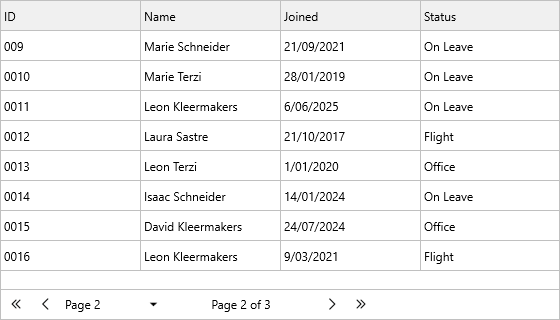
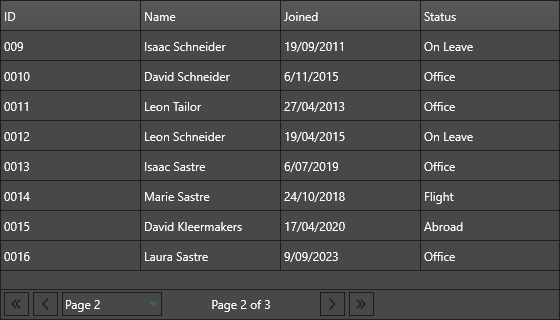
If "show 50 rows at a time with prev/next buttons" fits the UX better than infinite scroll, enable paging:
Grid.Paging                             := True;
Grid.Options.Keyboard.PageScrollSize    := 50;
Then navigate with Grid.NextPage, PreviousPage, FirstPage, LastPage,
or GoToPage(n).
6. Streamed CSV import
Grid.Options.IO.Delimiter := ',';
var fs := TFileStream.Create('huge.csv', fmOpenRead);
try
  Grid.BeginUpdate;
  try
    Grid.LoadFromCSVStreamData(fs);
  finally
    Grid.EndUpdate;
  end;
finally
  fs.Free;
end;
7. Virtual data with OnGetCellData
Instead of filling every cell upfront, you can keep your data in an external list and let the grid ask for values on demand. Hook OnGetCellData on the grid:
// Keep the data outside the grid
var FData: TArray<TArray<string>>;

procedure TForm1.FormCreate(Sender: TObject);
begin
  // Set the size — rows and columns — but don't fill any cells
  Grid.RowCount    := Length(FData) + 1;     // +1 for header row
  Grid.ColumnCount := 5;
  Grid.FixedRowCount := 1;
  Grid.Cells[0, 0] := 'ID';
  // ... set other headers ...
end;

procedure TForm1.GridGetCellData(Sender: TObject;
  ACell: TTMSFNCDataGridCellCoord;
  var AData: TTMSFNCDataGridCellValue);
var
  DataRow: Integer;
begin
  if ACell.Row = 0 then Exit;              // header is already set
  DataRow := ACell.Row - Grid.FixedRowCount;
  if (DataRow >= 0) and (DataRow < Length(FData)) then
    AData := FData[DataRow][ACell.Column];
end;
// Keep the data outside the grid
void __fastcall TForm1::FormCreate(TObject *Sender)
{
  // Set the size - rows and columns - but don't fill any cells
  Grid->RowCount    = FData.Length + 1;     // +1 for header row
  Grid->ColumnCount = 5;
  Grid->FixedRowCount = 1;
  Grid->Strings[0][0] = "ID";
  // ... set other headers ...
}

void __fastcall TForm1::GridGetCellData(TObject *Sender,
  const TTMSFNCDataGridCellCoord &ACell,
  TTMSFNCDataGridCellValue &AData)
{
  TTMSFNCDataGridCellCoord Cell = ACell;
  if (Cell.Row == 0)
    return;              // header is already set
  int DataRow = Cell.Row - Grid->FixedRowCount;
  if ((DataRow >= 0) && (DataRow < FData.Length))
    AData = TValue::From<System::UnicodeString>(FData[DataRow][Cell.Column]);
}
OnGetCellData fires for every cell as the grid renders or accesses a value. The grid does not write the returned value to its internal dictionary — each render call fires the event again. This is ideal for read-only views of a large in-memory list where you want zero copy overhead.
Note: Because the grid doesn't store the values internally, features that require reading from the internal dictionary (bulk sort, CSV export, clipboard) will see empty values. Use
OnGetCellDatafor display-only virtualisation; for full functionality with large data prefer the database adapter withalmBufferedloading.
Profiling tips
- The default
Grid.ScrollModeis pixel-smooth (gsmPixelScrolling). On underpowered devices, switch togsmCellScrollingfor better throughput. Grid.ScrollUpdatecontrols whether redrawing happens continuously during a scroll drag or once at release — set the latter for jankier datasets.- Use
OnAfterCalculate/OnBeforeCalculateto identify unintended recalculation cycles. - Set
Options.IO.MaxRowsto cap how many rows are loaded from a CSV file.
Related API
Grid.BeginUpdate/EndUpdateGrid.Ints[col, row],Floats,Booleans— typed settersGrid.Paging,Grid.PageIndex,Grid.PageCountGrid.Options.Keyboard.PageScrollSize— fixed rows per pageGrid.NextPage,PreviousPage,FirstPage,LastPage,GoToPageGrid.ScrollMode,Grid.ScrollUpdateTTMSFNCDataGridDatabaseAdapter.LoadMode=almBufferedGrid.LoadFromCSVStreamDataGrid.Options.IO.MaxRowsOnGetCellData— virtual data provider; fires per cell on render
See also
- Data binding — buffered adapter is the right scaling story.
- Import & export (CSV) — streamed reads for large files.
- Paging — show one page at a time instead of all rows.