Merging cells
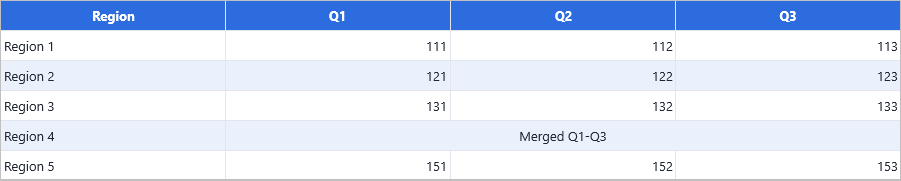
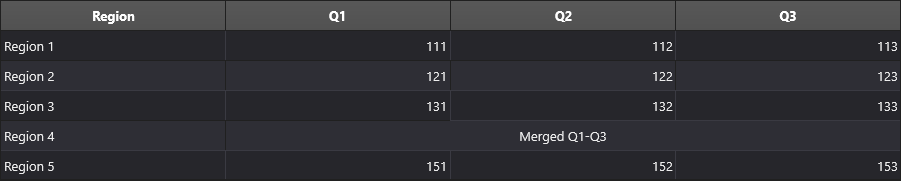
Combine multiple cells into one visual cell — useful for row banners, spanning headers, and decorative blocks. The merge is fully reversible.
Overview
Merge a rectangular range with MergeCells(AColumn, ARow, AColumnCount, ARowCount). The
top-left cell of the range becomes the merge anchor — its value and
layout drive the merged display. The other cells in the range are hidden but
preserved; splitting restores them.
| Method | Use it for |
|---|---|
Grid.MergeCells(AColumn, ARow, AColumnCount, ARowCount) |
Merge an explicit rectangle. |
Grid.MergeRange(ARange) |
Merge whatever range is currently selected. |
Grid.SplitCell(ACell) |
Reverse a merge by its coordinate. |
Quick example
procedure TForm1.FormCreate(Sender: TObject);
begin
  Grid.LoadFromCSVData('CARS.csv');
  Grid.Options.Selection.Mode := gsmCellRange;

  // Arguments are (AColumn, ARow, AColumnCount, ARowCount): the top-left anchor
  // plus the span. Merge a 3-column x 1-row banner starting at column 1, row 3.
  Grid.MergeCells(1, 3, 3, 1);

  // Merge a 2-column x 4-row block starting at column 7, row 2.
  Grid.MergeCells(7, 2, 2, 4);
end;

procedure TForm1.MergeSelectionClick(Sender: TObject);
begin
  Grid.MergeRange(Grid.Selection);
end;

procedure TForm1.SplitSelectedCellClick(Sender: TObject);
begin
  Grid.SplitCell(Grid.Selection.StartCell);
end;
void __fastcall TForm1::FormCreate(TObject *Sender)
{
  Grid->LoadFromCSVData("CARS.csv");
  Grid->Options->Selection->Mode = gsmCellRange;

  // Arguments are (AColumn, ARow, AColumnCount, ARowCount): the top-left anchor
  // plus the span. Merge a 3-column x 1-row banner starting at column 1, row 3.
  Grid->MergeCells(1, 3, 3, 1);

  // Merge a 2-column x 4-row block starting at column 7, row 2.
  Grid->MergeCells(7, 2, 2, 4);
}

void __fastcall TForm1::MergeSelectionClick(TObject *Sender)
{
  Grid->MergeRange(Grid->Selection);
}

void __fastcall TForm1::SplitSelectedCellClick(TObject *Sender)
{
  Grid->SplitCell(Grid->Selection.StartCell);
}
Step by step
Merge programmatically
// Merge starting at column 7, row 2, spanning 4 columns and 3 rows
Grid.MergeCells(7, 2, 4, 3);
Arguments are (AColumn, ARow, AColumnCount, ARowCount) — top-left anchor plus span extents.
Merge the user's selection
Grid.Options.Selection.Mode := gsmCellRange;

procedure TForm1.MergeButtonClick(Sender: TObject);
begin
  Grid.MergeRange(Grid.Selection);
end;
Enable a keyboard merge shortcut
Grid.Options.Keyboard.CellMergeShortcut := True;
With this on, pressing the configured shortcut key merges the current selection range directly.
Split a merged region
procedure TForm1.SplitButtonClick(Sender: TObject);
begin
  Grid.SplitCell(Grid.Selection.StartCell);
end;
SplitCell accepts any coordinate that lies inside the merged region.
Check if a cell is part of a merge
if Grid.MergedColumns[AColumn] or Grid.MergedRows[ARow] then
  ShowMessage('Inside a merged region');
Inspect a cell's merge extent
MergeInfo[AColumn, ARow] returns a TTMSFNCDataGridCellMergeInfo record for
the anchor cell. The record carries ColumnOffset, RowOffset, ColumnSpan,
and RowSpan:
var Info := Grid.MergeInfo[Col, Row];
if Info.ColumnSpan > 1 then
  ShowMessage(Format('Spans %d columns', [Info.ColumnSpan]));
Caveats
- Merging across fixed rows/columns is supported but visually unusual.
- A merged region acts as one cell for selection, focus, and keyboard navigation — Tab moves to the next cell after the merge.
- Sorting a column that contains merges splits those merges first; the data underneath is preserved.
- The grid's
Options.Grouping.MergeHeaderoption merges group header cells automatically when grouping is active.
Related API
Grid.MergeCells(AColumn, ARow, AColumnCount, ARowCount)Grid.MergeRange(ARange)Grid.SplitCell(ACell)Grid.MergedColumns[col],Grid.MergedRows[row]— quick "in a merge" lookupGrid.MergeInfo[AColumn, ARow]—TTMSFNCDataGridCellMergeInfowithColumnOffset,RowOffset,ColumnSpan,RowSpanGrid.Options.Keyboard.CellMergeShortcutGrid.Options.Grouping.MergeHeader/MergeDelimiter
See also
- Cell controls — merged cells often hold one large embedded control.
- Keyboard & mouse —
CellMergeShortcutkeyboard option. - Demo:
Demo/FMX/DataGrid/Basic/Merging