Overflow and the splitter
When there are more items than fit, the navigation panel does not clip them — it
moves the excess into an options overflow menu reached from the three-dots
button. A draggable splitter between the item area and the button bar lets
the user trade item rows for button rows at runtime, and MaxItemCount /
MaxButtonCount cap each area in code. This chapter covers the splitter, the
overflow limits, and customizing the options menu.
The splitter
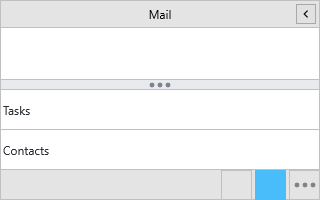
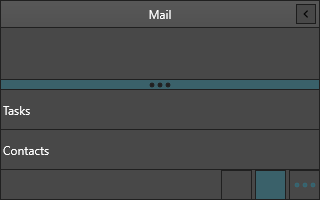
The splitter sits between the item area and the button bar (it appears in
npmItems and npmMixed modes). Dragging it down converts trailing items into
buttons; dragging up converts buttons back into items. Style and toggle it
through the Splitter sub-object, and track moves with OnSplitterMove.
procedure TForm1.ConfigureSplitter;
begin
  NavigationPanel1.Splitter.Visible := True;
  NavigationPanel1.Splitter.Size := 8;
  NavigationPanel1.Splitter.Fill.Color := gcGainsboro;
  NavigationPanel1.Splitter.Stroke.Color := gcSilver;
  NavigationPanel1.Splitter.BulletColor := gcGray;
end;

procedure TForm1.NavigationPanel1SplitterMove(Sender: TObject;
  AOldPosition, ANewPosition: Integer);
begin
  // Persist how many items the user kept in the item area.
  StatusBar1.SimpleText := Format('Items shown: %d', [ANewPosition]);
end;
void __fastcall TForm1::ConfigureSplitter()
{
  NavigationPanel1->Splitter->Visible = true;
  NavigationPanel1->Splitter->Size = 8;
  NavigationPanel1->Splitter->Fill->Color = gcGainsboro;
  NavigationPanel1->Splitter->Stroke->Color = gcSilver;
  NavigationPanel1->Splitter->BulletColor = gcGray;
}

void __fastcall TForm1::NavigationPanel1SplitterMove(TObject *Sender,
  int AOldPosition, int ANewPosition)
{
  // Persist how many items the user kept in the item area.
  StatusBar1->Text = Format("Items shown: %d", ARRAYOFCONST((ANewPosition)));
}
Limiting visible items and buttons
MaxItemCount and MaxButtonCount cap how many entries stay in each area; the
rest move to the options menu automatically. SplitItems(N) does the same
conversion programmatically, keeping N items in the item area. A value of -1
(the default) means no limit.
procedure TForm1.LimitOverflow;
begin
  // Keep at most two items in the item area and one button in the bar.
  NavigationPanel1.MaxItemCount := 2;
  NavigationPanel1.MaxButtonCount := 1;

  // Programmatically convert items into buttons, keeping N as items.
  NavigationPanel1.SplitItems(2);
end;
void __fastcall TForm1::LimitOverflow()
{
  // Keep at most two items in the item area and one button in the bar.
  NavigationPanel1->MaxItemCount = 2;
  NavigationPanel1->MaxButtonCount = 1;

  // Programmatically convert items into buttons, keeping N as items.
  NavigationPanel1->SplitItems(2);
}
The options overflow menu
The three-dots options button (shown when
ButtonsAppearance.ShowOptionsButton is True) opens a context menu containing
the hidden/overflow items plus show-more and show-fewer commands. Selecting an
item there activates it and raises OnItemClick. Hook OnCustomizeContextMenu
to append your own entries before the menu is shown.
procedure TForm1.NavigationPanel1CustomizeContextMenu(Sender: TObject;
  AContextMenu: TPopupMenu);
var
  mnu: TMenuItem;
begin
  // The control has already filled AContextMenu with the hidden/overflow
  // items and the show-more / show-fewer commands. Append your own here.
  mnu := TMenuItem.Create(AContextMenu);
  mnu.Text := '-';                       // separator
  AContextMenu.AddObject(mnu);

  mnu := TMenuItem.Create(AContextMenu);
  mnu.Text := 'Customize navigation...';
  mnu.OnClick := DoCustomizeNavigation;
  AContextMenu.AddObject(mnu);
end;
void __fastcall TForm1::NavigationPanel1CustomizeContextMenu(TObject *Sender,
  TPopupMenu *AContextMenu)
{
  // The control has already filled AContextMenu with the hidden/overflow
  // items and the show-more / show-fewer commands. Append your own here.
  TMenuItem *mnu = new TMenuItem(AContextMenu);
  mnu->Text = "-";                       // separator
  AContextMenu->AddObject(mnu);

  mnu = new TMenuItem(AContextMenu);
  mnu->Text = "Customize navigation...";
  mnu->OnClick = DoCustomizeNavigation;
  AContextMenu->AddObject(mnu);
}
Note
Hiding the options button (ShowOptionsButton := False) also removes the
"Add or Remove Items" menu users rely on to restore items marked
Visible := False. Keep it visible whenever any item can be hidden.
Splitter, limits and overflow together
This combines a styled splitter, item/button caps and a move handler so the app can persist how the user arranged the areas:
procedure TForm1.FormCreate(Sender: TObject);
begin
  NavigationPanel1.BeginUpdate;
  try
    NavigationPanel1.Mode := npmMixed;

    // Styled, visible splitter.
    NavigationPanel1.Splitter.Visible := True;
    NavigationPanel1.Splitter.Size := 8;
    NavigationPanel1.Splitter.BulletColor := gcGray;

    // Only one item stays in the item area; the rest become buttons or
    // move into the options overflow menu.
    NavigationPanel1.MaxItemCount := 1;
    NavigationPanel1.MaxButtonCount := 2;
  finally
    NavigationPanel1.EndUpdate;
  end;
end;

procedure TForm1.NavigationPanel1SplitterMove(Sender: TObject;
  AOldPosition, ANewPosition: Integer);
begin
  StatusBar1.SimpleText := Format('Items in area: %d', [ANewPosition]);
end;
void __fastcall TForm1::FormCreate(TObject *Sender)
{
  NavigationPanel1->BeginUpdate();
  try
  {
    NavigationPanel1->Mode = npmMixed;

    // Styled, visible splitter.
    NavigationPanel1->Splitter->Visible = true;
    NavigationPanel1->Splitter->Size = 8;
    NavigationPanel1->Splitter->BulletColor = gcGray;

    // Only one item stays in the item area; the rest become buttons or
    // move into the options overflow menu.
    NavigationPanel1->MaxItemCount = 1;
    NavigationPanel1->MaxButtonCount = 2;
  }
  __finally
  {
    NavigationPanel1->EndUpdate();
  }
}

void __fastcall TForm1::NavigationPanel1SplitterMove(TObject *Sender,
  int AOldPosition, int ANewPosition)
{
  StatusBar1->Text = Format("Items in area: %d", ARRAYOFCONST((ANewPosition)));
}
Common mistakes
- Capping below your fixed items. A
MaxItemCountsmaller than the number of always-visible items pushes the remainder into the overflow menu, which can surprise users — size the caps to your layout. - Hiding the options button while items overflow. Overflowed items become
unreachable. Keep
ShowOptionsButton := Truewhen limits or hidden items are in play.
Related API
TTMSFNCNavigationPanelSplitter—Visible,Size,Fill,Stroke,BulletColorTTMSFNCNavigationPanel—MaxItemCount,MaxButtonCount,SplitItems,OnSplitterMove,OnCustomizeContextMenu