Selection and events
A navigation panel exists to switch the user between views, so the core wiring
is: track which item is active, and react when the user picks another. This
chapter covers the selection API (ActivePanelIndex and the Select* methods)
and the events that fire on interaction — OnItemClick, OnCompactItemClick
and OnItemAnchorClick. Use it to keep a paired content area in sync with the
panel.
Selecting panels in code
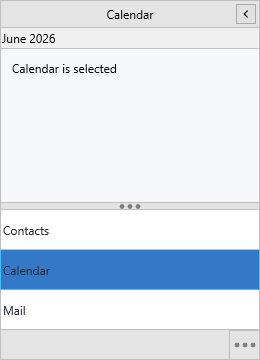
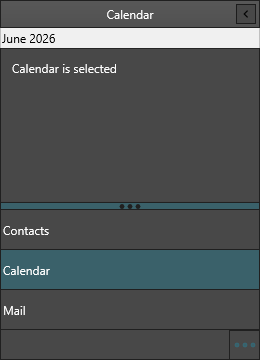
ActivePanelIndex is the selected item's index in Panels. Set it directly, or
move the selection relatively with the Select* helpers — handy for wiring
keyboard shortcuts or next/previous buttons.
procedure TForm1.NavigateProgrammatically;
begin
  // Activate a specific panel (expands it and raises selection state).
  NavigationPanel1.SelectPanel(0);

  // Or set the active index directly.
  NavigationPanel1.ActivePanelIndex := 1;

  // Step through panels, e.g. from toolbar buttons.
  NavigationPanel1.SelectNextPanel;
  NavigationPanel1.SelectPreviousPanel;
end;
void __fastcall TForm1::NavigateProgrammatically()
{
  // Activate a specific panel (expands it and raises selection state).
  NavigationPanel1->SelectPanel(0);

  // Or set the active index directly.
  NavigationPanel1->ActivePanelIndex = 1;

  // Step through panels, e.g. from toolbar buttons.
  NavigationPanel1->SelectNextPanel();
  NavigationPanel1->SelectPreviousPanel();
}
Reacting to clicks
OnItemClick fires with the clicked item's index whenever a full item — or an
overflow-menu entry for a hidden item — is activated. This is where you show the
matching view.
procedure TForm1.NavigationPanel1ItemClick(Sender: TObject; AItemIndex: Integer);
begin
  // AItemIndex is the index in the Panels collection.
  MailView.Visible := AItemIndex = 0;
  CalendarView.Visible := AItemIndex = 1;
  ContactsView.Visible := AItemIndex = 2;
end;
void __fastcall TForm1::NavigationPanel1ItemClick(TObject *Sender, int AItemIndex)
{
  // AItemIndex is the index in the Panels collection.
  MailView->Visible = (AItemIndex == 0);
  CalendarView->Visible = (AItemIndex == 1);
  ContactsView->Visible = (AItemIndex == 2);
}
Note
In compact mode the vertical item button raises OnCompactItemClick instead.
Handle both if your panel can collapse — see the combination below.
Anchor clicks in item text
Item Text accepts HTML, including <a href="..."> anchors. When the user
clicks an anchor, OnItemAnchorClick fires with the item index and the anchor's
href value — useful for inline secondary actions inside a header.
procedure TForm1.FormCreate(Sender: TObject);
begin
  // Item labels accept HTML, including clickable anchors.
  NavigationPanel1.AddPanel('Account').Text :=
    'Account <a href="manage">manage</a>';
end;

procedure TForm1.NavigationPanel1ItemAnchorClick(Sender: TObject;
  AItemIndex: Integer; AAnchor: string);
begin
  // AAnchor is the href value of the clicked link.
  if AAnchor = 'manage' then
    ShowAccountSettings;
end;
void __fastcall TForm1::FormCreate(TObject *Sender)
{
  // Item labels accept HTML, including clickable anchors.
  NavigationPanel1->AddPanel("Account")->Text =
    "Account <a href=\"manage\">manage</a>";
}

void __fastcall TForm1::NavigationPanel1ItemAnchorClick(TObject *Sender,
  int AItemIndex, UnicodeString AAnchor)
{
  // AAnchor is the href value of the clicked link.
  if (AAnchor == "manage")
    ShowAccountSettings();
}
Combining selection and clicks to sync a content area
Putting it together — an initial selection plus click and compact-click handlers
that all route through one ShowView method, so the content area always matches
the panel whether expanded or collapsed:
procedure TForm1.FormCreate(Sender: TObject);
begin
  NavigationPanel1.BeginUpdate;
  try
    NavigationPanel1.Panels.Clear;
    NavigationPanel1.AddPanel('Mail');
    NavigationPanel1.AddPanel('Calendar');
    NavigationPanel1.AddPanel('Contacts');
  finally
    NavigationPanel1.EndUpdate;
  end;

  NavigationPanel1.ActivePanelIndex := 0;   // initial selection
  ShowView(0);
end;

procedure TForm1.NavigationPanel1ItemClick(Sender: TObject; AItemIndex: Integer);
begin
  ShowView(AItemIndex);
end;

procedure TForm1.NavigationPanel1CompactItemClick(Sender: TObject;
  AItemIndex: Integer);
begin
  // Expand the rail, then show the same view a full item click would.
  NavigationPanel1.CompactMode := False;
  ShowView(AItemIndex);
end;
void __fastcall TForm1::FormCreate(TObject *Sender)
{
  NavigationPanel1->BeginUpdate();
  try
  {
    NavigationPanel1->Panels->Clear();
    NavigationPanel1->AddPanel("Mail");
    NavigationPanel1->AddPanel("Calendar");
    NavigationPanel1->AddPanel("Contacts");
  }
  __finally
  {
    NavigationPanel1->EndUpdate();
  }

  NavigationPanel1->ActivePanelIndex = 0;   // initial selection
  ShowView(0);
}

void __fastcall TForm1::NavigationPanel1ItemClick(TObject *Sender, int AItemIndex)
{
  ShowView(AItemIndex);
}

void __fastcall TForm1::NavigationPanel1CompactItemClick(TObject *Sender,
  int AItemIndex)
{
  // Expand the rail, then show the same view a full item click would.
  NavigationPanel1->CompactMode = false;
  ShowView(AItemIndex);
}
Common mistakes
- Reading
ActivePanelIndexinsideOnItemClicktoo early. Use theAItemIndexparameter the event hands you; it is authoritative for the click. - Ignoring
OnCompactItemClick. A panel that can collapse must handle it, or clicks on the compact rail appear to do nothing.
Related API
TTMSFNCNavigationPanel—ActivePanelIndex,SelectPanel,SelectNextPanel,SelectPreviousPanel,OnItemClick,OnCompactItemClick,OnItemAnchorClick