Interaction
The Interaction property on TTMSFNCPlanner
groups every setting that governs how users create, edit, move, resize, delete,
and navigate items — with mouse, keyboard, and touch. Tune these to match the
host application: a desktop scheduler wants click-to-edit and keyboard delete,
while a tablet kiosk wants swipe navigation and touch scrolling. This guide walks
through each interaction area with verified examples and finishes with a
touch-friendly combination.
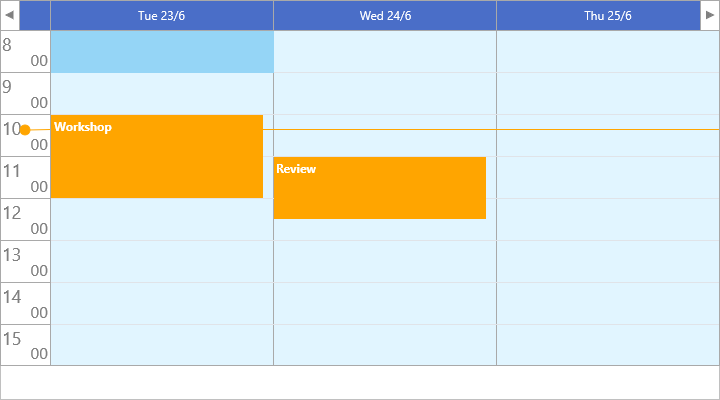
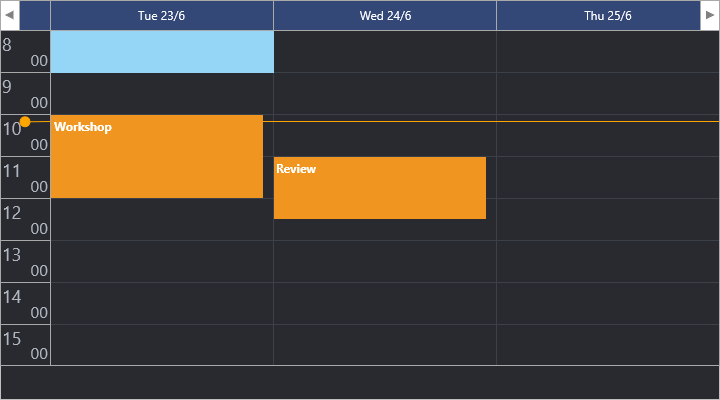
Insert modes
Two properties decide how new items are created:
| Property | Values | Meaning |
|---|---|---|
MouseInsertMode |
pmimNone, pmimAfterSelection, pmimDialogAfterSelection |
Whether dragging an empty range creates an item, opens the dialog, or does nothing. |
KeyboardInsertMode |
pkimNone, pkimSelection, pkimSelectionDialog |
Whether a keyboard selection creates an item or opens the dialog. |
Edit modes
Editing is controlled by three properties:
| Property | Values | Meaning |
|---|---|---|
MouseEditMode |
pmemDoubleClick, pmemSingleClick, pmemSingleClickOnSelectedItem |
The mouse gesture that starts editing. Default is pmemSingleClickOnSelectedItem. |
UpdateMode |
pumNone, pumInplace, pumDialog |
Where edits happen: in place, in the dialog, or not automatically. |
InplaceEditorMode |
piemText, piemTitle, piemTextAndTitle |
Which fields the inplace editor edits. |
procedure TForm1.ConfigureInsertAndEdit;
begin
  // Insert: drag-select an empty range to create an item.
  Planner1.Interaction.MouseInsertMode := pmimAfterSelection;
  Planner1.Interaction.KeyboardInsertMode := pkimSelection;

  // Edit: open the editor when an already-selected item is clicked again.
  Planner1.Interaction.MouseEditMode := pmemSingleClickOnSelectedItem;

  // Editing happens in place (vs. pumDialog or pumNone).
  Planner1.Interaction.UpdateMode := pumInplace;
  Planner1.Interaction.InplaceEditorMode := piemTextAndTitle;
end;
void __fastcall TForm1::ConfigureInsertAndEdit()
{
  // Insert: drag-select an empty range to create an item.
  Planner1->Interaction->MouseInsertMode = pmimAfterSelection;
  Planner1->Interaction->KeyboardInsertMode = pkimSelection;

  // Edit: open the editor when an already-selected item is clicked again.
  Planner1->Interaction->MouseEditMode = pmemSingleClickOnSelectedItem;

  // Editing happens in place (vs. pumDialog or pumNone).
  Planner1->Interaction->UpdateMode = pumInplace;
  Planner1->Interaction->InplaceEditorMode = piemItem;
}
Move, size, and delete
MoveMode, SizeMode, and DeleteMode each take a *Desktop, *Mobile, or
*Auto value (pmm*, psm*, pdm*). Auto adapts the gesture style to the
current platform — the right default for cross-platform apps. KeyboardDelete
enables the Delete key, and ReadOnly disables all moving, sizing, editing, and
deletion in one switch:
procedure TForm1.ConfigureMoveSizeDelete;
begin
  // Auto picks desktop or mobile interaction per platform; force one if needed.
  Planner1.Interaction.MoveMode := pmmAuto;
  Planner1.Interaction.SizeMode := psmAuto;
  Planner1.Interaction.DeleteMode := pdmAuto;

  // Allow the Delete key to remove the selected item.
  Planner1.Interaction.KeyboardDelete := True;
end;

procedure TForm1.SetReadOnly(AReadOnly: Boolean);
begin
  // ReadOnly disables all moving, sizing, editing, and deleting at once.
  Planner1.Interaction.ReadOnly := AReadOnly;
end;
void __fastcall TForm1::ConfigureMoveSizeDelete()
{
  // Auto picks desktop or mobile interaction per platform; force one if needed.
  Planner1->Interaction->MoveMode = pmmAuto;
  Planner1->Interaction->SizeMode = psmAuto;
  Planner1->Interaction->DeleteMode = pdmAuto;

  // Allow the Delete key to remove the selected item.
  Planner1->Interaction->KeyboardDelete = true;
}

void __fastcall TForm1::SetReadOnly(bool AReadOnly)
{
  // ReadOnly disables all moving, sizing, editing, and deleting at once.
  Planner1->Interaction->ReadOnly = AReadOnly;
}
Per-item permissions (Movable, Sizeable, Editable, Deletable) still apply
on top of these modes — see Items.
Selection
MultiSelect allows more than one item to be selected at once; ShowSelection
draws the time-range selection overlay (styled via
SelectionAppearance); and KeepSelection
preserves the selection across navigation. Selection changes are reported through
the OnBeforeSelectItem / OnAfterSelectItem events. For reading and driving the
selection from code — selecting by criteria, bulk actions, vetoing — see the
dedicated Selection guide.
Navigation, keyboard, and touch
TopNavigationButtons and BottomNavigationButtons are sets of pnbPrevious
/ pnbNext that show the built-in arrow buttons. TouchScrolling enables drag
scrolling, and SwipeToNextDateTime / SwipeToPreviousDateTime enable swipe
navigation between periods. KeyboardMode (default pkmDefault) selects what the
arrow keys do. Programmatic navigation uses NavigateToNextDateTime /
NavigateToPreviousDateTime (see Timeline).
Tooltips and hints
Set ShowHint := True and the planner raises three "get hint" events so you can
supply context-specific tooltip text as the pointer moves: OnGetItemHint over an
appointment, OnGetTimeHint over the time-axis labels, and OnGetPositionHint
over a position (resource/day) header. Each passes a var AHint you fill in:
procedure TForm1.WirePlannerHints;
begin
  // Hints must be enabled on the control for the events to surface.
  Planner1.ShowHint := True;

  Planner1.OnGetItemHint := PlannerGetItemHint;
  Planner1.OnGetTimeHint := PlannerGetTimeHint;
  Planner1.OnGetPositionHint := PlannerGetPositionHint;
end;

procedure TForm1.PlannerGetItemHint(Sender: TObject;
  AItem: TTMSFNCPlannerItem; var AHint: string);
begin
  // Build a rich hint from the item being hovered.
  AHint := Format('%s'#13#10'%s - %s',
    [AItem.Title, TimeToStr(AItem.StartTime), TimeToStr(AItem.EndTime)]);
end;

procedure TForm1.PlannerGetTimeHint(Sender: TObject; AValue: Double;
  ARow: Integer; AKind: TTMSFNCPlannerCacheItemKind; var AHint: String);
begin
  // Fires over the time-line labels (AKind is ikTimeLineLeft / ikTimeLineRight).
  AHint := Format('Time slot row %d', [ARow]);
end;

procedure TForm1.PlannerGetPositionHint(Sender: TObject; AIndex: Integer;
  AKind: TTMSFNCPlannerCacheItemKind; var AHint: string);
begin
  // Fires over a position (resource/day) header; AIndex is the column index.
  AHint := Format('Column %d', [AIndex]);
end;
void __fastcall TForm1::WirePlannerHints()
{
  // Hints must be enabled on the control for the events to surface.
  // ShowHint is protected on the planner class; set it through the TControl base.
  static_cast<TControl*>(Planner1)->ShowHint = true;

  Planner1->OnGetItemHint = PlannerGetItemHint;
  Planner1->OnGetTimeHint = PlannerGetTimeHint;
  Planner1->OnGetPositionHint = PlannerGetPositionHint;
}

void __fastcall TForm1::PlannerGetItemHint(TObject *Sender,
  TTMSFNCPlannerItem *AItem, UnicodeString &AHint)
{
  // Build a rich hint from the item being hovered.
  AHint = Format("%s\r\n%s - %s",
    ARRAYOFCONST((AItem->Title, TimeToStr(AItem->StartTime), TimeToStr(AItem->EndTime))));
}

void __fastcall TForm1::PlannerGetTimeHint(TObject *Sender, double AValue,
  int ARow, TTMSFNCPlannerCacheItemKind AKind, UnicodeString &AHint)
{
  // Fires over the time-line labels (AKind is ikTimeLineLeft / ikTimeLineRight).
  AHint = Format("Time slot row %d", ARRAYOFCONST((ARow)));
}

void __fastcall TForm1::PlannerGetPositionHint(TObject *Sender, int AIndex,
  TTMSFNCPlannerCacheItemKind AKind, UnicodeString &AHint)
{
  // Fires over a position (resource/day) header; AIndex is the column index.
  AHint = Format("Column %d", ARRAYOFCONST((AIndex)));
}
Putting it together
This example builds a touch-friendly, multi-select schedule that combines
multi-select, drag-insert, swipe and touch scrolling, on-screen navigation
buttons, and an OnAfterSelectItem handler:
procedure TForm1.ConfigureTouchSchedule;
begin
  Planner1.BeginUpdate;
  try
    // Multiple items can be selected at once.
    Planner1.Interaction.MultiSelect := True;
    Planner1.Interaction.ShowSelection := True;

    // Drag an empty range to insert.
    Planner1.Interaction.MouseInsertMode := pmimAfterSelection;

    // Touch: swipe between periods and scroll by dragging.
    Planner1.Interaction.TouchScrolling := True;
    Planner1.Interaction.SwipeToNextDateTime := True;
    Planner1.Interaction.SwipeToPreviousDateTime := True;

    // On-screen navigation arrows at the top.
    Planner1.Interaction.TopNavigationButtons := [pnbPrevious, pnbNext];
  finally
    Planner1.EndUpdate;
  end;

  // React to selection changes.
  Planner1.OnAfterSelectItem := PlannerAfterSelectItem;
end;

procedure TForm1.PlannerAfterSelectItem(Sender: TObject; AItem: TTMSFNCPlannerItem);
begin
  if Assigned(AItem) then
    Caption := 'Selected: ' + AItem.Title;
end;
void __fastcall TForm1::ConfigureTouchSchedule()
{
  Planner1->BeginUpdate();
  try
  {
    // Multiple items can be selected at once.
    Planner1->Interaction->MultiSelect = true;
    Planner1->Interaction->ShowSelection = true;

    // Drag an empty range to insert.
    Planner1->Interaction->MouseInsertMode = pmimAfterSelection;

    // Touch: swipe between periods and scroll by dragging.
    Planner1->Interaction->TouchScrolling = true;
    Planner1->Interaction->SwipeToNextDateTime = true;
    Planner1->Interaction->SwipeToPreviousDateTime = true;

    // On-screen navigation arrows at the top.
    Planner1->Interaction->TopNavigationButtons = TTMSFNCPlannerNavigationButtons() << pnbPrevious << pnbNext;
  }
  __finally
  {
    Planner1->EndUpdate();
  }

  // React to selection changes.
  Planner1->OnAfterSelectItem = PlannerAfterSelectItem;
}

void __fastcall TForm1::PlannerAfterSelectItem(TObject *Sender, TTMSFNCPlannerItem *AItem)
{
  if (AItem != nullptr)
    Caption = "Selected: " + AItem->Title;
}
Pitfalls
- Navigation buttons are a set, not a Boolean. Assign
[pnbPrevious, pnbNext](or[]to hide them) —Truewill not compile. ReadOnlyoverrides per-item permissions. WhenInteraction.ReadOnlyisTrue, items cannot be changed even if their ownMovable/Editableflags areTrue.- Insert needs a mode. With
MouseInsertMode = pmimNone, dragging an empty range does nothing; setpmimAfterSelectionto let users create items by selection. - Edit trigger vs. update target.
MouseEditModedecides when editing starts;UpdateModedecides where it happens. WithUpdateMode = pumNone, no editor opens regardless ofMouseEditMode.
Related API
TTMSFNCPlanner.Interaction—MouseInsertMode,MouseEditMode,UpdateMode,InplaceEditorMode,MoveMode,SizeMode,DeleteMode,KeyboardDelete,MultiSelect,ShowSelection,TouchScrolling,TopNavigationButtons,ReadOnlyTTMSFNCPlanner—OnAfterSelectItem,NavigateToNextDateTime,NavigateToPreviousDateTime,ShowHint,OnGetItemHint,OnGetTimeHint,OnGetPositionHint
See also
- Selection — reading and driving the selection from code
- Items — per-item permissions and editing
- Appearance — styling the selection overlay
- Timeline — navigation and the active range