Getting Started with TMS FNC Ribbon
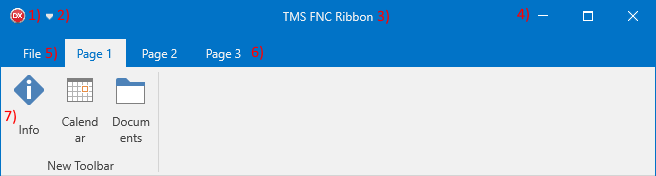
TTMSFNCRibbon is a Microsoft Office-style ribbon bar with a quick access toolbar, HTML caption, page control, responsive toolbars, decorative groups, keyboard shortcut hints, and a built-in theming system.
Prerequisites
- Delphi with TMS FNC UI Pack installed.
- A VCL, FMX, or WEB application. Use
TTMSFNCRibbonFormas the base form class to get proper ribbon integration.
Steps
1. Drop the component
Drop a TTMSFNCRibbon from the TMS FNC UI Pack palette page onto a form. The component ships with a default layout including a page control, QAT, caption, and system menu. Use the right-click context menu on any part of the ribbon to add pages, toolbars, and controls.
2. Apply a theme
TMSFNCRibbon1.Theme := rbtLightBlue;
3. Add pages and toolbars
// Add pages, toolbars, and buttons programmatically
procedure TForm1.FormCreate(Sender: TObject);
var
  tb: TTMSFNCRibbonToolBar;
  btn: TTMSFNCRibbonToolBarButton;
begin
  // Add pages to the page control
  TMSFNCRibbon1.PageControl.AddPage('Home');
  TMSFNCRibbon1.PageControl.AddPage('Insert');
  TMSFNCRibbon1.PageControl.AddPage('View');

  // Add a toolbar to the first page's container
  tb := TMSFNCRibbon1.PageControl.PageContainers[0].AddToolBar('Clipboard');

  // Add buttons to the toolbar
  btn := tb.AddButton;
  btn.Text := 'Paste';
  btn.Layout := bblLarge;
  btn.BitmapContainer := TMSFNCBitmapContainer1;
  btn.Bitmaps.AddBitmapName('Paste.png');
  btn.LargeLayoutBitmaps.AddBitmapName('Paste_Large.png');

  btn := tb.AddButton;
  btn.Text := 'Cut';
  btn.Layout := bblLabel;
  btn.BitmapContainer := TMSFNCBitmapContainer1;
  btn.Bitmaps.AddBitmapName('Cut.png');
end;
// Add pages, toolbars, and buttons programmatically
void __fastcall TForm1::FormCreate(TObject *Sender)
{
  // Add pages to the page control
  TMSFNCRibbon1->PageControl->AddPage("Home");
  TMSFNCRibbon1->PageControl->AddPage("Insert");
  TMSFNCRibbon1->PageControl->AddPage("View");

  // Add a toolbar to the first page's container
  TTMSFNCRibbonToolBar *tb = TMSFNCRibbon1->PageControl->PageContainers[0]->AddToolBar("Clipboard");

  // Add buttons to the toolbar
  TTMSFNCRibbonToolBarButton *btn = tb->AddButton();
  btn->Text = "Paste";
  btn->Layout = bblLarge;
  btn->BitmapContainer = TMSFNCBitmapContainer1;
  btn->Bitmaps->AddBitmapName("Paste.png");
  btn->LargeLayoutBitmaps->AddBitmapName("Paste_Large.png");

  btn = tb->AddButton();
  btn->Text = "Cut";
  btn->Layout = bblLabel;
  btn->BitmapContainer = TMSFNCBitmapContainer1;
  btn->Bitmaps->AddBitmapName("Cut.png");
}
4. Handle button clicks
Wire OnClick on each TTMSFNCRibbonToolBarButton as you would any other button.