Interaction
Mouse and keyboard navigation
TTMSFNCTreeView responds to mouse clicks and keyboard navigation out of the box:
- Click a node to select it.
- Up/Down, Home, End, Page Up/Down move selection.
- Left/Right keys collapse and expand nodes.
- Clicking the expand/collapse icon has the same effect.
Multi-select
Enable multi-selection, enumerate the selected nodes, or select everything:
uses
  FMX.Dialogs, FMX.TMSFNCTreeView, FMX.TMSFNCTreeViewData;

procedure TForm1.EnableMultiSelect;
begin
  TreeView1.Interaction.MultiSelect := True; // Ctrl+click or Shift+click to extend
end;

procedure TForm1.ShowSelectedNodes;
var
  I: Integer;
begin
  for I := 0 to TreeView1.SelectedNodeCount - 1 do
    ShowMessage(TreeView1.SelectedNodes[I].Text[0]);
end;

procedure TForm1.SelectEverything;
begin
  TreeView1.SelectAllNodes;        // collection-based
  TreeView1.SelectAllVirtualNodes; // virtual
end;
void __fastcall TForm1::EnableMultiSelect()
{
  TreeView1->Interaction->MultiSelect = true; // Ctrl+click or Shift+click to extend
}

void __fastcall TForm1::ShowSelectedNodes()
{
  for (int I = 0; I < TreeView1->SelectedNodeCount(); I++)
    ShowMessage(TreeView1->SelectedNodes[I]->Text[0]);
}

void __fastcall TForm1::SelectEverything()
{
  TreeView1->SelectAllNodes();        // collection-based
  TreeView1->SelectAllVirtualNodes(); // virtual
}
Mouse wheel sensitivity
Control how much the tree scrolls per wheel notch:
uses
  FMX.TMSFNCTreeView;

procedure TForm1.SetWheelSensitivity;
begin
  TreeView1.Interaction.MouseWheelDelta := 2; // scroll 2 node heights per notch
end;
void __fastcall TForm1::SetWheelSensitivity()
{
  TreeView1->Interaction->MouseWheelDelta = 2; // scroll 2 node heights per notch
}
Inplace editing
Enable editing per column via the EditorType property. You can also blank the editor when editing starts (via OnGetNodeText with AMode = tntmEditing) and reject a value before it commits (via OnBeforeUpdateNode):
uses
  FMX.TMSFNCTreeView, FMX.TMSFNCTreeViewData;

procedure TForm1.EnableInplaceEditors;
begin
  TreeView1.Columns[0].EditorType := tcetEdit;     // standard edit
  TreeView1.Columns[1].EditorType := tcetComboBox; // combo with a fixed list
  TreeView1.Columns[1].EditorItems.Add('Option A');
  TreeView1.Columns[1].EditorItems.Add('Option B');
end;

// Blank the editor when editing starts.
procedure TForm1.TreeView1GetNodeText(Sender: TObject;
  ANode: TTMSFNCTreeViewVirtualNode; AColumn: Integer;
  AMode: TTMSFNCTreeViewNodeTextMode; var AText: string);
begin
  if AMode = tntmEditing then
    AText := '';
end;

// Reject an empty value before it commits.
procedure TForm1.TreeView1BeforeUpdateNode(Sender: TObject;
  ANode: TTMSFNCTreeViewVirtualNode; AColumn: Integer;
  var AText: string; var ACanUpdate: Boolean);
begin
  if AText = '' then
    ACanUpdate := False;
end;
void __fastcall TForm1::EnableInplaceEditors()
{
  TreeView1->Columns->Items[0]->EditorType = tcetEdit;     // standard edit
  TreeView1->Columns->Items[1]->EditorType = tcetComboBox; // combo with a fixed list
  TreeView1->Columns->Items[1]->EditorItems->Add("Option A");
  TreeView1->Columns->Items[1]->EditorItems->Add("Option B");
}

// Blank the editor when editing starts.
void __fastcall TForm1::TreeView1GetNodeText(TObject *Sender,
  TTMSFNCTreeViewVirtualNode *ANode, int AColumn,
  TTMSFNCTreeViewNodeTextMode AMode, UnicodeString &AText)
{
  if (AMode == tntmEditing)
    AText = "";
}

// Reject an empty value before it commits.
void __fastcall TForm1::TreeView1BeforeUpdateNode(TObject *Sender,
  TTMSFNCTreeViewVirtualNode *ANode, int AColumn,
  UnicodeString &AText, bool &ACanUpdate)
{
  if (AText == "")
    ACanUpdate = false;
}
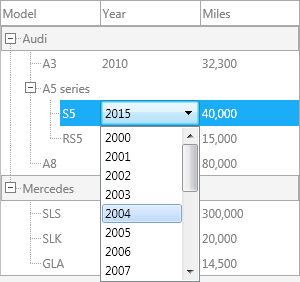
Start editing with a click on the text or by pressing F2.
Custom editor
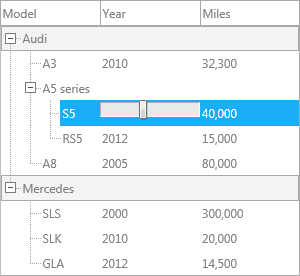
Supply any TControl subclass as the inplace editor:
uses
  System.SysUtils, FMX.StdCtrls, FMX.TMSFNCTreeView, FMX.TMSFNCTreeViewData;

procedure TForm1.EnableCustomEditor;
begin
  TreeView1.Columns[1].CustomEditor := True;
end;

procedure TForm1.TreeView1GetInplaceEditor(Sender: TObject;
  ANode: TTMSFNCTreeViewVirtualNode; AColumn: Integer;
  var ATransparent: Boolean;
  var AInplaceEditorClass: TTMSFNCTreeViewInplaceEditorClass);
begin
  AInplaceEditorClass := TTrackBar;
end;

procedure TForm1.TreeView1BeforeUpdateNode(Sender: TObject;
  ANode: TTMSFNCTreeViewVirtualNode; AColumn: Integer;
  var AText: string; var ACanUpdate: Boolean);
begin
  AText := FloatToStr((TreeView1.GetInplaceEditor as TTrackBar).Value);
end;
void __fastcall TForm1::EnableCustomEditor()
{
  TreeView1->Columns->Items[1]->CustomEditor = true;
}

void __fastcall TForm1::TreeView1GetInplaceEditor(TObject *Sender,
  TTMSFNCTreeViewVirtualNode *ANode, int AColumn,
  bool &ATransparent,
  TTMSFNCTreeViewInplaceEditorClass &AInplaceEditorClass)
{
  AInplaceEditorClass = __classid(TTrackBar);
}

void __fastcall TForm1::TreeView1BeforeUpdateNode(TObject *Sender,
  TTMSFNCTreeViewVirtualNode *ANode, int AColumn,
  UnicodeString &AText, bool &ACanUpdate)
{
  AText = FloatToStr(dynamic_cast<TTrackBar*>(TreeView1->GetInplaceEditor())->Value);
}
Lookup
When Interaction.Lookup.Enabled is True, typing alphanumeric characters navigates to the node whose text starts with the typed string:
uses
  FMX.TMSFNCTreeView;

procedure TForm1.EnableLookup;
begin
  TreeView1.Interaction.Lookup.Enabled := True;
end;
void __fastcall TForm1::EnableLookup()
{
  TreeView1->Interaction->Lookup->Enabled = true;
}
Filtering
Filtering hides nodes that don't match a condition while keeping their ancestors visible so the tree stays navigable. Enable column-header filter dropdowns or apply a programmatic filter via the Filter collection.
uses
  FMX.TMSFNCTreeView;

procedure TForm1.ConfigureColumnFiltering;
begin
  TreeView1.Columns[0].Filtering.Enabled := True;  // adds a filter dropdown button
  TreeView1.Columns[1].Filtering.Enabled := False;
end;

procedure TForm1.ClearFilters;
begin
  TreeView1.RemoveFilters;
end;
void __fastcall TForm1::ConfigureColumnFiltering()
{
  TreeView1->Columns->Items[0]->Filtering->Enabled = true;  // adds a filter dropdown button
  TreeView1->Columns->Items[1]->Filtering->Enabled = false;
}

void __fastcall TForm1::ClearFilters()
{
  TreeView1->RemoveFilters();
}
Dropdown filter
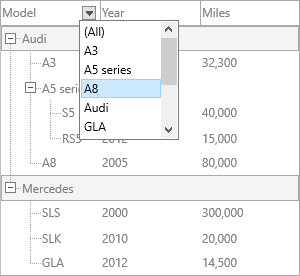
Setting Filtering.Enabled (shown above) adds a filter button to the column header. Clicking it shows a dropdown list of unique values; selecting one filters the tree.
Programmatic filter
procedure TForm1.ApplyFilter;
var
  f: TTMSFNCTreeViewFilterData;
begin
  TreeView1.Filter.Clear;

  f := TreeView1.Filter.Add;
  f.Column := 0;
  f.Condition := '*A*';  // wildcard match on column 0

  f := TreeView1.Filter.Add;
  f.Column := 1;
  f.Condition := '>= 2010';  // range match on column 1

  TreeView1.ApplyFilter;
end;
Note
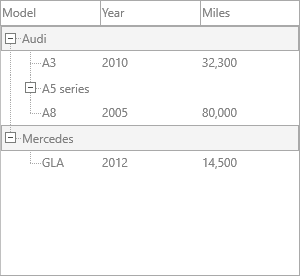
When a child node matches the filter condition, its entire parent chain is also shown so the tree structure remains navigable.
Call TreeView1.RemoveFilters to remove all active filters (see ClearFilters above).
Sorting
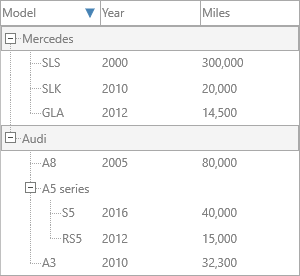
Enable click-to-sort on a column, or sort programmatically with a chosen direction:
uses
  FMX.TMSFNCTreeView;

procedure TForm1.EnableSorting;
begin
  TreeView1.Columns[0].Sorting := tcsRecursive; // click-to-sort, also sorts children
end;

procedure TForm1.SortProgrammatically;
begin
  // parameters: column index, recursive, case-sensitive, sort direction
  TreeView1.Sort(0, True, False, nsmDescending);
end;
void __fastcall TForm1::EnableSorting()
{
  TreeView1->Columns->Items[0]->Sorting = tcsRecursive; // click-to-sort, also sorts children
}

void __fastcall TForm1::SortProgrammatically()
{
  // parameters: column index, recursive, case-sensitive, sort direction
  TreeView1->Sort(0, true, false, nsmDescending);
}
Clipboard
uses
  FMX.TMSFNCTreeView;

procedure TForm1.ConfigureClipboard;
begin
  TreeView1.Interaction.ClipboardMode := tcmFull;
  // tcmTextOnly copies text only; tcmFull copies text, icons, and check states
end;
void __fastcall TForm1::ConfigureClipboard()
{
  TreeView1->Interaction->ClipboardMode = tcmFull;
  // tcmTextOnly copies text only; tcmFull copies text, icons, and check states
}
Cut/Copy/Paste are handled via standard keyboard shortcuts (Ctrl+X, Ctrl+C, Ctrl+V). When pasting, the focused node becomes the parent of the pasted nodes; if no node is focused, pasted nodes are added at root level.
Reordering and drag-and-drop
Reordering within the same level
uses
  FMX.TMSFNCTreeView;

procedure TForm1.EnableReorder;
begin
  TreeView1.Interaction.Reorder := True; // drag an already-selected node to a new position
end;

procedure TForm1.EnableDragDrop;
begin
  TreeView1.Interaction.DragDropMode := tdmMove; // or tdmCopy; takes precedence over reorder
end;
void __fastcall TForm1::EnableReorder()
{
  TreeView1->Interaction->Reorder = true; // drag an already-selected node to a new position
}
Drag-and-drop
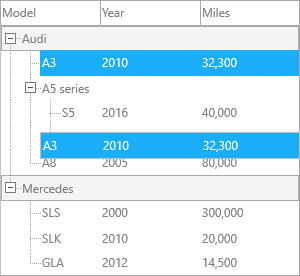
Set Interaction.DragDropMode to tdmMove or tdmCopy (shown above). Drag-and-drop takes precedence over reorder and supports moving nodes between two different TTMSFNCTreeView instances.
Drag-and-drop events: OnBeforeDropNode, OnAfterDropNode, OnAfterReorderNode.
Combined example: filtering + sorting + editing
  var ACanUpdate: Boolean);
begin
  // Validate or transform the text before it is committed
  if (AColumn = 0) and (AText = '') then
    ACanUpdate := False;  // reject empty text
end;

// Clipboard
procedure TForm1.SetupClipboard;
begin
Interaction property reference
| Property | Description |
|---|---|
ClipboardMode |
tcmNone, tcmTextOnly, tcmFull |
ColumnAutoSizeOnDblClick |
Autosize a column by double-clicking the header splitter |
ColumnSizing |
Allow the user to resize columns by dragging |
DragDropMode |
tdmNone, tdmMove, tdmCopy |
ExtendedEditable |
Allow editing extended (section-header) nodes |
ExtendedSelectable |
Allow selecting extended nodes |
KeyboardEdit |
Start editing with F2 or direct typing |
Lookup.Enabled |
Type-to-navigate |
MouseEditMode |
When mouse click starts editing |
MouseWheelDelta |
Scroll sensitivity (node heights per wheel notch) |
MultiSelect |
Allow Ctrl/Shift multi-selection |
ReadOnly |
Disable all editing |
Reorder |
Enable drag-reorder within the same level |
TouchScrolling |
Enable inertial touch scroll |
Related API
TTMSFNCTreeView—Sort,Filter,ApplyFilter,RemoveFilters,SelectAllNodesTTMSFNCTreeViewData—TTMSFNCTreeViewFilterData
See also
- Columns and groups — per-column filtering and sorting configuration
- Nodes — node types and structure