Conditional formatting: conditions
Where visual rules render a graphic, condition rules decide whether a cell is formatted at all. They fall into two groups that are worth telling apart, because they age very differently. A rule that compares against a literal — "below 100", "equals Churned" — states a threshold you chose and must maintain. A rule that compares against the scope — top 3, below average, duplicated, "this month" — restates itself every time the data or the calendar moves, and never goes stale.
Prefer the second kind whenever the question is really "how does this compare to everything else?", and keep literals for genuine business constants.
Text and value rules
Text and value rules compare a cell against one or two literal values and apply an
appearance when the comparison matches — the everyday case of "highlight cells
below target" or "highlight a specific status". AddCellValueRule builds a
grtCellValue rule for numeric/general comparisons; AddTextRule builds a
grtText rule for string matching. Both use Comparison
(TTMSFNCDataGridFormatComparison):
| Group | Values |
|---|---|
| Equality | gfcEqual, gfcNotEqual |
| Ordering | gfcGreater, gfcGreaterEqual, gfcLess, gfcLessEqual |
| Range | gfcBetween, gfcNotBetween — uses Value1 and Value2 |
| Text matching | gfcContains, gfcNotContains, gfcBeginsWith, gfcEndsWith |
Set CaseSensitive on a text rule to control case handling.
procedure TForm1.FormCreate(Sender: TObject);
begin
  { Inside your form's OnCreate, after populating the grid: }

  // "Active" -> green text, no fill change.
  with Grid.ConditionalFormatting.AddTextRule(COL_STATUS, gfcEqual, 'Active') do
    Appearance.Font.Color := gcGreen;

  // "At Risk" -> soft orange fill with dark-orange text.
  with Grid.ConditionalFormatting.AddTextRule(COL_STATUS, gfcEqual, 'At Risk') do
  begin
    Appearance.Fill.Color := gcOldlace;
    Appearance.Font.Color := gcDarkorange;
  end;

  // "Churned" -> soft red fill with red text.
  with Grid.ConditionalFormatting.AddTextRule(COL_STATUS, gfcEqual, 'Churned') do
  begin
    Appearance.Fill.Color := gcMistyrose;
    Appearance.Font.Color := gcRed;
  end;
end;
void __fastcall TForm1::FormCreate(TObject *Sender)
{
  /* Inside your form's OnCreate, after populating the grid: */

  // "Active" -> green text, no fill change.
  TTMSFNCDataGridFormatRuleItem *Rule = Grid->ConditionalFormatting->AddTextRule(COL_STATUS, gfcEqual, "Active");
  Rule->Appearance->Font->Color = gcGreen;

  // "At Risk" -> soft orange fill with dark-orange text.
  Rule = Grid->ConditionalFormatting->AddTextRule(COL_STATUS, gfcEqual, "At Risk");
  Rule->Appearance->Fill->Color = gcOldlace;
  Rule->Appearance->Font->Color = gcDarkorange;

  // "Churned" -> soft red fill with red text.
  Rule = Grid->ConditionalFormatting->AddTextRule(COL_STATUS, gfcEqual, "Churned");
  Rule->Appearance->Fill->Color = gcMistyrose;
  Rule->Appearance->Font->Color = gcRed;
}
gfcBetween is inclusive on both ends — a cell equal to Value1 or to
Value2 matches — and it does not care which bound is larger, so
Value1 = 5000 with Value2 = 1000 covers the same range as the other way
round. gfcNotBetween is its exact negation, so it excludes both endpoints.
There is no exclusive variant; for a strictly-open range stack a gfcGreater
and a gfcLess rule, or use an expression rule.
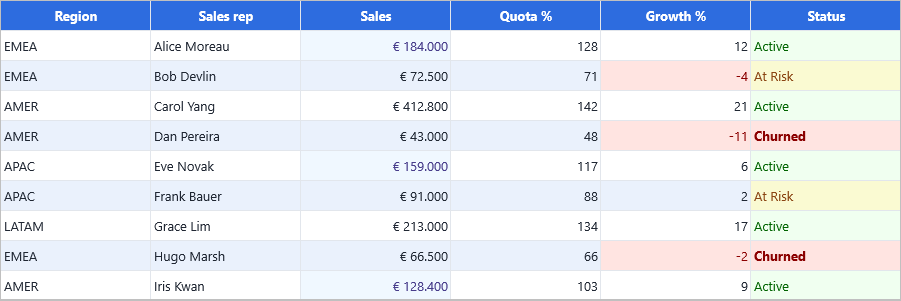
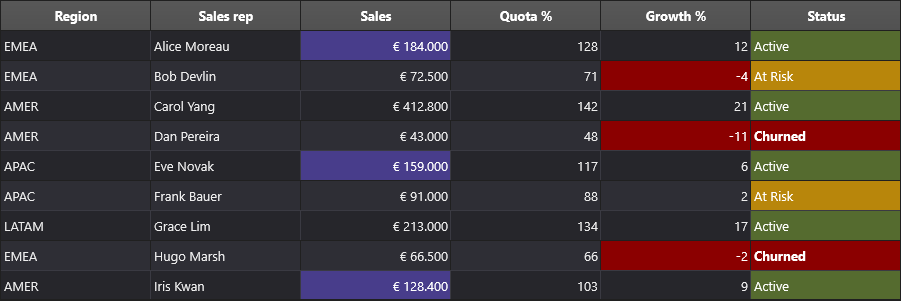
One text rule per state on Status, an inclusive gfcBetween band on Sales,
and a gfcLess rule on Growth %:
Setting values from a typed value
Value1 and Value2 are strings, and a rule compares them by coercing both
sides through the same value layer the filter components use — so '5000'
compares numerically against a numeric cell rather than lexically. Feeding those
strings by hand still means formatting a number or a date yourself, and getting
the decimal separator or the date order wrong silently turns the comparison into
a string comparison. Pass a typed value instead and the rule formats it for you:
| Call | Sets |
|---|---|
AddCellValueRule(ACol, AComparison, AValue: TTMSFNCValue) |
Value1 from one typed value |
AddCellValueRule(ACol, AComparison, AFrom, ATo: TTMSFNCValue) |
Value1 and Value2, for gfcBetween/gfcNotBetween |
Rule.WithValue(AValue: TTMSFNCValue) |
Value1 on an existing rule |
Rule.WithRange(AFrom, ATo: TTMSFNCValue) |
Value1 and Value2 on an existing rule |
TTMSFNCValue is the framework's portable value type: it is TValue on VCL and
FMX, and JSValue under WEB Core. On VCL/FMX that means adding System.Rtti to
the unit's uses clause and wrapping the value with TValue.From<T> so the type is
explicit — TValue.From<TDateTime>(ADate) is what makes a date bound compare as a
date rather than as its underlying floating-point number.
procedure TForm1.FormCreate(Sender: TObject);
begin
  { Inside your form's OnCreate, after populating the grid.
    Add System.Rtti to your uses clause for TValue. }

  // A typed value carries its own type, so no locale-dependent formatting is
  // needed on the way in and the comparison stays numeric.
  Grid.ConditionalFormatting.AddCellValueRule(COL_AMOUNT, gfcGreater,
    TValue.From<Integer>(5000)).Highlight(gcHoneydew, gcDarkgreen);

  // Two bounds in one call for gfcBetween. Both ends are inclusive, and the
  // order of the bounds does not matter.
  Grid.ConditionalFormatting.AddCellValueRule(COL_AMOUNT, gfcBetween,
    TValue.From<Integer>(1000), TValue.From<Integer>(5000))
    .Highlight(gcLightyellow, gcDarkgoldenrod);

  // A date bound needs no format string either.
  Grid.ConditionalFormatting.AddCellValueRule(COL_DUE, gfcLessEqual,
    TValue.From<TDateTime>(EncodeDate(2026, 6, 30)))
    .Highlight(gcMistyrose, gcRed);

  // The fluent equivalents set Value1 / Value2 on an existing rule.
  with Grid.ConditionalFormatting.Add do
  begin
    RuleType := grtCellValue;
    Comparison := gfcBetween;
    ForEntireRow(COL_AMOUNT);
    WithRange(TValue.From<Double>(0), TValue.From<Double>(999.99));
    Highlight(gcWhitesmoke);
  end;
end;
void __fastcall TForm1::FormCreate(TObject *Sender)
{
  /* Inside your form's OnCreate, after populating the grid.
     TValue comes from System.Rtti.hpp, already part of <fmx.h>. */

  // A typed value carries its own type, so no locale-dependent formatting is
  // needed on the way in and the comparison stays numeric.
  Grid->ConditionalFormatting->AddCellValueRule(COL_AMOUNT, gfcGreater,
    TValue::From<int>(5000))->Highlight(gcHoneydew, gcDarkgreen);

  // Two bounds in one call for gfcBetween. Both ends are inclusive, and the
  // order of the bounds does not matter.
  Grid->ConditionalFormatting->AddCellValueRule(COL_AMOUNT, gfcBetween,
    TValue::From<int>(1000), TValue::From<int>(5000))
    ->Highlight(gcLightyellow, gcDarkgoldenrod);

  // A date bound needs no format string either.
  Grid->ConditionalFormatting->AddCellValueRule(COL_DUE, gfcLessEqual,
    TValue::From<TDateTime>(EncodeDate(2026, 6, 30)))
    ->Highlight(gcMistyrose, gcRed);

  // The fluent equivalents set Value1 / Value2 on an existing rule.
  TTMSFNCDataGridFormatRuleItem *Rule = Grid->ConditionalFormatting->Add();
  Rule->RuleType = grtCellValue;
  Rule->Comparison = gfcBetween;
  Rule->ForEntireRow(COL_AMOUNT);
  Rule->WithRange(TValue::From<double>(0), TValue::From<double>(999.99));
  Rule->Highlight(gcWhitesmoke);
}
Date rules
A date rule matches a date column against a time window rather than a fixed
value, so the highlight follows the calendar instead of needing to be rewritten
whenever "this month" moves on. Use it for due dates, expiry dates, activity
timestamps — anything where "overdue", "this week" or "a specific campaign
period" is the question. AddDateHighlight builds a grtDate rule; the window
comes from DateInterval (TTMSFNCDataGridDateInterval), and a grtDate rule
ignores Comparison entirely.
DateInterval |
Matches |
|---|---|
diToday, diYesterday, diTomorrow |
That single day |
diThisWeek, diLastWeek, diNextWeek |
The Monday-to-Sunday week containing that day |
diThisMonth, diLastMonth, diNextMonth |
That whole calendar month |
diThisYear |
The current calendar year |
diCustomRange |
The explicit range DateFrom..DateTo |
Every bucket except diCustomRange is relative to the system date and
re-evaluated on each paint, so a grid that stays open across midnight repaints
itself against the new day.
An explicit date range
diCustomRange covers the case the rolling buckets cannot express: a fixed
window such as a holiday shutdown, a promotion period, or a closed accounting
month. Set DateFrom and DateTo — both bounds are inclusive, and their
order does not matter. Leave one at 0 for an open-ended range: DateFrom = 0
matches everything up to and including DateTo, and DateTo = 0 matches
everything from DateFrom onwards. With both at 0 the rule matches nothing,
so an unconfigured range never floods the grid.
AddDateRangeHighlight(AColumn, AFrom, ATo, AFillColor, ATextColor) sets the
rule type, the interval and both bounds in one call; the fluent
Rule.WithDateRange(AFrom, ATo) does the same on an existing rule, which is how
you combine an explicit range with a scope other than a single column.
procedure TForm1.FormCreate(Sender: TObject);
begin
  { Inside your form's OnCreate, after populating the grid: }

  // Rolling buckets are re-evaluated against the system date, so a grid left
  // open overnight repaints "Today" on the next row without touching the rule.
  Grid.ConditionalFormatting.AddDateHighlight(COL_DUE, diToday,
    gcHoneydew, gcDarkgreen);
  Grid.ConditionalFormatting.AddDateHighlight(COL_DUE, diYesterday,
    gcMistyrose, gcRed);
  Grid.ConditionalFormatting.AddDateHighlight(COL_DUE, diNextWeek,
    gcLightyellow, gcDarkgoldenrod);

  // An explicit range highlights a fixed window - a holiday shutdown, a
  // campaign period, a closed accounting month. Both bounds are inclusive.
  Grid.ConditionalFormatting.AddDateRangeHighlight(COL_DUE,
    EncodeDate(2026, 12, 25), EncodeDate(2026, 12, 31),
    gcLightsteelblue, gcMidnightblue);

  // Pass 0 for an open bound: everything up to and including 31 March 2026.
  Grid.ConditionalFormatting.AddDateRangeHighlight(COL_DUE,
    0, EncodeDate(2026, 3, 31), gcWhitesmoke, gcGray);

  // The fluent form sets RuleType, DateInterval, DateFrom and DateTo in one call
  // and works with any scope helper - here the whole row is flagged.
  Grid.ConditionalFormatting.Add
    .ForEntireRow(COL_DUE)
    .WithDateRange(EncodeDate(2026, 12, 25), EncodeDate(2026, 12, 31))
    .Highlight(gcAliceblue);
end;
void __fastcall TForm1::FormCreate(TObject *Sender)
{
  /* Inside your form's OnCreate, after populating the grid: */

  // Rolling buckets are re-evaluated against the system date, so a grid left
  // open overnight repaints "Today" on the next row without touching the rule.
  Grid->ConditionalFormatting->AddDateHighlight(COL_DUE, diToday,
    gcHoneydew, gcDarkgreen);
  Grid->ConditionalFormatting->AddDateHighlight(COL_DUE, diYesterday,
    gcMistyrose, gcRed);
  Grid->ConditionalFormatting->AddDateHighlight(COL_DUE, diNextWeek,
    gcLightyellow, gcDarkgoldenrod);

  // An explicit range highlights a fixed window - a holiday shutdown, a
  // campaign period, a closed accounting month. Both bounds are inclusive.
  Grid->ConditionalFormatting->AddDateRangeHighlight(COL_DUE,
    EncodeDate(2026, 12, 25), EncodeDate(2026, 12, 31),
    gcLightsteelblue, gcMidnightblue);

  // Pass 0 for an open bound: everything up to and including 31 March 2026.
  Grid->ConditionalFormatting->AddDateRangeHighlight(COL_DUE,
    0, EncodeDate(2026, 3, 31), gcWhitesmoke, gcGray);

  // The fluent form sets RuleType, DateInterval, DateFrom and DateTo in one call
  // and works with any scope helper - here the whole row is flagged.
  Grid->ConditionalFormatting->Add()
    ->ForEntireRow(COL_DUE)
    ->WithDateRange(EncodeDate(2026, 12, 25), EncodeDate(2026, 12, 31))
    ->Highlight(gcAliceblue);
}
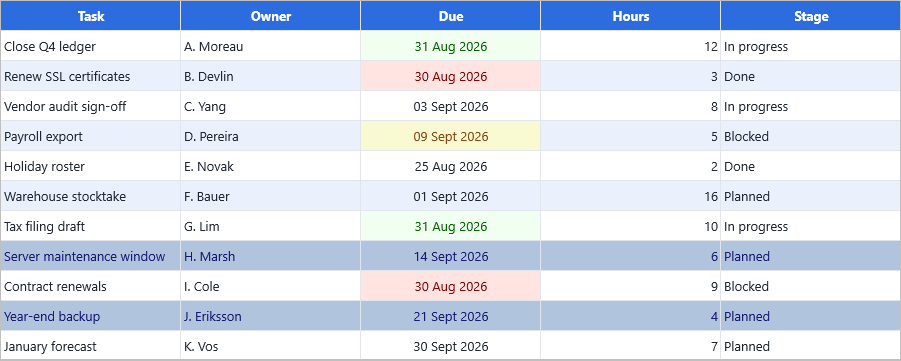
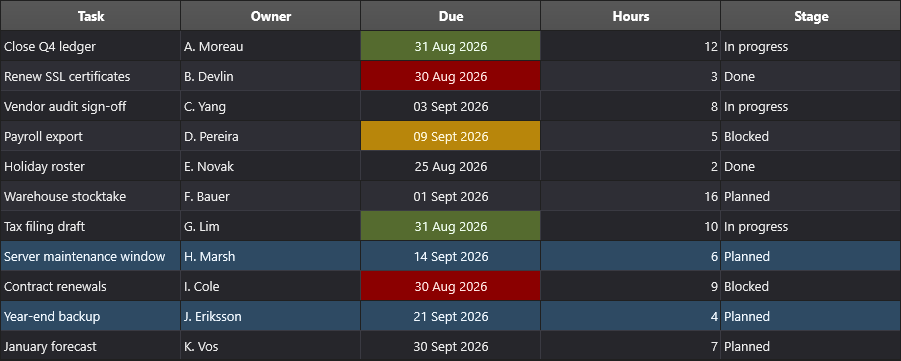
A task list with both kinds of date rule active. The Due cells carry the three
rolling buckets — green for today, red for yesterday, amber for next week — while
the explicit diCustomRange window is scoped with ForEntireRow, so a
maintenance window highlights the whole row rather than just its date cell.
Top/bottom ranking and averages
Ranking rules compare a cell against the rest of its scope rather than a fixed value — useful for "highlight the top 5 performers" or "flag rows below average" without recomputing thresholds by hand whenever the data changes.
AddTopBottomRulebuilds agrtTopBottomrule:RankKind(rkTop/rkBottom) selects which end,RankCountis the number of matching rows, andRankIsPercentreinterpretsRankCountas a percentage of the scope instead of an absolute count.AddAverageRulebuilds agrtAveragerule usingAverageKind(akAbove,akBelow,akAboveOrEqual,akBelowOrEqual,akAbovePlusStdDev,akBelowMinusStdDev) to flag values relative to the scope's mean, optionally offset by one standard deviation.AddDuplicateHighlightbuilds agrtUniqueDuplicaterule that flags values which repeat (dkDuplicate) or appear exactly once (dkUnique) within the scope.
procedure TForm1.FormCreate(Sender: TObject);
begin
  { Inside your form's OnCreate, after populating the grid: }

  // Rank the Sales column and highlight the top 5 rows. Use a higher
  // priority (lower number = evaluated/kept over lower-priority rules such
  // as a color scale on the same column) so the row tint wins visually.
  with Grid.ConditionalFormatting.AddTopBottomRule(COL_SALES, rkTop, 5) do
  begin
    Priority := 10;
    ApplyToEntireRow := True;
    Appearance.Fill.Color := gcLightgoldenrodyellow;
    Appearance.Font.Style := [TFontStyle.fsBold];
  end;

  // RankIsPercent turns RankCount into a percentage instead of an absolute
  // count, e.g. the bottom 10% of a Win % column:
  with Grid.ConditionalFormatting.AddTopBottomRule(COL_WIN, rkBottom, 10) do
  begin
    RankIsPercent := True;
    Appearance.Font.Color := gcRed;
  end;
end;
void __fastcall TForm1::FormCreate(TObject *Sender)
{
  /* Inside your form's OnCreate, after populating the grid: */

  // Rank the Sales column and highlight the top 5 rows. Use a higher
  // priority (lower number = evaluated/kept over lower-priority rules such
  // as a color scale on the same column) so the row tint wins visually.
  TTMSFNCDataGridFormatRuleItem *Rule = Grid->ConditionalFormatting->AddTopBottomRule(COL_SALES, rkTop, 5);
  Rule->Priority = 10;
  Rule->ApplyToEntireRow = true;
  Rule->Appearance->Fill->Color = gcLightgoldenrodyellow;
  Rule->Appearance->Font->Style = TFontStyles() << TFontStyle::fsBold;

  // RankIsPercent turns RankCount into a percentage instead of an absolute
  // count, e.g. the bottom 10% of a Win % column:
  Rule = Grid->ConditionalFormatting->AddTopBottomRule(COL_WIN, rkBottom, 10);
  Rule->RankIsPercent = true;
  Rule->Appearance->Font->Color = gcRed;
}
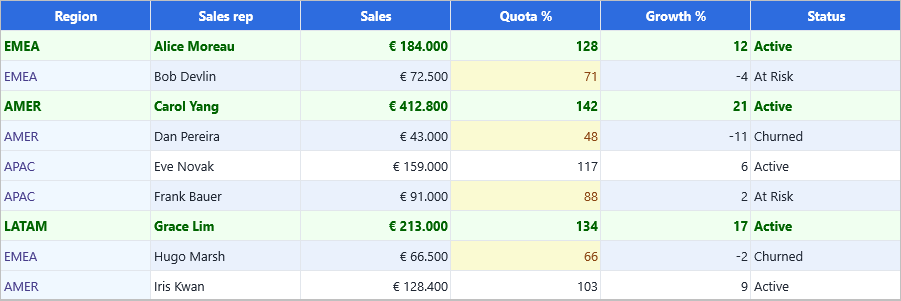
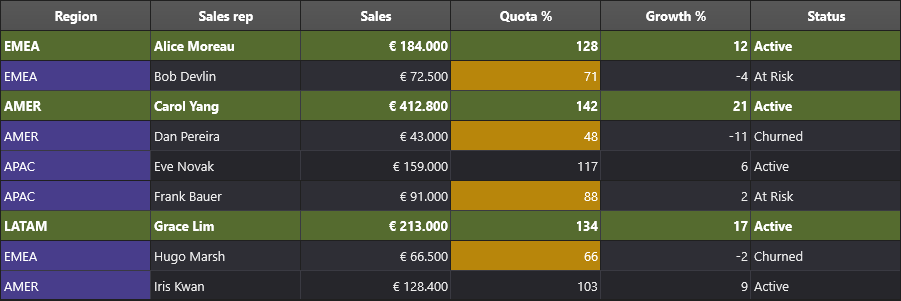
All three at once, and none of them names a threshold: the top three rows by
Sales are tinted across the row, Quota % cells below the column mean are
flagged amber, and the regions that occur more than once are marked — LATAM, the
only unique region, stays plain.
Because these rules derive their statistics from the scope, widening the scope
changes the answer: a grsGrid top-3 rule finds the three highest cells in the
whole grid, not three per column. See
Scope and priority.
Custom expressions
When a rule needs logic that spans multiple columns in the same row — not just one
column's value — use an expression rule instead of stacking several value rules.
AddExpressionRule builds a grtExpression rule whose Expression is evaluated
per row by the same engine — and in the same syntax — as the grid's filtering.
That syntax is chosen once, by
FilterFormatType on the grid,
so an expression you can type into the filter builder is also a valid
conditional-formatting expression, and the reverse.
Syntax
The default is the universal filter syntax, the same one Advanced filtering uses:
| Form | Example | Matches |
|---|---|---|
| Comparison | [3] > 3000 |
numeric or text comparison; also <, >=, <=, =, <> |
| Equality | [0] = "March" |
the value, in double quotes |
| Pattern | [0] = "M*" |
* = any characters, ? = exactly one |
| Contains | [0] = "*arch*" |
the pattern anywhere in the value |
| Combined | ([3] >= 3000) & ([4] <= 100) |
& = and, \| = or, with ( ) for grouping |
| Negated | NOT ([0] = "M*") |
inverts a condition or a parenthesised group |
Setting FilterFormatType to fftDelphiDataSet switches both filtering and
expression rules to the dataset syntax instead — [0] LIKE 'M%', values in
single quotes, AND / OR spelled out. A grid bound through a database adapter
that filters on the dataset itself uses that syntax automatically, whatever the
property says, because there the expression is handed to the dataset.
Whichever syntax is active, one rule holds: an operator the syntax does not
define makes the expression match nothing, and the design-time editor reports
it as invalid. Mixing the two dialects is the most common cause — LIKE in the
universal syntax, or & in the dataset syntax.
Referring to a column
[ ] holds the column's data name, which is the field name when a database
adapter is attached and the zero-based column index otherwise. So on an
unbound grid the first column is [0]; with an adapter bound to a Month field
it is [Month].
A condition without a column reference
An expression that names no column at all is applied to the rule's own Column,
using the shorthand a filter condition takes — so the shortest way to highlight
the months starting with M in column 1 is:
ri := Grid.ConditionalFormatting.Add;
ri.Column := 1;
ri.RuleType := grtExpression;
ri.Expression := '=M*';        // becomes [1] = "M*"
ri = Grid->ConditionalFormatting->Add;
ri->Column = 1;
ri->RuleType = grtExpression;
ri->Expression = L"=M*";        // becomes [1] = "M*"
The shorthand always takes * and ? as its wildcards, whatever syntax is
active — they are translated to the active format's own wildcards, so the same
shorthand keeps working if FilterFormatType changes. A leading operator is
optional (M* means the same as =M*), and anything containing [ is passed
through untouched, so full expressions are never rewritten.
procedure TForm1.FormCreate(Sender: TObject);
const
  COL_MONTH = 0;
  COL_GROWTH = 4;
  COL_QUOTA = 5;
begin
  { Inside your form's OnCreate, after populating the grid.

    Expression rules use the same syntax as the grid's filtering, selected by
    Grid.FilterFormatType. The default is the universal syntax used below. }

  { Columns are referenced by data name: the field name when a database adapter
    is attached, the zero-based column index otherwise. This grid is unbound, so
    the references are indices. }
  with Grid.ConditionalFormatting.AddExpressionRule(
    Format('([%d] < 0) & ([%d] >= 100)', [COL_GROWTH, COL_QUOTA])) do
  begin
    ApplyToEntireRow := True;
    Appearance.Fill.Color := gcMistyrose;
    Appearance.Font.Color := gcRed;
  end;

  { Text matching quotes the value and uses * and ? as wildcards. }
  with Grid.ConditionalFormatting.AddExpressionRule(
    Format('[%d] = "M*"', [COL_MONTH])) do
  begin
    Appearance.Fill.Color := gcHoneydew;
    Appearance.Font.Color := gcDarkgreen;
  end;

  { An expression that names no column applies to the rule's own Column. The
    shorthand always uses * and ?, whatever syntax is active. }
  with Grid.ConditionalFormatting.AddExpressionRule('=M*') do
  begin
    Column := COL_MONTH;
    Appearance.Font.Style := [TFontStyle.fsBold];
  end;

  { NOT inverts a condition or a parenthesised group. }
  with Grid.ConditionalFormatting.AddExpressionRule(
    Format('NOT ([%d] = "M*")', [COL_MONTH])) do
    Appearance.Font.Color := gcGray;
end;
void __fastcall TForm1::FormCreate(TObject *Sender)
{
  const int COL_MONTH = 0;
  const int COL_GROWTH = 4;
  const int COL_QUOTA = 5;

  /* Inside your form's OnCreate, after populating the grid.

     Expression rules use the same syntax as the grid's filtering, selected by
     Grid.FilterFormatType. The default is the universal syntax used below. */

  /* Columns are referenced by data name: the field name when a database adapter
     is attached, the zero-based column index otherwise. This grid is unbound, so
     the references are indices. */
  TTMSFNCDataGridFormatRuleItem *Rule = Grid->ConditionalFormatting->AddExpressionRule(
    Format("([%d] < 0) & ([%d] >= 100)", ARRAYOFCONST((COL_GROWTH, COL_QUOTA))));
  Rule->ApplyToEntireRow = true;
  Rule->Appearance->Fill->Color = gcMistyrose;
  Rule->Appearance->Font->Color = gcRed;

  /* Text matching quotes the value and uses * and ? as wildcards. */
  Rule = Grid->ConditionalFormatting->AddExpressionRule(
    Format("[%d] = \"M*\"", ARRAYOFCONST((COL_MONTH))));
  Rule->Appearance->Fill->Color = gcHoneydew;
  Rule->Appearance->Font->Color = gcDarkgreen;

  /* An expression that names no column applies to the rule's own Column. The
     shorthand always uses * and ?, whatever syntax is active. */
  Rule = Grid->ConditionalFormatting->AddExpressionRule("=M*");
  Rule->Column = COL_MONTH;
  Rule->Appearance->Font->Style = TFontStyles() << TFontStyle::fsBold;

  /* NOT inverts a condition or a parenthesised group. */
  Rule = Grid->ConditionalFormatting->AddExpressionRule(
    Format("NOT ([%d] = \"M*\")", ARRAYOFCONST((COL_MONTH))));
  Rule->Appearance->Font->Color = gcGray;
}
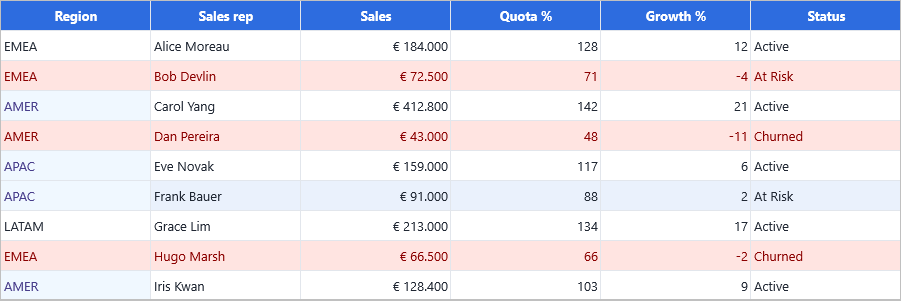
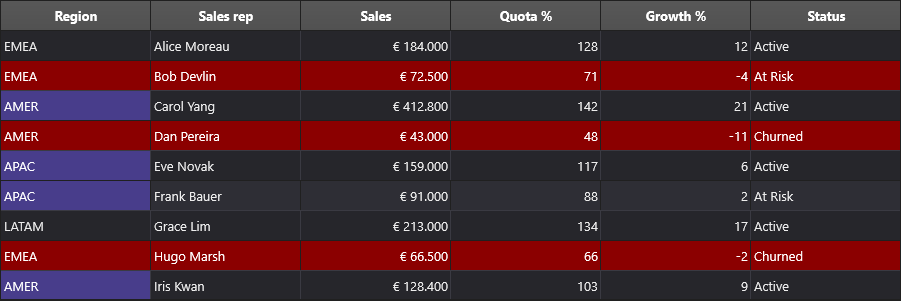
Both forms in one grid. The full expression ([3] < 100) & ([4] < 0) combines two
columns — under quota and shrinking — and, with ApplyToEntireRow, tints the
three rows that satisfy both. The shorthand =A* on the Region column needs no
column reference at all and marks the AMER and APAC rows.
Note
An operator the active syntax does not recognise does not raise an error, but it
does not match either: the rule formats no rows at all, and the design-time
editor's expression validator reports the expression as invalid. If an
expression rule silently formats nothing, check its operator against the table
above first — and check which syntax FilterFormatType selects.
Putting the condition types together
The four kinds of condition are meant to coexist, and the interesting part is how differently they age. Only the first line below names a value you will have to revisit; the date bucket follows the calendar, the ranking follows the data, and the expression follows both columns it reads.
procedure TForm1.FormCreate(Sender: TObject);
const
  COL_DUE = 2;
  COL_SALES = 3;
  COL_QUOTA = 4;
  COL_GROWTH = 5;
  COL_STATUS = 6;
begin
  { Inside your form's OnCreate, after populating the grid.

    Four conditions that age very differently: one literal you maintain, and
    three that restate themselves as the data or the calendar moves. }

  { A literal you chose: the terminal state gets its own colour. }
  with Grid.ConditionalFormatting.AddTextRule(COL_STATUS, gfcEqual, 'Churned') do
  begin
    Appearance.Fill.Color := gcMistyrose;
    Appearance.Font.Color := gcDarkred;
  end;

  { The calendar, not a literal: re-evaluated on every paint, so this keeps
    meaning "was due yesterday" as the days roll on. }
  Grid.ConditionalFormatting.AddDateHighlight(COL_DUE, diYesterday,
    gcMistyrose, gcDarkred);

  { The scope, not a literal: no threshold to revisit when the data grows. }
  Grid.ConditionalFormatting.AddTopBottomRule(COL_SALES, rkTop, 3)
    .ForEntireRow(COL_SALES)
    .Highlight(gcHoneydew, gcDarkgreen, True);

  { Two columns in one condition - under quota AND shrinking - which no
    single-column rule can express. }
  with Grid.ConditionalFormatting.AddExpressionRule(
    Format('([%d] < 100) & ([%d] < 0)', [COL_QUOTA, COL_GROWTH])) do
  begin
    ApplyToEntireRow := True;
    Appearance.Fill.Color := gcLightgoldenrodyellow;
    Appearance.Font.Color := gcSaddlebrown;
  end;
end;
void __fastcall TForm1::FormCreate(TObject *Sender)
{
  const int COL_DUE = 2;
  const int COL_SALES = 3;
  const int COL_QUOTA = 4;
  const int COL_GROWTH = 5;
  const int COL_STATUS = 6;

  /* Inside your form's OnCreate, after populating the grid.

     Four conditions that age very differently: one literal you maintain, and
     three that restate themselves as the data or the calendar moves. */

  /* A literal you chose: the terminal state gets its own colour. */
  TTMSFNCDataGridFormatRuleItem *Rule = Grid->ConditionalFormatting->AddTextRule(COL_STATUS, gfcEqual, "Churned");
  Rule->Appearance->Fill->Color = gcMistyrose;
  Rule->Appearance->Font->Color = gcDarkred;

  /* The calendar, not a literal: re-evaluated on every paint, so this keeps
     meaning "was due yesterday" as the days roll on. */
  Grid->ConditionalFormatting->AddDateHighlight(COL_DUE, diYesterday,
    gcMistyrose, gcDarkred);

  /* The scope, not a literal: no threshold to revisit when the data grows. */
  Grid->ConditionalFormatting->AddTopBottomRule(COL_SALES, rkTop, 3)
    ->ForEntireRow(COL_SALES)
    ->Highlight(gcHoneydew, gcDarkgreen, true);

  /* Two columns in one condition - under quota AND shrinking - which no
     single-column rule can express. */
  Rule = Grid->ConditionalFormatting->AddExpressionRule(
    Format("([%d] < 100) & ([%d] < 0)", ARRAYOFCONST((COL_QUOTA, COL_GROWTH))));
  Rule->ApplyToEntireRow = true;
  Rule->Appearance->Fill->Color = gcLightgoldenrodyellow;
  Rule->Appearance->Font->Color = gcSaddlebrown;
}
See also
- Conditional formatting overview
- Visual rules
- The fluent API — chaining these builders with scope and appearance
- Advanced filtering — the shared expression syntax
- API reference: TTMSFNCDataGridFormatRuleItem