Conditional formatting: the fluent API
Every builder on the ConditionalFormatting collection returns the rule it
created, and the rule's own scope and appearance helpers return the rule again.
That lets one statement say where a rule applies and what it looks like,
instead of a with block or a temporary variable per rule — which matters once a
grid carries a dozen rules and you want to read the intent of each at a glance.
This chapter is about shape rather than behaviour: the same rules described in Conditions and Visual rules, written more compactly.
procedure TForm1.ConfigureRules;
const
  COL_REGION = 0;
  COL_SALES  = 3;
  COL_QUOTA  = 4;
  COL_STATUS = 5;
begin
  Grid.ConditionalFormatting.BeginUpdate;
  try
    Grid.ConditionalFormatting.Clear;

    { Every For* helper sets Scope and the matching properties, and every
      appearance helper configures Appearance - both return the same rule, so
      one statement describes where a rule applies and what it looks like. }
    Grid.ConditionalFormatting.AddCellValueRule(COL_SALES, gfcGreater, '10000')
      .Highlight(gcHoneydew, gcDarkgreen, True);

    { ForEntireRow switches the rule to row highlighting while the value in the
      trigger column keeps driving the match. }
    Grid.ConditionalFormatting.AddTopBottomRule(COL_SALES, rkTop, 5)
      .ForEntireRow(COL_SALES)
      .Highlight(gcLightgoldenrodyellow);

    { A churned account should stand out across the whole row, so this is
      ForEntireRow too - driven by the Status text. }
    Grid.ConditionalFormatting.AddTextRule(COL_STATUS, gfcEqual, 'Churned')
      .ForEntireRow(COL_STATUS)
      .Highlight(gcMistyrose, gcDarkred);

    { ForColumns widens a rule across a column RANGE, and every cell in that
      range is evaluated against its OWN value - here any negative number in
      either numeric column. }
    Grid.ConditionalFormatting.AddCellValueRule(COL_SALES, gfcLess, '0')
      .ForColumns(COL_SALES, COL_QUOTA)
      .WithBorder(gcCrimson);

    { ForCellRange pins a rule to an explicit block of cells. }
    Grid.ConditionalFormatting.AddCellValueRule(COL_SALES, gfcGreater, '20000')
      .ForCellRange(COL_SALES, 1, COL_SALES, 20)
      .Highlight(gcHoneydew, gcDarkgreen, True);
  finally
    Grid.ConditionalFormatting.EndUpdate;
  end;
end;
void __fastcall TForm1::ConfigureRules()
{
  const int COL_REGION = 0;
  const int COL_SALES  = 3;
  const int COL_QUOTA  = 4;
  const int COL_STATUS = 5;

  Grid->ConditionalFormatting->BeginUpdate();
  try
  {
    Grid->ConditionalFormatting->Clear();

    /* Every For* helper sets Scope and the matching properties, and every
       appearance helper configures Appearance - both return the same rule, so
       one statement describes where a rule applies and what it looks like. */
    Grid->ConditionalFormatting->AddCellValueRule(COL_SALES, gfcGreater, "10000")
      ->Highlight(gcHoneydew, gcDarkgreen, true);

    /* ForEntireRow switches the rule to row highlighting while the value in the
       trigger column keeps driving the match. */
    Grid->ConditionalFormatting->AddTopBottomRule(COL_SALES, rkTop, 5)
      ->ForEntireRow(COL_SALES)
      ->Highlight(gcLightgoldenrodyellow);

    /* A churned account should stand out across the whole row, so this is
       ForEntireRow too - driven by the Status text. */
    Grid->ConditionalFormatting->AddTextRule(COL_STATUS, gfcEqual, "Churned")
      ->ForEntireRow(COL_STATUS)
      ->Highlight(gcMistyrose, gcDarkred);

    /* ForColumns widens a rule across a column RANGE, and every cell in that
       range is evaluated against its OWN value - here any negative number in
       either numeric column. */
    Grid->ConditionalFormatting->AddCellValueRule(COL_SALES, gfcLess, "0")
      ->ForColumns(COL_SALES, COL_QUOTA)
      ->WithBorder(gcCrimson);

    /* ForCellRange pins a rule to an explicit block of cells. */
    Grid->ConditionalFormatting->AddCellValueRule(COL_SALES, gfcGreater, "20000")
      ->ForCellRange(COL_SALES, 1, COL_SALES, 20)
      ->Highlight(gcHoneydew, gcDarkgreen, true);
  }
  __finally
  {
    Grid->ConditionalFormatting->EndUpdate();
  }
}
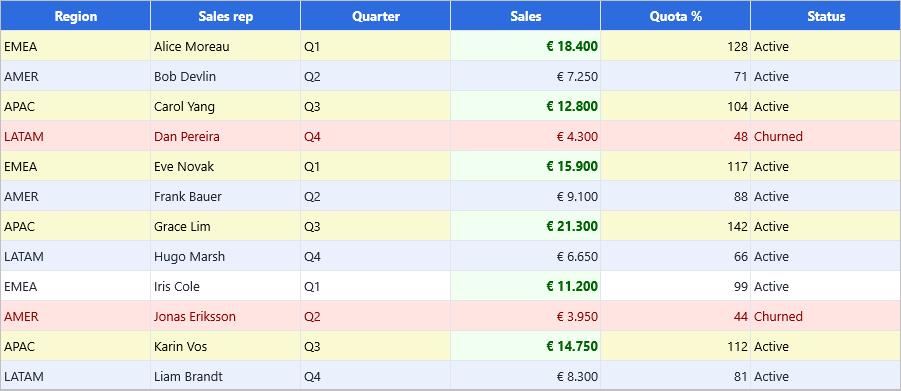
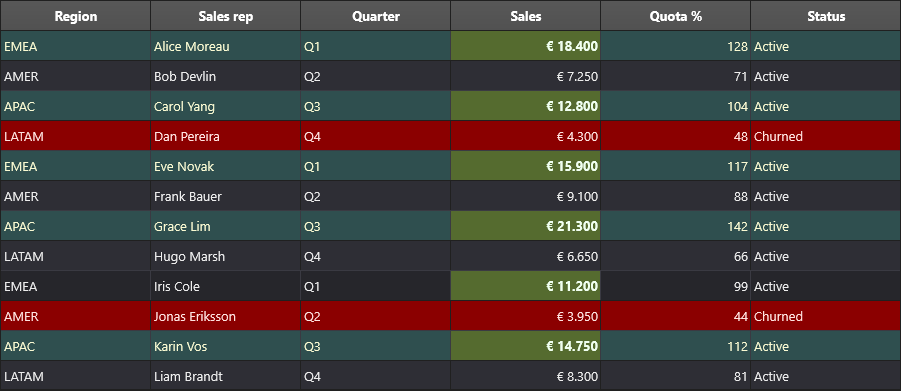
The three rules from that snippet, rendered: a bold green value highlight on
Sales over 10,000, the top five rows tinted through ForEntireRow, and the
churned accounts flagged across the full row.
Tip
Pass a font color, not just a fill. When the grid adapts to a dark style
(AdaptToStyle), a rule that sets only Fill keeps the theme's light font
color, so a light highlight ends up with near-invisible text. Highlight takes
the font color as its second argument for exactly this reason — the capture
above uses a different fill/font pair per theme.
Scope helpers
| Method | Sets |
|---|---|
ForColumn(AColumn) |
Scope := grsColumn and Column. |
ForColumns(AFirst, ALast) |
Scope := grsColumnRange, Column and ColumnTo. |
ForCellRange(AStartCol, AStartRow, AEndCol, AEndRow) |
Scope := grsCellRange, the four CellRange* corners, and clears ApplyToEntireRow. |
ForEntireRow(AValueColumn) |
Scope := grsColumn, Column, and ApplyToEntireRow := True — the row is highlighted, the named column drives the match. |
Important
ForColumns and ForCellRange widen which cells are evaluated, and every
cell in the range is tested against its own value. They are not a way to
spread one column's condition across a row: a "flag the whole row when Status
is Churned" rule needs ForEntireRow(StatusColumn), because with
ForColumns(0, 5) only the Status cell itself holds the text Churned and
only that one cell is formatted. Use a column range for a condition that is
meaningful per cell — "any negative number in either amount column".
Appearance and value helpers
| Method | Sets |
|---|---|
Highlight(AFill, AText = gcNull, ABold = False) |
A solid fill, optionally a font color and bold. Pass gcNull for a color you do not want to change. |
WithBorder(AColor) |
A solid border stroke in the given color. |
WithValue(AValue: TTMSFNCValue) |
Value1, from a typed value. |
WithRange(AFrom, ATo: TTMSFNCValue) |
Value1 and Value2, from typed values. |
WithDateRange(AFrom, ATo: TDateTime) |
RuleType := grtDate, DateInterval := diCustomRange, and both inclusive bounds. |
Important
WithValue and WithRange set only the values. They do not touch
Comparison, and a freshly created rule compares with gfcEqual — so a
WithRange call on its own gives you an equality test against Value1, not a
between test. Set Comparison := gfcBetween as well, or use
AddValueRangeHighlight, which sets both. WithDateRange is the exception:
it does set RuleType and DateInterval for you.
One-call highlight builders
The Add*Highlight family folds "make a rule" and "make it look like this" into
a single call — the shortest form when you only need a fill and a font color:
| Builder | Rule it creates |
|---|---|
AddValueHighlight(Column, Comparison, Value, Fill, Text) |
A grtCellValue rule with the fill and font applied. |
AddValueRangeHighlight(Column, Minimum, Maximum, Fill, Text) |
A gfcBetween value rule across the two bounds. |
AddTextHighlight(Column, Comparison, Text, Fill, TextColor) |
A grtText rule. |
AddDateHighlight(Column, Interval, Fill, Text) |
A grtDate rule bucketed by TTMSFNCDataGridDateInterval. |
AddDateRangeHighlight(Column, From, To, Fill, Text) |
A grtDate rule over the inclusive explicit range From..To. |
AddDuplicateHighlight(Column, Kind, Fill, Text) |
A grtUniqueDuplicate rule for duplicate or unique values. |
AddExpressionHighlight(Expression, Fill, Text) |
A grtExpression rule. |
Which aspects a rule claims
Merging is per aspect, not per rule, and AppearanceAspects reports which
aspects a rule actually sets — the members of
TTMSFNCDataGridFormatAspect such as
gfaFill, gfaFontColor or gfaFontStyle. An aspect counts as claimed when it
differs from a freshly created rule's appearance, which has one consequence worth
knowing: a rule cannot force an aspect back to its own default. A rule cannot,
for example, force gtaLeading alignment onto a column that is aligned otherwise,
because leaving the alignment at the default is indistinguishable from not setting
it. Set the aspect to a non-default value, or handle the case in
OnGetCellLayout instead.
A color scale always claims exactly [gfaFill], and overlay rules (data bar,
icon set) claim nothing — they draw on top rather than contributing appearance.
Which aspects a rule claims is exactly what decides the outcome when two rules overlap, because the first rule to claim an aspect keeps it — see How overlapping rules merge.
Putting the helpers together
Four rules, four statements. The first three each chain a scope helper with an appearance or value helper; the fourth needs no chaining at all, because a one-call builder already covers it. Nothing here is new behaviour — it is the same rules the other chapters describe, written to be read at a glance:
procedure TForm1.FormCreate(Sender: TObject);
const
  COL_REGION = 0;
  COL_SALES = 3;
  COL_QUOTA = 4;
  COL_STATUS = 5;
begin
  { Inside your form's OnCreate, after populating the grid. }

  { Scope helper + appearance helper: the row is tinted, the Sales column decides. }
  Grid.ConditionalFormatting.AddTopBottomRule(COL_SALES, rkTop, 5)
    .ForEntireRow(COL_SALES)
    .Highlight(gcHoneydew, gcDarkgreen, True);

  { Scope helper + value helper: a band over an explicit cell block, with the
    bounds passed as typed values rather than formatted strings. WithRange fills
    only Value1/Value2 - a new rule compares with gfcEqual, so the comparison
    has to be set as well. }
  with Grid.ConditionalFormatting.Add
    .ForCellRange(COL_SALES, 1, COL_QUOTA, Grid.RowCount - 1)
    .WithRange(TValue.From<Integer>(5000), TValue.From<Integer>(15000))
    .Highlight(gcAliceblue, gcDarkslateblue) do
    Comparison := gfcBetween;

  { Scope helper + border helper, with no fill change at all. }
  Grid.ConditionalFormatting.AddTextRule(COL_STATUS, gfcEqual, 'At Risk')
    .ForColumn(COL_STATUS)
    .WithBorder(gcDarkorange);

  { No chaining needed: the one-call builder sets rule, condition and appearance. }
  Grid.ConditionalFormatting.AddDuplicateHighlight(COL_REGION, dkDuplicate,
    gcLightgoldenrodyellow, gcSaddlebrown);
end;
void __fastcall TForm1::FormCreate(TObject *Sender)
{
  const int COL_REGION = 0;
  const int COL_SALES = 3;
  const int COL_QUOTA = 4;
  const int COL_STATUS = 5;

  /* Inside your form's OnCreate, after populating the grid. */

  /* Scope helper + appearance helper: the row is tinted, the Sales column decides. */
  Grid->ConditionalFormatting->AddTopBottomRule(COL_SALES, rkTop, 5)
    ->ForEntireRow(COL_SALES)
    ->Highlight(gcHoneydew, gcDarkgreen, true);

  /* Scope helper + value helper: a band over an explicit cell block, with the
     bounds passed as typed values rather than formatted strings. WithRange fills
     only Value1/Value2 - a new rule compares with gfcEqual, so the comparison
     has to be set as well. */
  TTMSFNCDataGridFormatRuleItem *Rule = Grid->ConditionalFormatting->Add()
    ->ForCellRange(COL_SALES, 1, COL_QUOTA, Grid->RowCount - 1)
    ->WithRange(TValue::From<int>(5000), TValue::From<int>(15000))
    ->Highlight(gcAliceblue, gcDarkslateblue);
  Rule->Comparison = gfcBetween;

  /* Scope helper + border helper, with no fill change at all. */
  Grid->ConditionalFormatting->AddTextRule(COL_STATUS, gfcEqual, "At Risk")
    ->ForColumn(COL_STATUS)
    ->WithBorder(gcDarkorange);

  /* No chaining needed: the one-call builder sets rule, condition and appearance. */
  Grid->ConditionalFormatting->AddDuplicateHighlight(COL_REGION, dkDuplicate,
    gcLightgoldenrodyellow, gcSaddlebrown);
}