Getting started
Requirements
- Delphi 10.1 Berlin or later
- TMS FNC Core (required dependency)
- TMS FNC UI Pack
Drop the component
- Drop a
TTMSFNCNavigationPanelonto a form. - Set
AligntoLeftto dock it as a sidebar. - Add items in the Object Inspector by expanding
Panels, or at runtime with thePanelscollection / theAddPanelhelper.
Minimal example
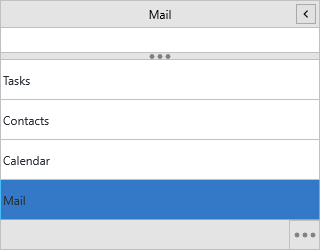
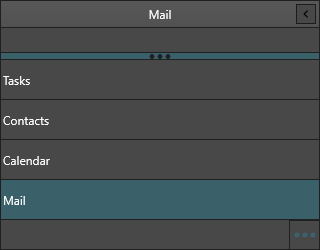
This docks the panel, replaces the sample items with three of your own, and switches a content area when an item is clicked:
procedure TForm1.FormCreate(Sender: TObject);
begin
  NavigationPanel1.Align := TAlignLayout.Left;
  NavigationPanel1.Width := 220;

  NavigationPanel1.BeginUpdate;
  try
    NavigationPanel1.Panels.Clear;
    NavigationPanel1.AddPanel('Mail');
    NavigationPanel1.AddPanel('Calendar');
    NavigationPanel1.AddPanel('Contacts');
  finally
    NavigationPanel1.EndUpdate;
  end;

  NavigationPanel1.ActivePanelIndex := 0;
end;

procedure TForm1.NavigationPanel1ItemClick(Sender: TObject; AItemIndex: Integer);
begin
  // Show the view that matches the clicked item.
  ContentLayout.Visible := True;
  Caption := 'Selected panel ' + IntToStr(AItemIndex);
end;
void __fastcall TForm1::FormCreate(TObject *Sender)
{
  NavigationPanel1->Align = TAlignLayout::Left;
  NavigationPanel1->Width = 220;

  NavigationPanel1->BeginUpdate();
  try
  {
    NavigationPanel1->Panels->Clear();
    NavigationPanel1->AddPanel("Mail");
    NavigationPanel1->AddPanel("Calendar");
    NavigationPanel1->AddPanel("Contacts");
  }
  __finally
  {
    NavigationPanel1->EndUpdate();
  }

  NavigationPanel1->ActivePanelIndex = 0;
}

void __fastcall TForm1::NavigationPanel1ItemClick(TObject *Sender, int AItemIndex)
{
  // Show the view that matches the clicked item.
  ContentLayout->Visible = true;
  Caption = "Selected panel " + IntToStr(AItemIndex);
}
Note
The collection property is Panels, not Items. AddPanel(AText) adds an
item and sets both its Text and CompactText; for finer control add through
Panels.Add and set the item properties individually.
Next steps
- Managing panels and items — item properties, content sections, bitmaps, badges
- Display modes and compact mode — items, buttons, mixed and compact layouts
- Overflow and the splitter — splitter, item/button limits, options menu
- Appearance — item, button and panel styling
- Selection and events — selecting panels and handling clicks
- Custom drawing — owner-draw events